Import products and edit in bulk
Add many products at once from a spreadsheet file, follow the import, and change many products in one table.
Import products from a CSV file
A CSV file is a spreadsheet saved as plain text. Excel and Google Sheets can save one (File → Save as or Download → CSV). RetailPrime reads the same columns as Shopify’s product CSV, so a file exported from Shopify, or from RetailPrime’s own Export, works.
Make the file
One row is one variant. Rows with the same Handle belong to the same product and must be next to each other. Here is a small file with two products: Ankle Socks in three sizes, and Bamboo Socks with no options.
Handle,Title,Body (HTML),Vendor,Tags,Status,Option1 Name,Option1 Value,Variant SKU,Variant Price,Variant Inventory Tracker
ankle-socks,Ankle Socks,<p>Short socks for trainers.</p>,Sunny Socks,socks,active,Size,S,AS-S,900,shopify
ankle-socks,,,,,,,M,AS-M,900,shopify
ankle-socks,,,,,,,L,AS-L,950,shopify
bamboo-socks,Bamboo Socks,<p>Soft bamboo socks.</p>,Sunny Socks,socks,draft,Title,Default Title,BS-1,1100,shopify| Column | What goes in it |
|---|---|
| Handle | A short name for the product, with no spaces, on every row (it becomes the end of the product’s web address) |
| Title, Body (HTML), Vendor, Tags, Status | Filled on the product’s first row only. Status is active, draft or archived |
| Option1 Name / Option1 Value | The option (such as Size) on the first row, and each variant’s value on its own row. A product without options uses Title and Default Title |
| Variant SKU, Variant Price | Each variant’s SKU and price |
| Variant Inventory Tracker | shopify to tick Track quantity, or empty to leave it unticked. Use shopify if you want to count stock, and to import quantities later |
Upload it
- Go to Products and press Import at the top.
- A box opens: Import products. Press Choose CSV file and pick your file.
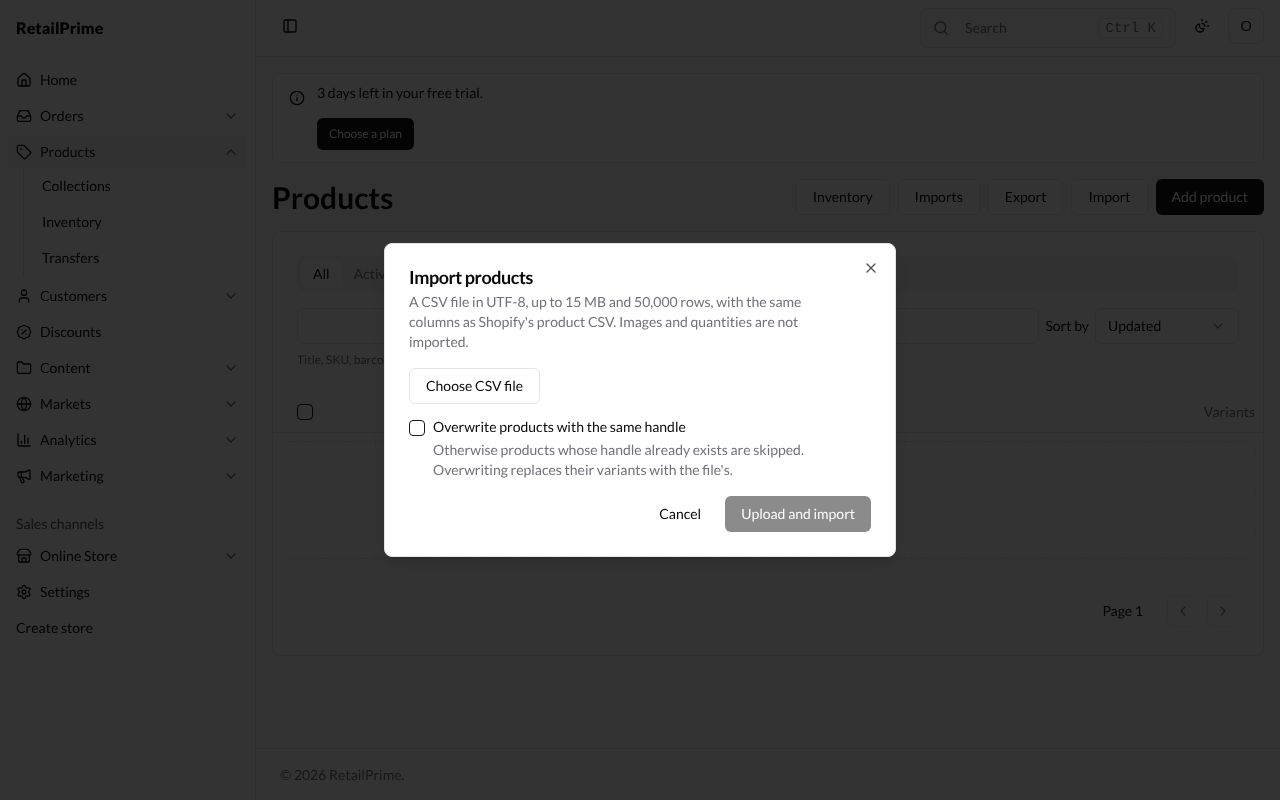
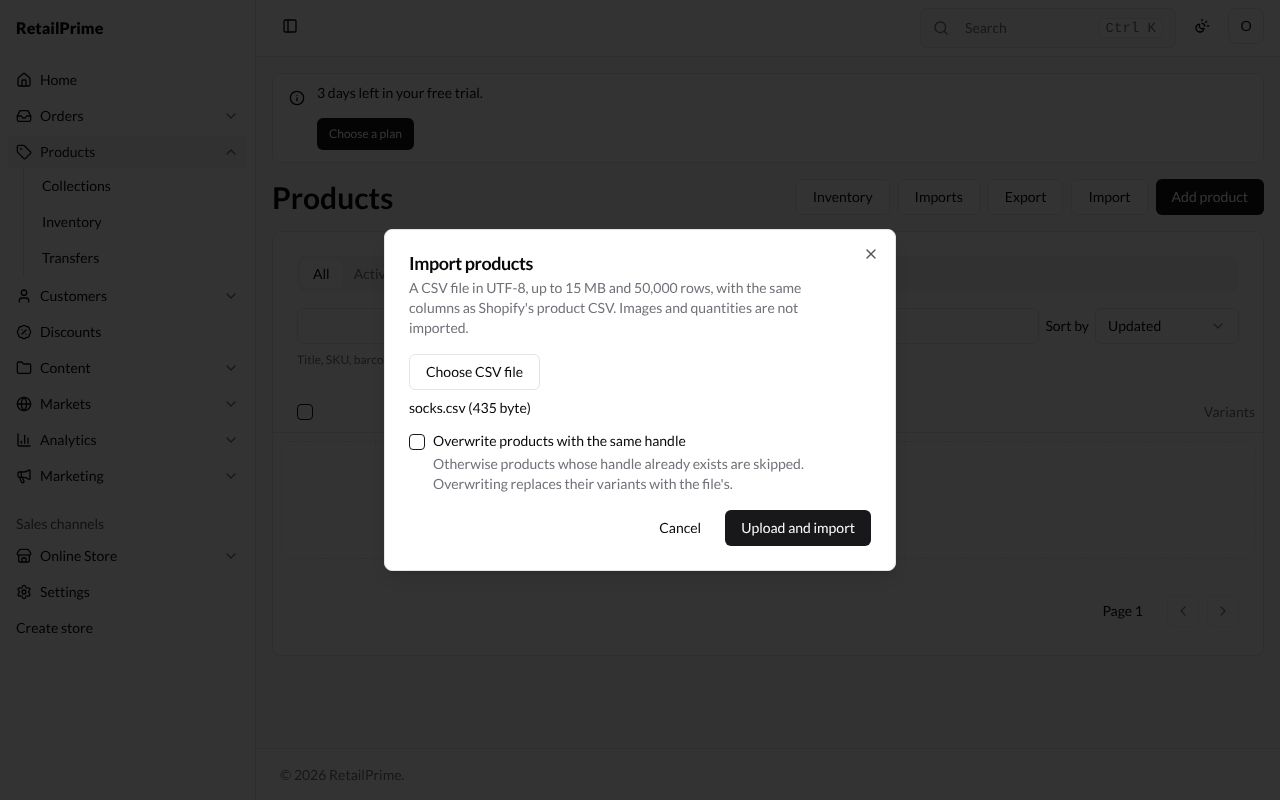
- The file’s name and size appear under the button.
- Overwrite products with the same handle: leave it empty to skip products whose handle you already have. Tick it to replace them; overwriting replaces their variants with the file’s.
- Press Upload and import.
Follow the import
The import’s own page opens, named after your file. The import runs by itself; you can leave the page and come back.
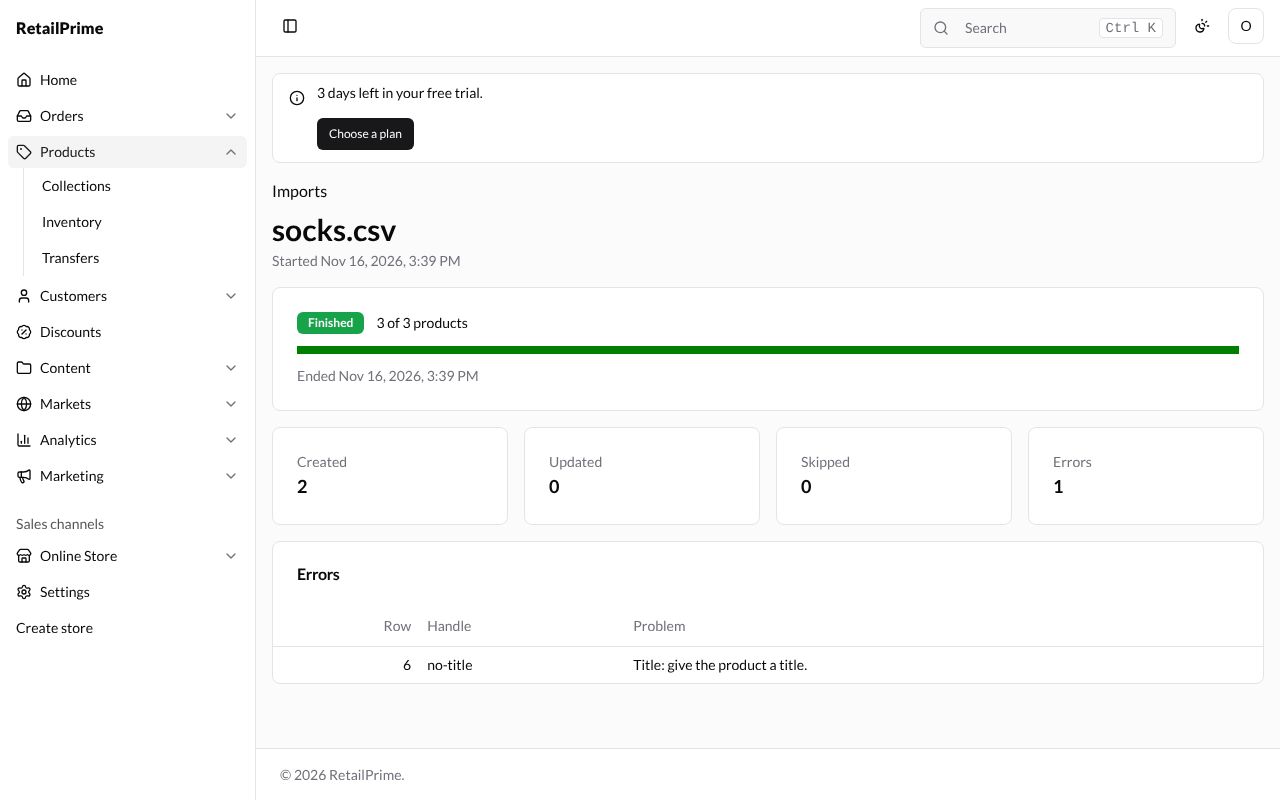
| Part | What it shows |
|---|---|
| The status | Waiting, Importing, Finished or Failed |
| 3 of 3 products and the bar | How far it has got |
| Created, Updated, Skipped | New products, products overwritten, and products skipped because their handle already exists |
| Errors | Rows that couldn’t be imported. The table gives the Row of the file, the Handle and the Problem |
Here row 6 had a handle but no title, so it says Title: give the product a title. Fix the row in your file and import it again.
All your imports
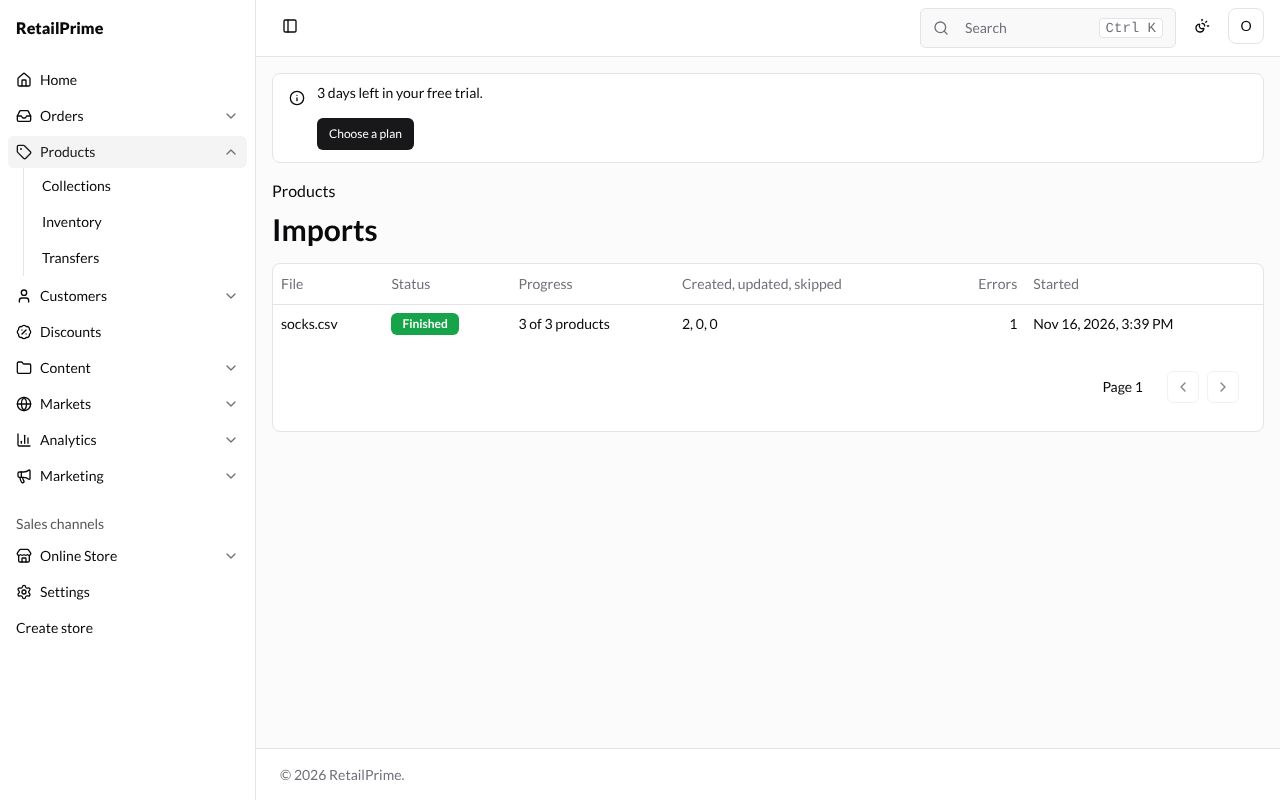
Press Imports above the file name (or the Imports button on the products list). You see every import with its Status, Progress, how many were Created, updated, skipped, its Errors and when it Started. Press a file name to open its page.
Edit many products in one table
The bulk editor shows the products you choose in one table, like a spreadsheet, so you can change many prices or SKUs quickly.
- Go to Products and tick the products to change (the box in the heading row ticks the whole page). The bulk editor takes up to 50 products at a time.
- In the bar above the list, press Edit products.
The Edit products page lists one row per product, with its title and Status. A product with options has a row under it for each variant (here S, M and L), with its Price, Compare-at price, SKU and Barcode.
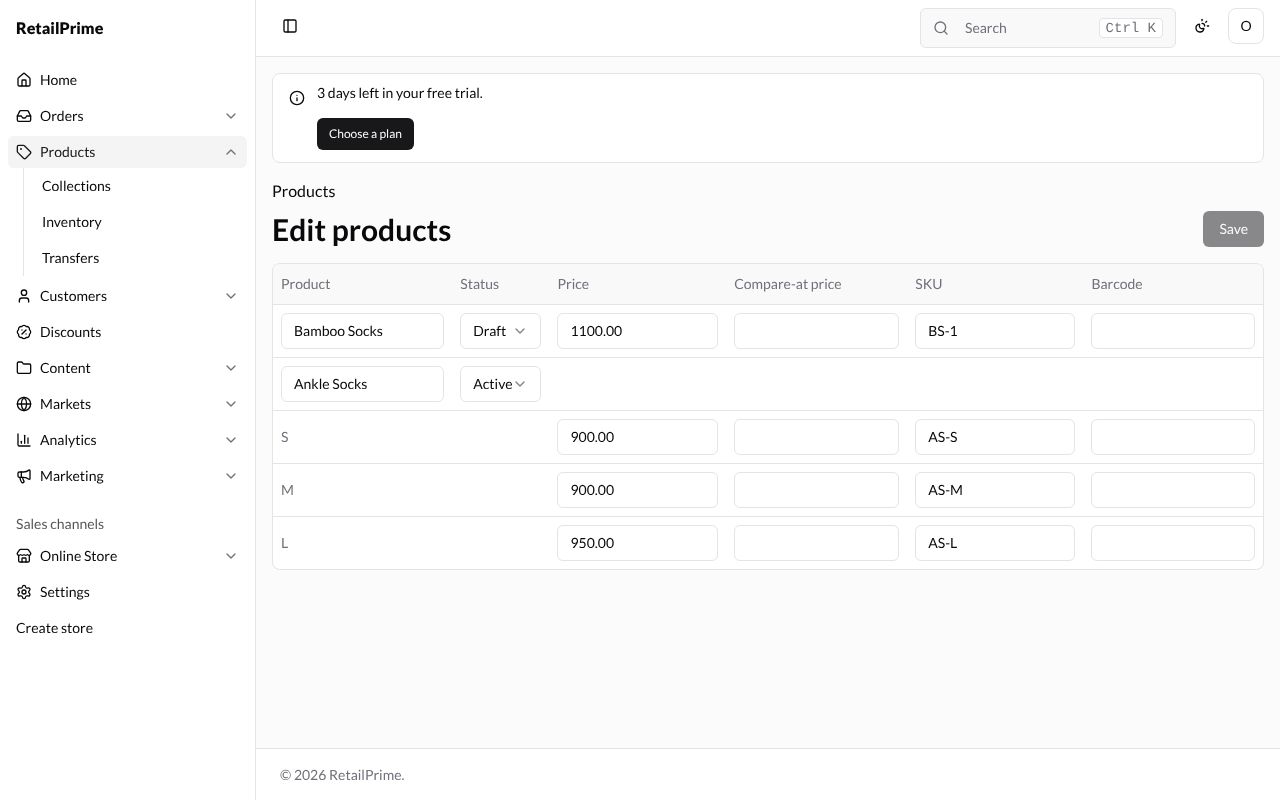
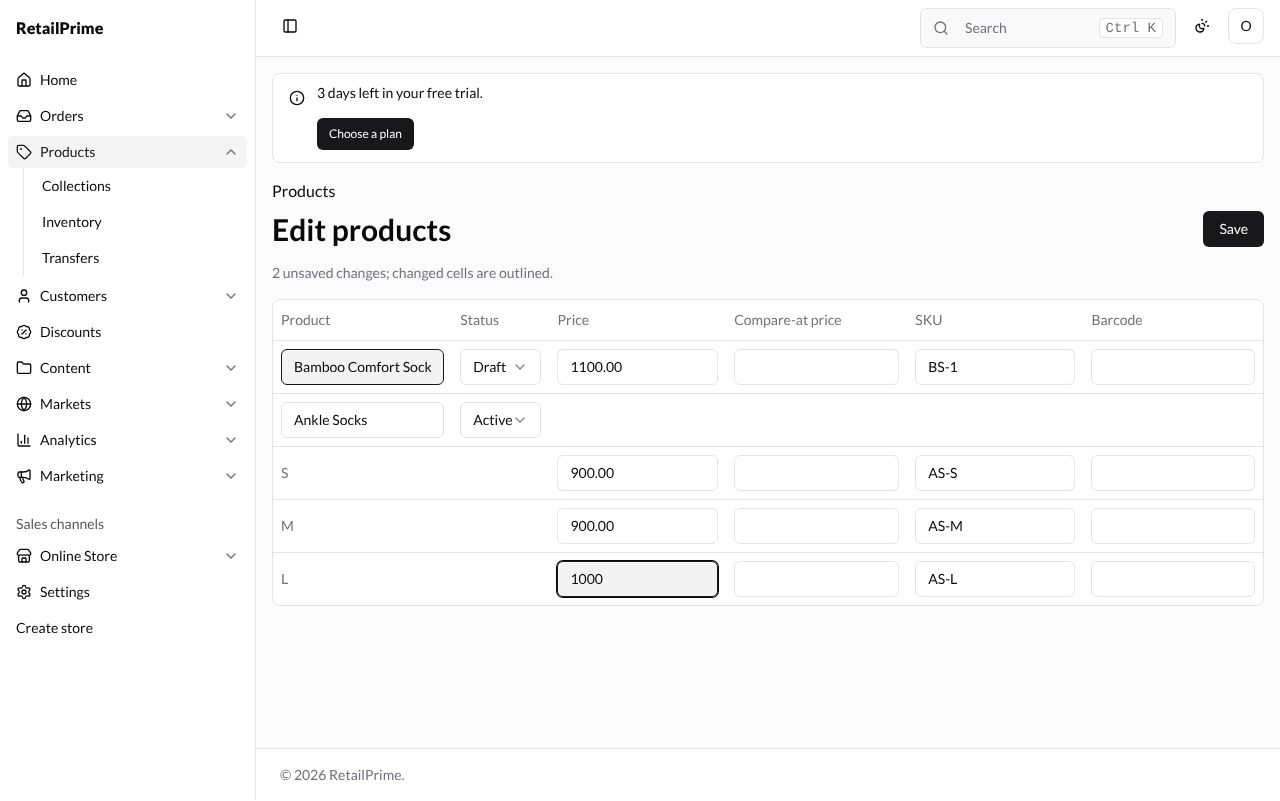
- Click a box and type the new value. Here we rename Bamboo Socks to
Bamboo Comfort Socksand change the price of Ankle Socks – L to1000. - Changed boxes are outlined, and the top says how many changes are unsaved (2 unsaved changes; changed cells are outlined.).
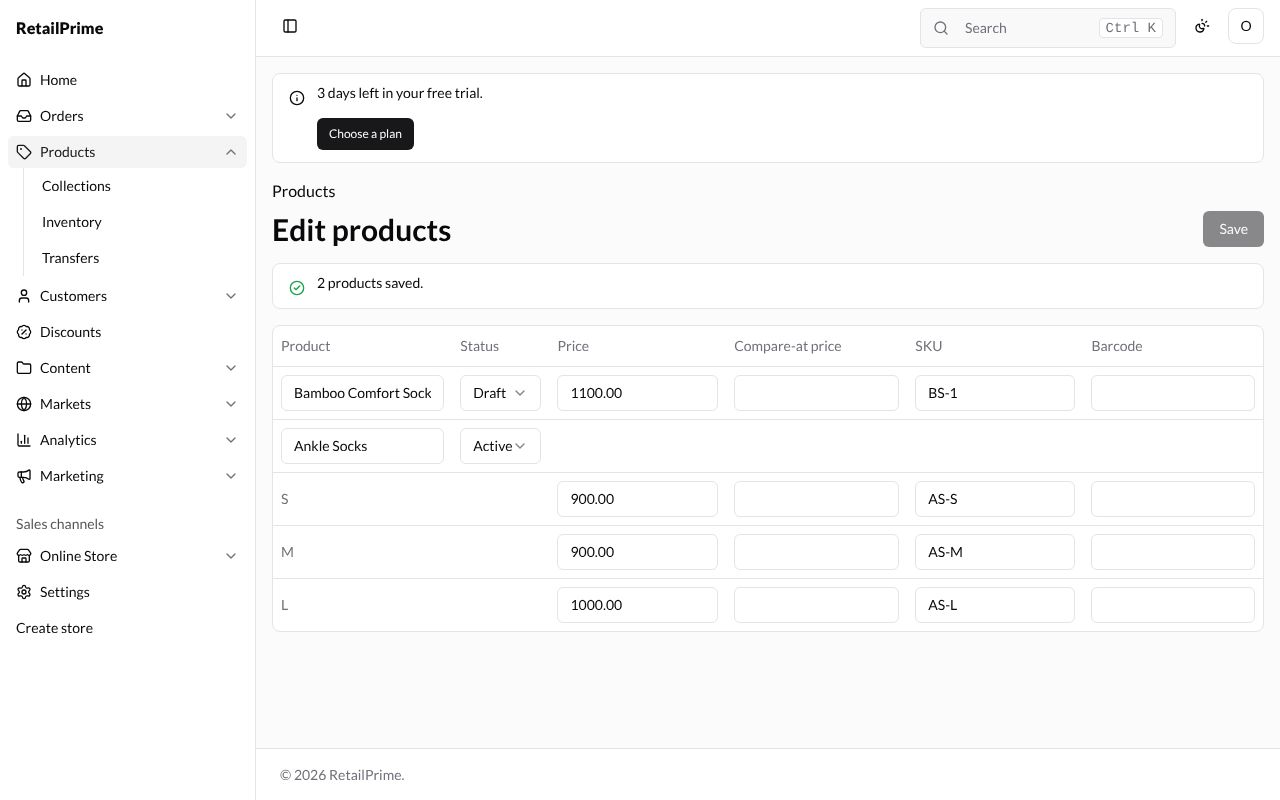
- Press Save. The page says 2 products saved.
To go back, press Products above the page title.
What’s next
You have finished products and inventory. Next, part 3: Add and edit a customer, the first page of orders and customers.