Campaigns
Make a campaign for a sale, share tracked links and QR codes, add a discount code to a link, put emails in it, and see the visits and sales it brings.
A campaign groups everything you do for one sale or launch, such as a winter sale: the links you share on Instagram or print on a flyer, and the emails you send. Its report shows the visits, orders and sales it brought in.
Open Campaigns
In the sidebar, press Marketing, then Campaigns. The page says Group your emails and tracked links under one name, and see what they bring in. A new store has No campaigns yet.
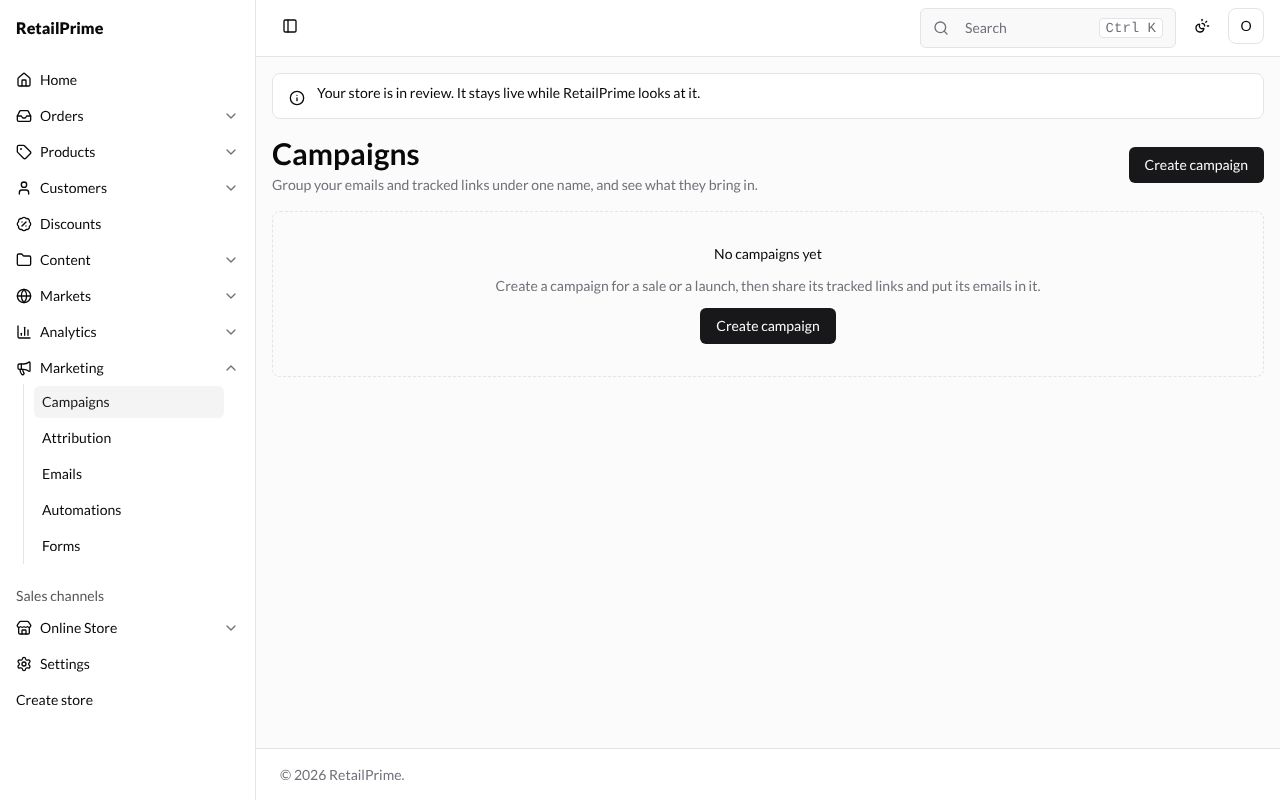
Create a campaign
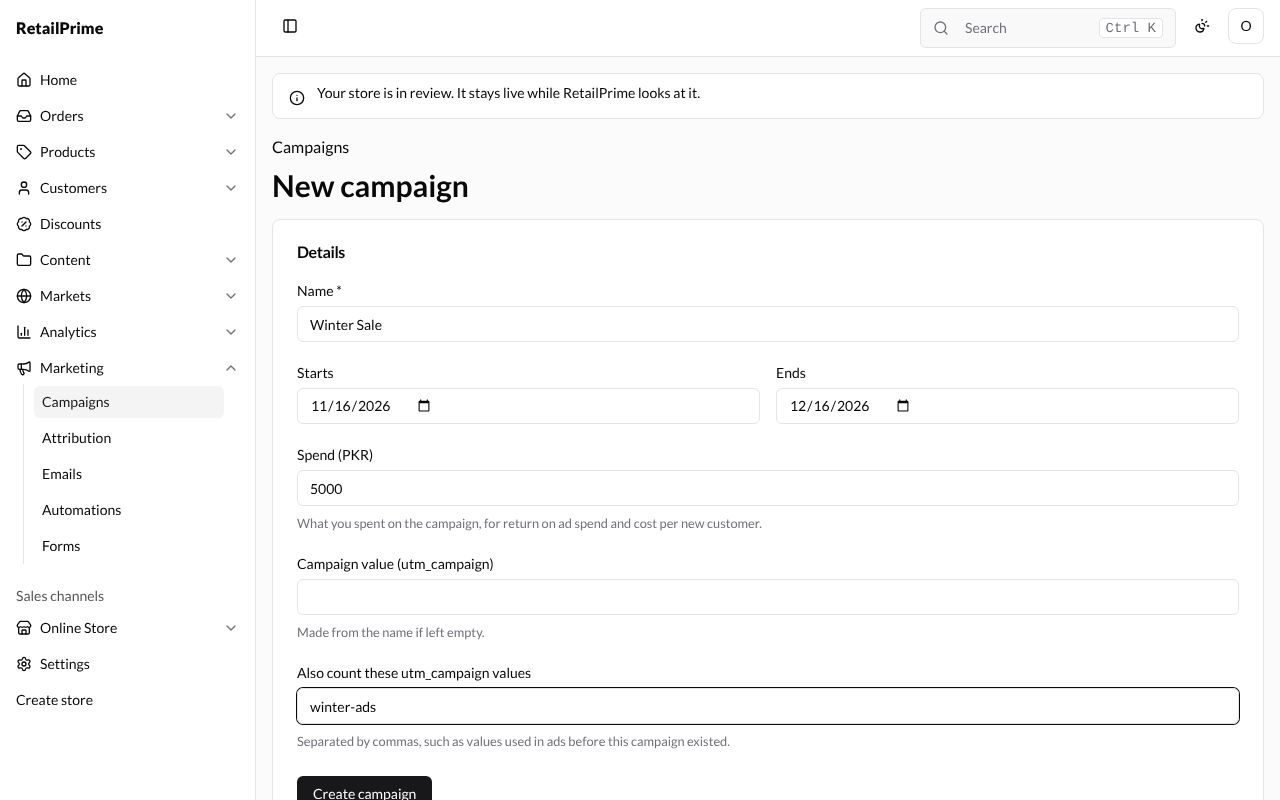
- Press Create campaign. The New campaign page has one card, Details:
| Box | What to type | Example |
|---|---|---|
| Name | The campaign’s name | Winter Sale |
| Starts and Ends | Its dates (optional) | today, and a month later |
| Spend (PKR) | What you spent on the campaign, for return on ad spend and cost per new customer. | 5000 |
| Campaign value (utm_campaign) | The word its links carry. Made from the name if left empty. | (empty: it becomes winter-sale) |
| Also count these utm_campaign values | Separated by commas, such as values used in ads before this campaign existed. | winter-ads |
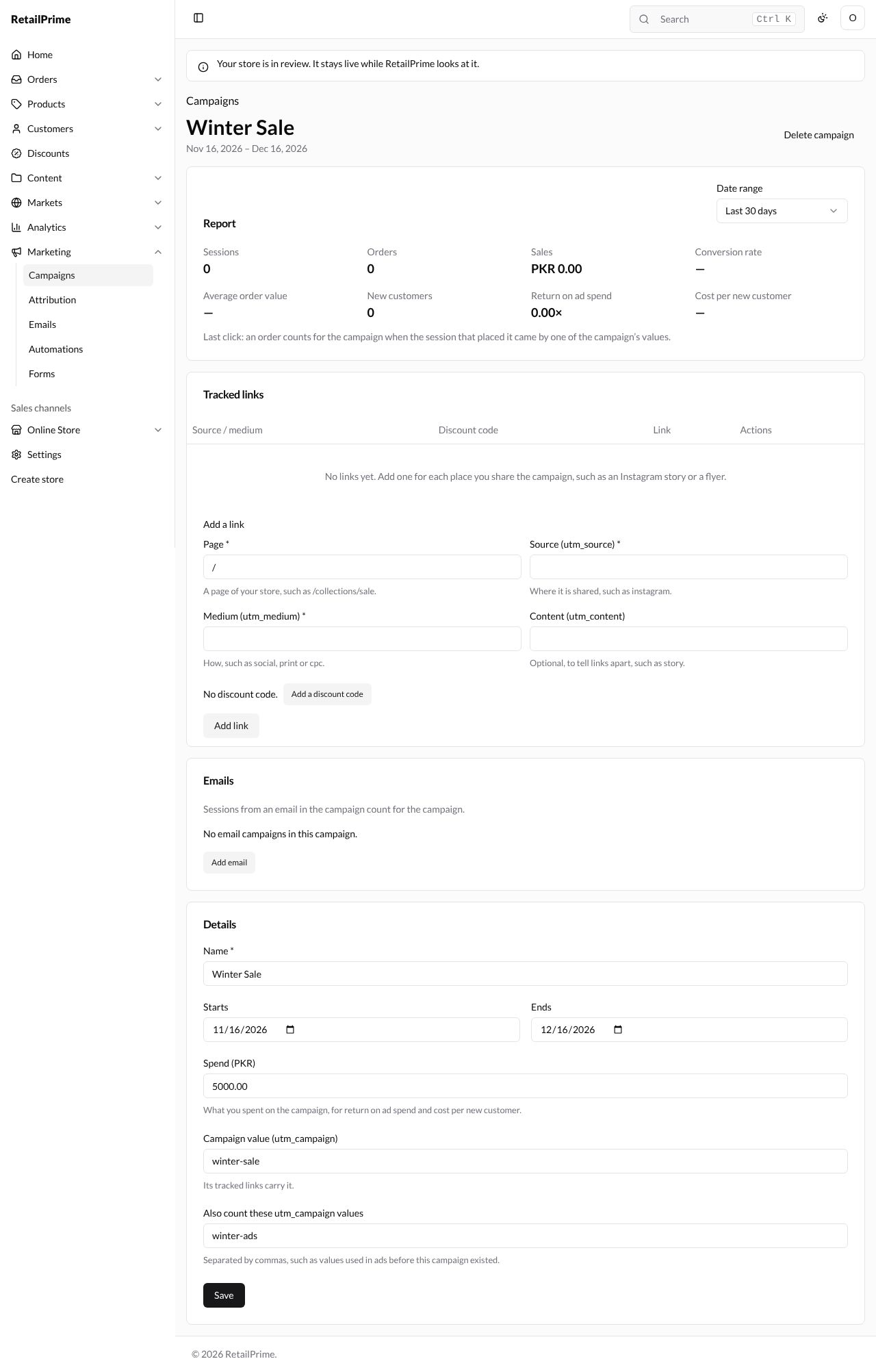
- Press Create campaign. The campaign’s page opens with its dates under its name, and four cards: Report, Tracked links, Emails and Details.
Add a tracked link
A tracked link is a link to your store with the campaign’s name in it, so RetailPrime knows a visitor came from it. Make one for each place you share the campaign.
Under Add a link:
| Box | What to type | Example |
|---|---|---|
| Page | A page of your store, such as /collections/sale. | / (the home page) |
| Source (utm_source) | Where it is shared, such as instagram. | instagram |
| Medium (utm_medium) | How, such as social, print or cpc. | social |
| Content (utm_content) | Optional, to tell links apart, such as story. | story |
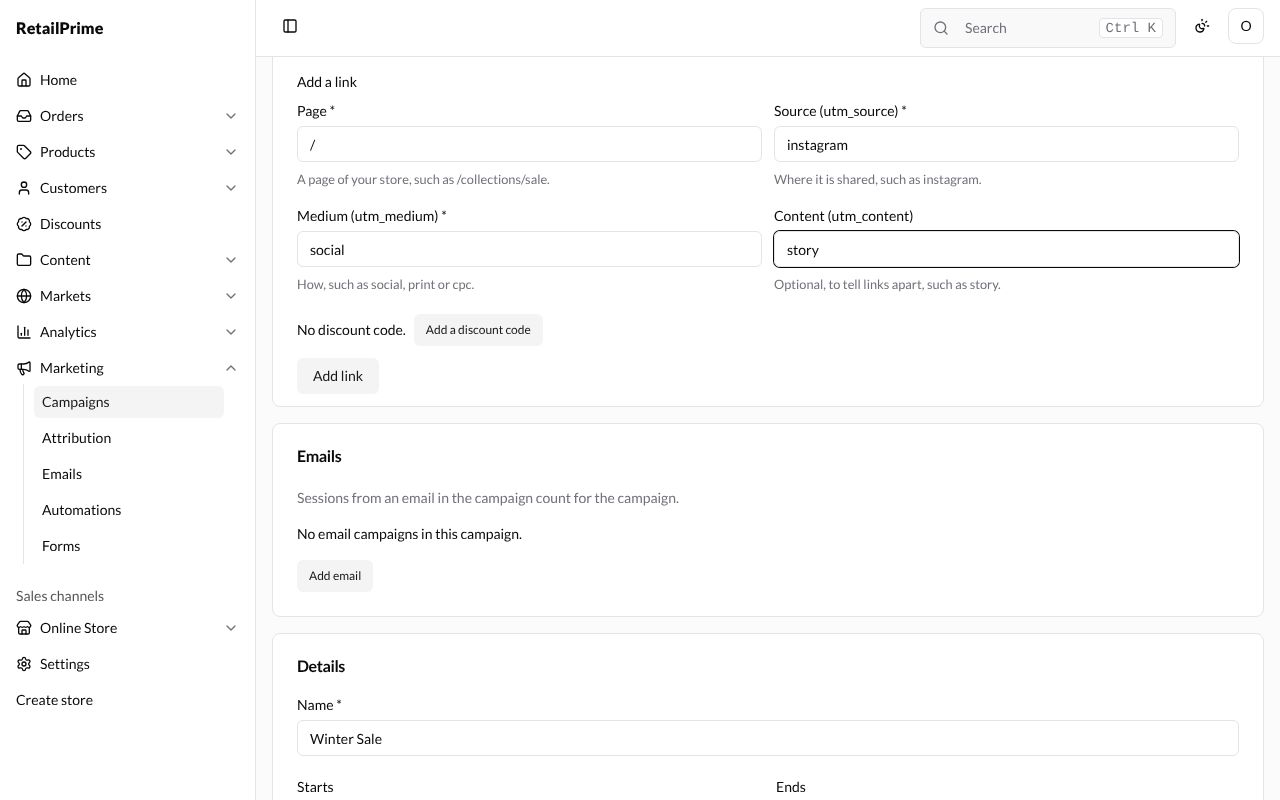
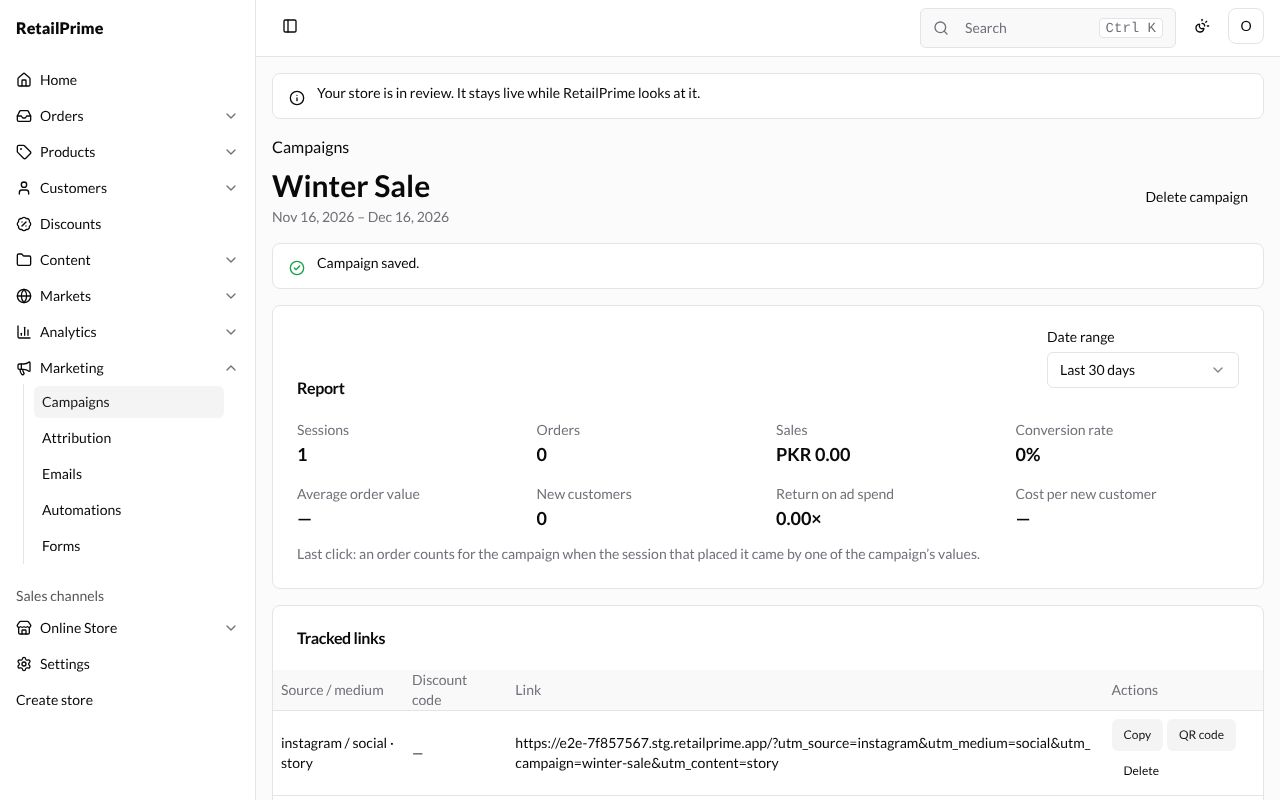
Press Add link. The link appears in the Tracked links table with its Source / medium, Discount code and the Link itself, such as https://…stg.retailprime.app/?utm_source=instagram&utm_medium=social&utm_campaign=winter-sale&utm_content=story.
Each link has three buttons under Actions:
- Copy: copies the link, to paste where you share it. The button says Copied.
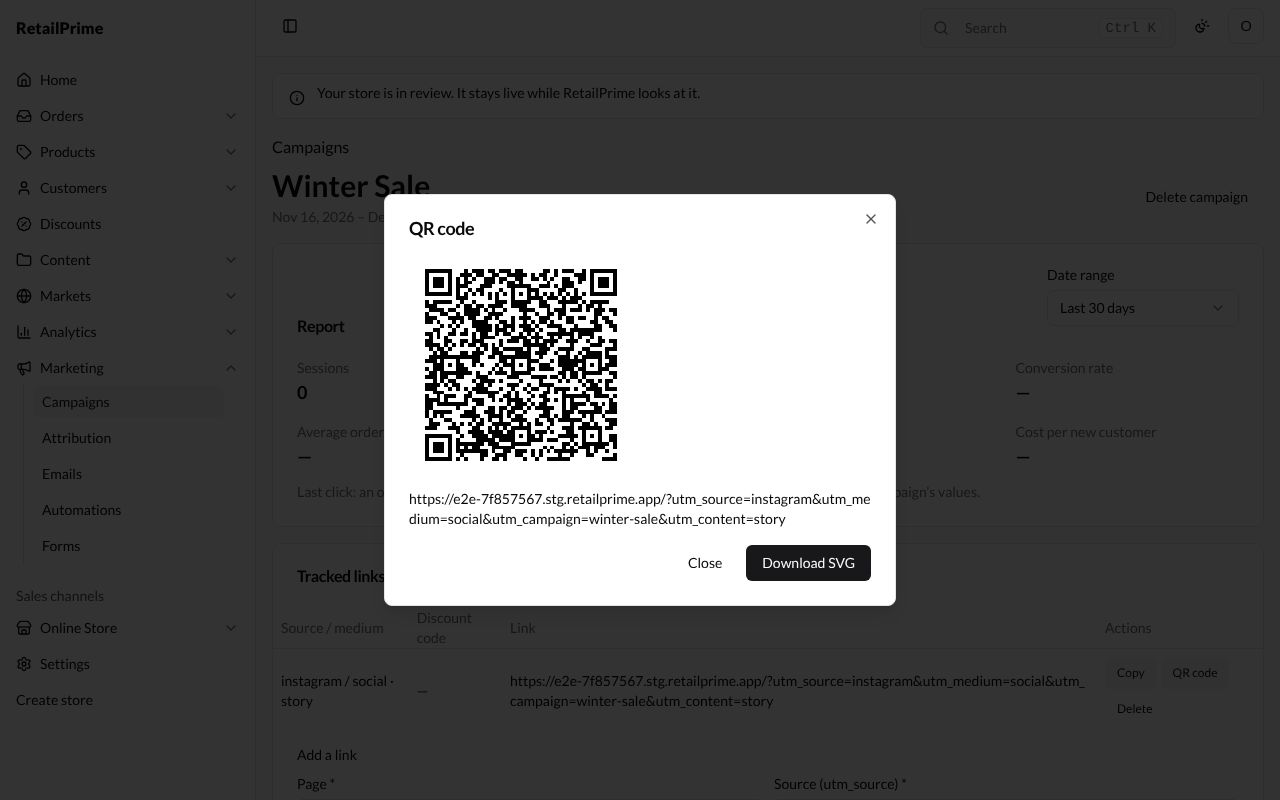
- QR code: shows the link as a QR code, for printing. Download SVG saves it as a picture file; Close closes the window.
- Delete: deletes the link straight away.
A link that adds a discount code
- Fill in Source and Medium for the new link, such as
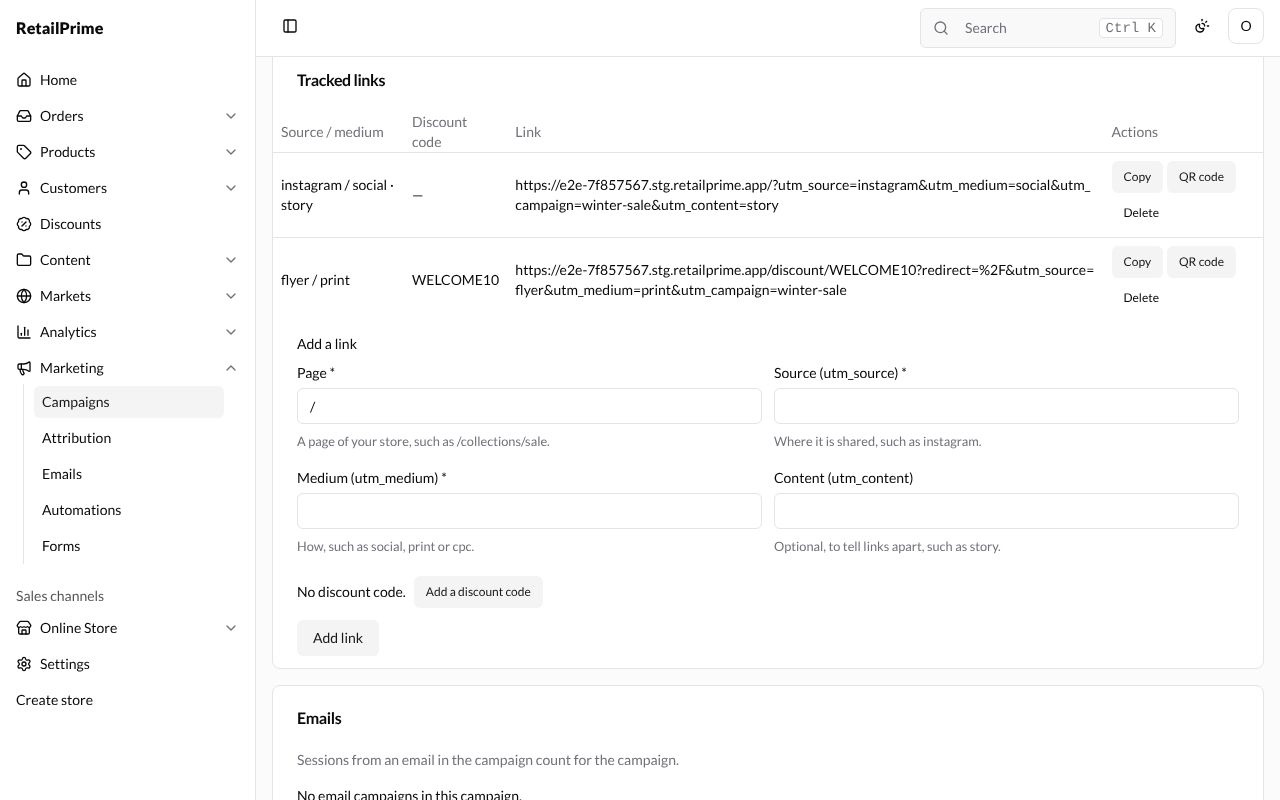
flyerandprint. - Press Add a discount code, search for the code in Choose a discount code, tick it and press Add 1. The form says, for example, Adds WELCOME10 to the buyer’s cart. (Change code and Remove code appear.)
- Press Add link. The link goes to
/discount/WELCOME10on your store, which puts the code in the buyer’s cart and then opens the page.
Put emails in the campaign
The Emails card says Sessions from an email in the campaign count for the campaign.
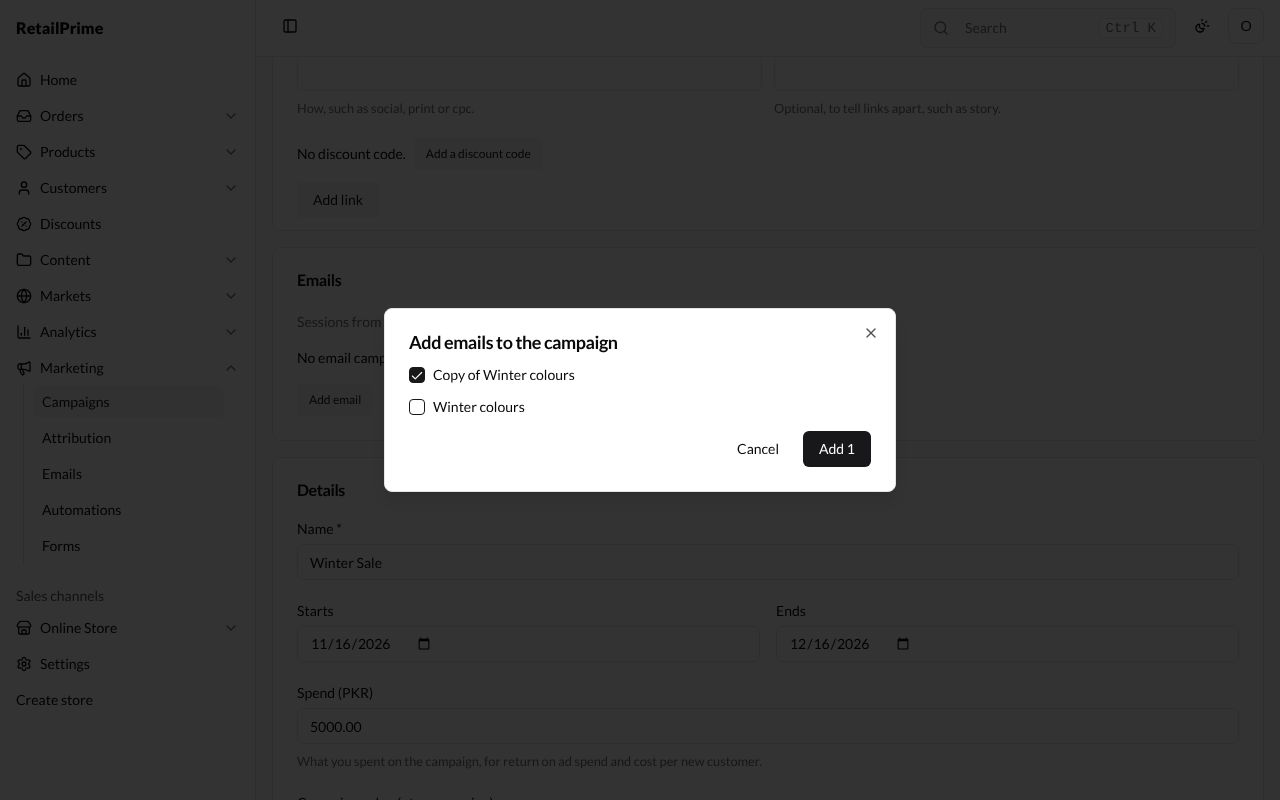
- Press Add email. The Add emails to the campaign window lists your emails.
- Tick one, such as Copy of Winter colours, and press Add 1.
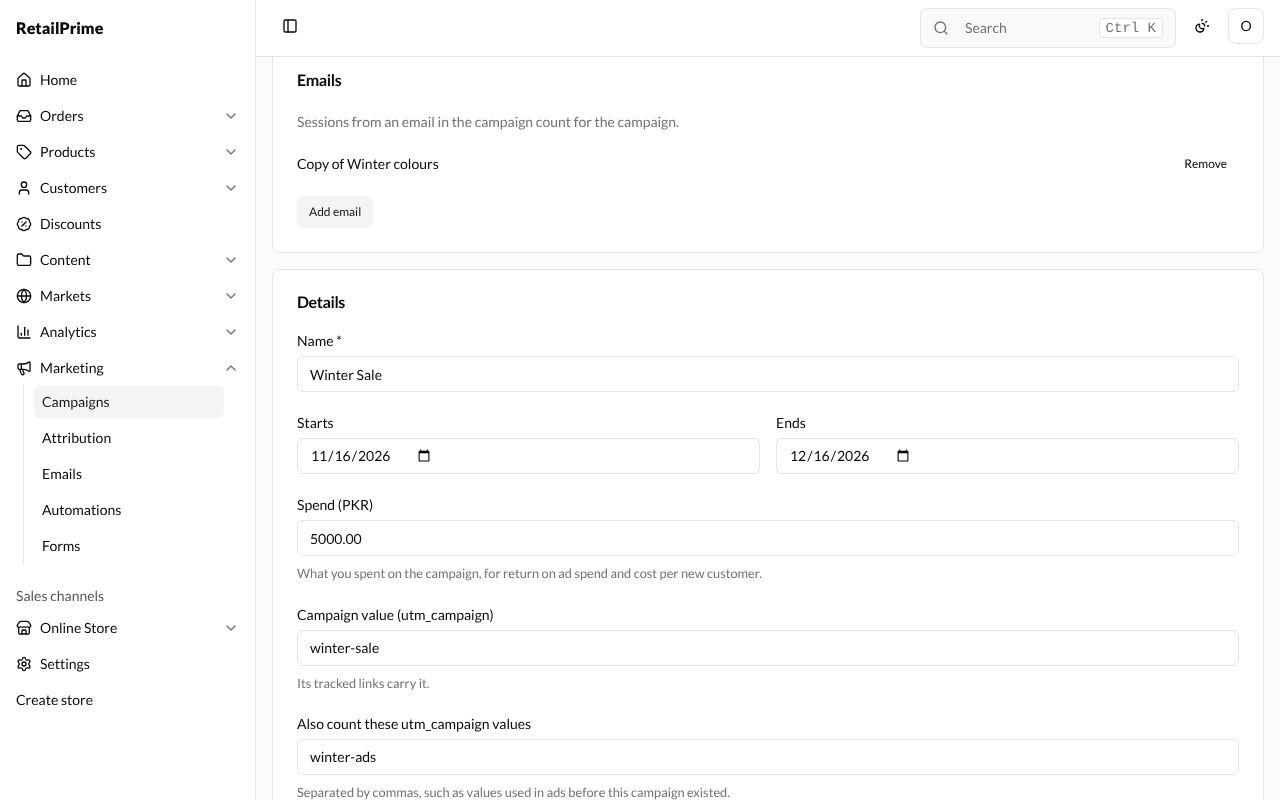
The email is listed in the card with a Remove button, which takes it out of the campaign.
The report
When a buyer opens one of the campaign’s links, the Report counts it. Choose the Date range at its top right: Last 7 days, Last 30 days or Last 90 days.
| Figure | What it means |
|---|---|
| Sessions | Visits that came by the campaign |
| Orders and Sales | Orders placed in those visits, and what they came to |
| Conversion rate | The share of visits that ordered |
| Average order value | Sales divided by orders |
| New customers | Buyers whose first order it was |
| Return on ad spend | Sales divided by Spend |
| Cost per new customer | Spend divided by new customers |
It says Last click: an order counts for the campaign when the session that placed it came by one of the campaign’s values.
Edit a campaign
Change any box in Details, such as Spend (PKR), and press Save. The page says Campaign saved.
The campaigns list
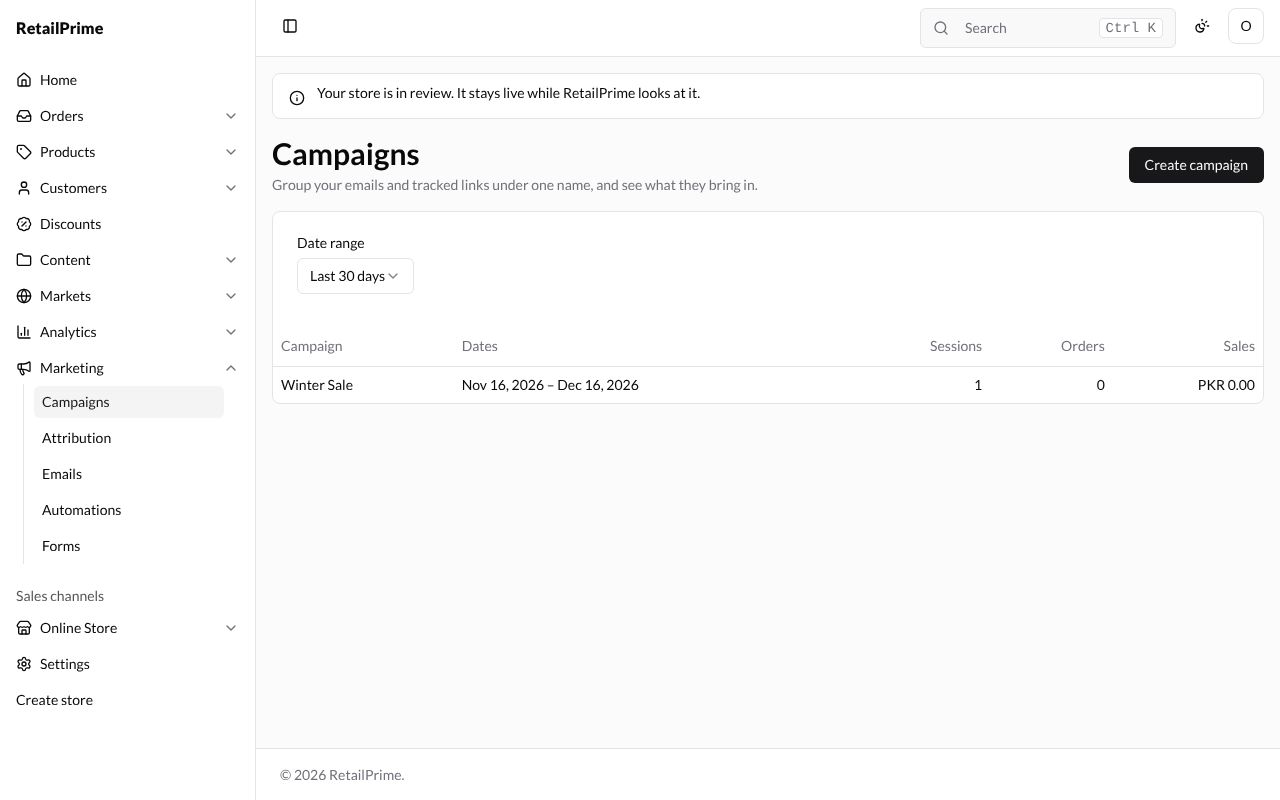
The Campaigns page lists each campaign with its Dates, Sessions, Orders and Sales, for the Date range you choose above the list.
Delete a campaign
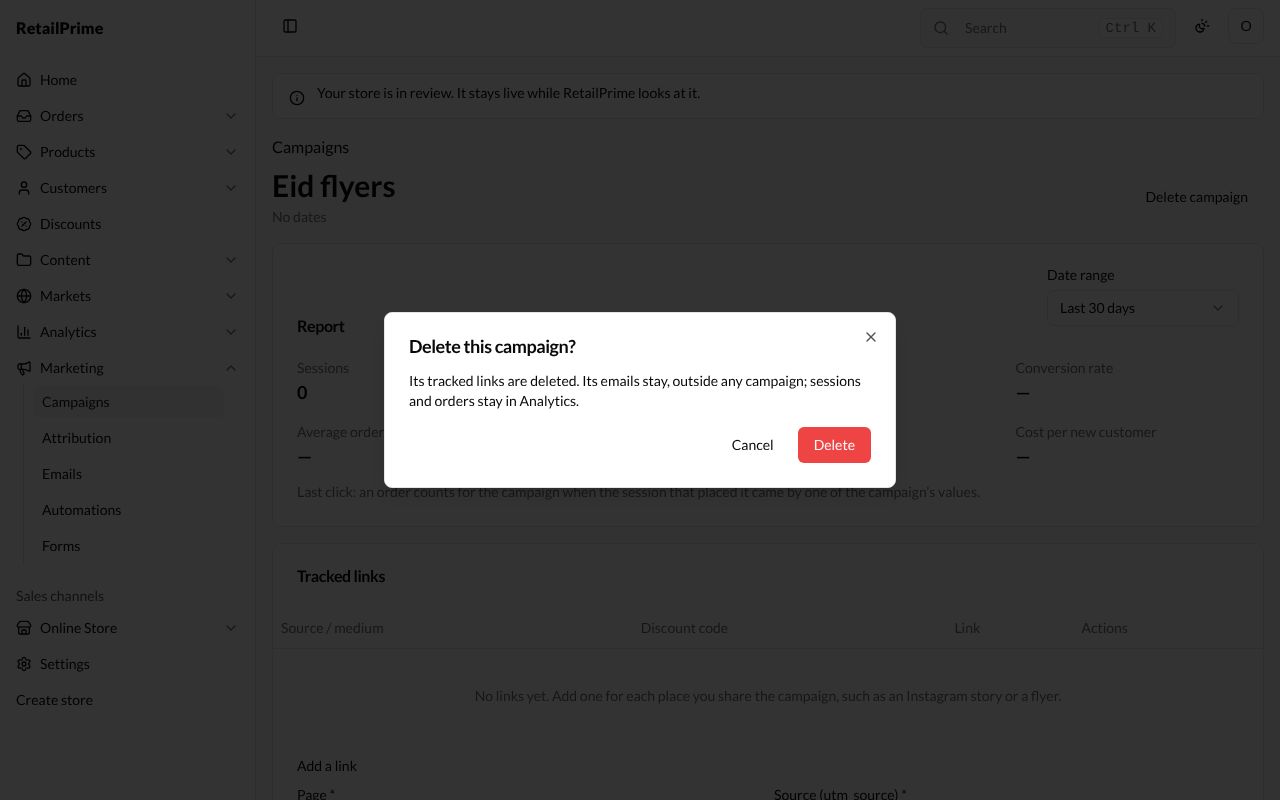
- Open the campaign and press Delete campaign at the top right.
- A window asks Delete this campaign? and says Its tracked links are deleted. Its emails stay, outside any campaign; sessions and orders stay in Analytics.
- Press Delete. You are back on the Campaigns list.
What’s next
Attribution and the Marketing page: where all your visits and sales came from.