Codes, edit and delete
Give one discount many codes, generate random ones, change a discount, turn it off and on, and delete it.
A discount’s codes
One code discount can have many codes that all give the same discount, such as a code for each customer or for each influencer.
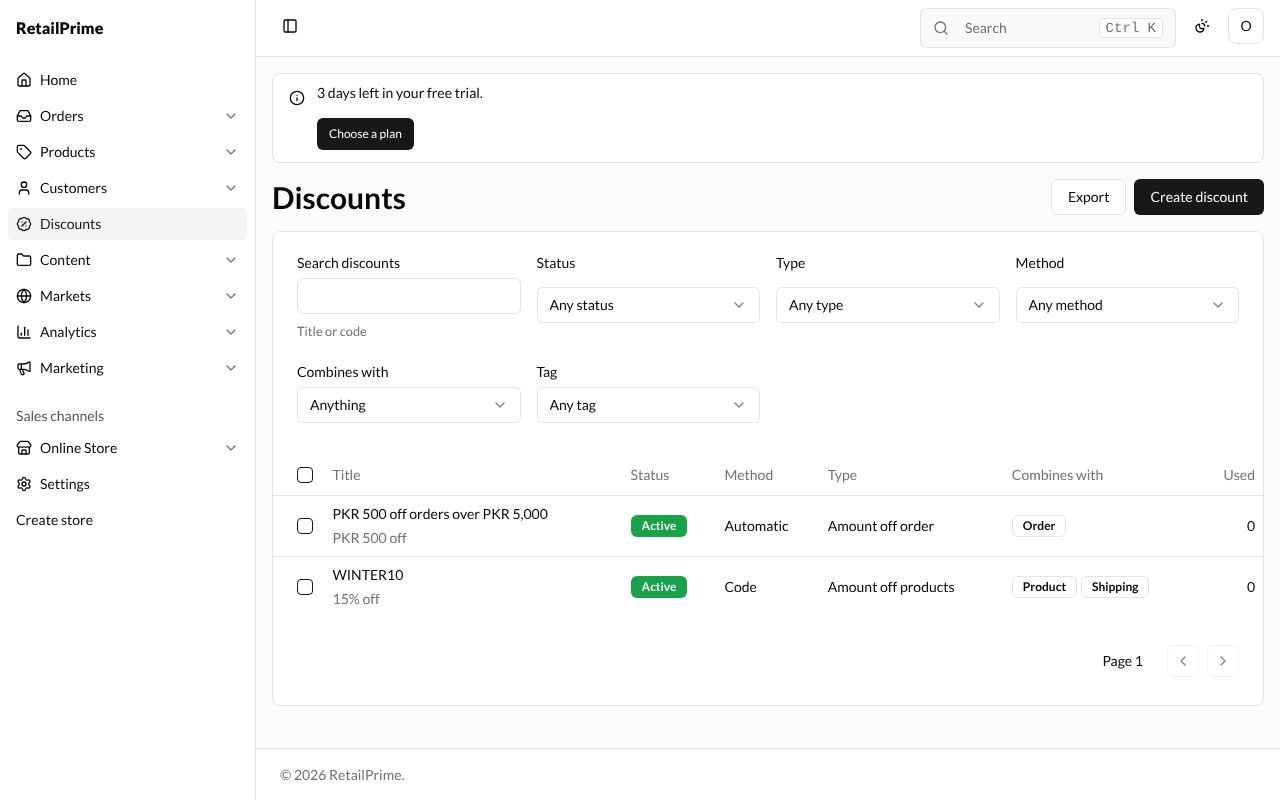
Open the discount (press its code on the Discounts list) and press Manage codes, under Method. The Discount codes page lists each code with how many times it was Used and when it was Created.
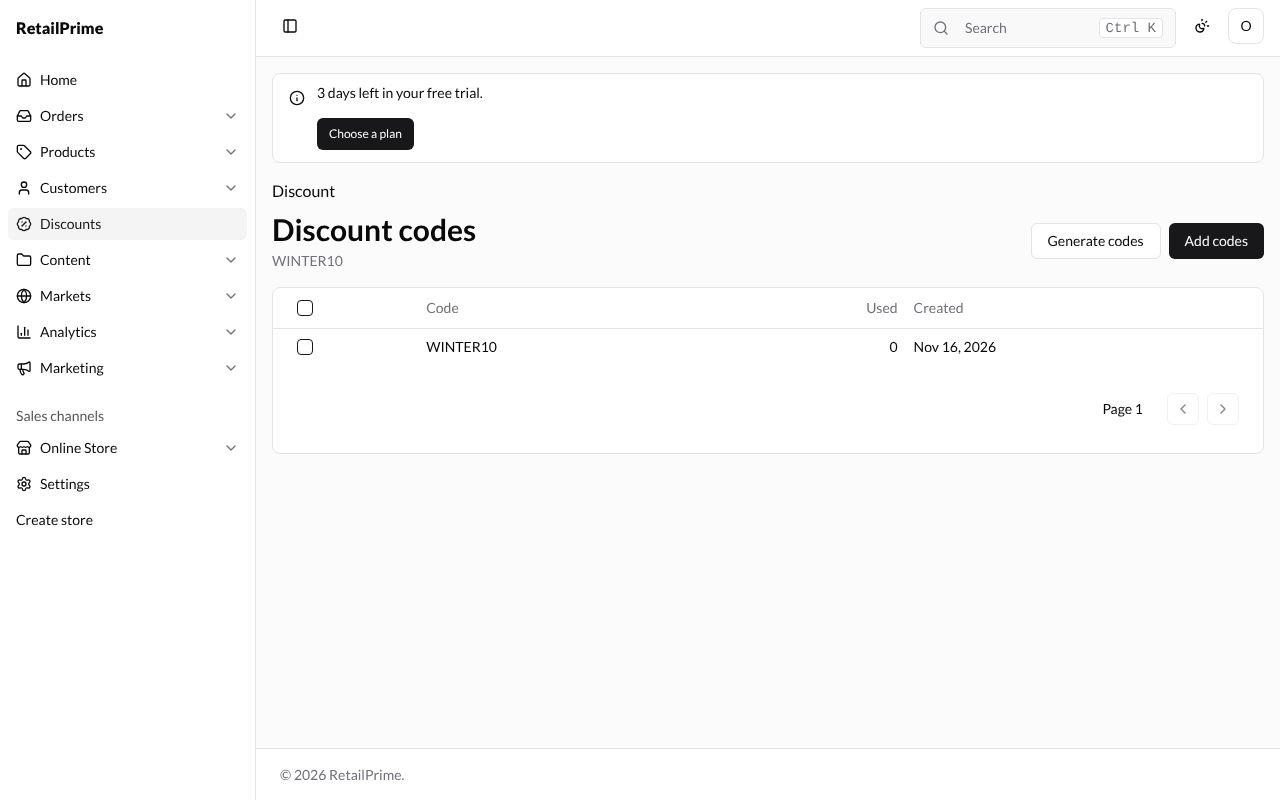
Add codes you choose
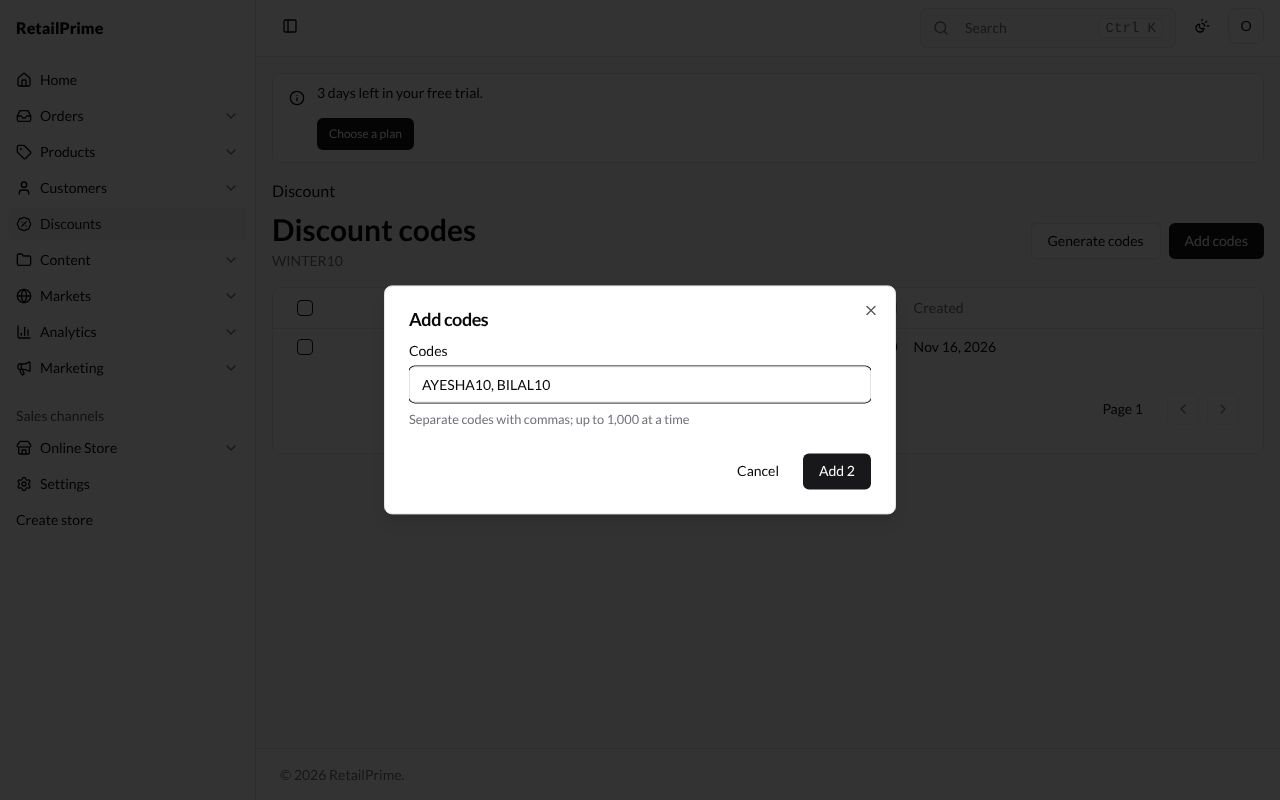
- Press Add codes.
- In Codes, type the codes, separated by commas (up to 1,000 at a time), such as
AYESHA10, BILAL10. - The button counts them: press Add 2. The page says 2 codes added.
Generate random codes
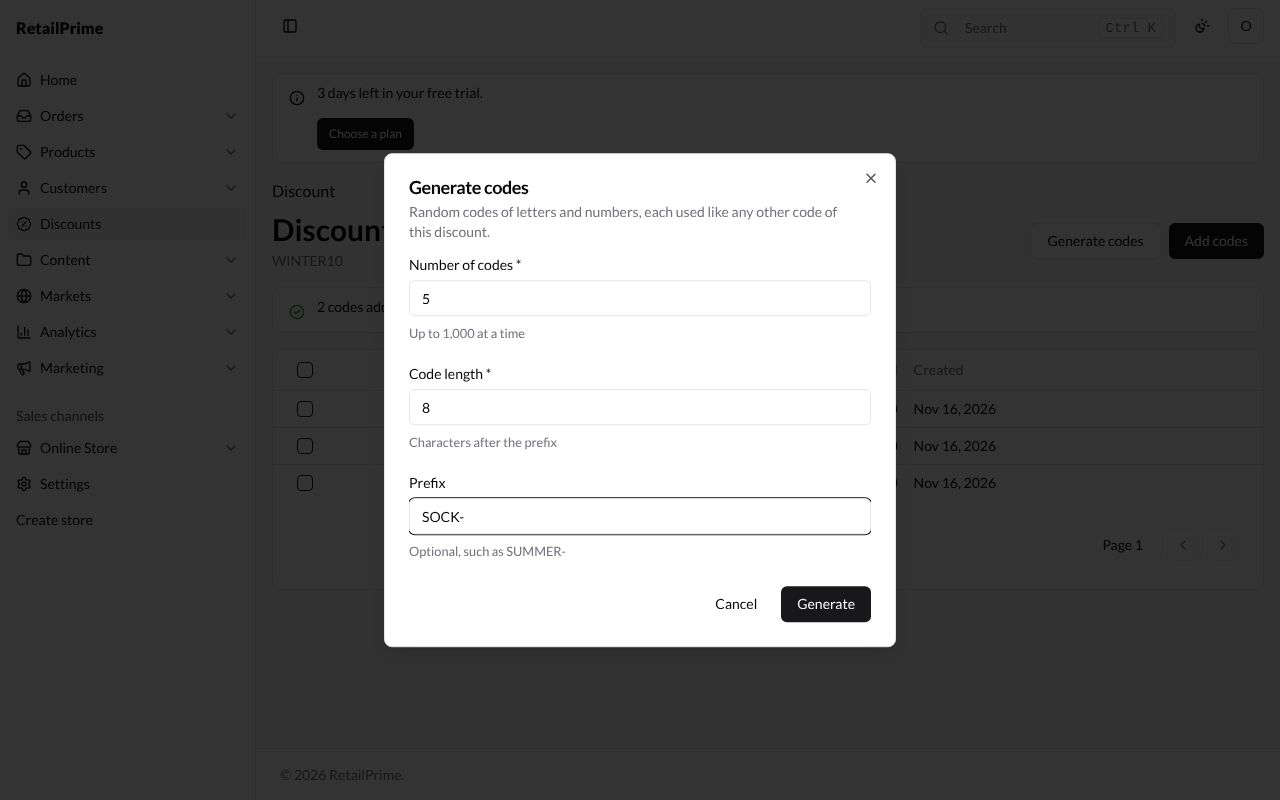
- Press Generate codes. The window says Random codes of letters and numbers, each used like any other code of this discount.
- Fill in the boxes:
| Box | What to type | Example |
|---|---|---|
| Number of codes | How many, up to 1,000 at a time | 5 |
| Code length | Characters after the prefix | 8 |
| Prefix | Optional, put in front of each code | SOCK- |
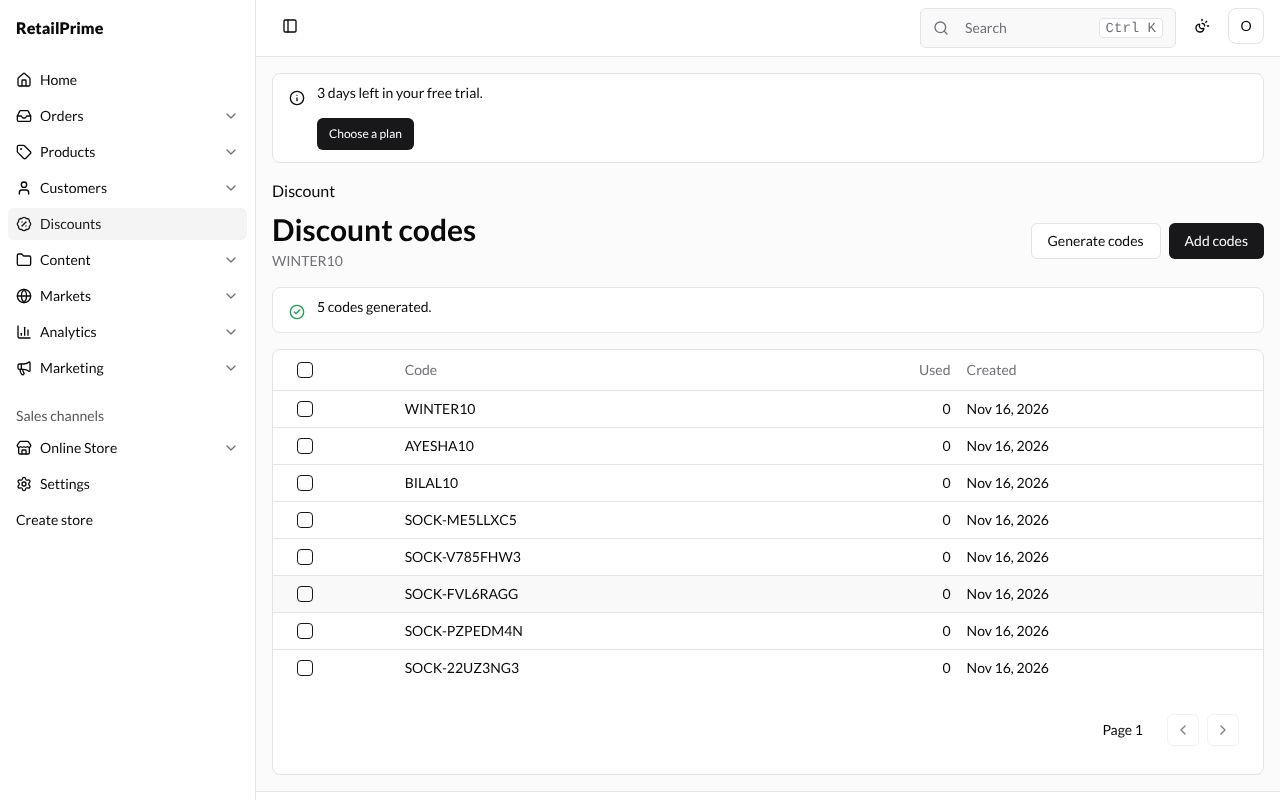
- Press Generate. The page says 5 codes generated. and lists them.
Delete codes
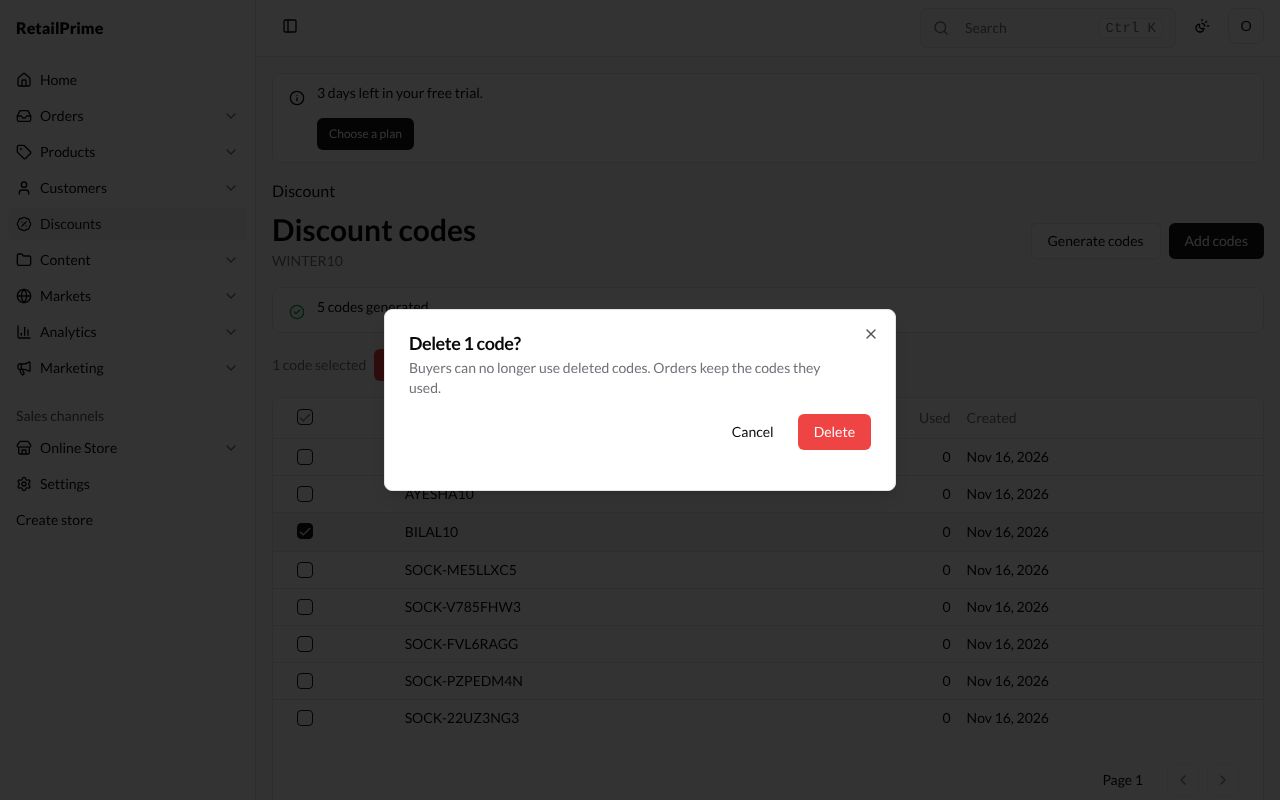
- Tick the box in front of each code to delete, such as BILAL10. A Delete button appears above the list.
- Press Delete. A window asks Delete 1 code? and says Buyers can no longer use deleted codes. Orders keep the codes they used.
- Press Delete. The page says 1 code deleted.
Press Discount at the top left to go back to the discount.
Edit a discount
- Open the discount from the Discounts list.
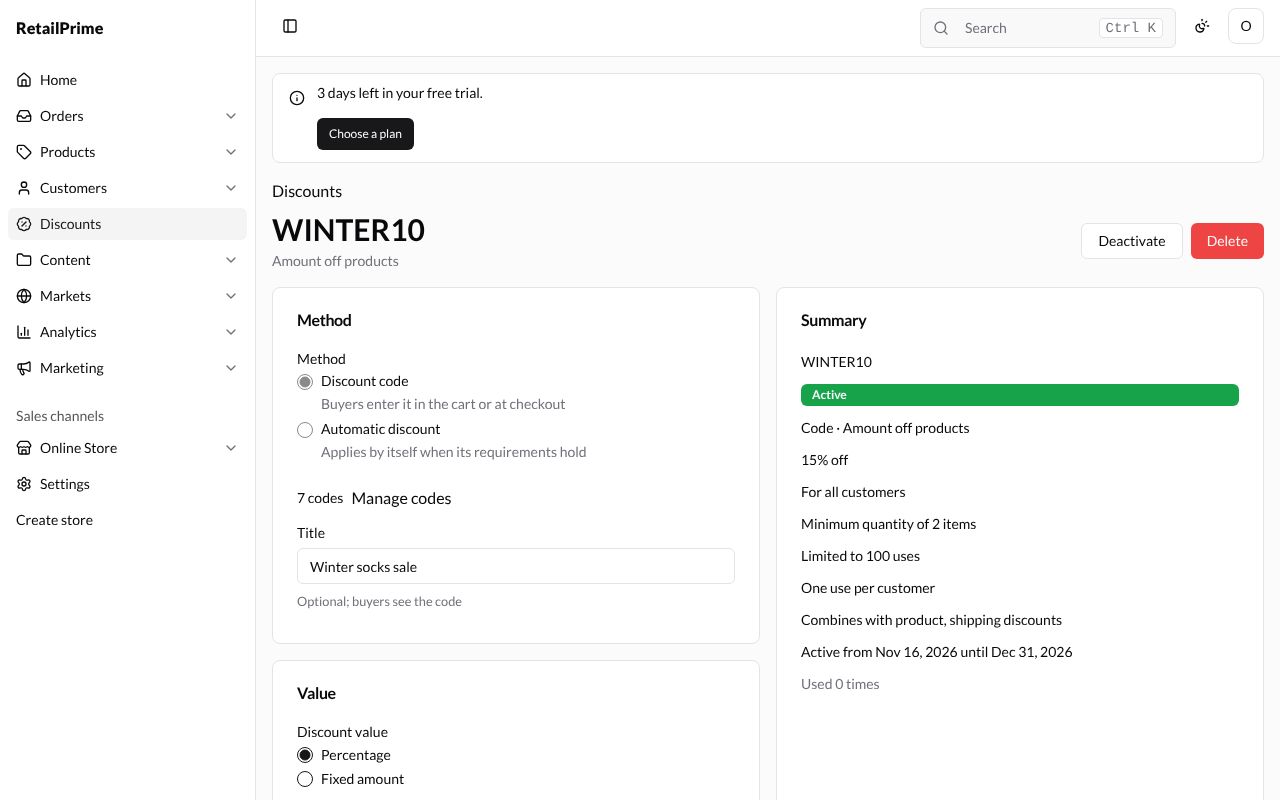
- Change any box, such as the Percentage from
10to15. The Method and the type can’t be changed. - Press Save at the bottom. The Summary shows the new value, 15% off.
Turn a discount off and on
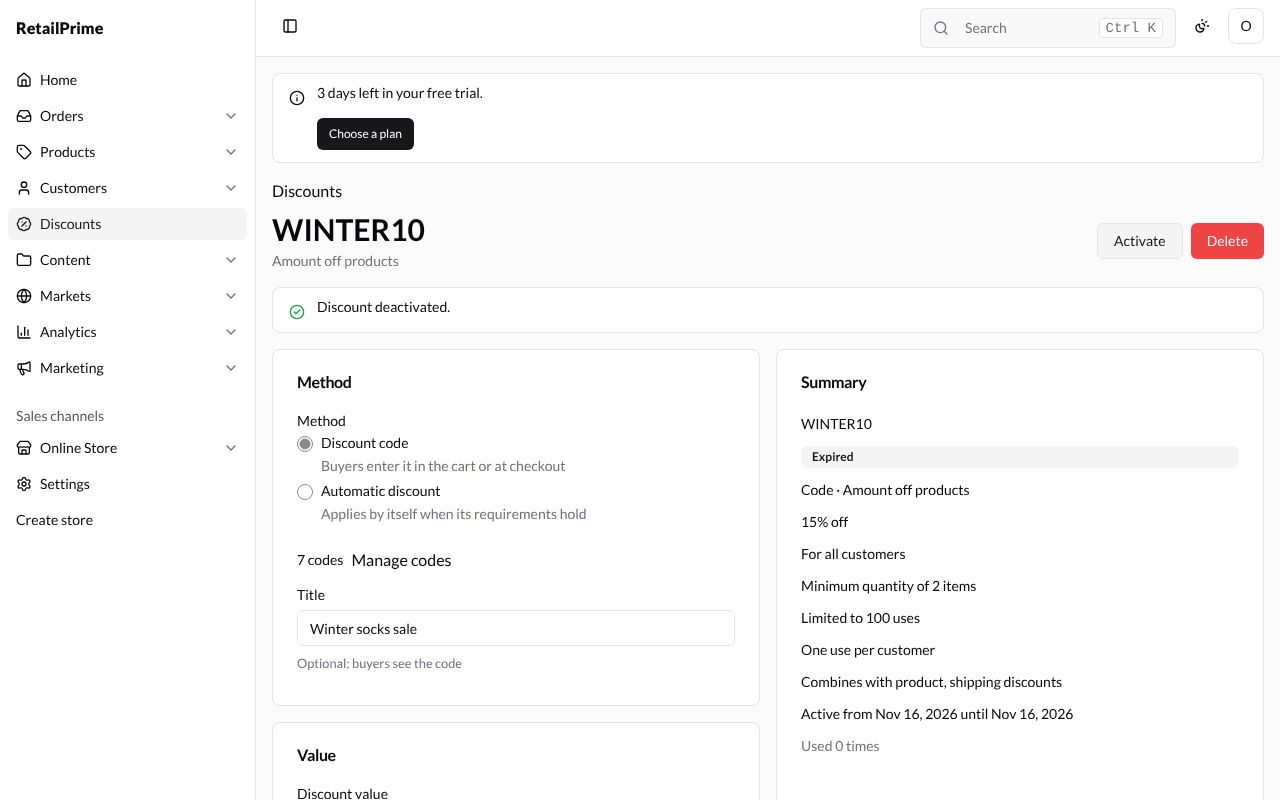
- Press Deactivate at the top right. The page says Discount deactivated., the label turns grey Expired and its end date is set to now. Buyers can no longer use it.
- To turn it back on, press Activate (in the same place). The page says Discount activated. and the label is Active again.
Delete a discount
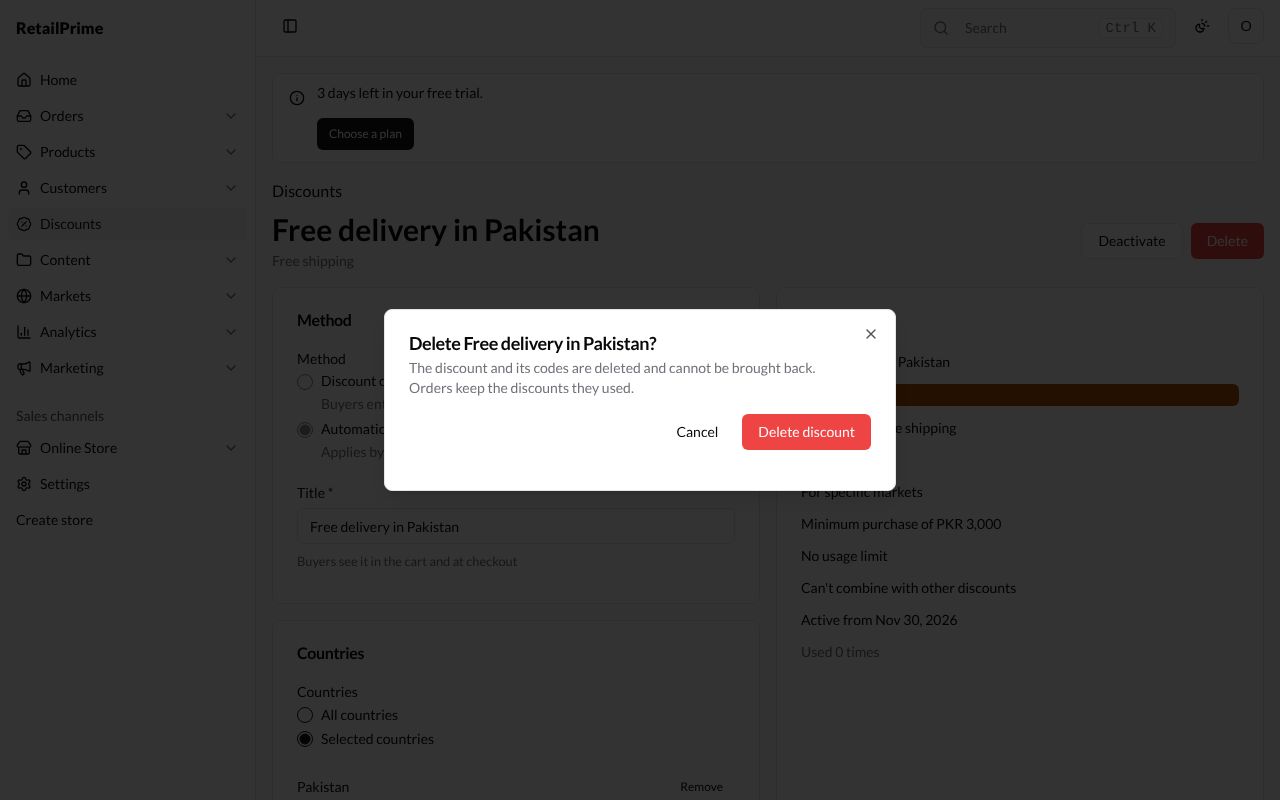
- Open the discount and press the red Delete at the top right.
- A window asks Delete Free delivery in Pakistan? (the discount’s name) and says The discount and its codes are deleted and cannot be brought back. Orders keep the discounts they used.
- Press Delete discount. You are back on the Discounts list, and the discount is gone.
What’s next
The discounts list: find, filter and change many discounts at once.