Create a discount
Make a discount code buyers type at checkout, card by card, with every box on the form explained.
A discount takes money off what a buyer pays. There are two ways a buyer gets one:
- A discount code: the buyer types a code, such as
WINTER10, in the cart or at checkout. - An automatic discount: it applies by itself when its conditions are met. The buyer types nothing.
This page walks through a discount code from start to finish. The next page, Other discount types, shows the other types and automatic discounts.
Open Discounts
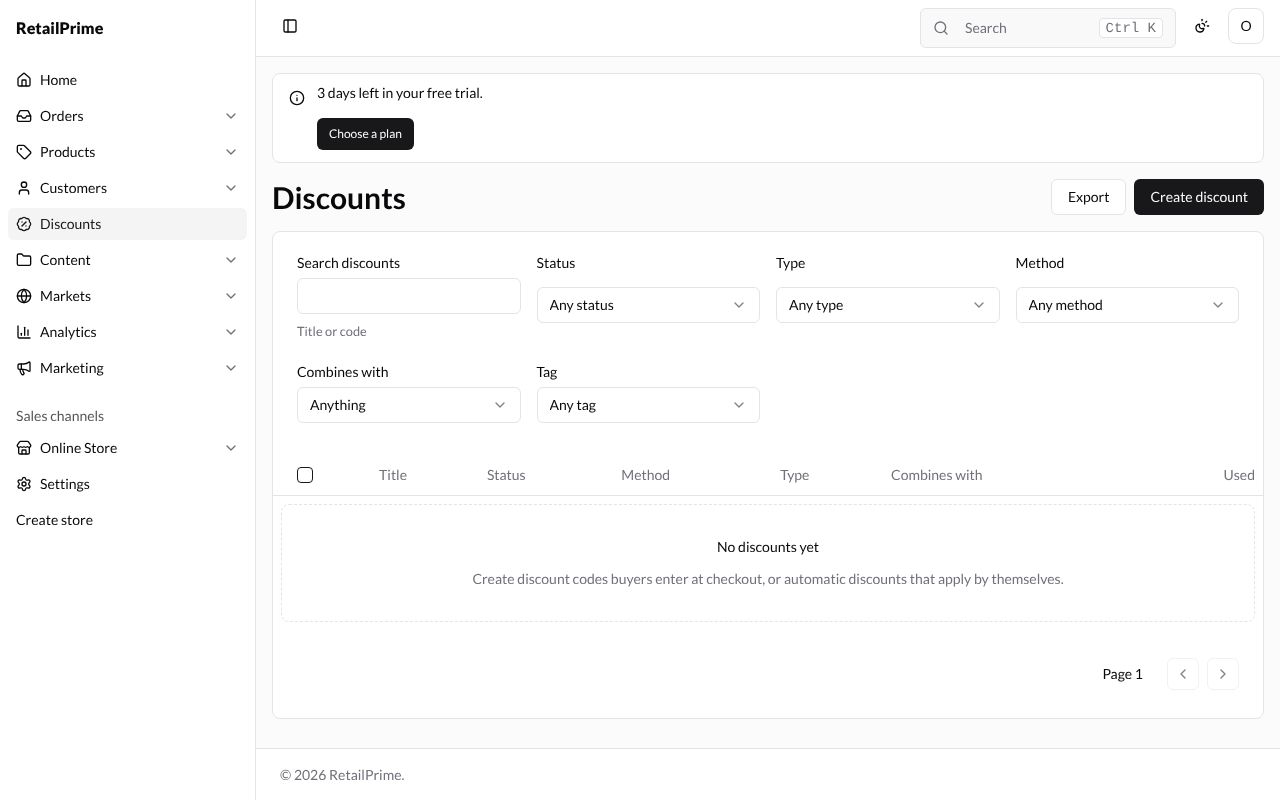
In the sidebar, press Discounts. A new store has none yet, so the list says No discounts yet and Create discount codes buyers enter at checkout, or automatic discounts that apply by themselves.
Choose the type
Press Create discount at the top right. A Create discount window asks for the Discount type:
| Type | What it does |
|---|---|
| Amount off products | Discount chosen products or collections |
| Amount off order | Discount the whole order |
| Buy X get Y | Discount items when the buyer buys others |
| Free shipping | Take shipping off the order |
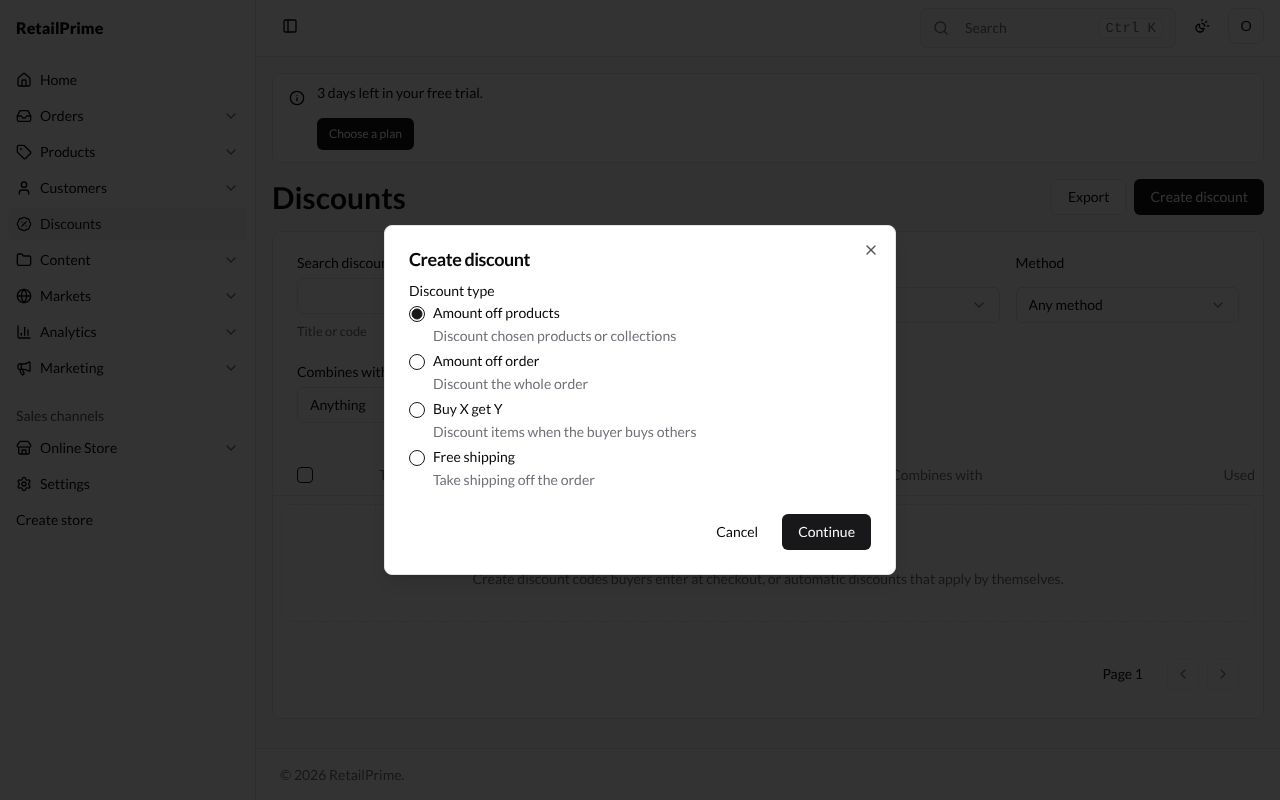
Leave Amount off products chosen and press Continue. The type can’t be changed after the discount is saved.
The form
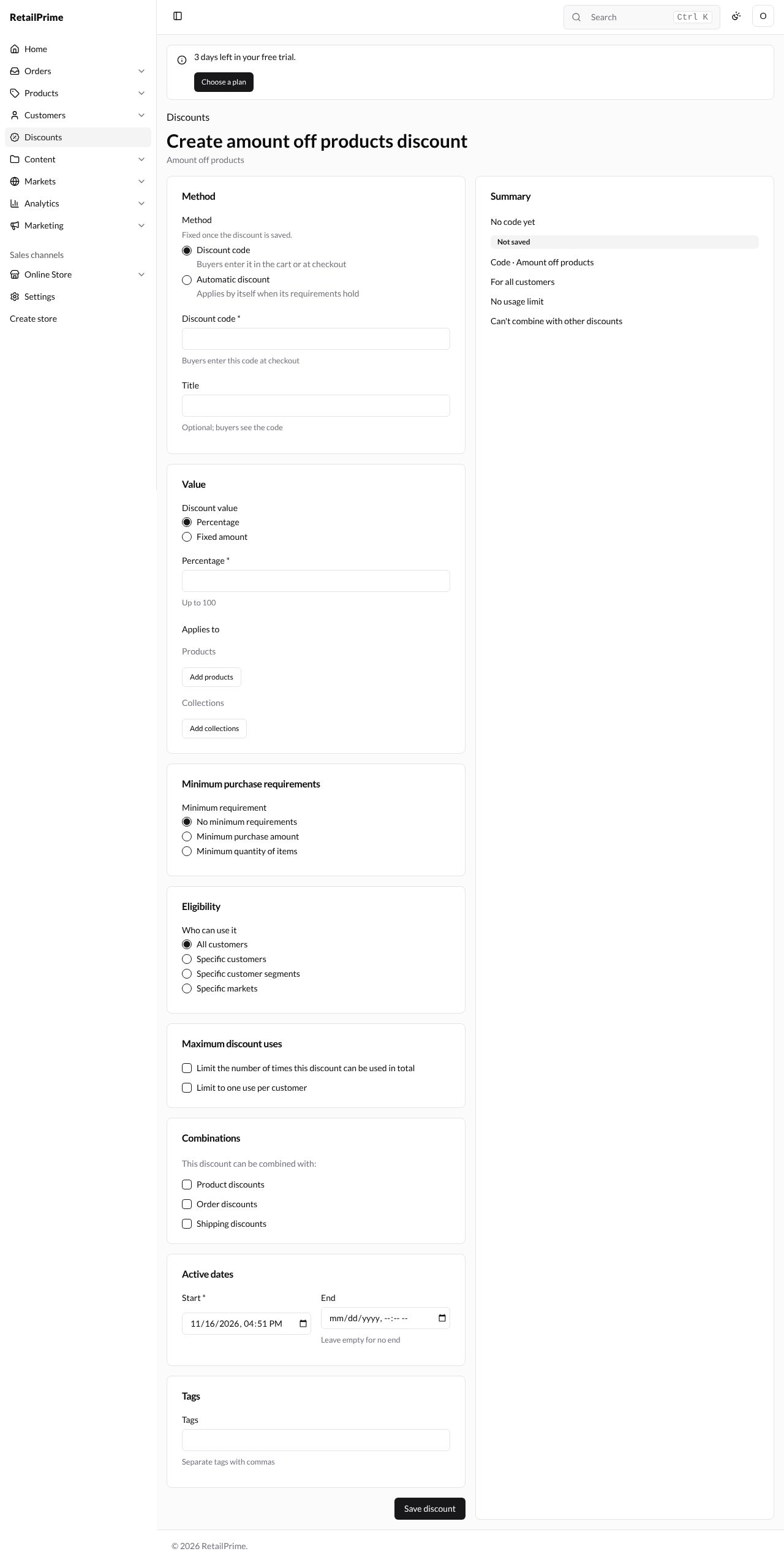
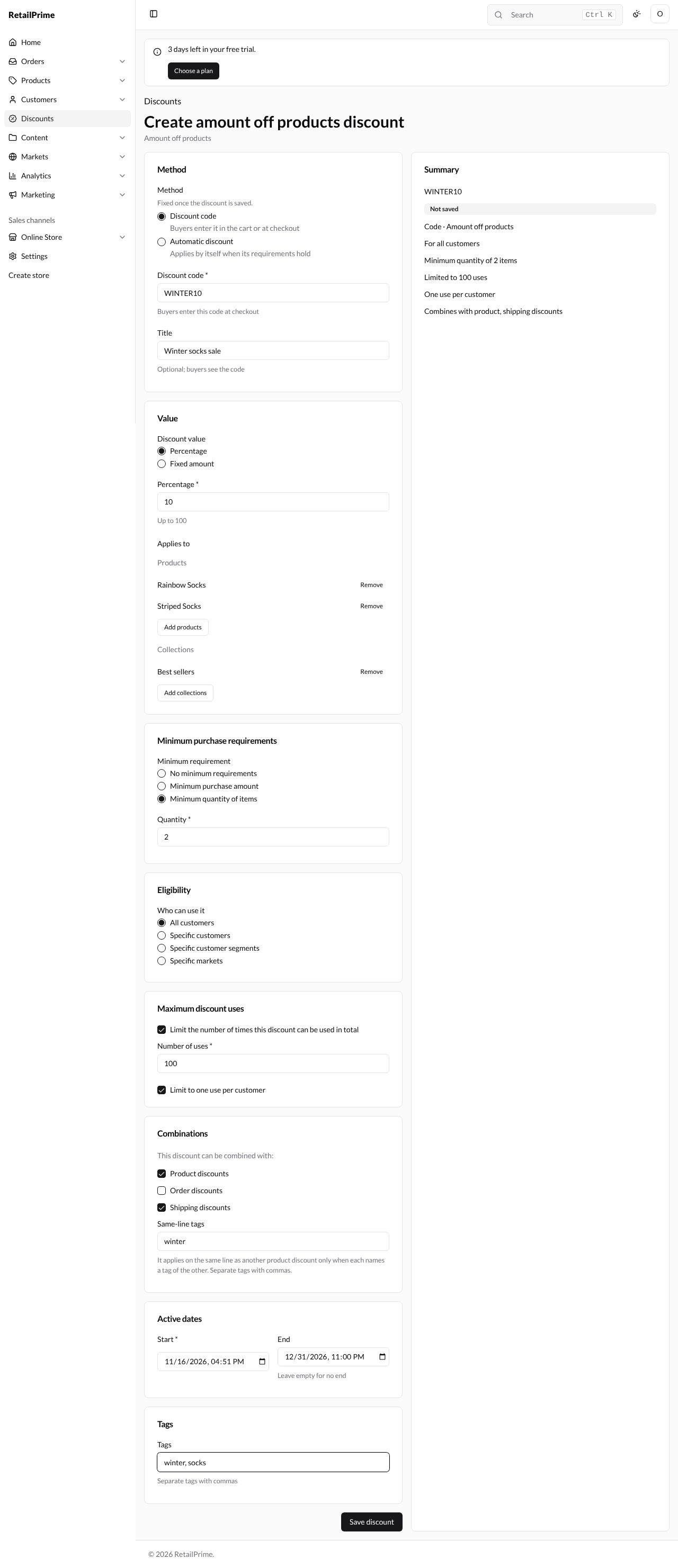
The page is called Create amount off products discount. The cards on the left are the discount’s settings; the Summary card on the right shows what you have chosen so far, with a grey Not saved label.
1. Method
| Box | What to type | Example |
|---|---|---|
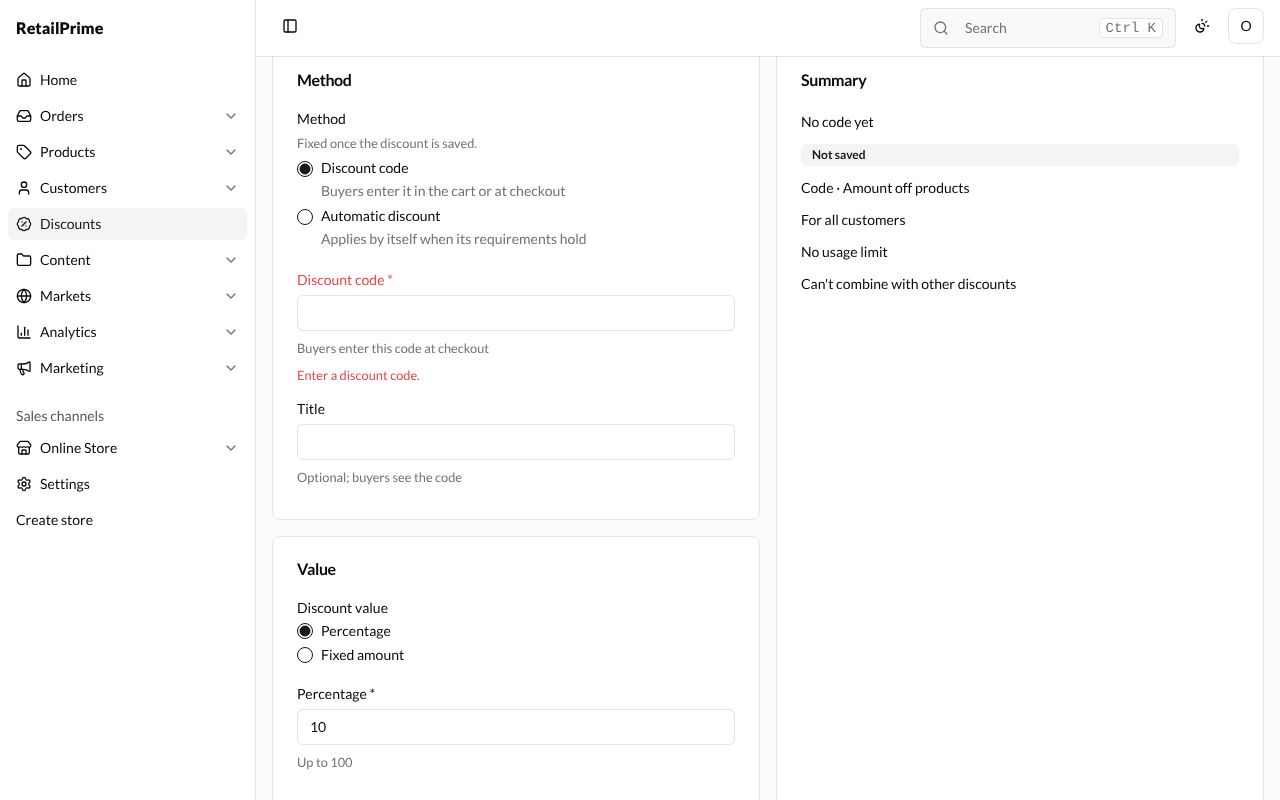
| Method | Discount code (buyers enter it in the cart or at checkout) or Automatic discount (applies by itself when its requirements hold). It is fixed once the discount is saved | Discount code |
| Discount code | The code buyers type at checkout | WINTER10 |
| Title | Optional for a code: buyers see the code, not the title. It helps you find the discount | Winter socks sale |
2. Value
| Box | What to choose or type | Example |
|---|---|---|
| Discount value | Percentage or Fixed amount | Percentage |
| Percentage | How many percent off, up to 100 | 10 |
| Amount (shown instead, for Fixed amount) | How much off each item, in your currency | 200 |
Under Applies to you choose what the discount is for:
-
Next to Products, press Add products. An Add products window opens. Type in Search products, such as
socks, tick each product, and press Add 2 (the button counts what you ticked).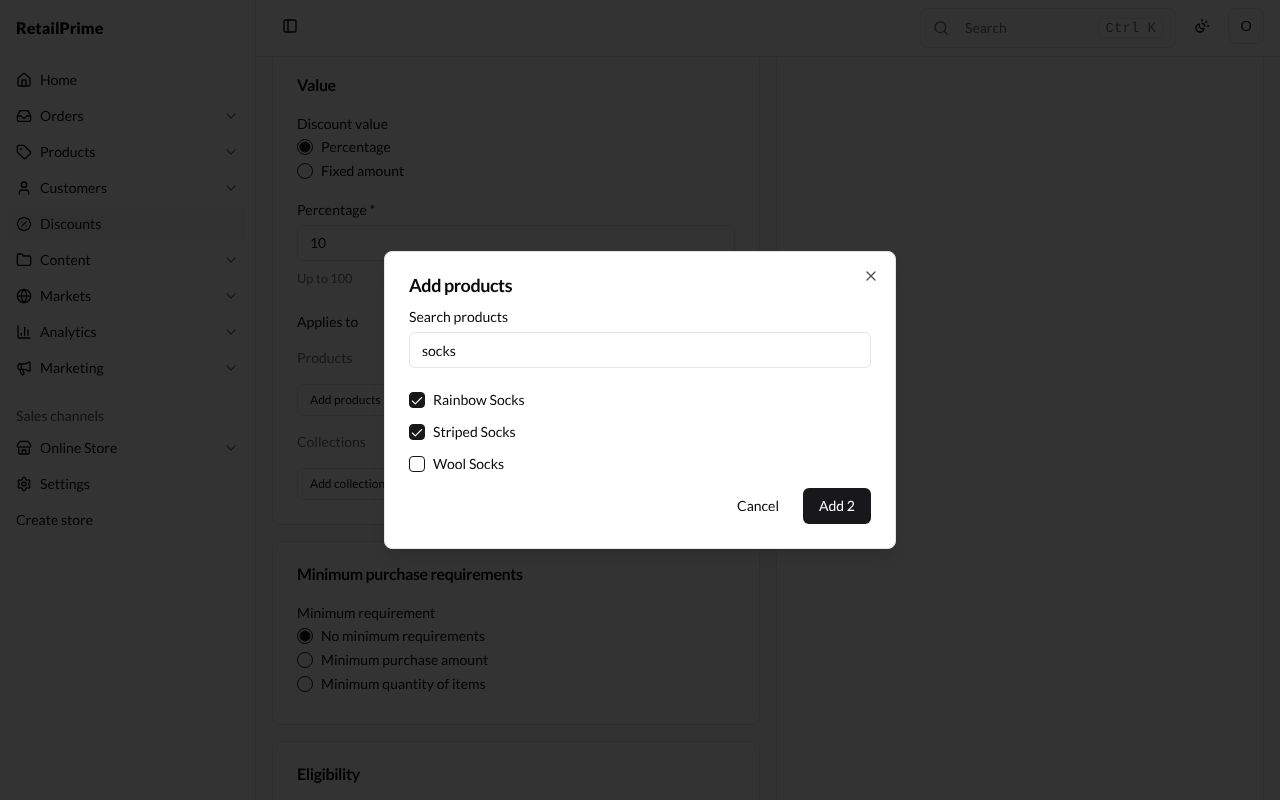
-
Next to Collections, press Add collections, tick a collection such as Best sellers, and press Add 1.
-
Each product or collection you added is listed with a Remove button, to take it off again.
3. Minimum purchase requirements
| Choice | What it means | Example |
|---|---|---|
| No minimum requirements | The discount works on any cart | |
| Minimum purchase amount | The buyer must spend at least this Amount | 5000 |
| Minimum quantity of items | The buyer must buy at least this Quantity | 2 |
4. Eligibility
Who can use it:
- All customers: anyone.
- Specific customers: press Add customers and pick them.
- Specific customer segments: press Add segments and pick segments.
- Specific markets: press Add markets and pick markets.
The next page shows each of these pickers.
5. Maximum discount uses
| Box | What it does | Example |
|---|---|---|
| Limit the number of times this discount can be used in total | Tick it, then type the Number of uses. When the discount has been used that many times, it stops working | 100 |
| Limit to one use per customer | Each buyer can use it only once | ticked |
6. Combinations
This discount can be combined with: tick Product discounts, Order discounts and/or Shipping discounts. A discount that is not ticked here can’t be used together with this one in the same order.
When you tick Product discounts on a product discount, a Same-line tags box appears. The page explains it: It applies on the same line as another product discount only when each names a tag of the other. Separate tags with commas. For example, type winter.
7. Active dates
| Box | What to choose | Example |
|---|---|---|
| Start | When the discount starts working. It is filled in with now | today |
| End | When it stops. Leave empty for no end | 31 December, 11:00 PM |
8. Tags
Tags are labels for you, to find and filter discounts later. Separate tags with commas, such as winter, socks.
Here is the whole form, filled in. The Summary on the right says WINTER10, Not saved, Code · Amount off products, For all customers, Minimum quantity of 2 items, Limited to 100 uses, One use per customer and Combines with product, shipping discounts.
Save it
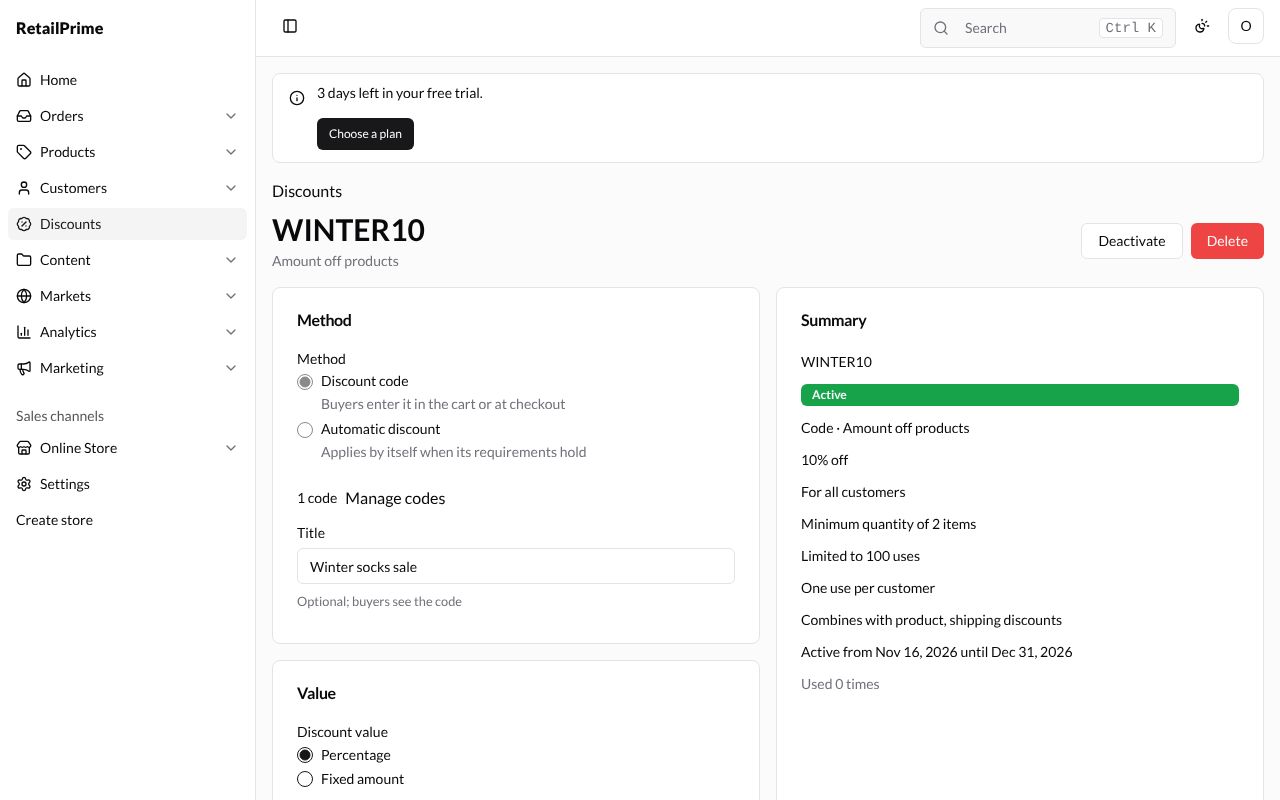
Press Save discount at the bottom. The page now has the code as its title, WINTER10, and the Summary shows a green Active label, the value (10% off), the dates (Active from … until …) and Used 0 times.
At the top right are Deactivate and Delete. Under Method, 1 code and a Manage codes link take you to the discount’s codes.
What’s next
Other discount types: amount off order, Buy X get Y and free shipping, and automatic discounts.