Cancel an order
Cancel an order that has not been sent, with its reason, restocking and refund.
You can cancel an order as long as none of its items have been fulfilled. A cancelled order can’t be changed any more, except its note and comments.
- Open the order and press Cancel order (the red button) at the top right.
- A box opens, such as Cancel order #1003.
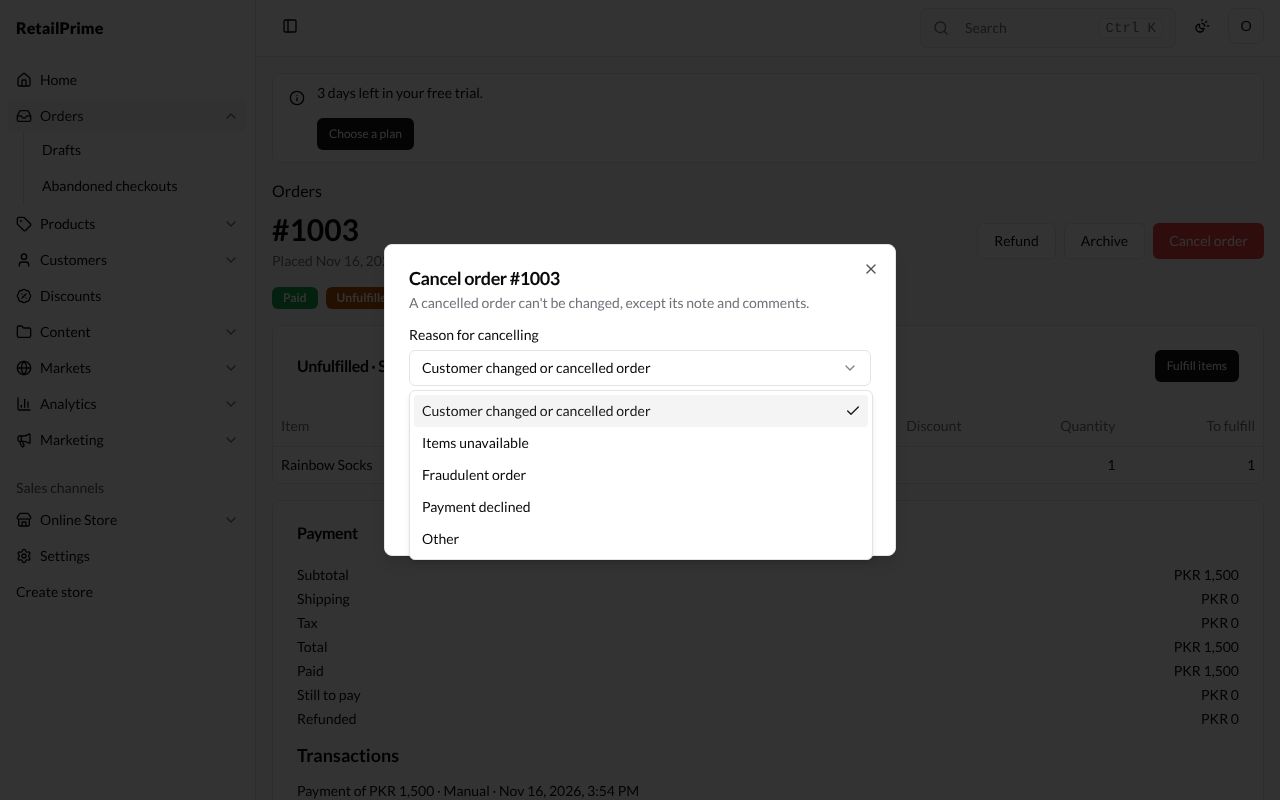
- Press Reason for cancelling and choose why:
- Customer changed or cancelled order;
- Items unavailable;
- Fraudulent order;
- Payment declined;
- Other.
- Choose what else happens:
| Box | What it does |
|---|---|
| Restock items | Ticked: the items go back into your stock |
| Refund PKR 1,500 | Ticked: what the buyer paid is refunded. It shows only when something was paid, with the amount |
| Notify customer | Ticked: the buyer gets an email that their order was cancelled |
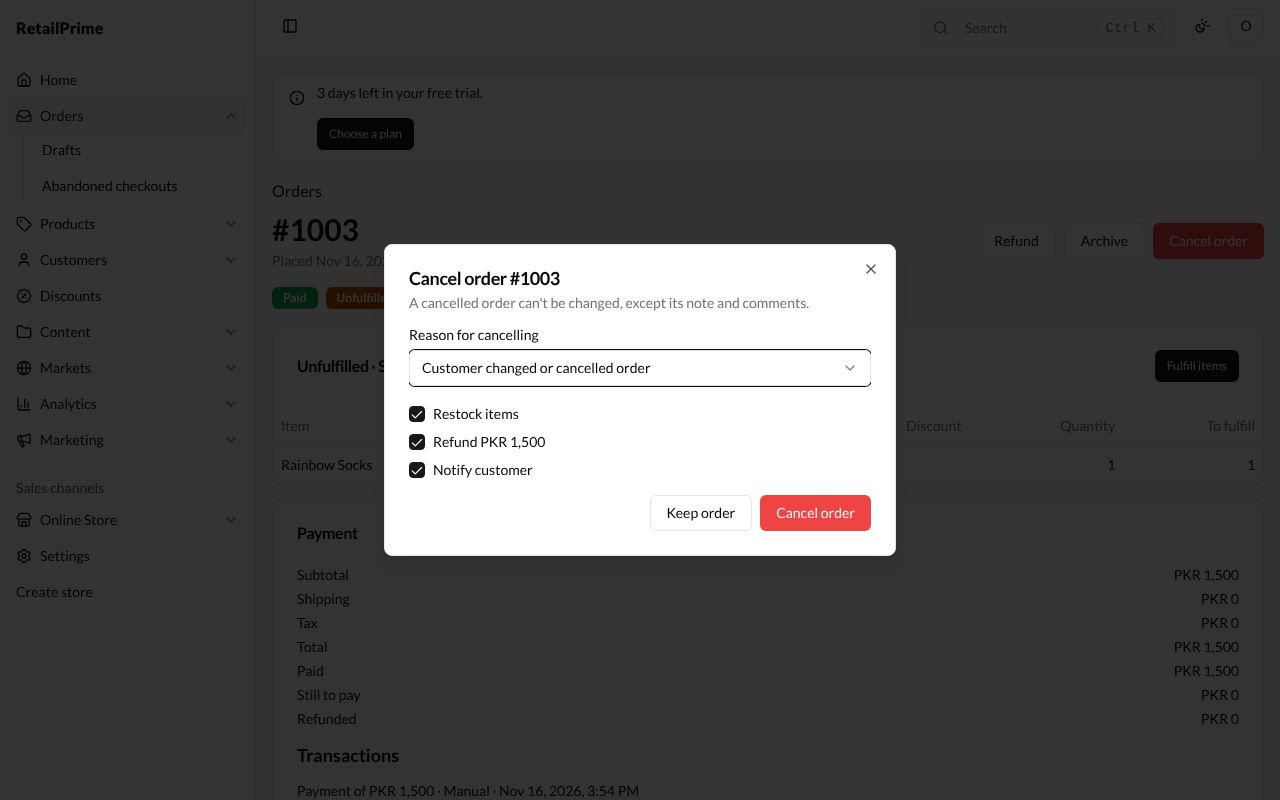
- Press Cancel order, or Keep order to change your mind.
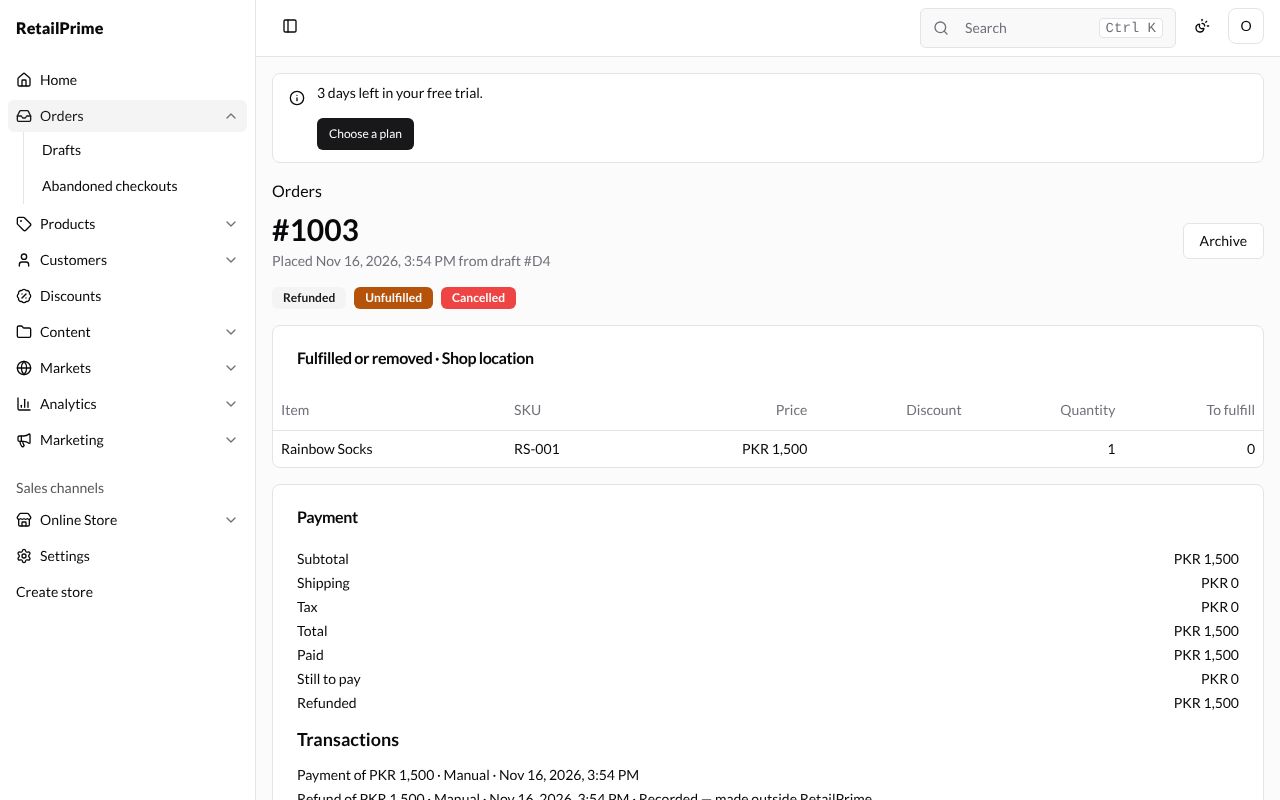
The order now has the label Cancelled. With the refund ticked it is also Refunded, and the refund is listed under Transactions. Its items card is titled Fulfilled or removed, with nothing left To fulfill, and the only button left at the top is Archive.
When an order is fulfilled (even in part), Cancel order is not shown. Take the items back with a return and give the money back with a refund instead.
What’s next
Abandoned checkouts: buyers who started to check out and did not finish.