Segments
Save a customer search as a segment, build one from conditions with a live preview, use it on the list, change it and delete it.
A segment is a saved customer search, such as “my VIP customers” or “subscribers in Pakistan”. It keeps itself up to date: customers who match later join it on their own.
Save a search as a segment
- On the Customers list, search for what you want, such as
tag:vip, and press Enter. - Press Save as segment next to the count.
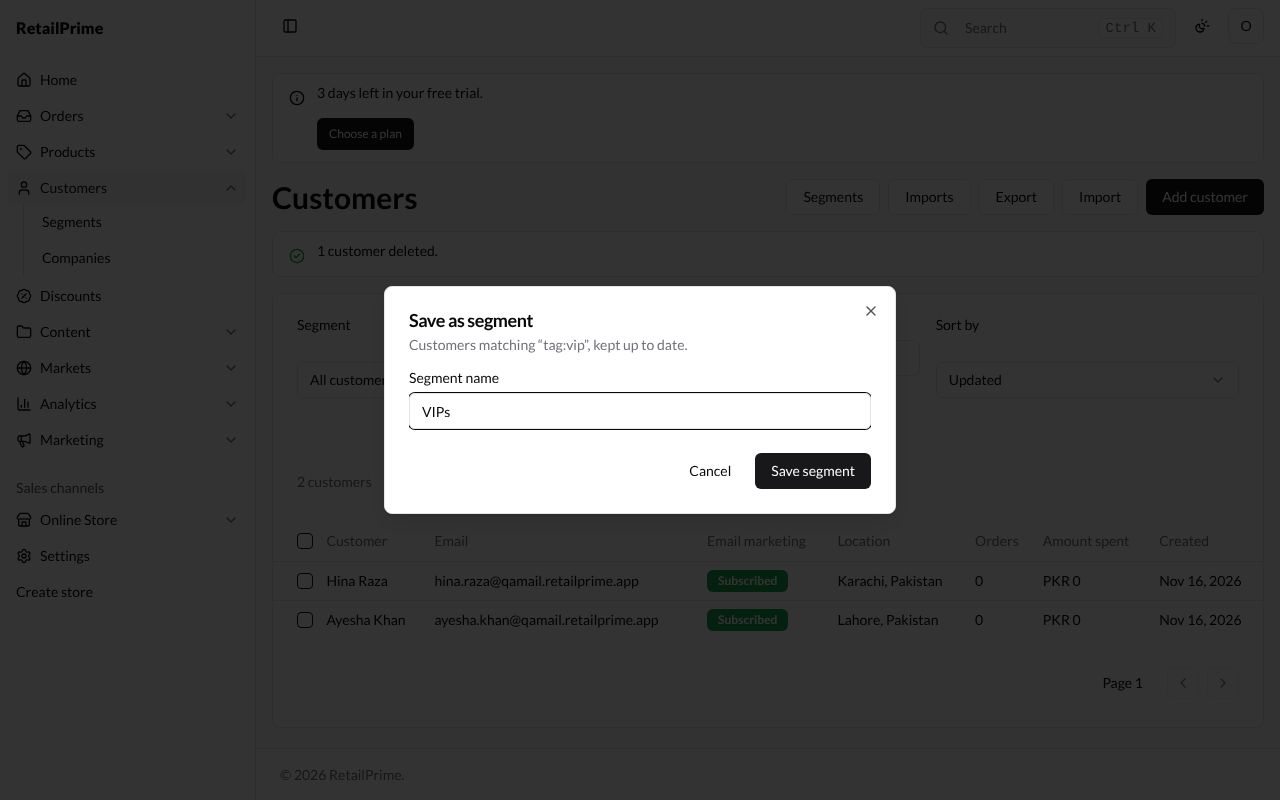
- A box opens: Save as segment. It says it keeps the customers matching your search up to date.
- Type a Segment name, such as
VIPs. - Press Save segment.
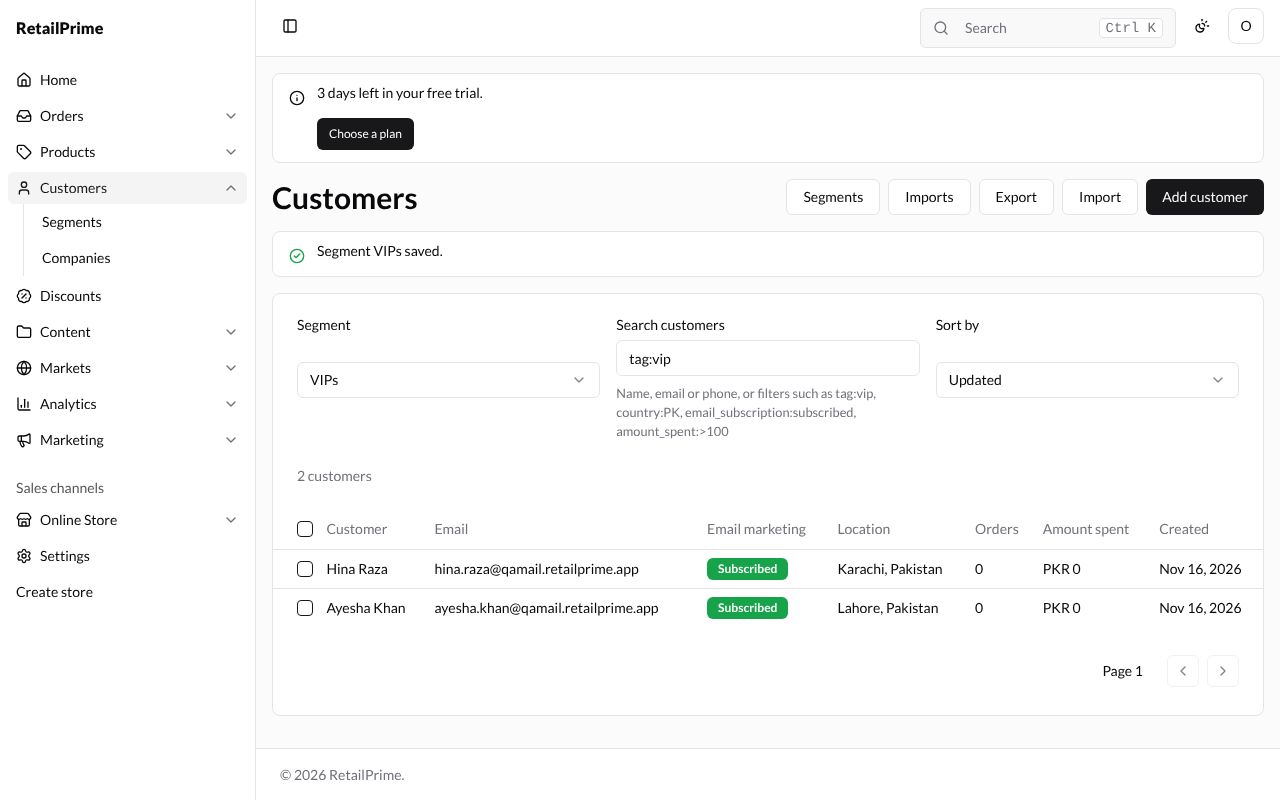
The list says Segment VIPs saved., and the Segment box at the top left now shows VIPs.
Use a segment on the list
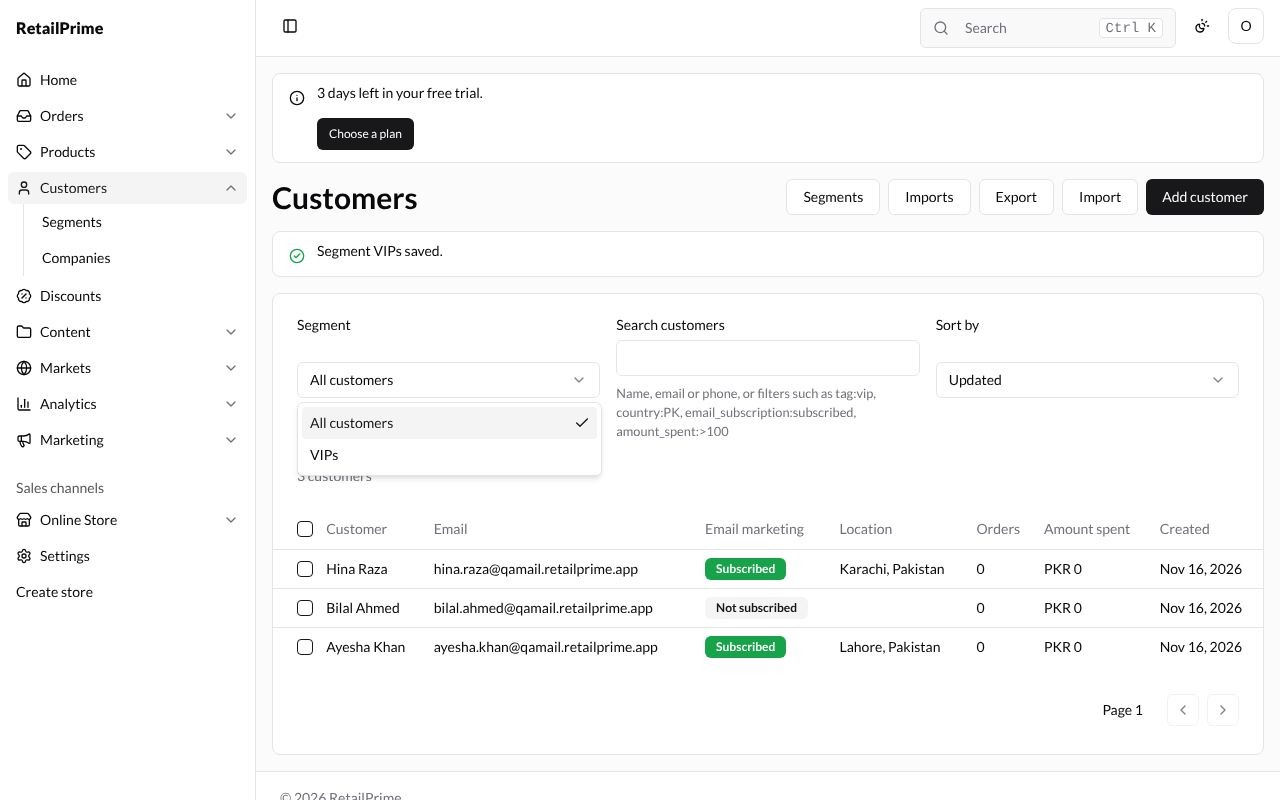
Press the Segment box on the Customers list and choose a segment. The list shows only its customers, and its search appears in Search customers. Choose All customers to see everyone again.
Create a segment from conditions
- Go to Customers → Segments in the sidebar (or press Segments on the customers list).
- Press Create segment at the top right.
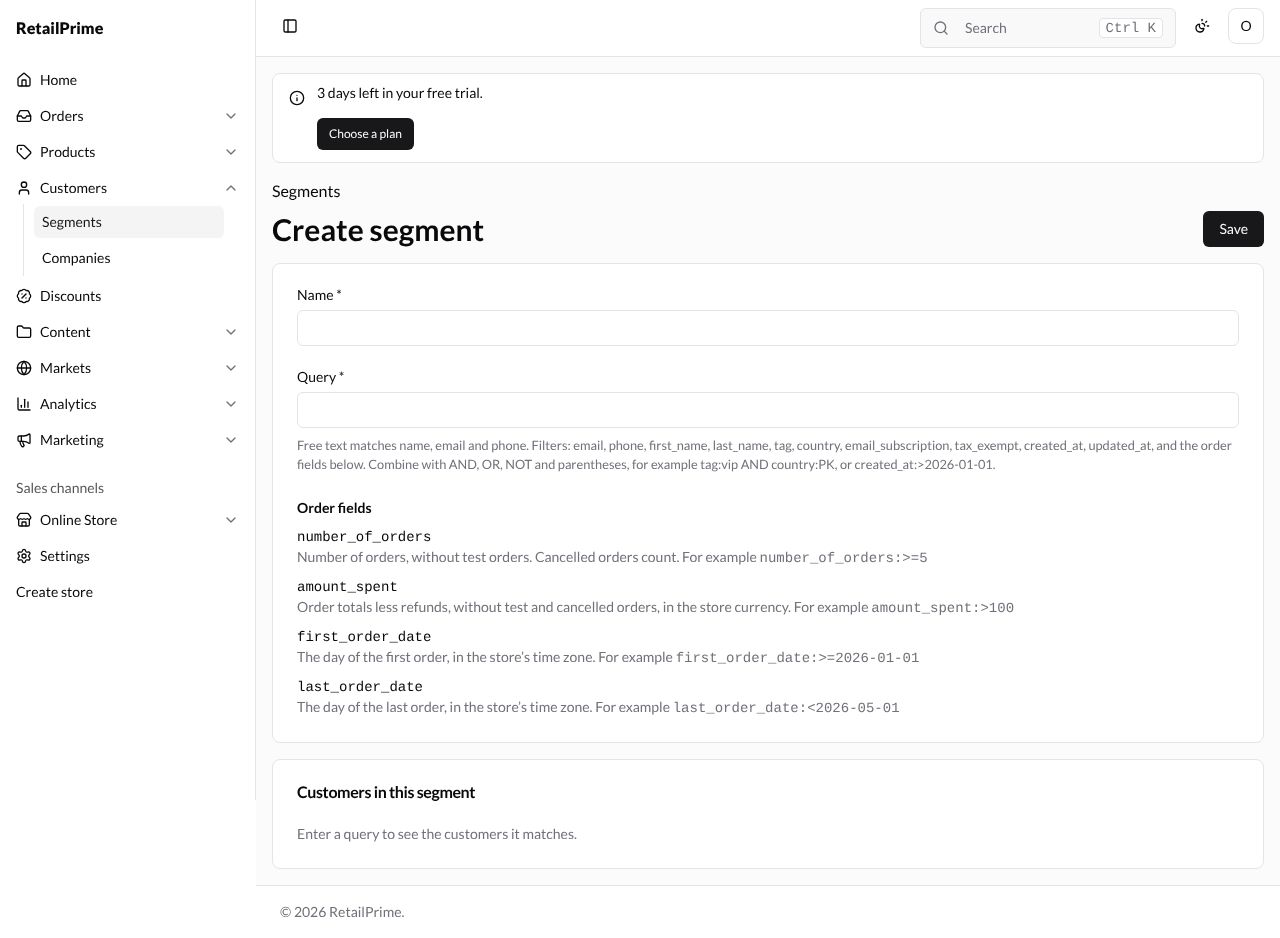
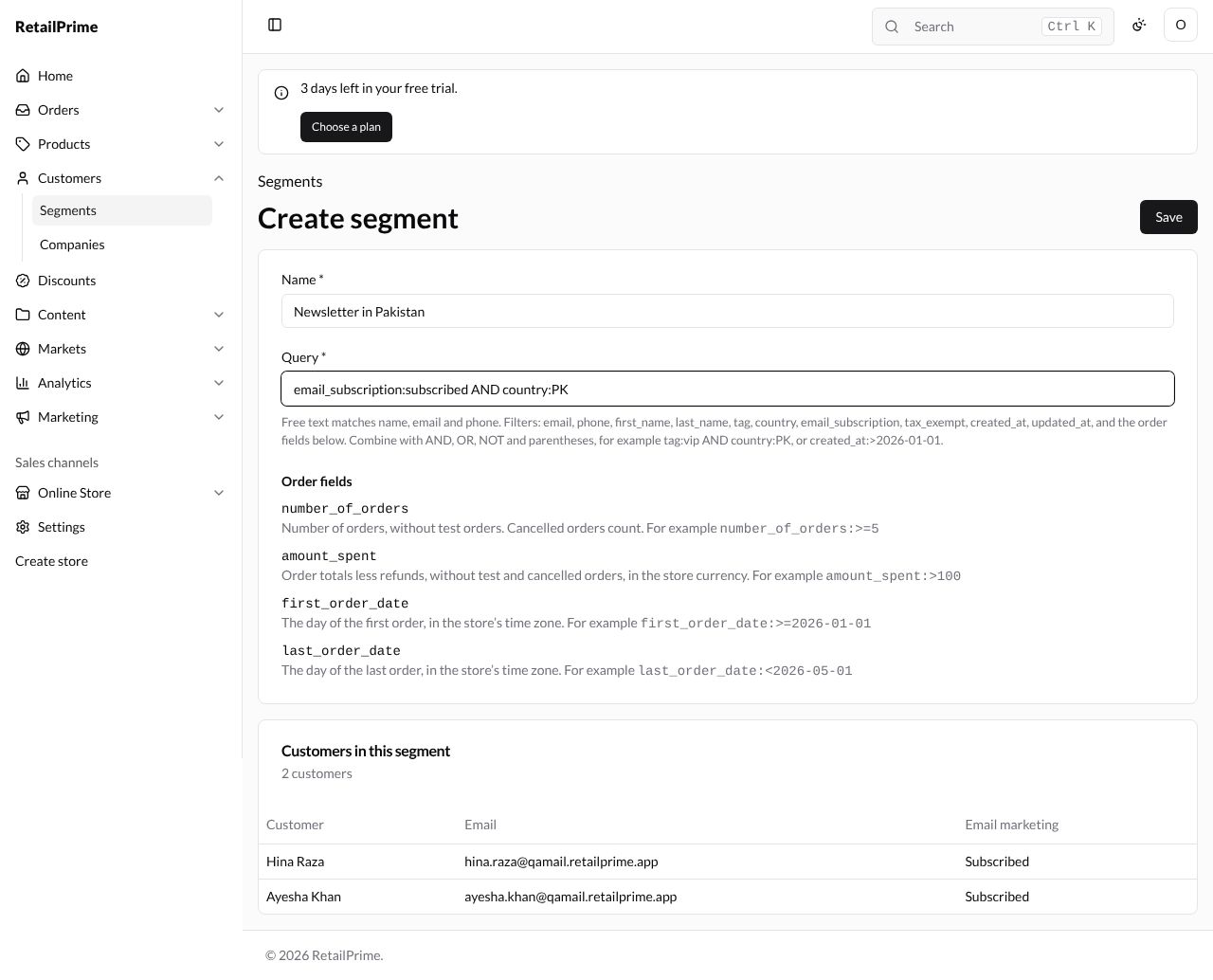
The Create segment page has a Name and a Query. Under the query, the page lists every filter you can use, and the Order fields, each with an example. The Customers in this segment card says Enter a query to see the customers it matches.
| Box | What to type | Example |
|---|---|---|
| Name * | The segment’s name | Newsletter in Pakistan |
| Query * | The conditions. Free text matches name, email and phone. Join conditions with AND, OR, NOT and brackets |
email_subscription:subscribed AND country:PK |
The filters you can use are email, phone, first_name, last_name, tag, country, email_subscription, tax_exempt, created_at, updated_at, and the order fields:
| Order field | What it means | Example |
|---|---|---|
number_of_orders |
Number of orders, without test orders. Cancelled orders count | number_of_orders:>=5 |
amount_spent |
Order totals less refunds, without test and cancelled orders, in the store currency | amount_spent:>100 |
first_order_date |
The day of the first order, in the store’s time zone | first_order_date:>=2026-01-01 |
last_order_date |
The day of the last order, in the store’s time zone | last_order_date:<2026-05-01 |
The live preview
Half a second after you stop typing, Customers in this segment shows how many customers match and lists them, with their Email and Email marketing. When more match than it shows, it says it shows the most recently updated.
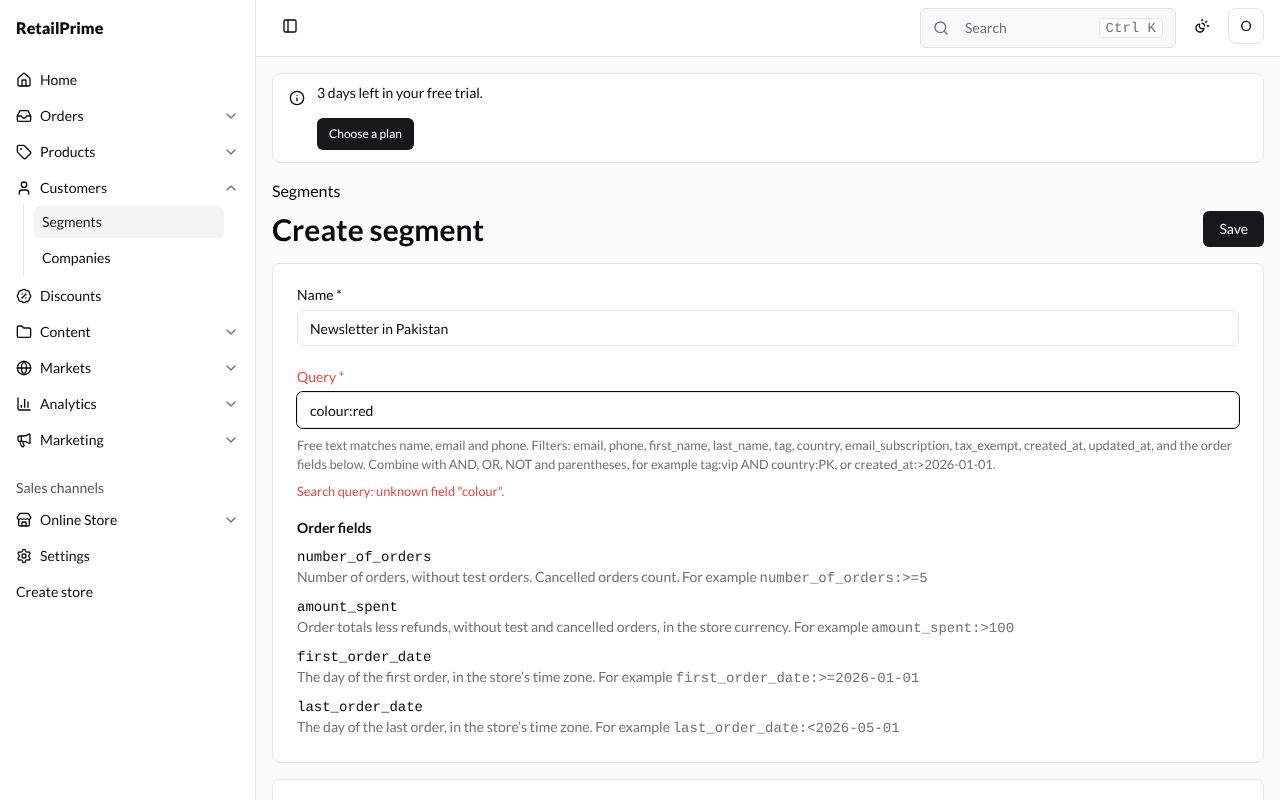
When the query can’t be read, the Query label turns red and the message under it says why, such as Search query: unknown field “colour”.
- Press Save at the top right. The segment’s page opens, titled with its name.
The segments list
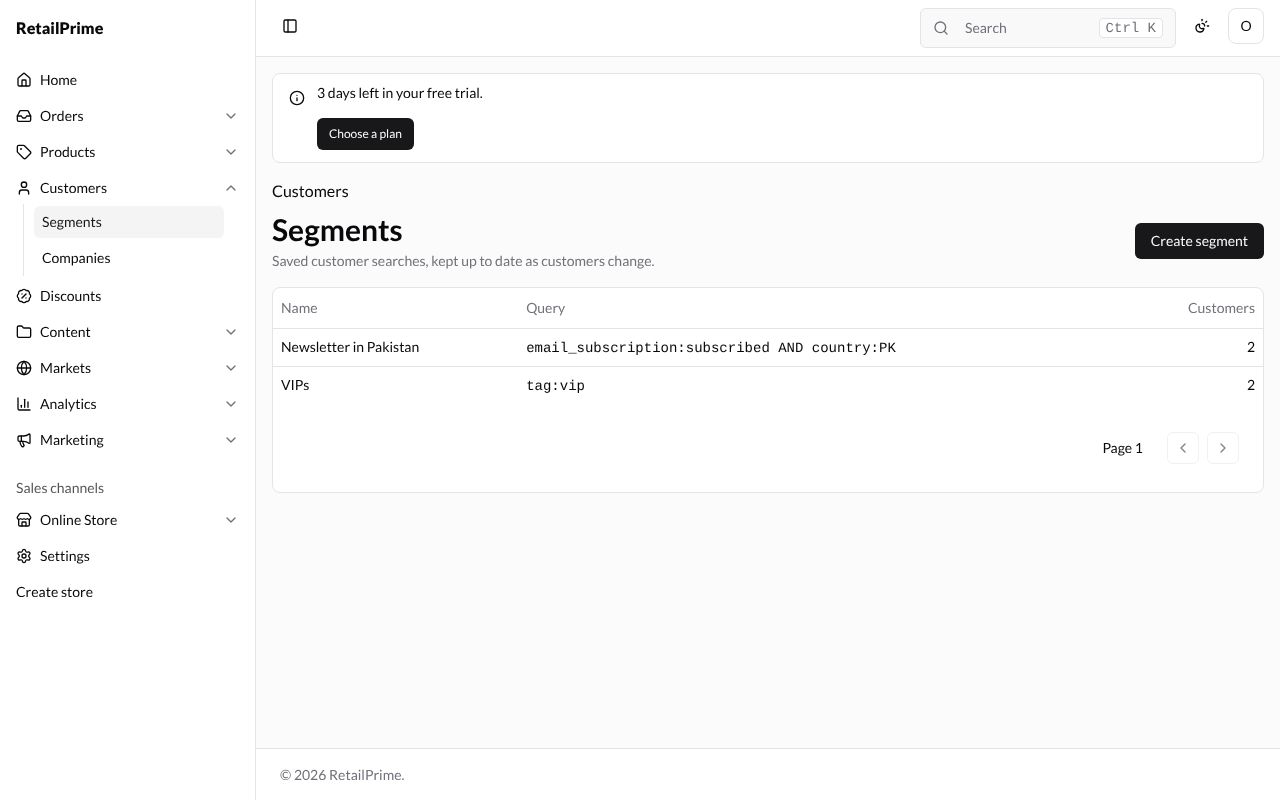
Press Segments above the segment’s name (or in the sidebar). Every segment is listed with its Name, its Query and how many Customers it has now.
Edit a segment
- Press the segment’s name in the list.
- Change the Name or the Query. The preview updates as you type.
- Press Save.
Delete a segment
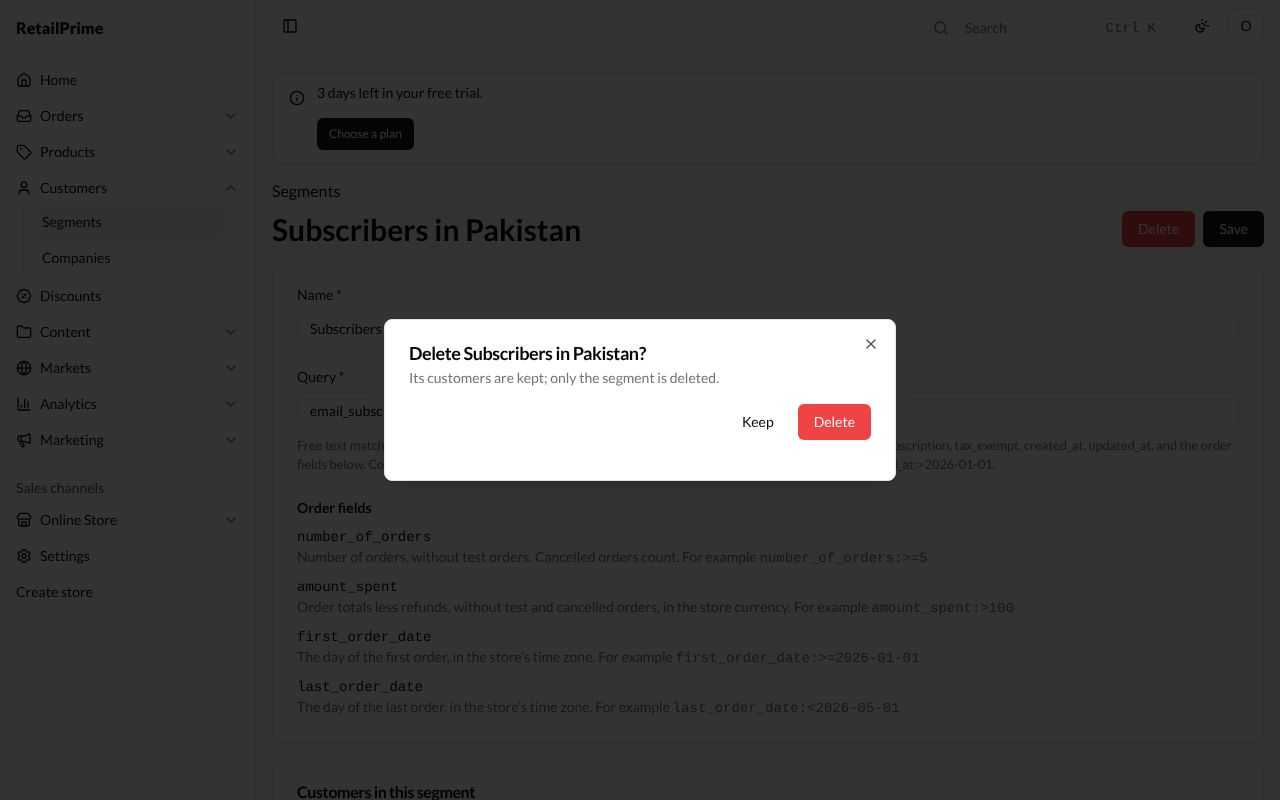
- Open the segment and press Delete (the red button) at the top right.
- A box asks, for example, Delete Subscribers in Pakistan? and says its customers are kept; only the segment is deleted.
- Press Delete, or Keep to change your mind.
You are back on the segments list.
What’s next
Draft orders: create an order for a customer yourself.