Store credit, merge and delete
Give a customer store credit, see their orders, download or erase their data, join two customers into one, and delete a customer.
These are the other things you can do on a customer’s page. Open it from Customers by pressing the customer’s name.
Store credit
Store credit is money a customer can spend in your store, in your store’s currency. You can give it, for example to say sorry for a late parcel, and take it back.
A customer without any starts with No store credit yet. and an Issue credit button:
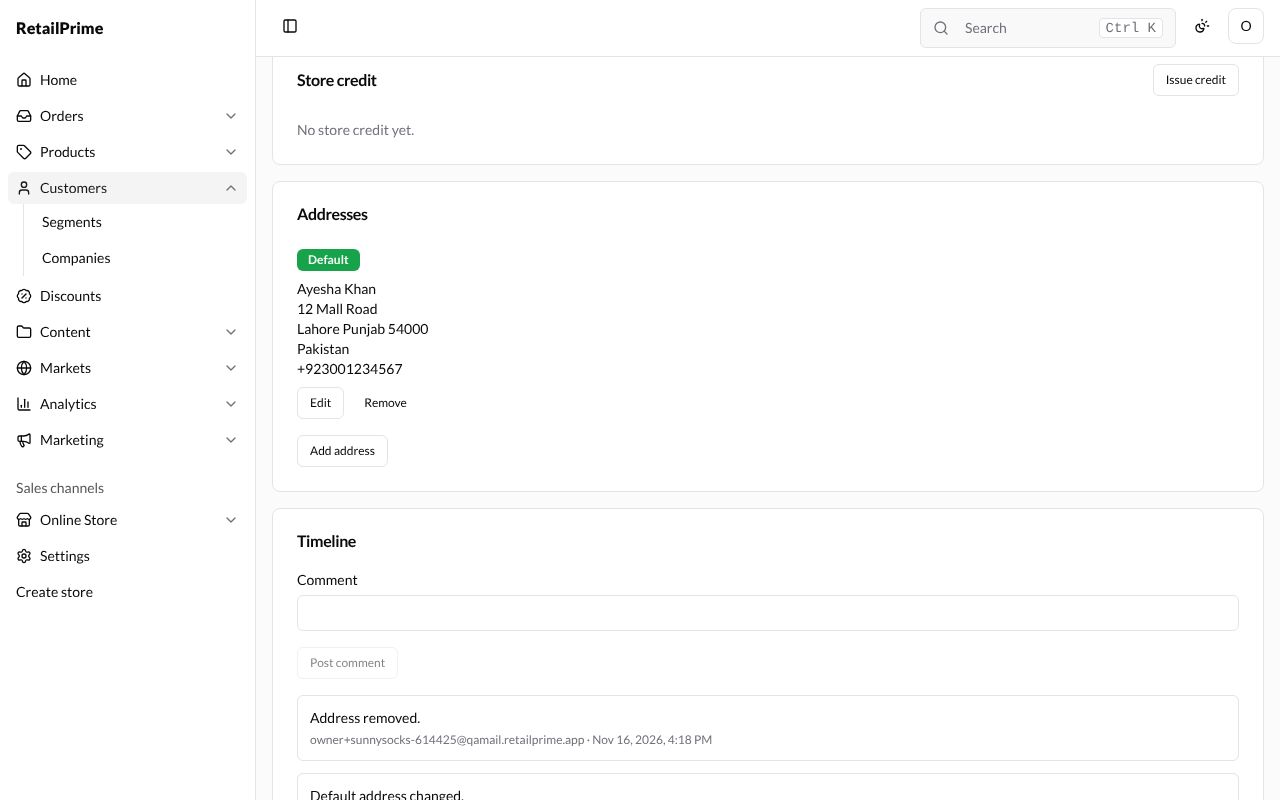
Issue credit
- In the Store credit card, press Issue credit.
- The Issue store credit box opens.
| Box | What to type | Example |
|---|---|---|
| Amount (PKR) * | How much to give. The brackets show your store’s currency | 1000 |
| Expiry date (optional) | The day the credit stops working. Leave it empty for credit that never expires | 31 December 2027 (pick it in the calendar) |
| Note (optional) | Why you gave it. It shows in the history | Sorry for the late parcel |
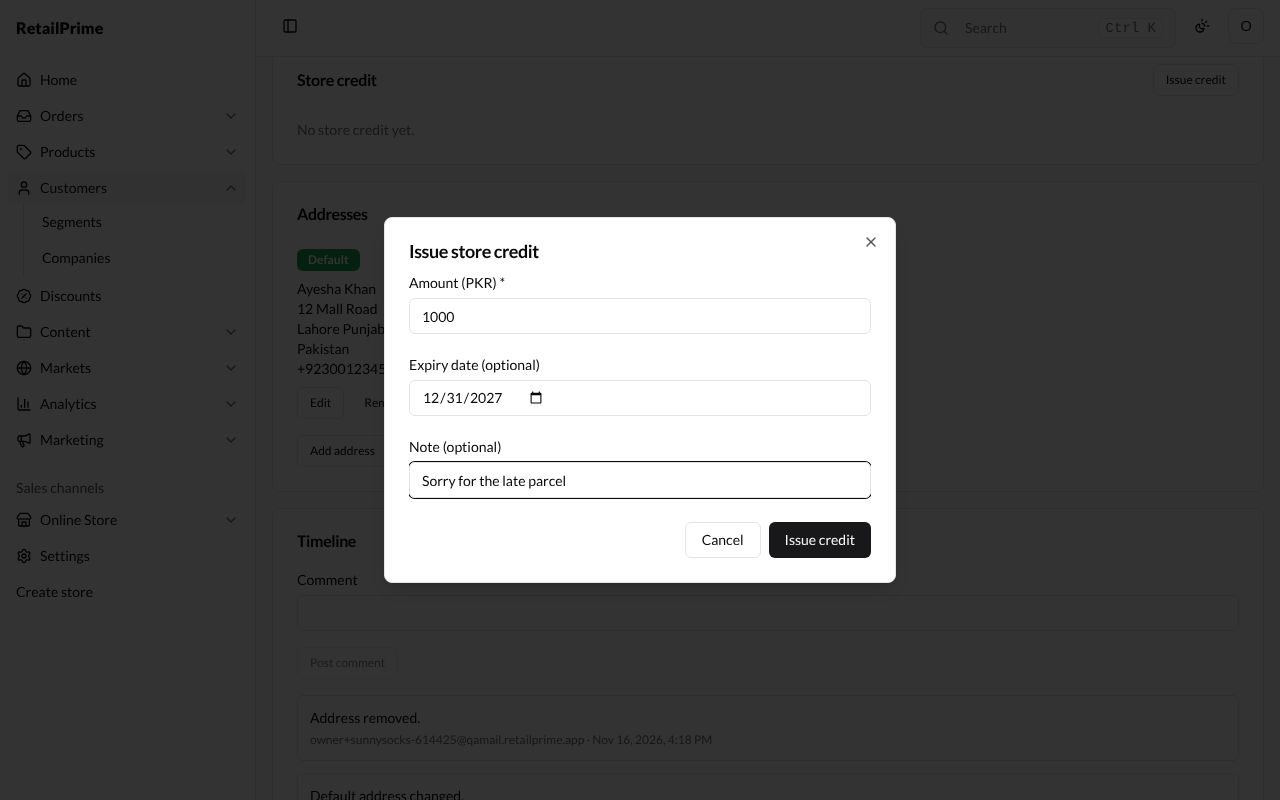
- Press Issue credit. The card now shows the Balance.
Deduct credit
Once there is a balance, a Deduct button appears next to Issue credit.
- Press Deduct.
- In the Deduct store credit box, type the Amount (PKR) to take away, such as
200. It can’t be more than the balance. - Type a Note (optional), such as
Used in the shop. - Press Deduct.
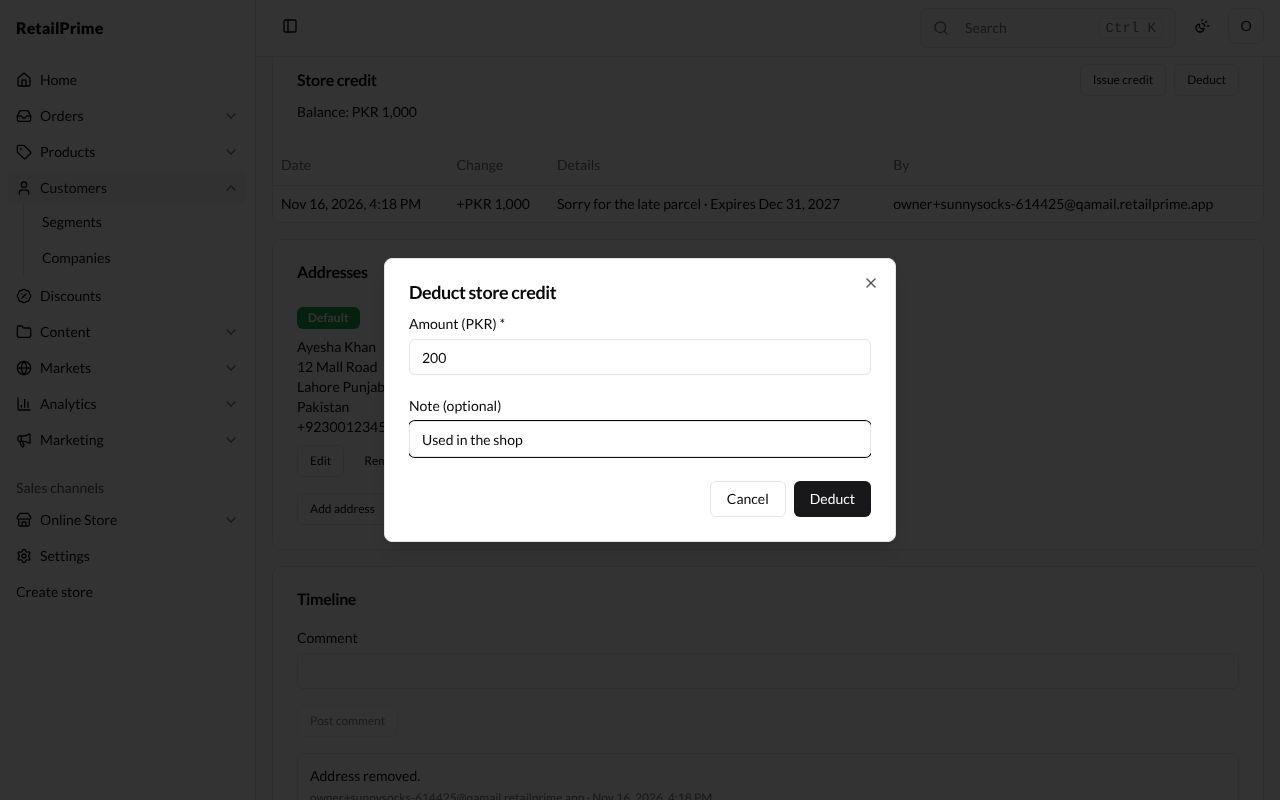
The history
The card shows the Balance and a line for every change, newest first: the Date, the Change (+ for credit given, − for credit taken), the Details (the note, the order it came from, and when it expires) and who did it (By).
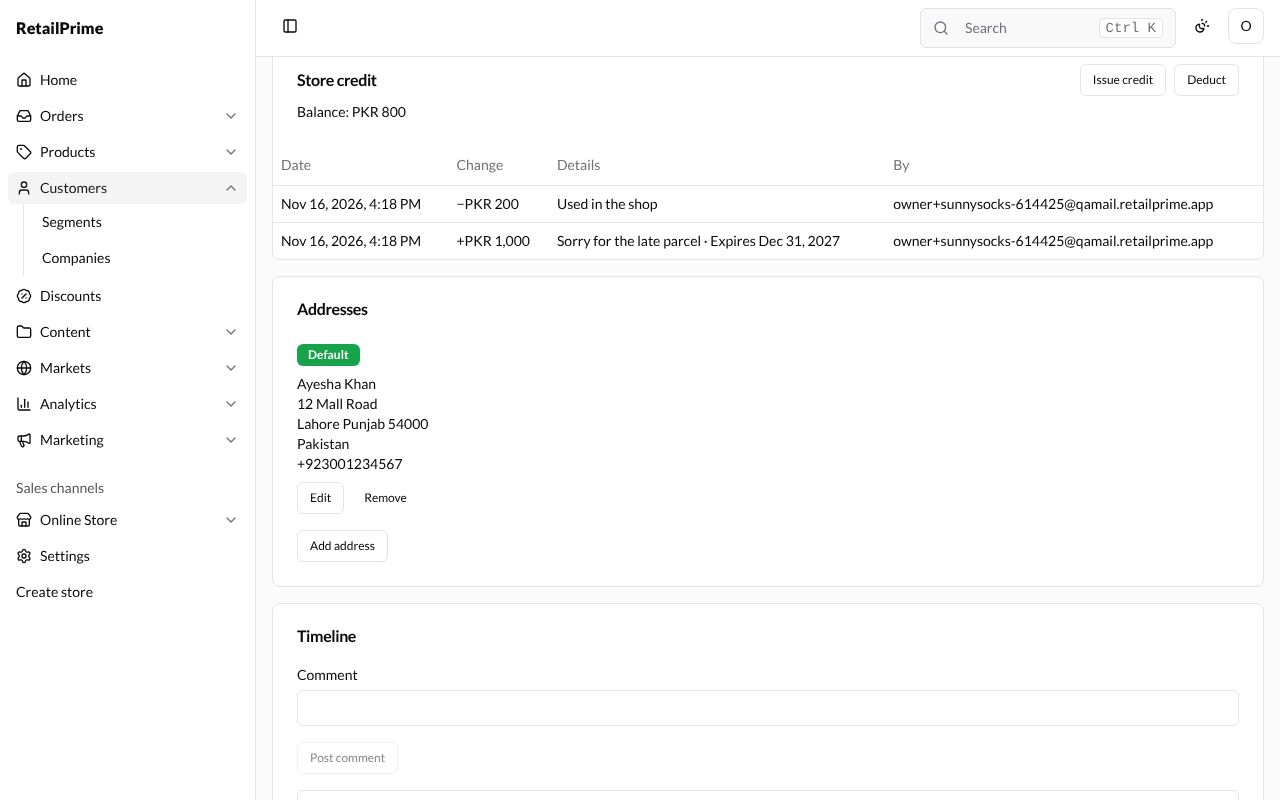
The Orders card
The Orders card at the top of the page shows the customer’s orders. Once they have one, it shows when they last ordered (with a link to that order), how many orders they have, how much they spent, and a table of their orders with their Date, Total, Payment and Fulfillment. It shows the 10 most recent; Show more at the bottom loads more.
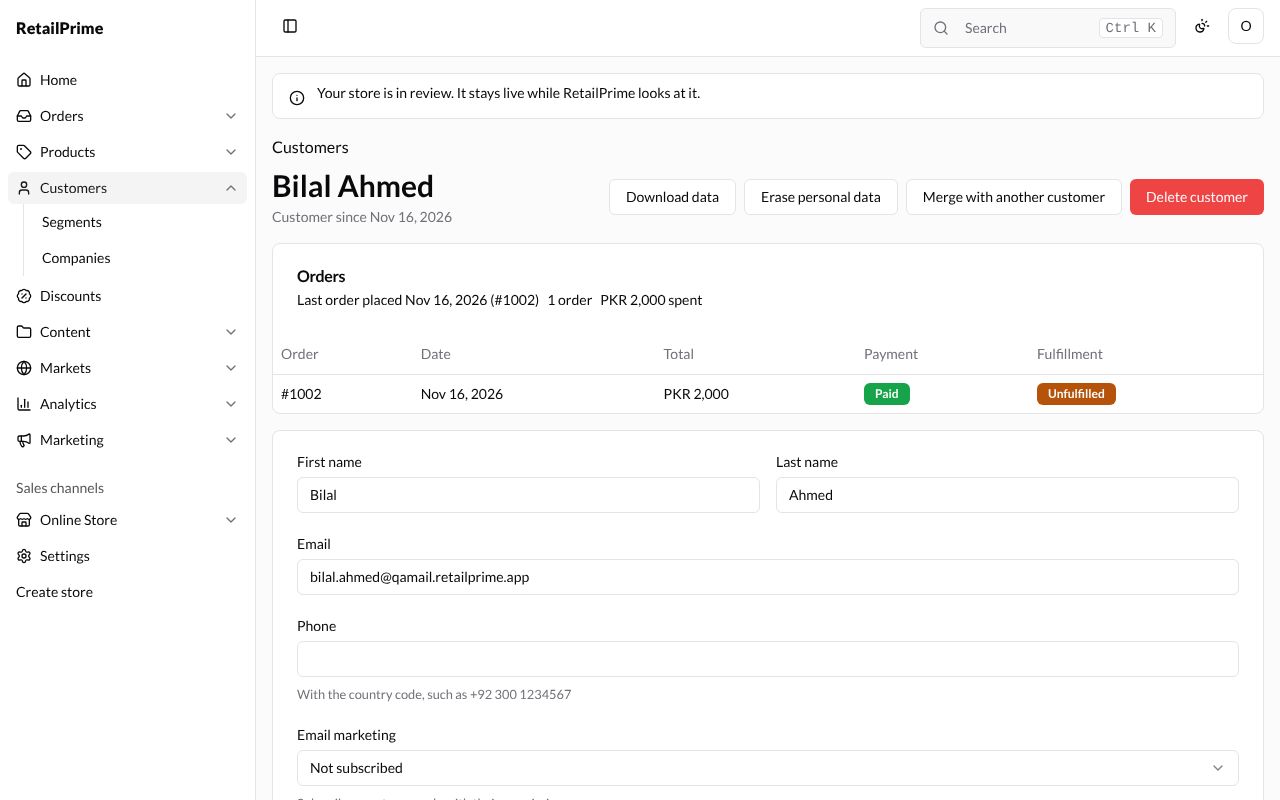
Download data
Press Download data at the top right. A file with everything your store holds about the customer downloads straight away, for you to send to them when they ask for it. The Timeline records Customer data was downloaded.
Erase personal data
When a customer asks you to delete their personal data:
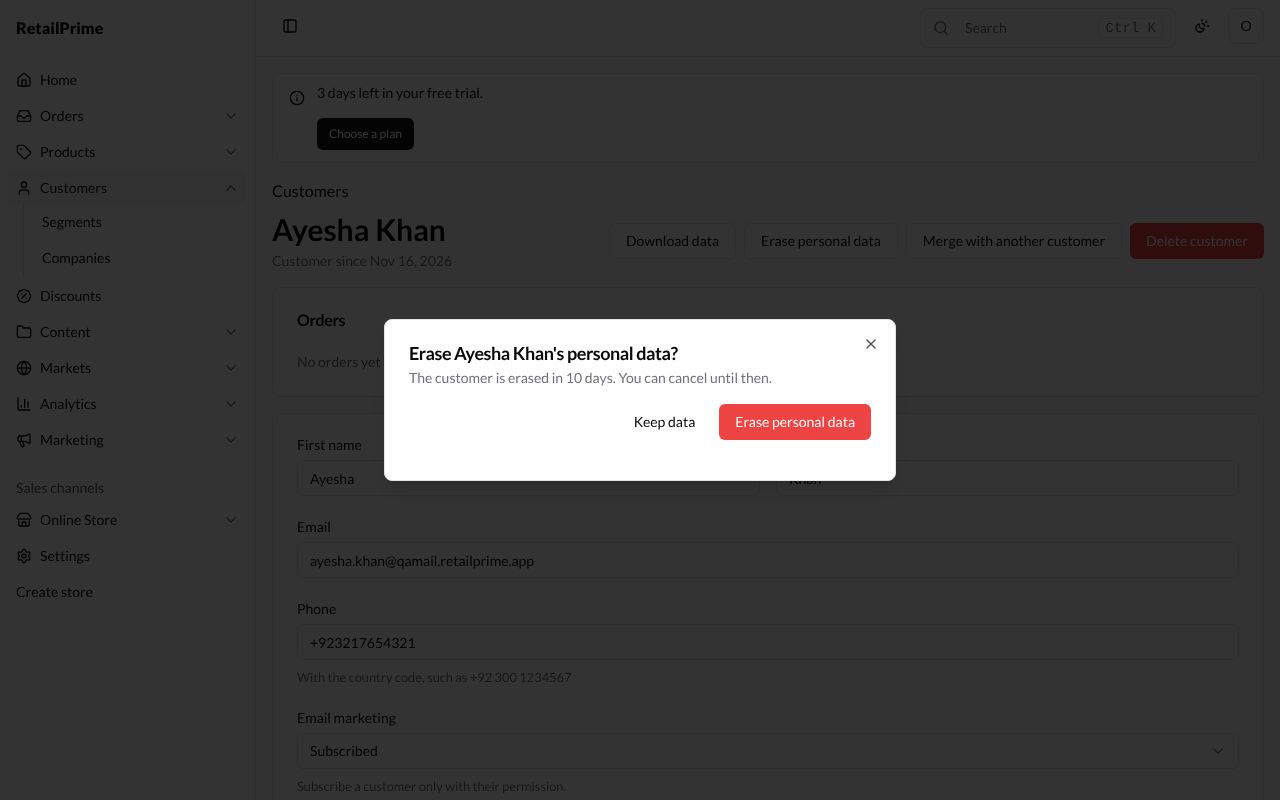
- Press Erase personal data at the top right.
- A box asks Erase Ayesha Khan’s personal data? and says The customer is erased in 10 days. You can cancel until then.
- Press Erase personal data, or Keep data to change your mind.
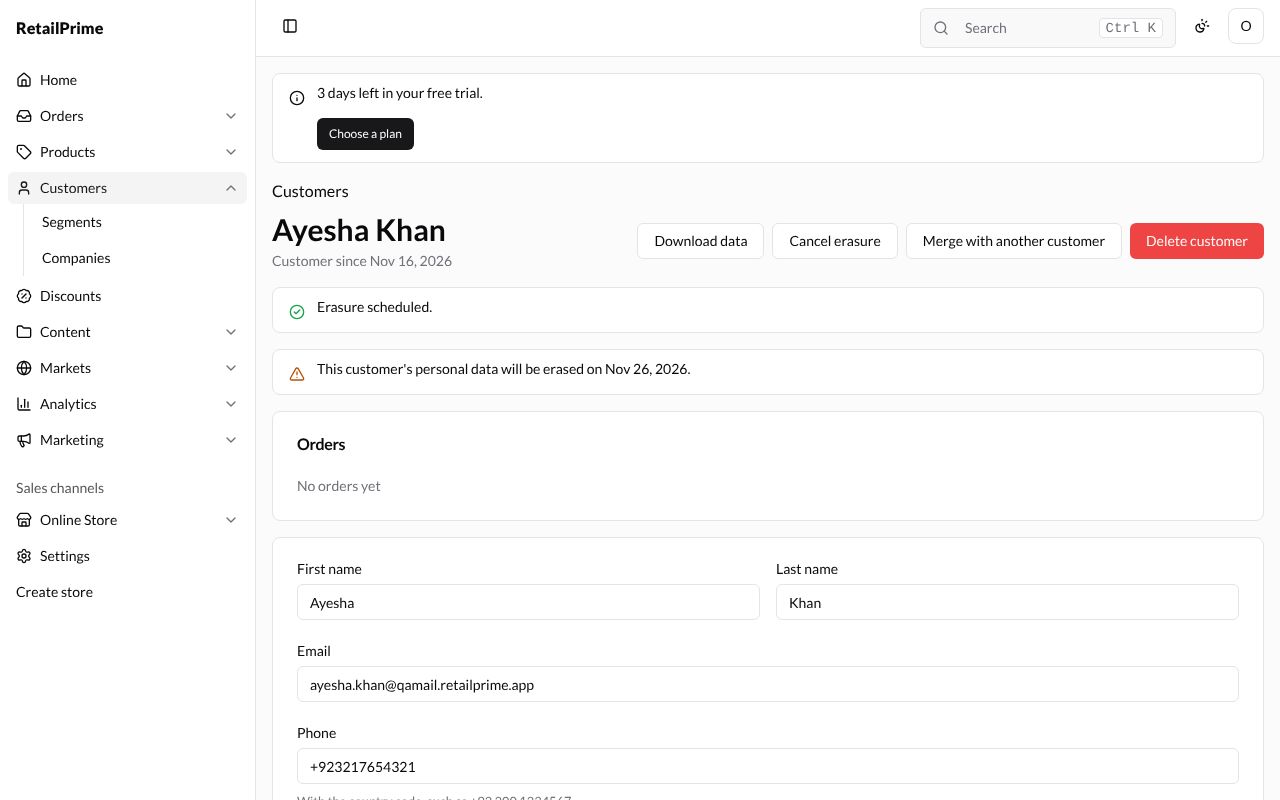
The page says Erasure scheduled. and This customer’s personal data will be erased on with the date. The button at the top changes to Cancel erasure: press it to stop the erasure. The page then says Erasure cancelled.
Merge two customers
When the same person is in your list twice, for example Sara M. and Sara Malik, join them into one.
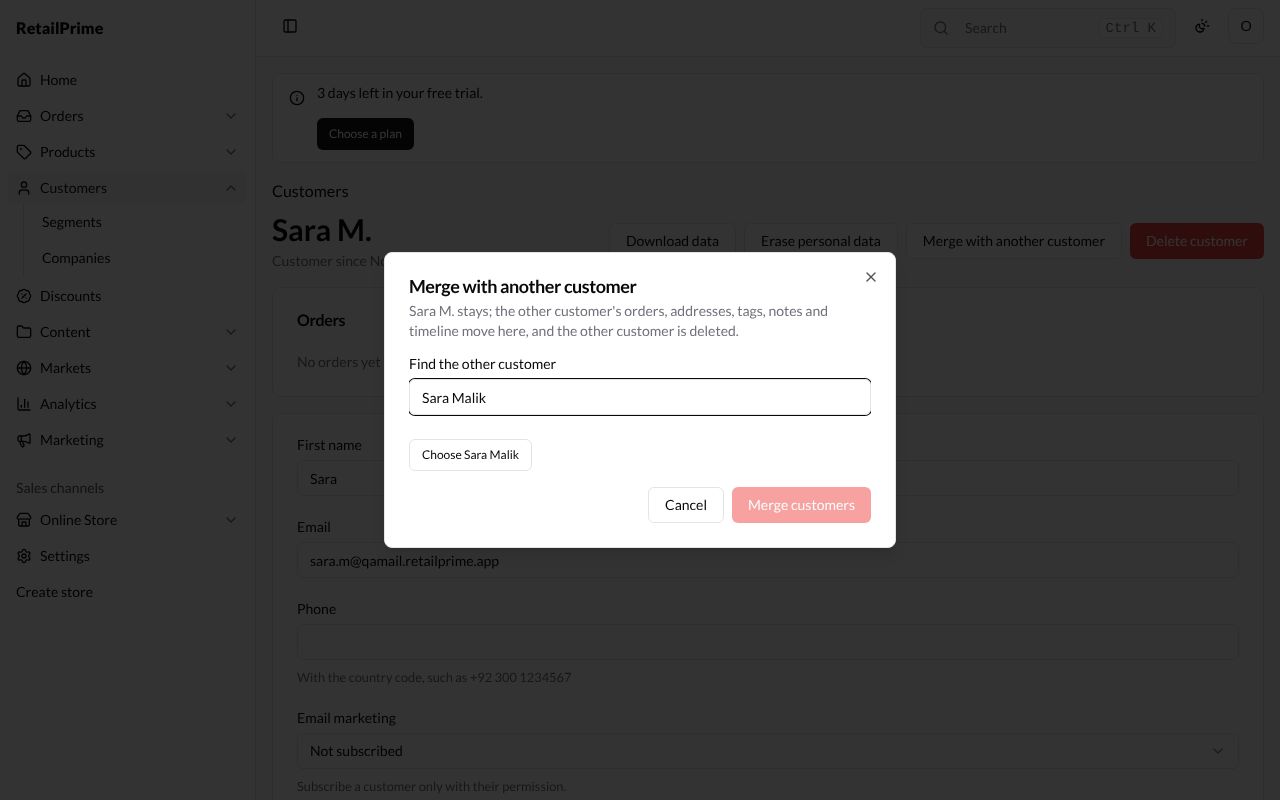
- Open the customer to keep, here Sara M., and press Merge with another customer.
- The box says the customer whose page this is stays, and the other customer’s orders, addresses, tags, notes and timeline move here, and the other customer is deleted.
- In Find the other customer, type their name or email, such as
Sara Malik. - Press Choose Sara Malik.
- For First name, Last name, Email and Phone, choose which customer’s value to keep. Here we keep the last name Malik.
- After merging shows how many addresses and orders the customer will have, and their tags. Choose another customer starts again.
- Press Merge customers.
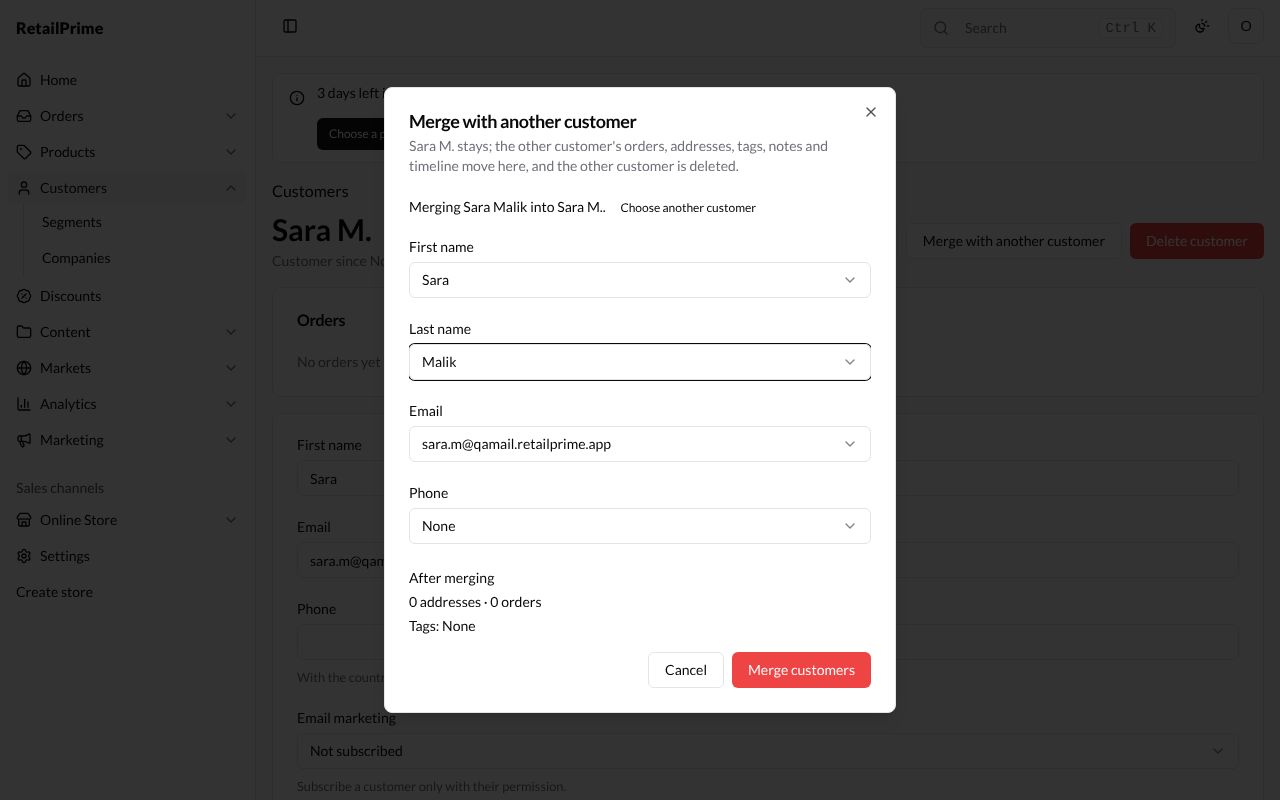
The page of the customer kept opens, now named Sara Malik.
Delete a customer
- Press Delete customer (the red button) at the top right.
- A box asks Delete Sara Malik? and says their addresses and timeline are deleted with them, and that this cannot be undone.
- Press Delete customer, or Keep to change your mind.
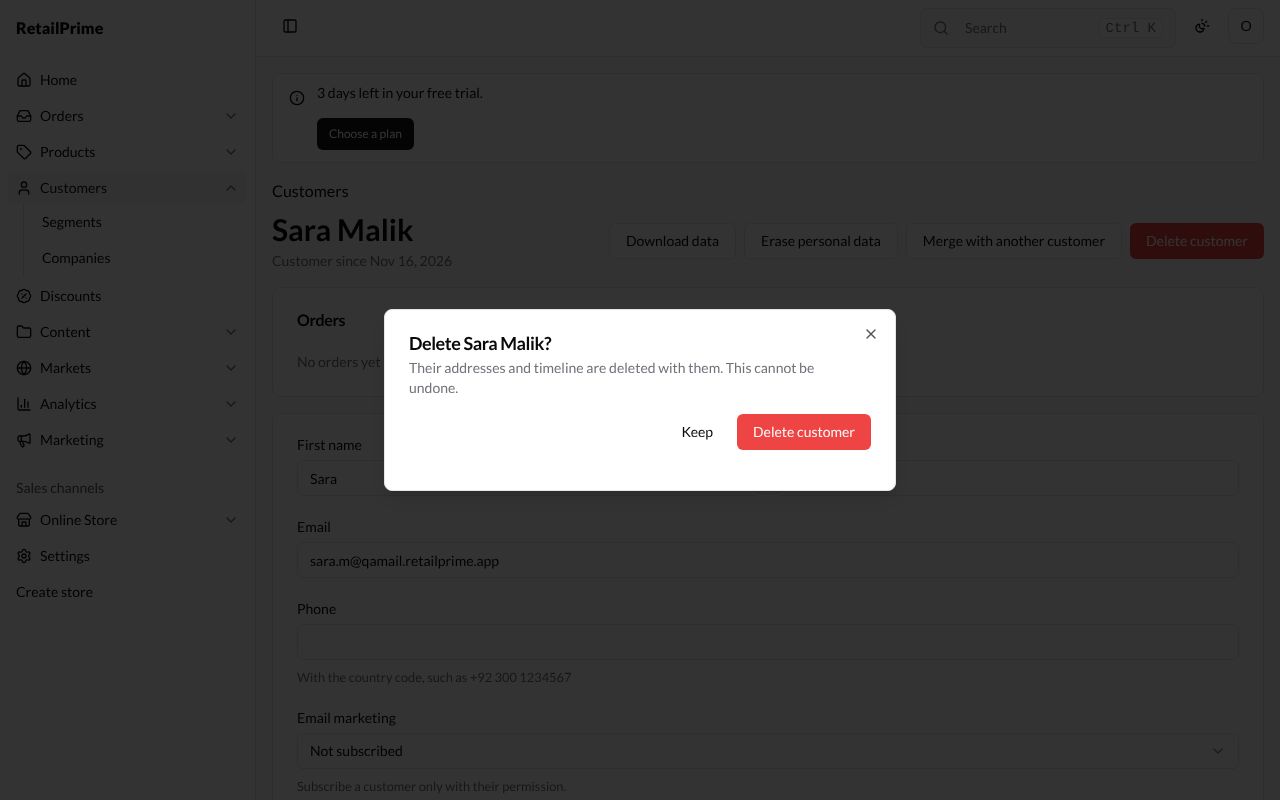
You are back on the Customers list, without the customer.
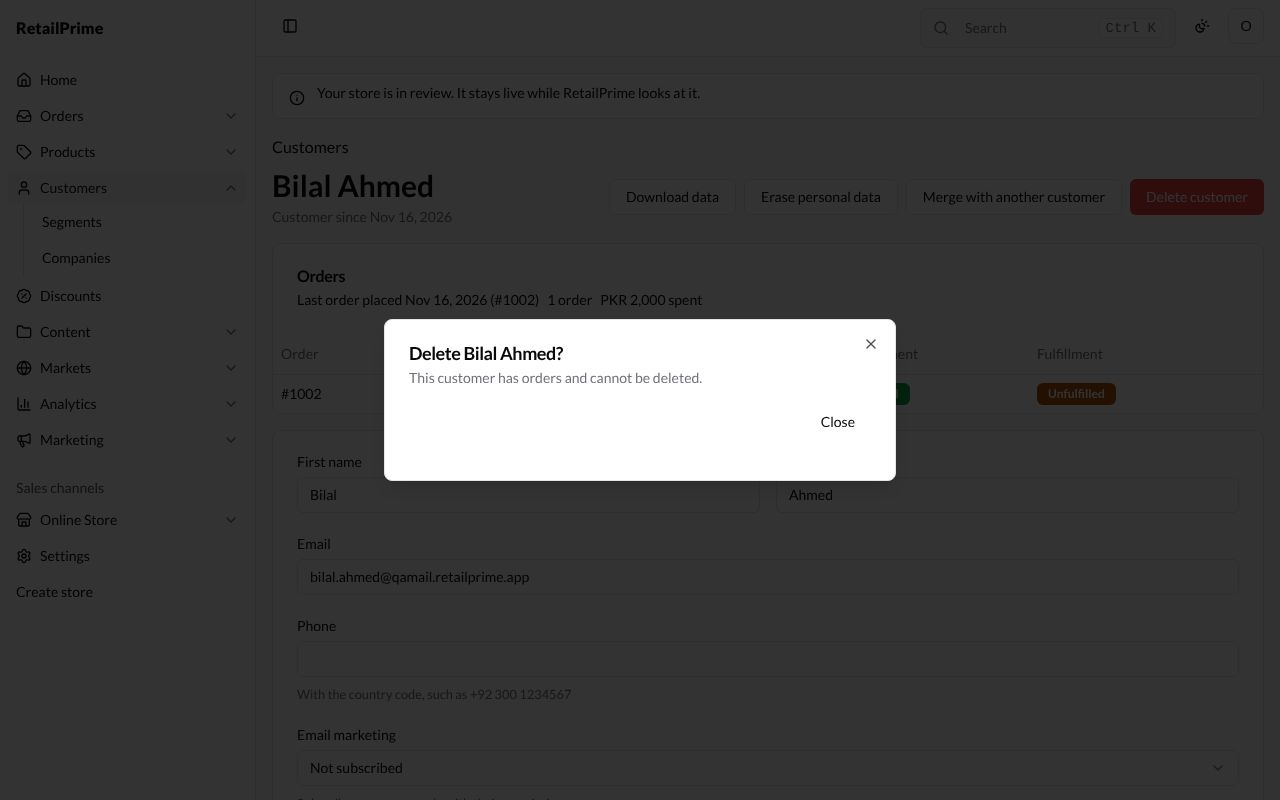
A customer who has orders can’t be deleted. The box then says This customer has orders and cannot be deleted. and has only Close:
What’s next
The customers list: search, sort, tag many customers at once, and import or export them.