Company locations
A company location's addresses, tax, payment terms, order submission, catalogs, contacts, sales staff, store credit and orders, and an order made for it.
Each company location has its own page. Open the company (see Companies) and press the location’s name in the Locations card.
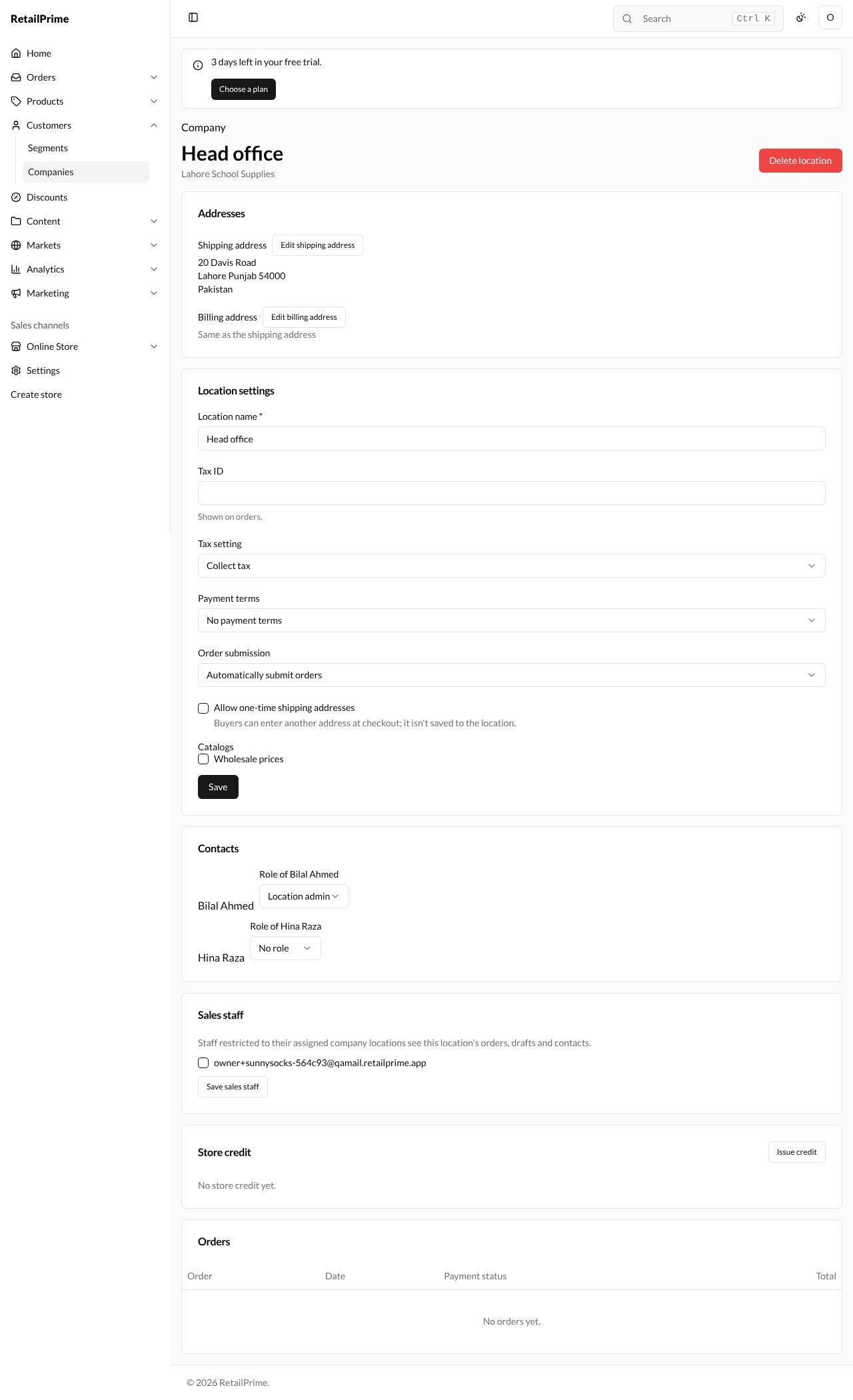
Here is the whole page of Head office, with the company’s name under it:
Addresses
The Addresses card shows the Shipping address, where the location’s orders are sent, and the Billing address. The billing address starts as Same as the shipping address.
- Press Edit shipping address or Edit billing address.
- A box opens with Country, First name, Last name, Company, Address, Apartment, suite, etc., City, Province, Postal code and Phone, filled in with the address.
- Change what you need, here the billing Address to
9 Accounts Lane. - Press Save address. The page says Address saved.
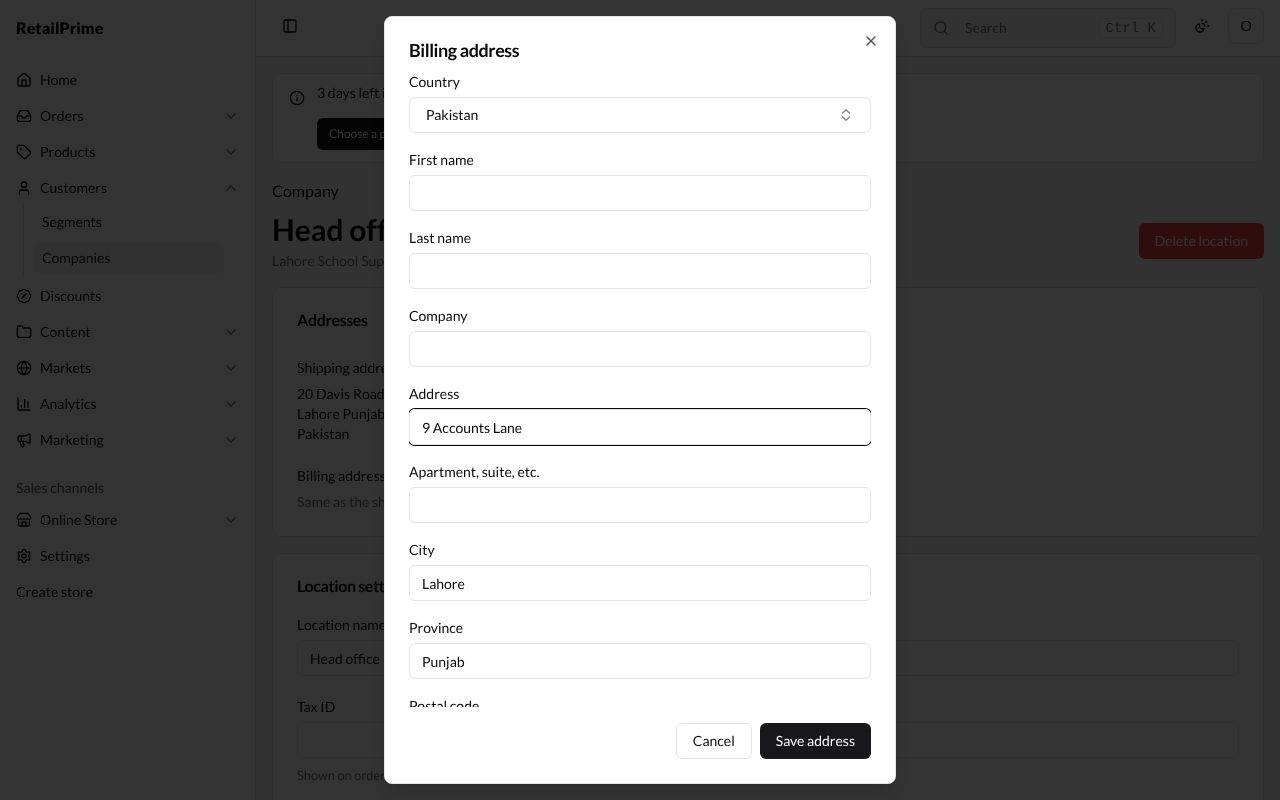
Once the billing address is its own, a Use the shipping address for billing button appears to make it the same again.
Location settings
| Box | What it’s for | Example |
|---|---|---|
| Location name * | The location’s name | Head office |
| Tax ID | The location’s tax number. It is shown on orders | NTN-1234567 |
| Tax setting | Collect tax, or Don’t collect tax for no tax on its orders | Collect tax |
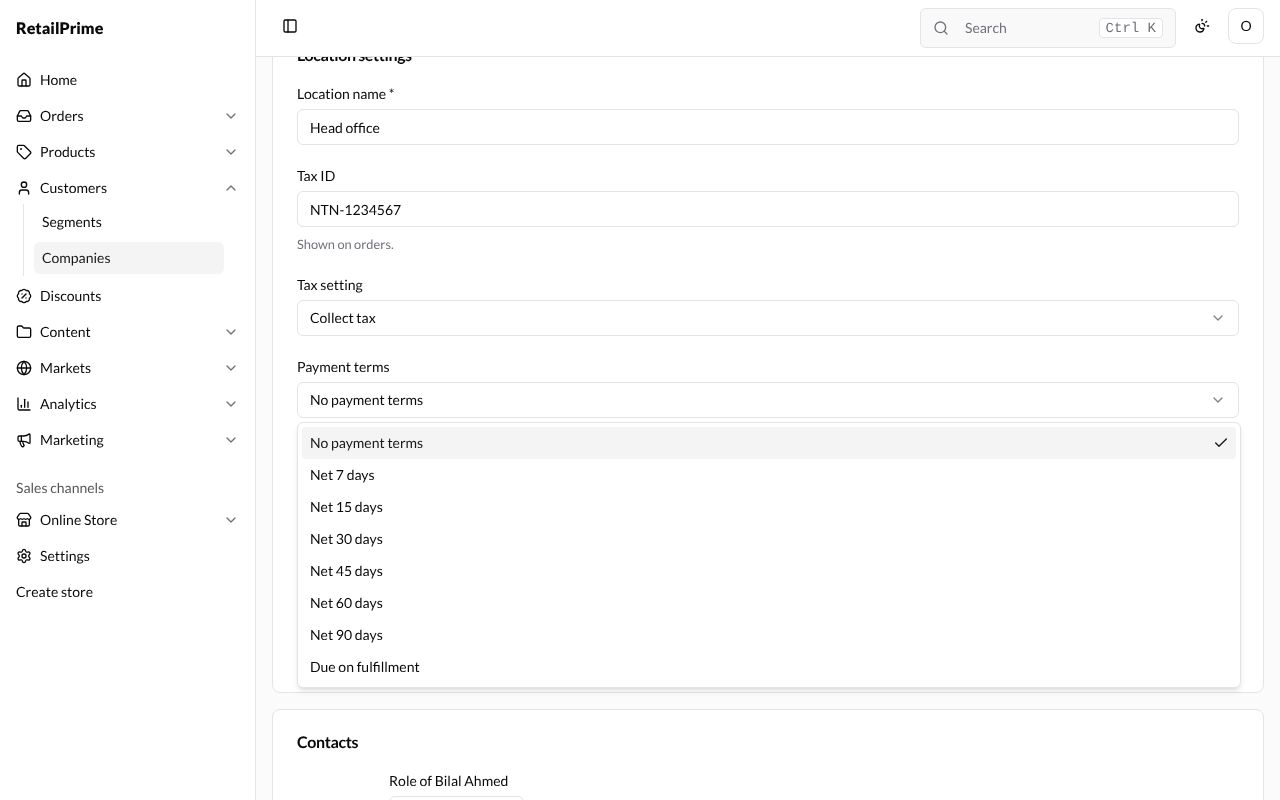
| Payment terms | When the location pays: No payment terms (at checkout), Net 7 days to Net 90 days, or Due on fulfillment | Net 30 days |
| Deposit (%) | Only with payment terms. Optional: 1 to 99 % of the order, paid at checkout; the rest is due by the terms | 25 |
| Order submission | Automatically submit orders, or Submit all orders as drafts for review: the buyer’s checkout makes a draft order for you to check and complete | Submit all orders as drafts for review |
| Allow one-time shipping addresses | Ticked: buyers can enter another address at checkout; it isn’t saved to the location | Leave it empty |
| Catalogs | Tick the catalogs whose products and prices this location gets. Catalogs are made in Markets → Catalogs, later in this guide | Wholesale prices |
The Payment terms list:
And the card filled in, with the Wholesale prices catalog ticked:
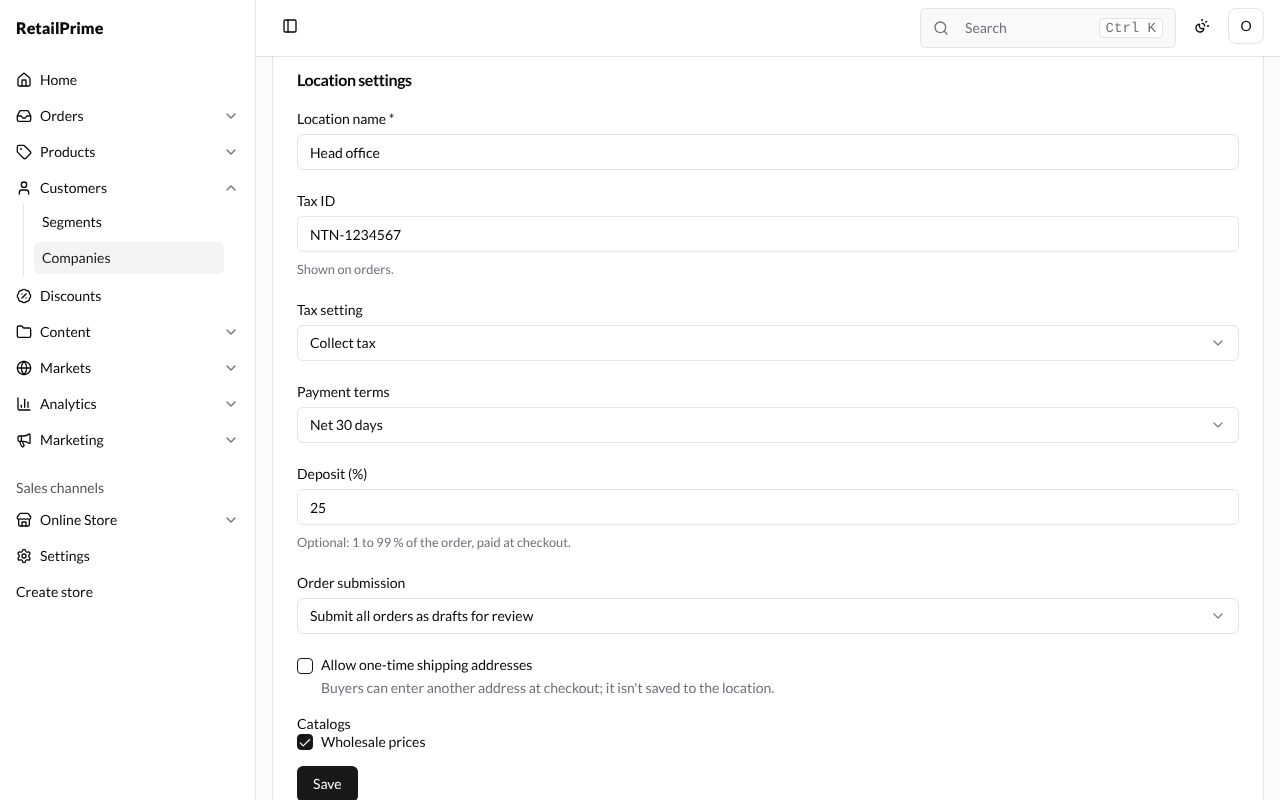
Press Save. The page says Location saved.
Contacts and sales staff
The Contacts card lists the company’s contacts with their Role of … at this location. Change a role here and it is saved straight away (Role changed.). To add contacts, go to the company’s page.
The Sales staff card says staff restricted to their assigned company locations see this location’s orders, drafts and contacts. Tick the staff members who look after this location and press Save sales staff. The page says Sales staff saved.
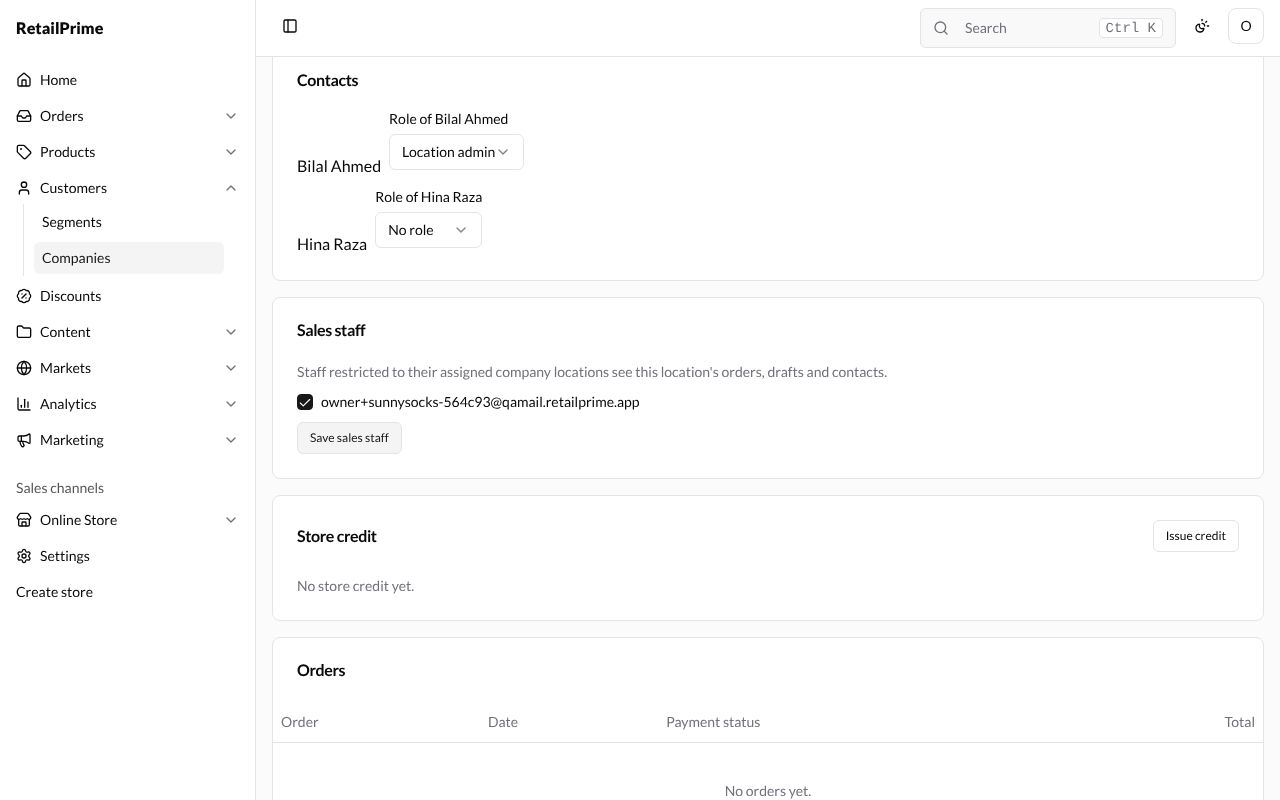
Store credit
A location has its own store credit, used when its contacts buy for it. It works like a customer’s: Issue credit, Deduct, the Balance and the history (see Store credit, merge and delete).
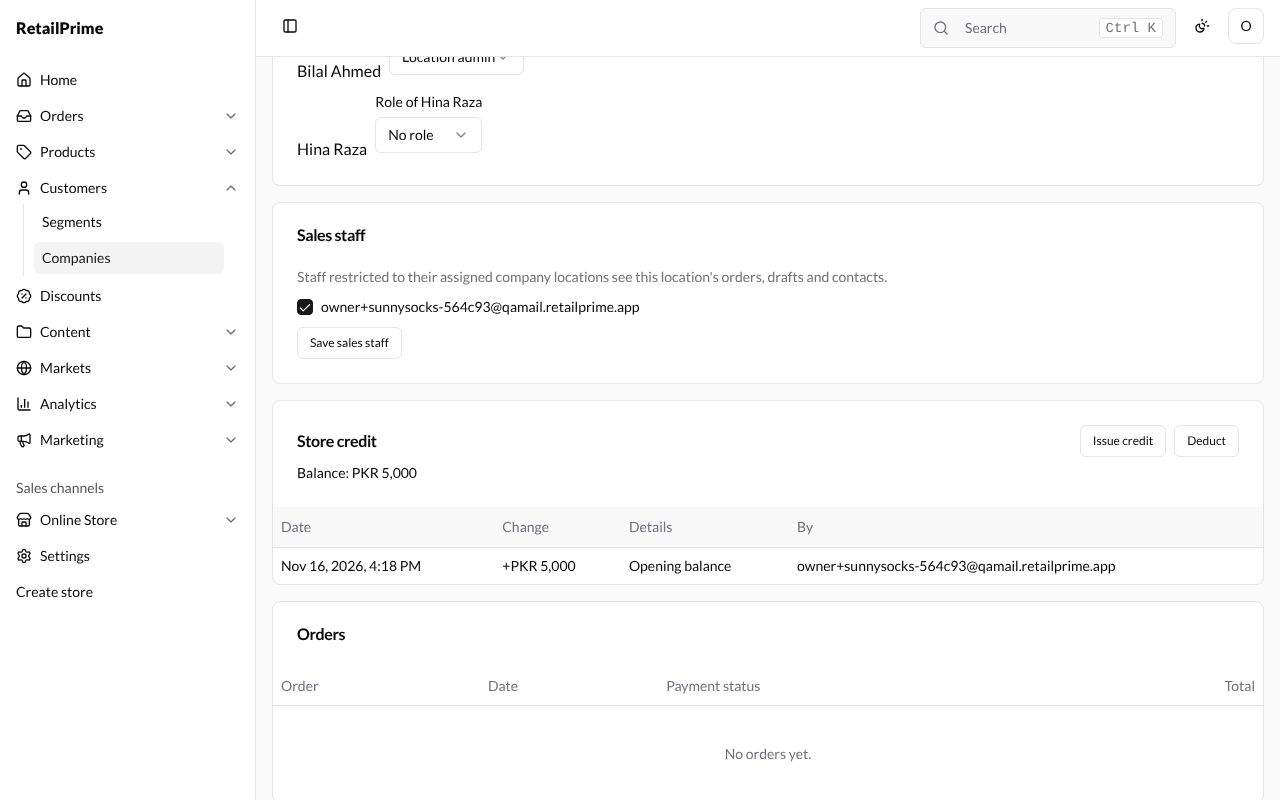
The Orders card at the bottom lists the location’s orders with their Date, Payment status and Total.
An order for a company location
You can make a draft order for a location yourself:
- Go to Drafts and press Create order. Add the products.
- In Search customers, choose a contact of the company, such as Bilal Ahmed.
- A Company location box appears. It says the location’s prices, tax setting, addresses and payment terms apply. Choose the location, such as Head office, or Not for a company.
- Type the buyer’s PO number (purchase order number) if they gave you one, such as
PO-2026-117.
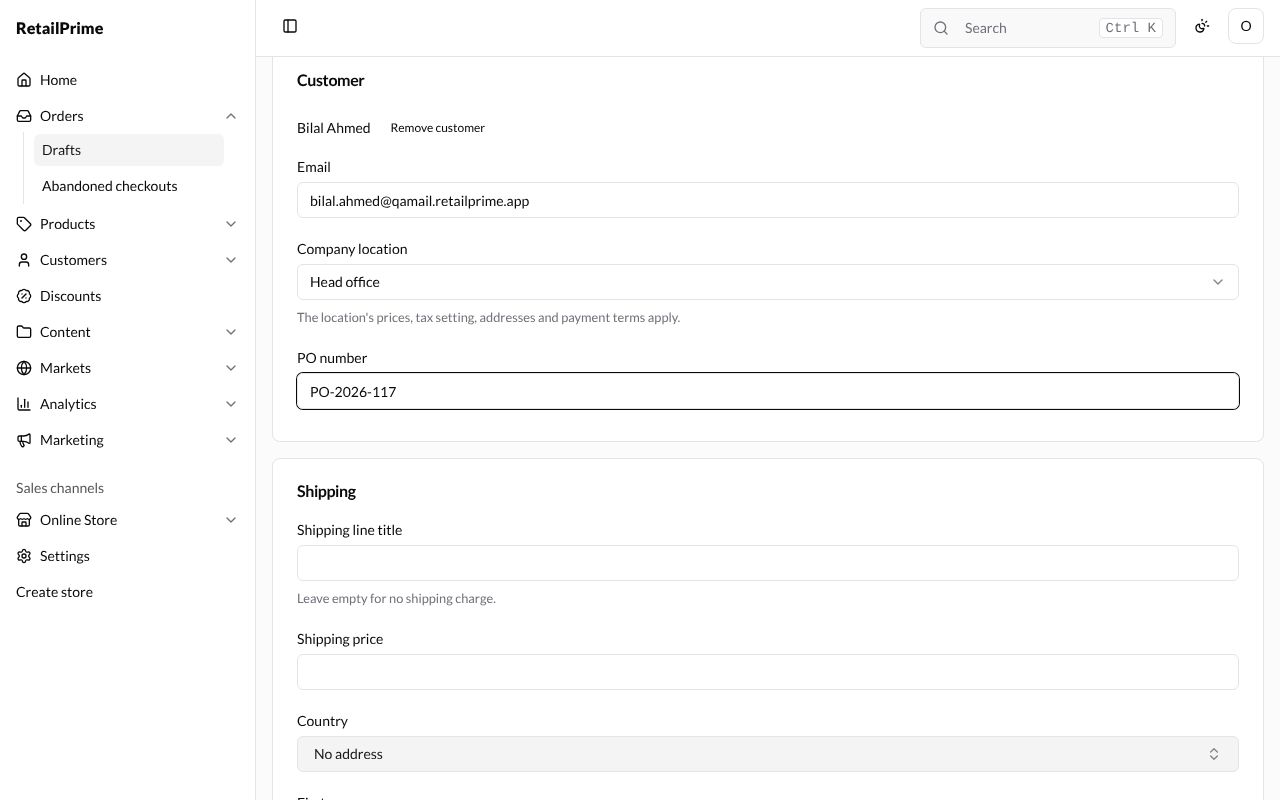
- Press Save, then Mark as paid or Mark as payment pending.
The order has a Company card with the company and location (press it to open the location) and the PO number. To change the PO number, press Edit PO number, type the new one in the PO number box and press Save.
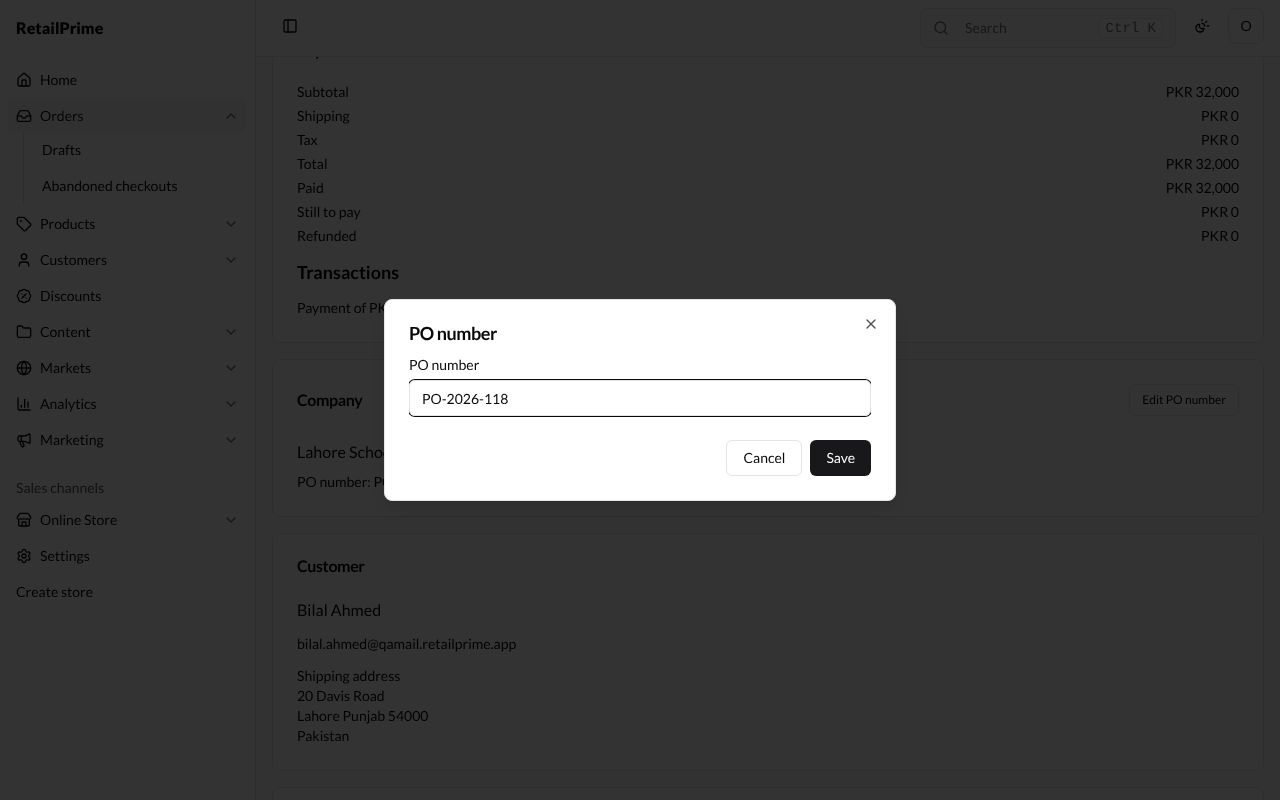
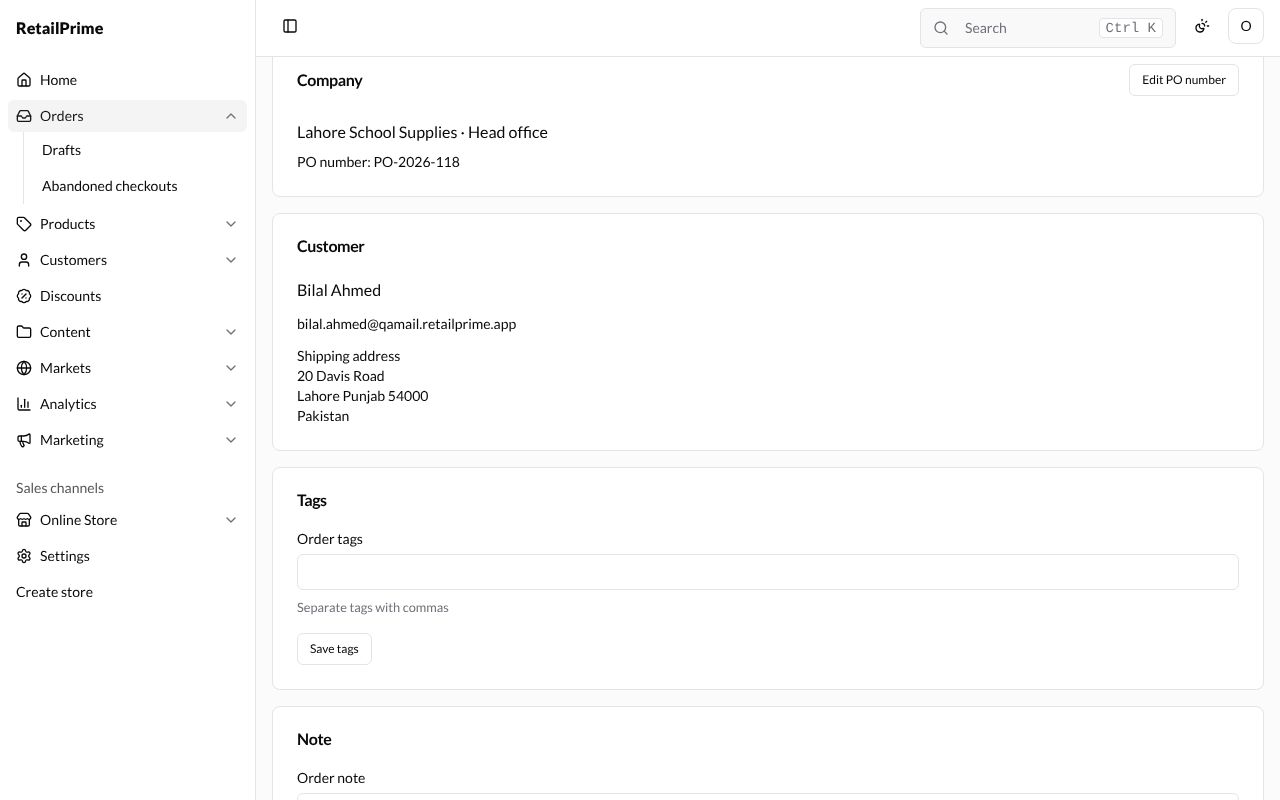
The order uses the location’s shipping address, and the location’s catalog prices: here 20 pairs of Wool Socks at 20 % off came to PKR 32,000.
What’s next
You have finished orders and customers. Part 4 starts with Create a discount: discount codes and automatic discounts.