Blogs and blog posts
Write blog posts, put them in blogs, publish or hide them, change and delete them, and see them on your store.
A blog post is an article on your store, such as sock care tips or news about new colours. Every post belongs to a blog, a list of posts with its own address, such as /blogs/sock-care. A store can have several blogs, such as Sock care and News.
Open Blog posts
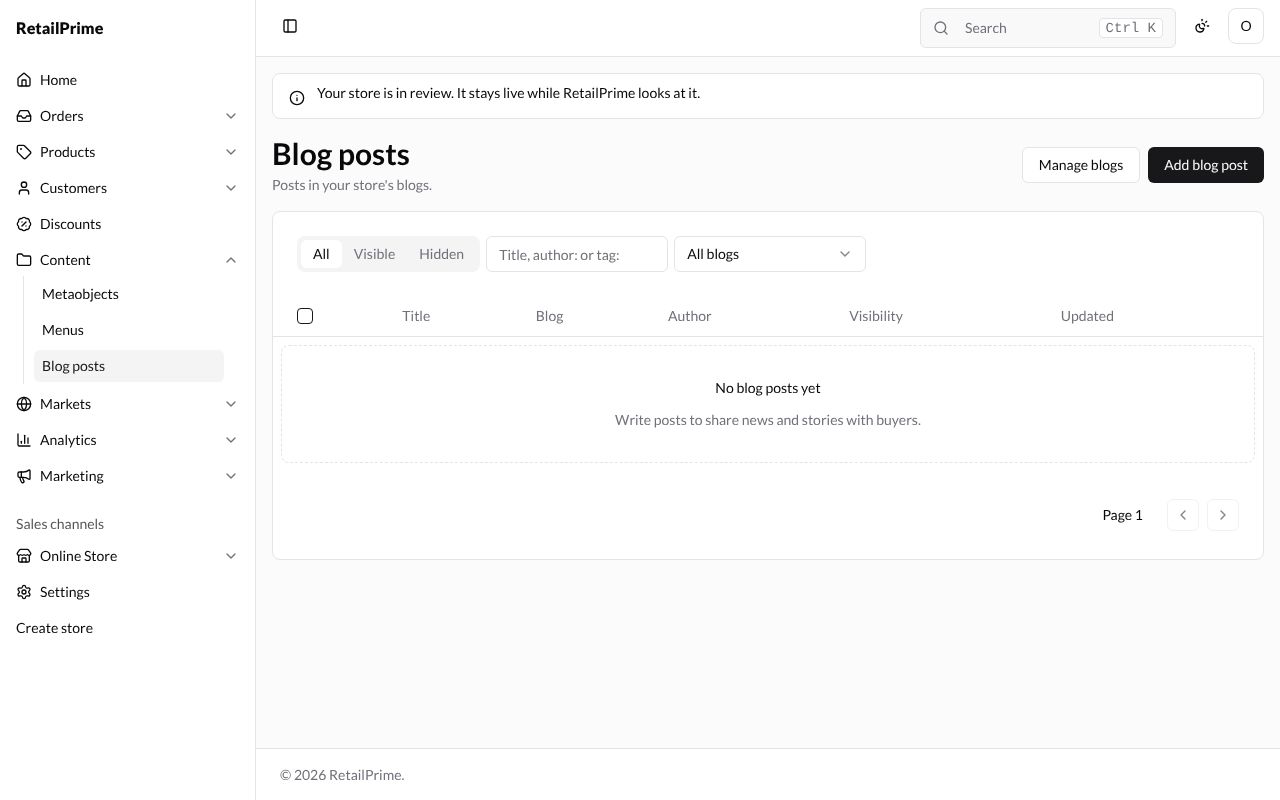
In the sidebar, press Content, then Blog posts. The page says Posts in your store’s blogs. A new store has No blog posts yet and Write posts to share news and stories with buyers.
Write a post
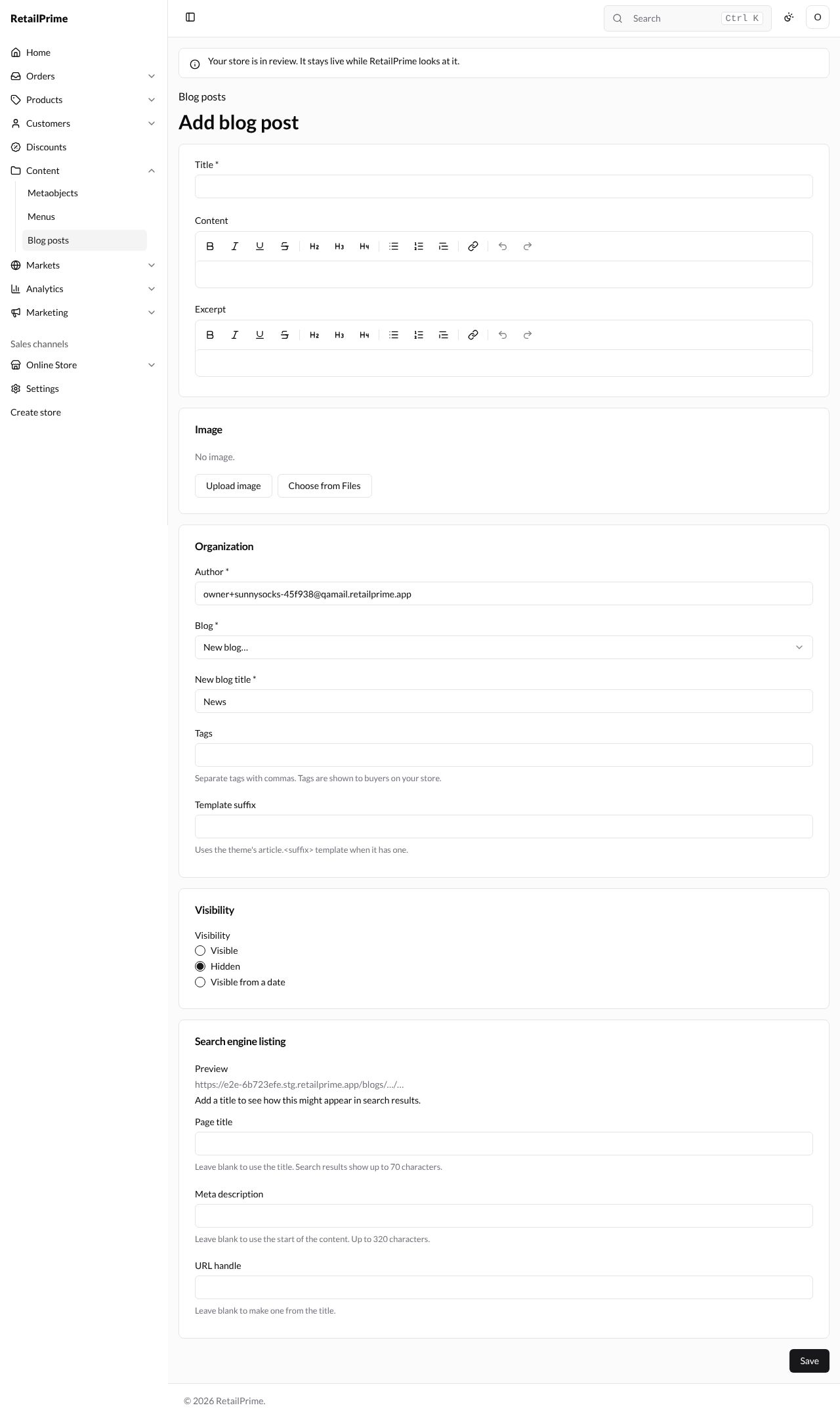
Press Add blog post. The form has these cards:
| Box | What to type | Example |
|---|---|---|
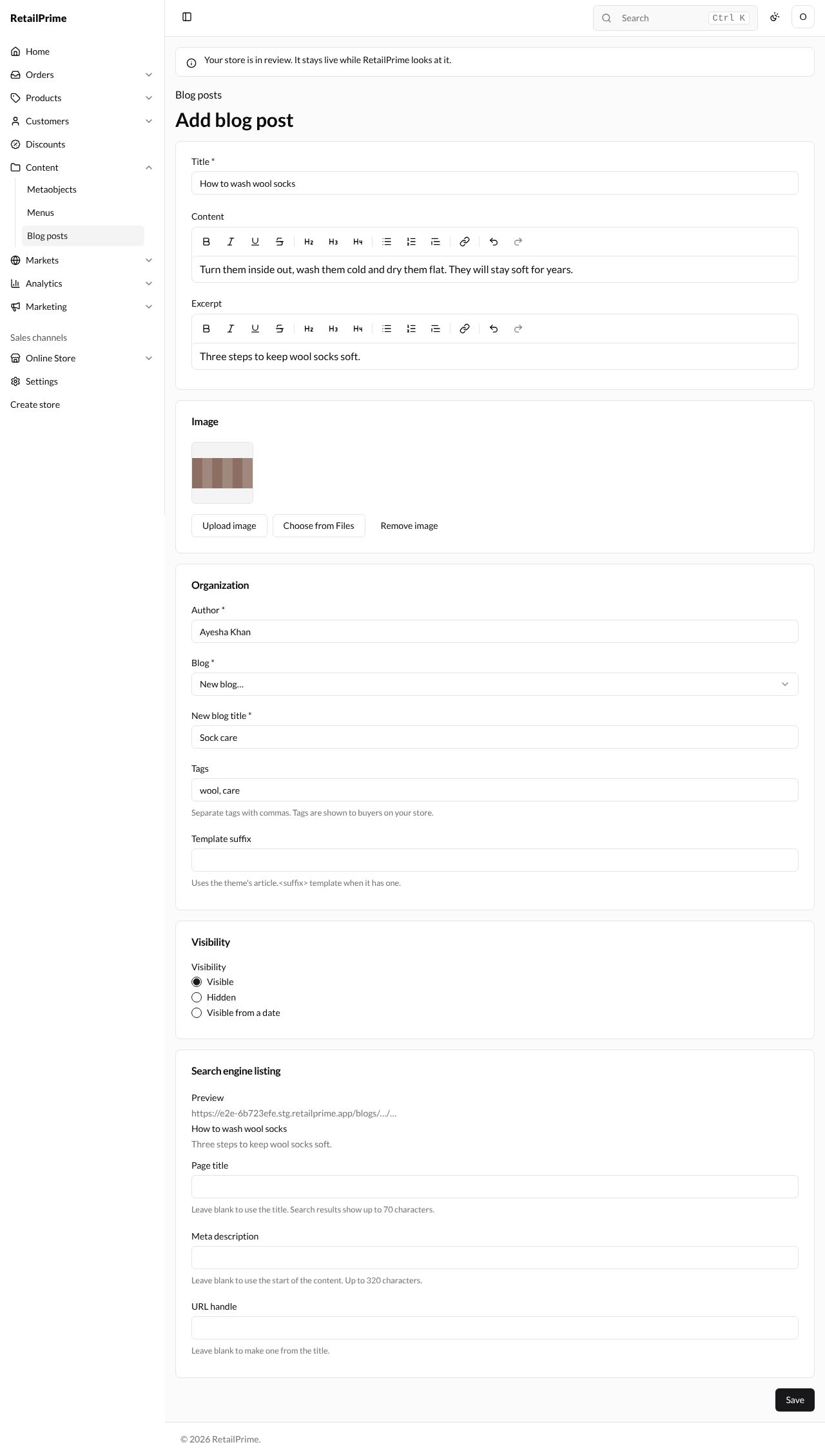
| Title | The post’s name. You must fill it in | How to wash wool socks |
| Content | The words of the post, with the same buttons as a page | Turn them inside out, wash them cold and dry them flat. … |
| Excerpt | A short summary, shown in the blog’s list of posts | Three steps to keep wool socks soft. |
| Image | A picture for the post: Upload image from your computer, or Choose from Files (see Files). Remove image takes it off | washing.png |
| Author | Who wrote it. It starts as your name, or your email if your account has no name | Ayesha Khan |
| Blog | Which blog the post is in. With no blog yet, it says New blog… | New blog… |
| New blog title | Shown when Blog is New blog…: the new blog’s name. It starts as News |
Sock care |
| Tags | Words that group posts. Separate tags with commas. Tags are shown to buyers on your store. | wool, care |
| Template suffix | Leave it blank. Uses the theme’s article.<suffix> template when it has one. | (blank) |
| Visibility | Visible, Hidden or Visible from a date, as for a page. A new post starts Hidden | Visible |
| Page title, Meta description, URL handle | The search engine listing, as for a page. The address is /blogs/ and the blog’s handle, then the post’s handle |
(blank) |
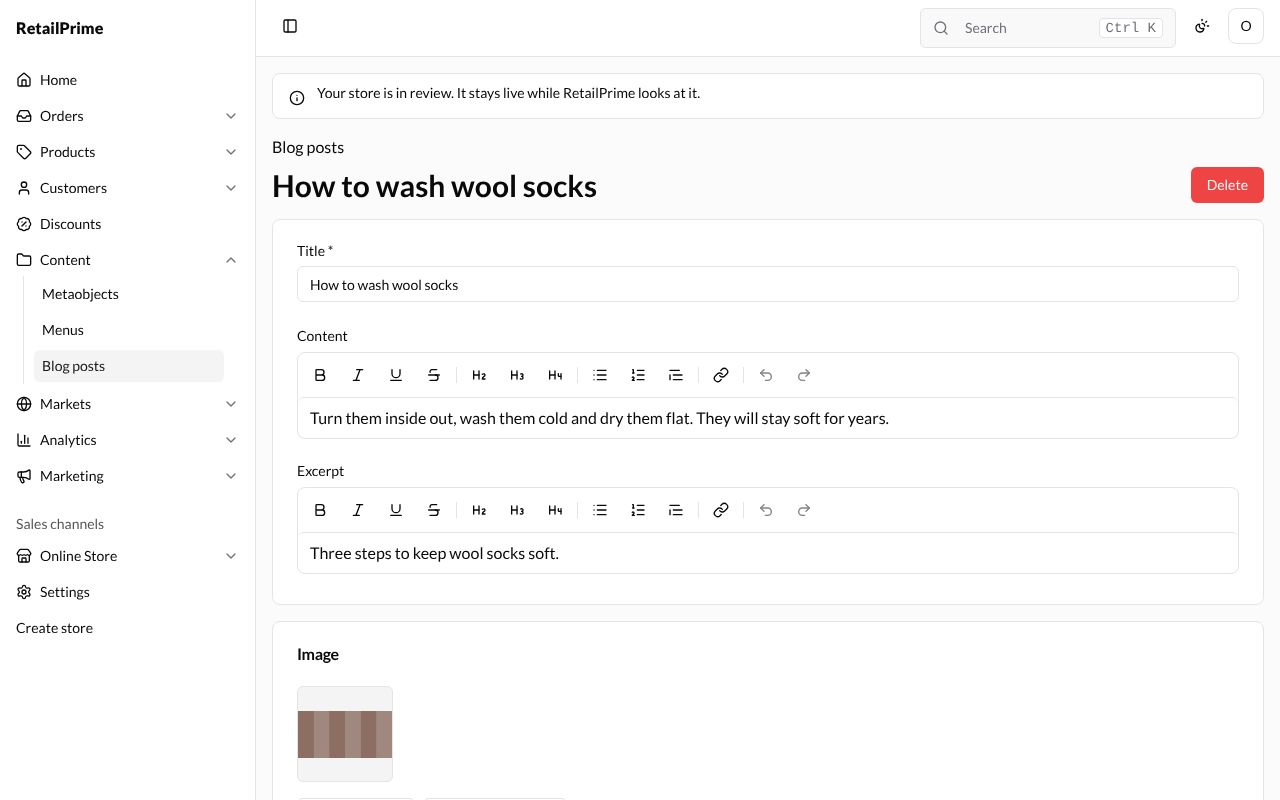
Press Save. The post’s own screen opens with its title at the top and a Delete button. The new blog Sock care is made at the same time, and Blog now says Sock care.
A second post, Our new rainbow colours, is added the same way, choosing Sock care in Blog and leaving it Hidden.
The posts list
Press Blog posts at the top left. Each post shows its Title, Blog, Author, Visibility and when it was Updated.
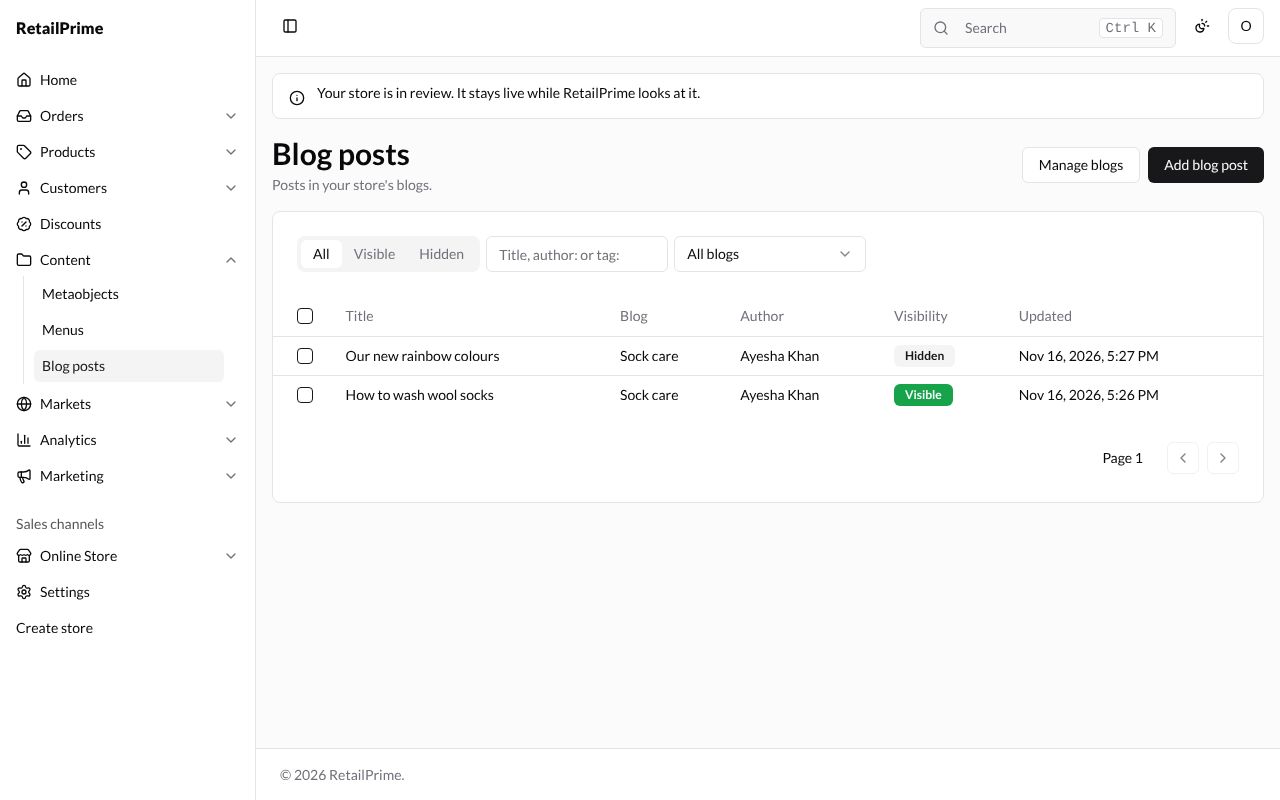
- All, Visible and Hidden show only those posts.
- Type in the search box (Title, author: or tag:) and press Enter: a word finds titles;
author:Ayeshafinds an author’s posts;tag:woolfinds a tag’s posts. - All blogs lets you pick one blog.
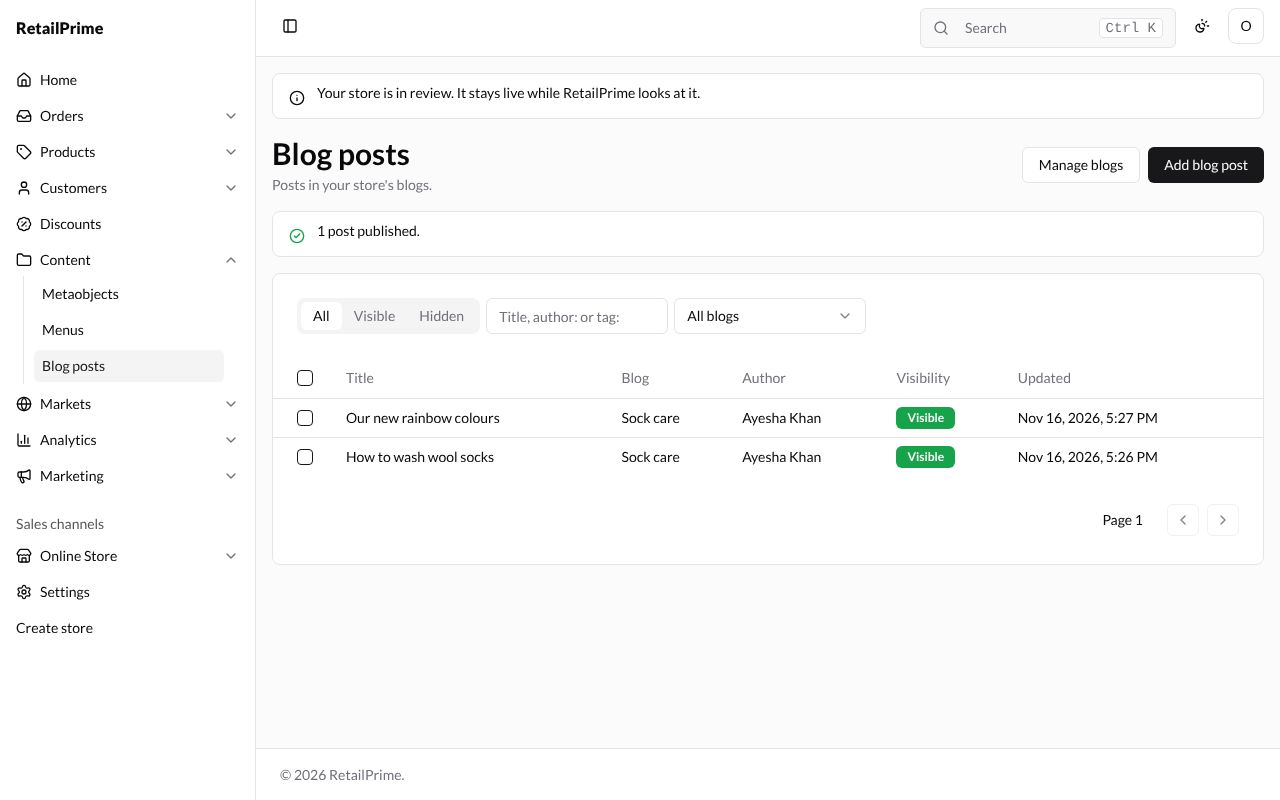
- Tick posts to Publish or Hide several at once. Here, Our new rainbow colours is ticked and Publish 1 pressed: the page says 1 post published.
See the blog on your store
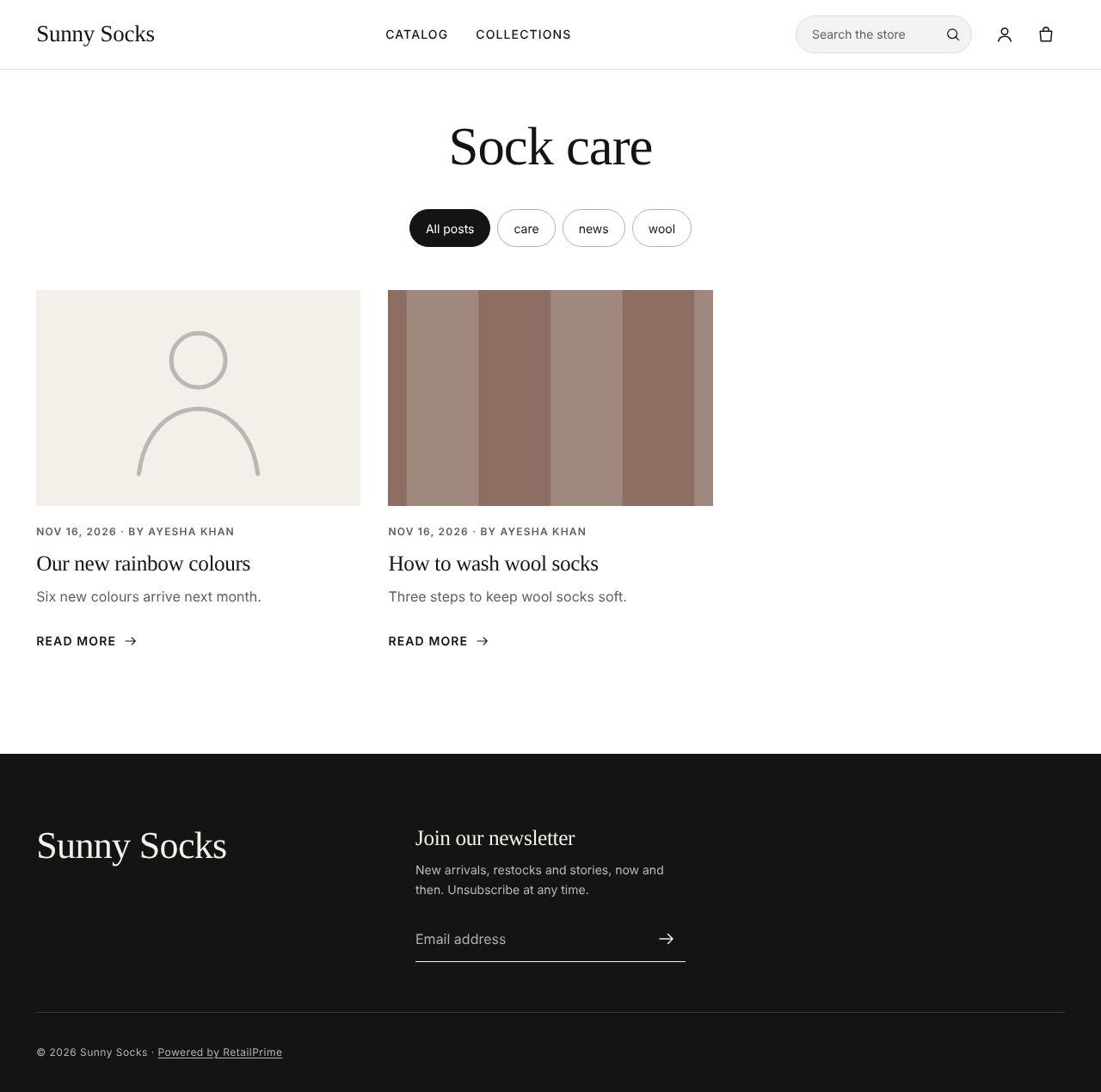
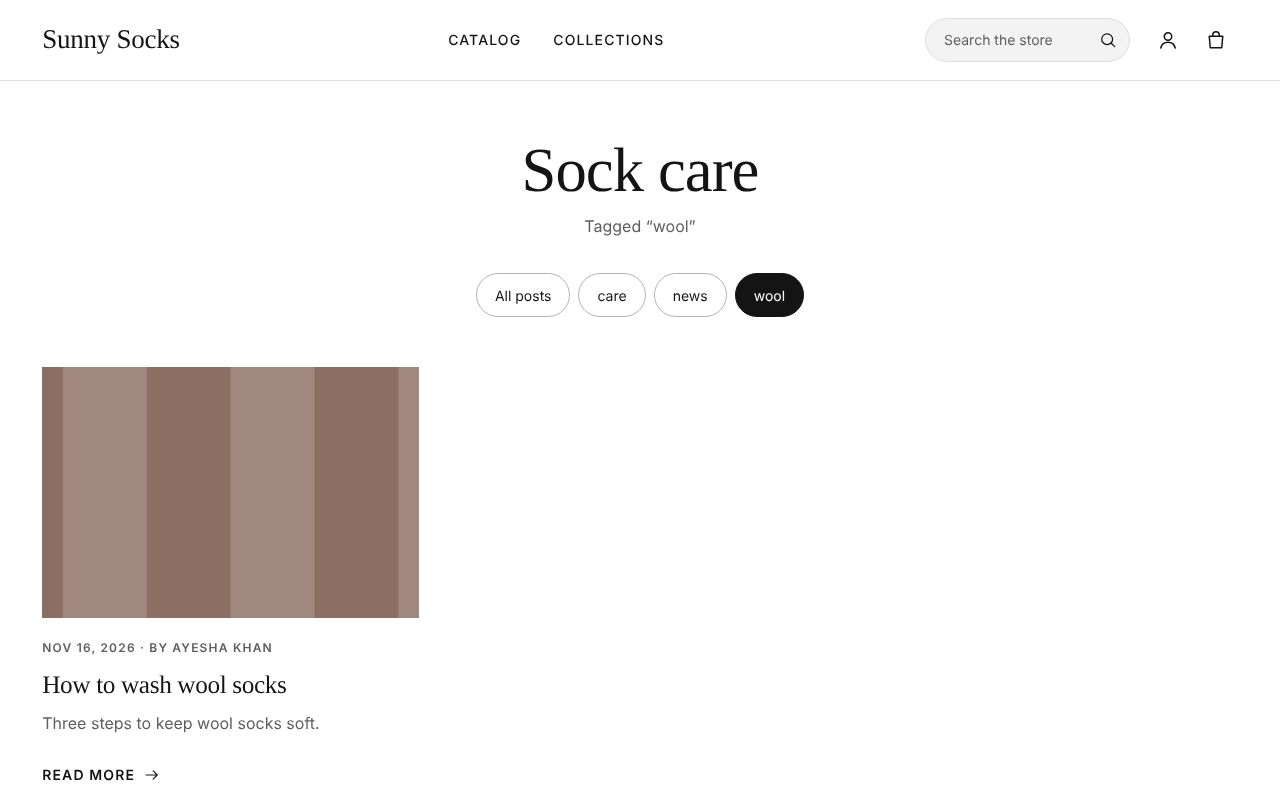
Open your store at /blogs/ and the blog’s handle, here /blogs/sock-care (or add the blog to a menu: see Menus). The blog shows its posts, newest first, each with its picture, date, author, title and excerpt. The buttons at the top (All posts and each tag) show only the posts with that tag. A post without a picture shows a grey placeholder.
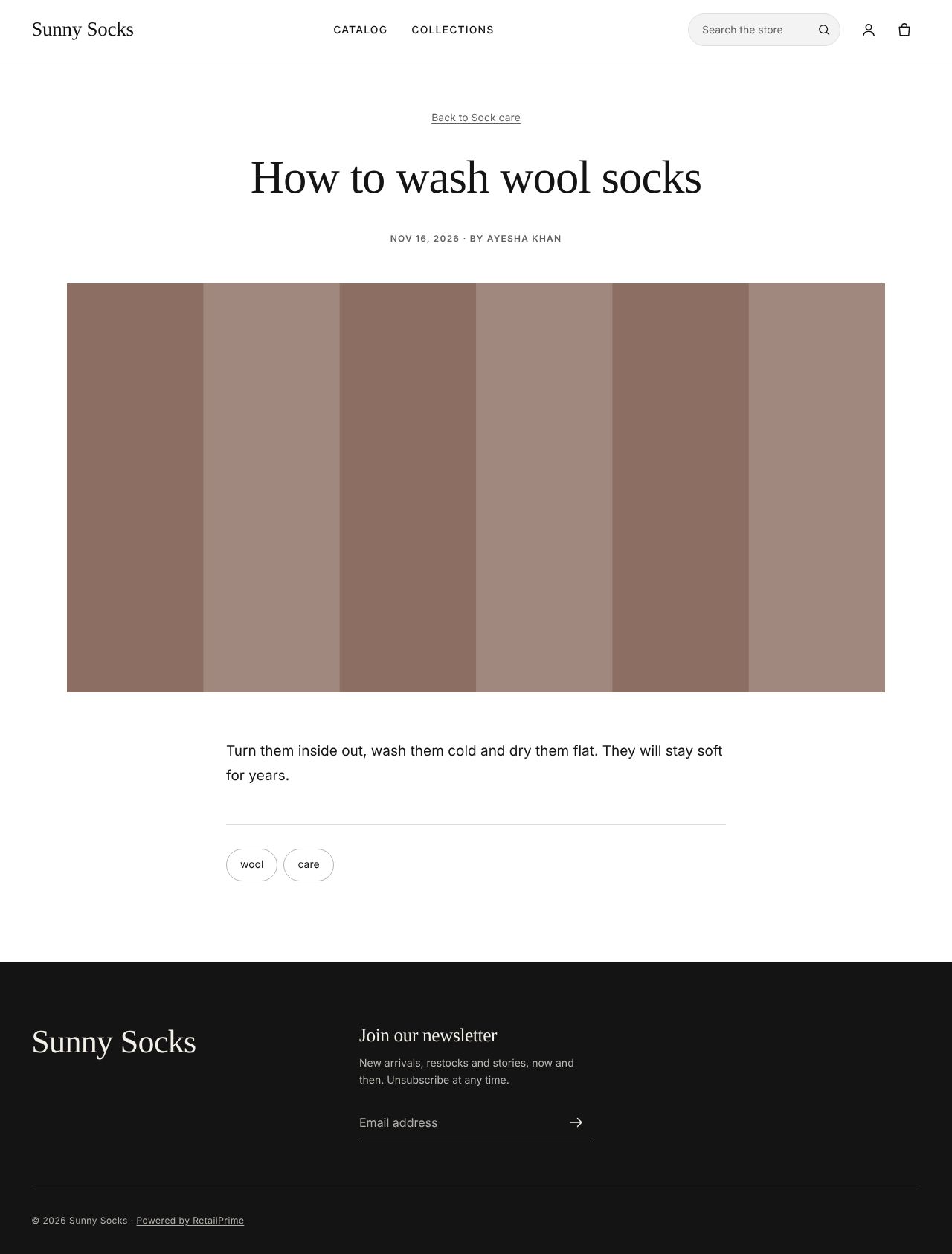
Press a post’s title or Read more to open it. It has Back to Sock care at the top, its date and author, its picture, its words and its tags.
Press a tag, here wool: the blog shows Tagged “wool” and only those posts.
Change a post
Open the post from the list, change any box, such as the Title, and press Save. The new title shows at the top.
Blogs
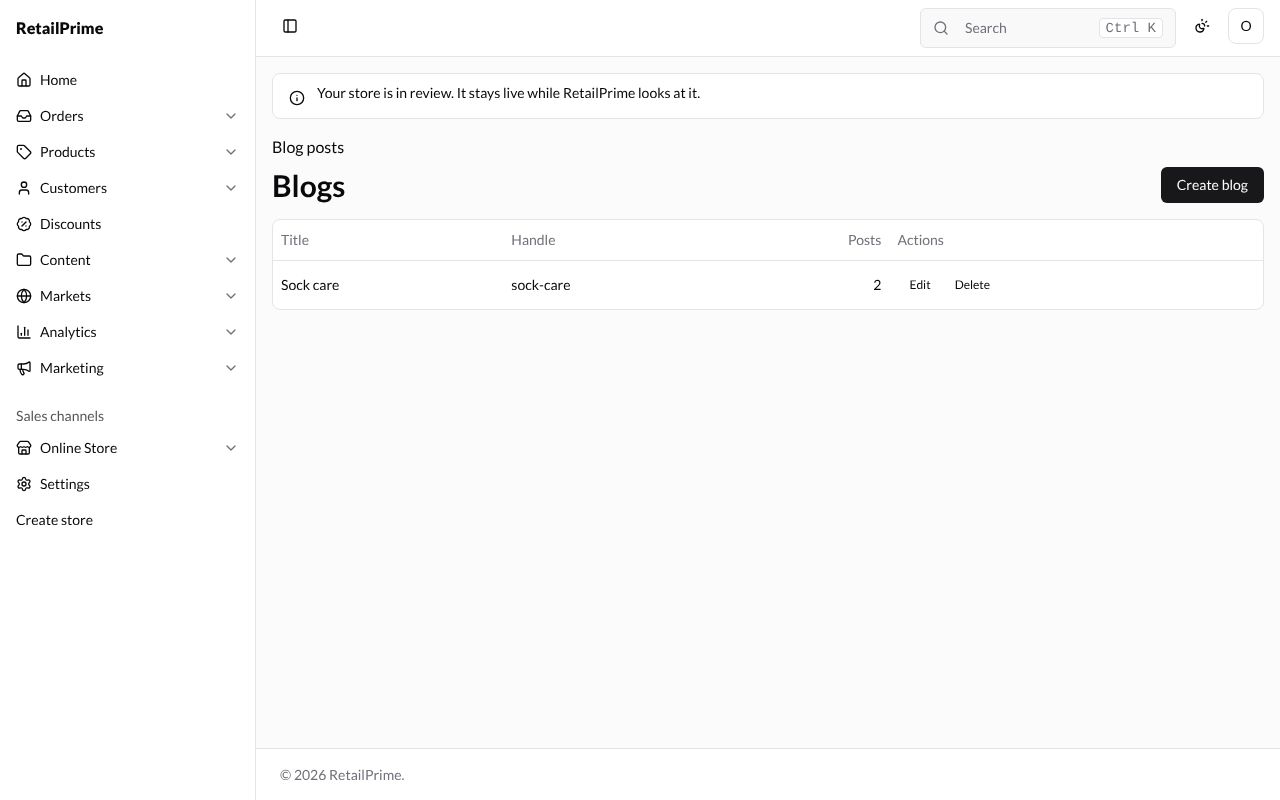
To see, add, rename or delete blogs, press Manage blogs on the Blog posts page. The Blogs page lists each blog’s Title, Handle and how many Posts it has, with Edit and Delete.
Create a blog
-
Press Create blog.
-
In the Create blog window, type the Title, such as
News. URL handle and Template suffix can stay blank.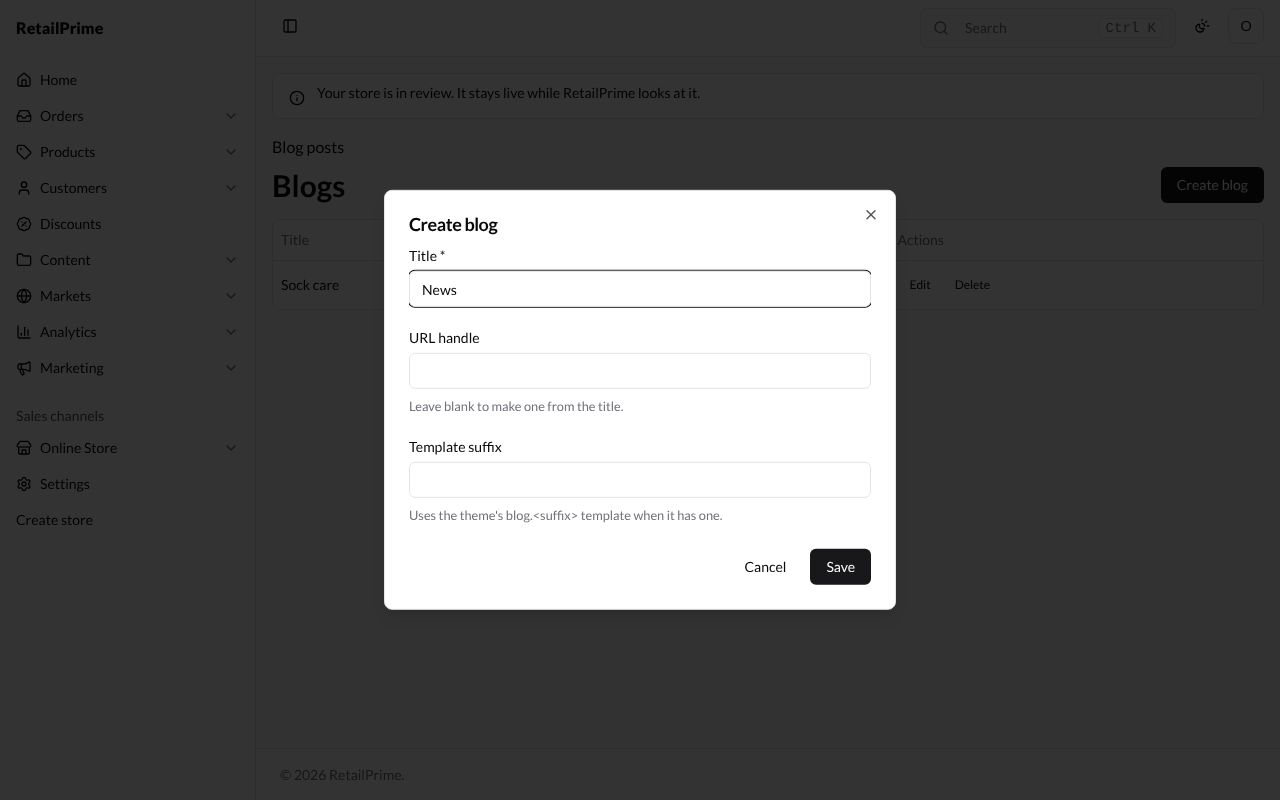
-
Press Save. The blog is added to the list.
Edit a blog
-
Press Edit next to the blog. The Edit News window has the same boxes, and a Metafields card.
-
Change the Title, here to
Sunny Socks news, and the URL handle if you like (Leave blank to make one from the title.).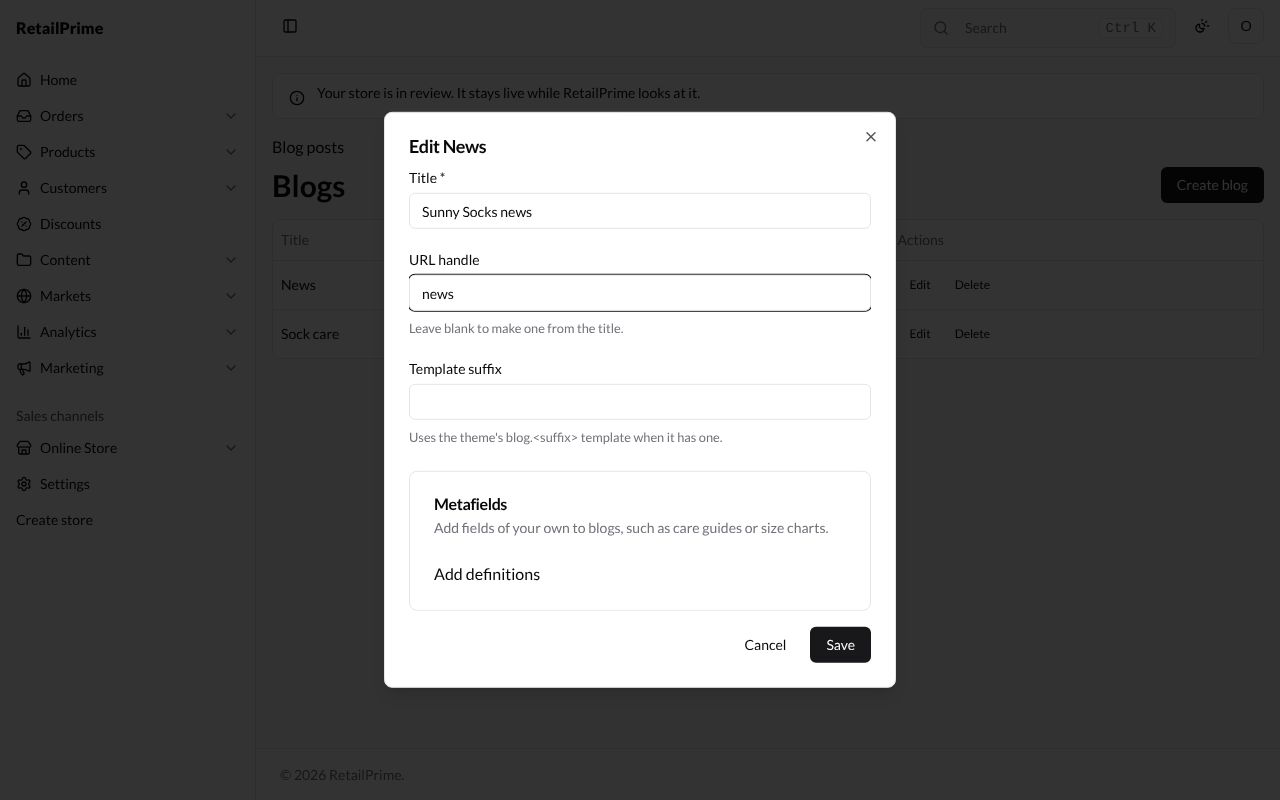
-
Press Save.
Delete a blog
-
Press Delete next to the blog.
-
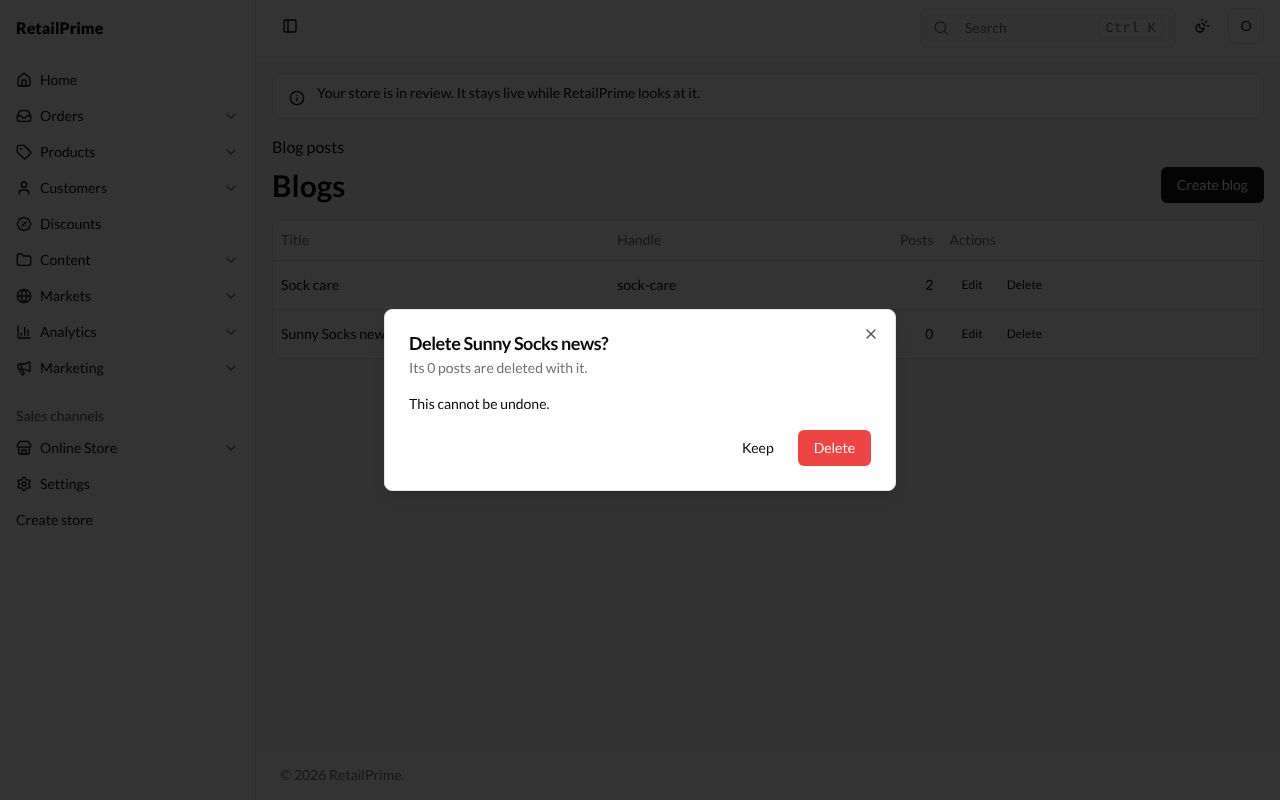
A window asks Delete Sunny Socks news? and says how many posts are deleted with it, and This cannot be undone.
-
Press Delete. Press Keep to change your mind.
Delete a post
-
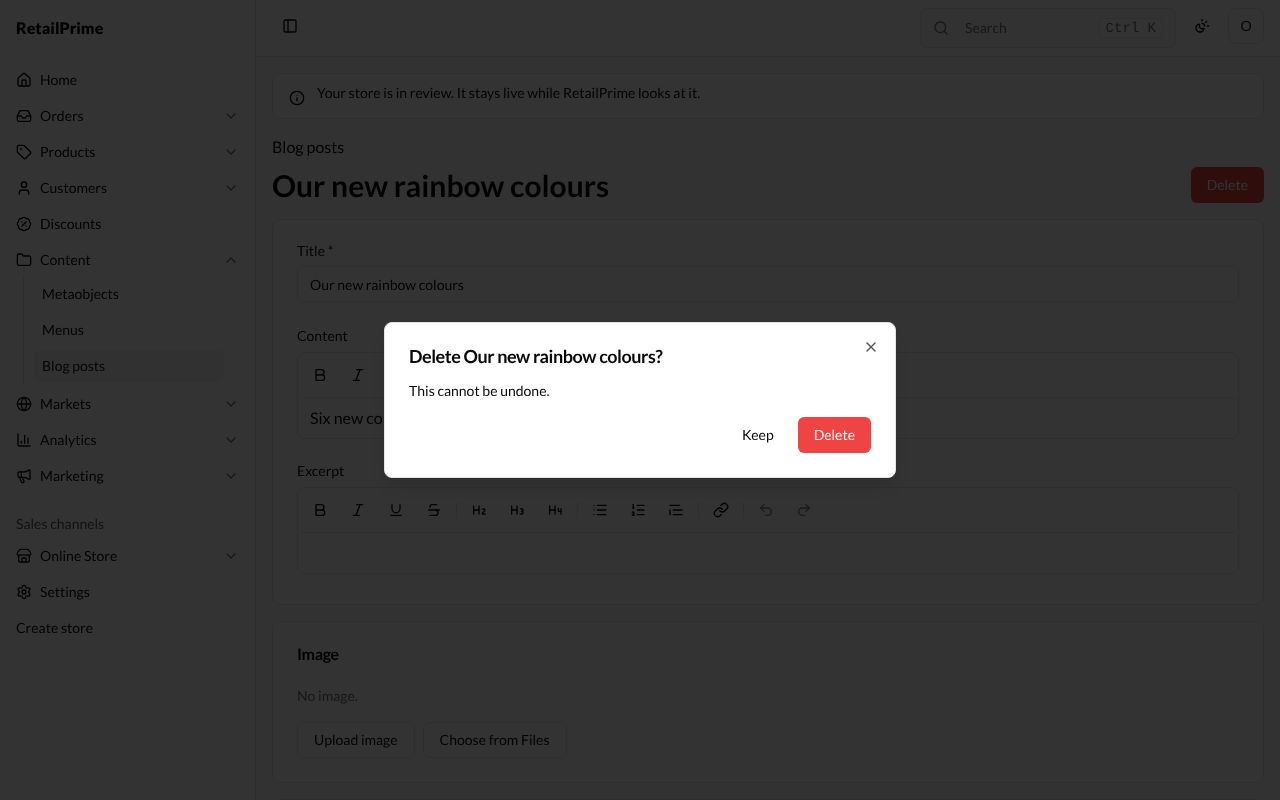
Open the post and press Delete at the top right.
-
A window asks Delete Our new rainbow colours? and says This cannot be undone.
-
Press Delete. You are back on the Blog posts list.
What’s next
Menus: add your pages, blog and collections to your store’s menus.