URL redirects
Send buyers from old addresses to pages that exist, one at a time or many from a file, and change or delete them.
When you rename or delete a page, buyers may still have its old address saved or shared. A URL redirect sends anyone who opens the old address to another page instead. A redirect only applies where the page is missing: if a page exists at the old address, buyers see that page.
Open URL redirects
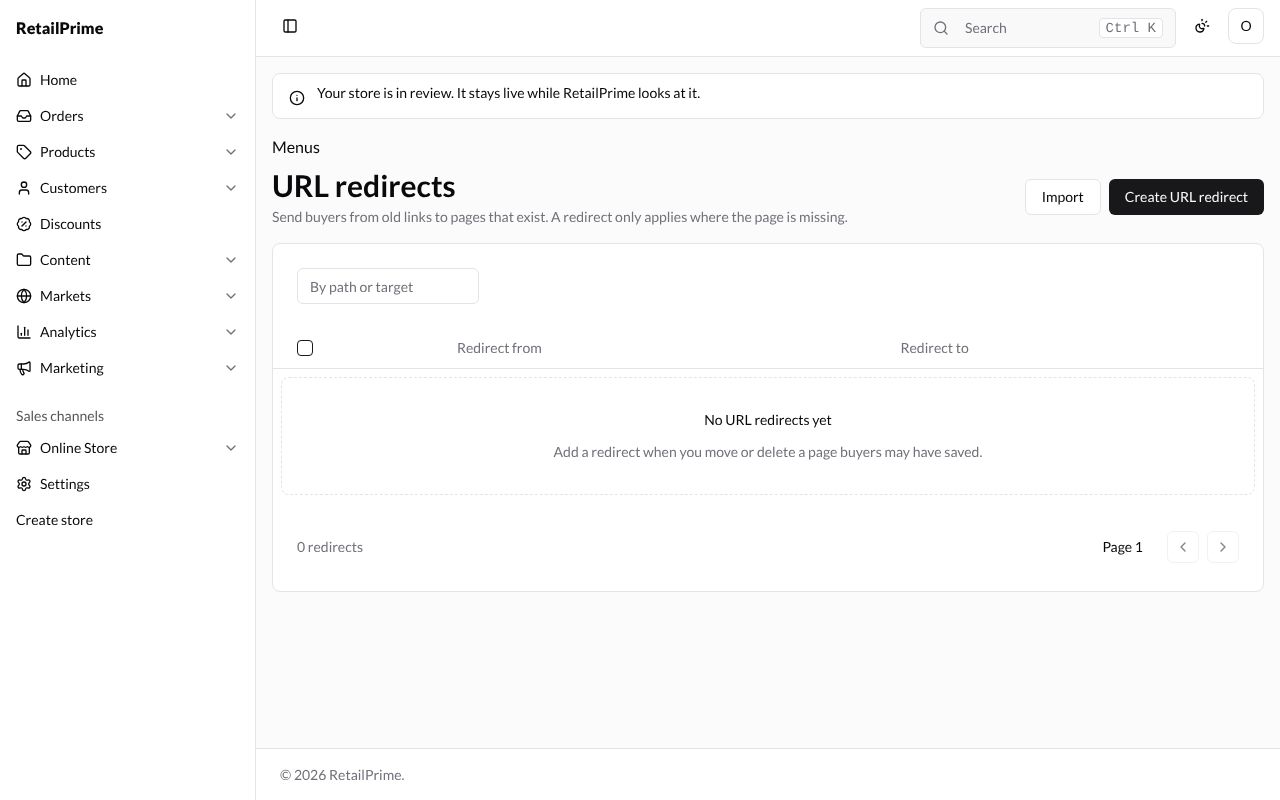
In the sidebar, press Content, then Menus, then URL redirects at the top right. The page says Send buyers from old links to pages that exist. A redirect only applies where the page is missing. A new store has No URL redirects yet: Add a redirect when you move or delete a page buyers may have saved.
Create a redirect
- Press Create URL redirect.
- Fill in the two boxes:
| Box | What to type | Example |
|---|---|---|
| Redirect from | The old path, such as /pages/old-sale. It only redirects where the page is missing. | /pages/our-story |
| Redirect to | A path on your store, such as /collections/sale, or an https:// link. | /pages/about-us |
- Press Save. You are back on the list, with the new redirect.
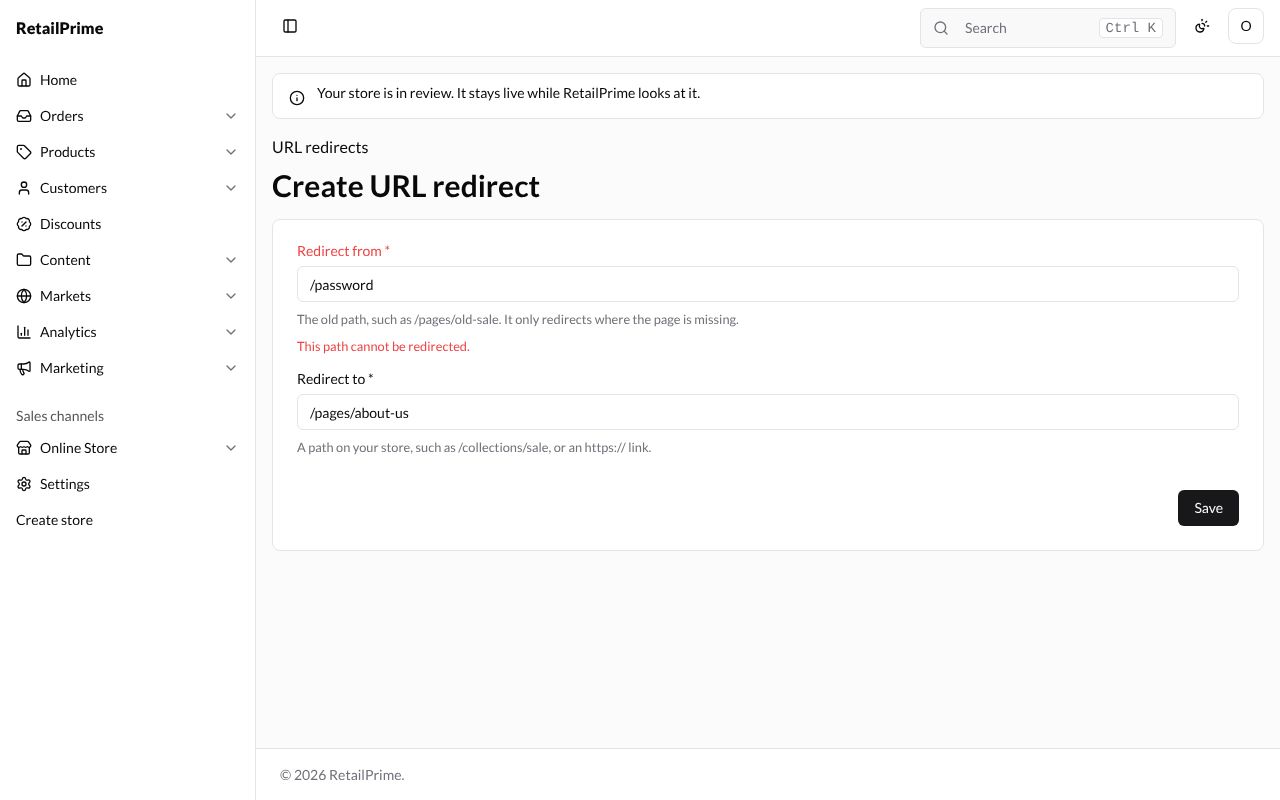
Some addresses, such as /password, can’t be redirected. Save then says This path cannot be redirected.
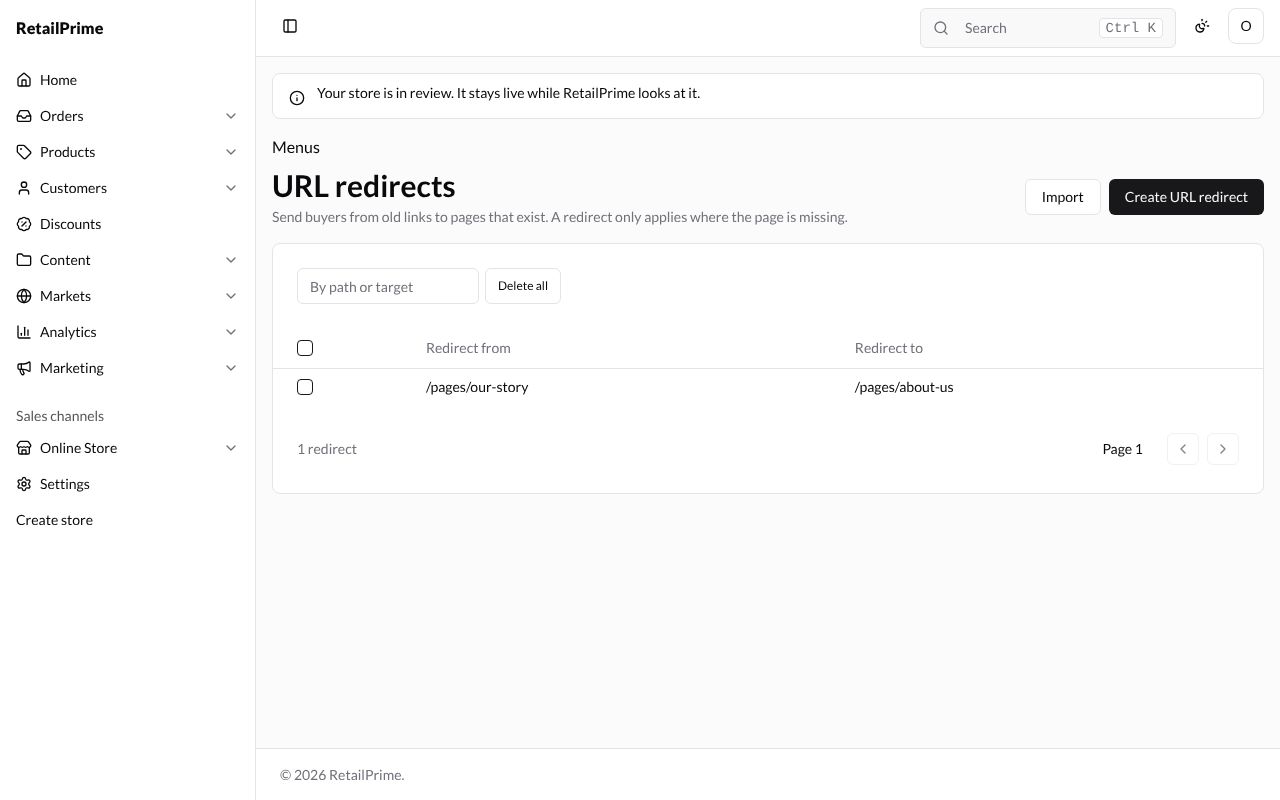
A buyer who now opens /pages/our-story on your store lands on the About us page.
Import many redirects
To add many redirects at once, make a spreadsheet with two columns, Redirect from and Redirect to, and save it as a CSV file. For example:
Redirect from,Redirect to
/collections/sale,/collections/best-sellers
/pages/sizes,/pages/size-guide
/pages/our-story,/pages/about-us
/password,/-
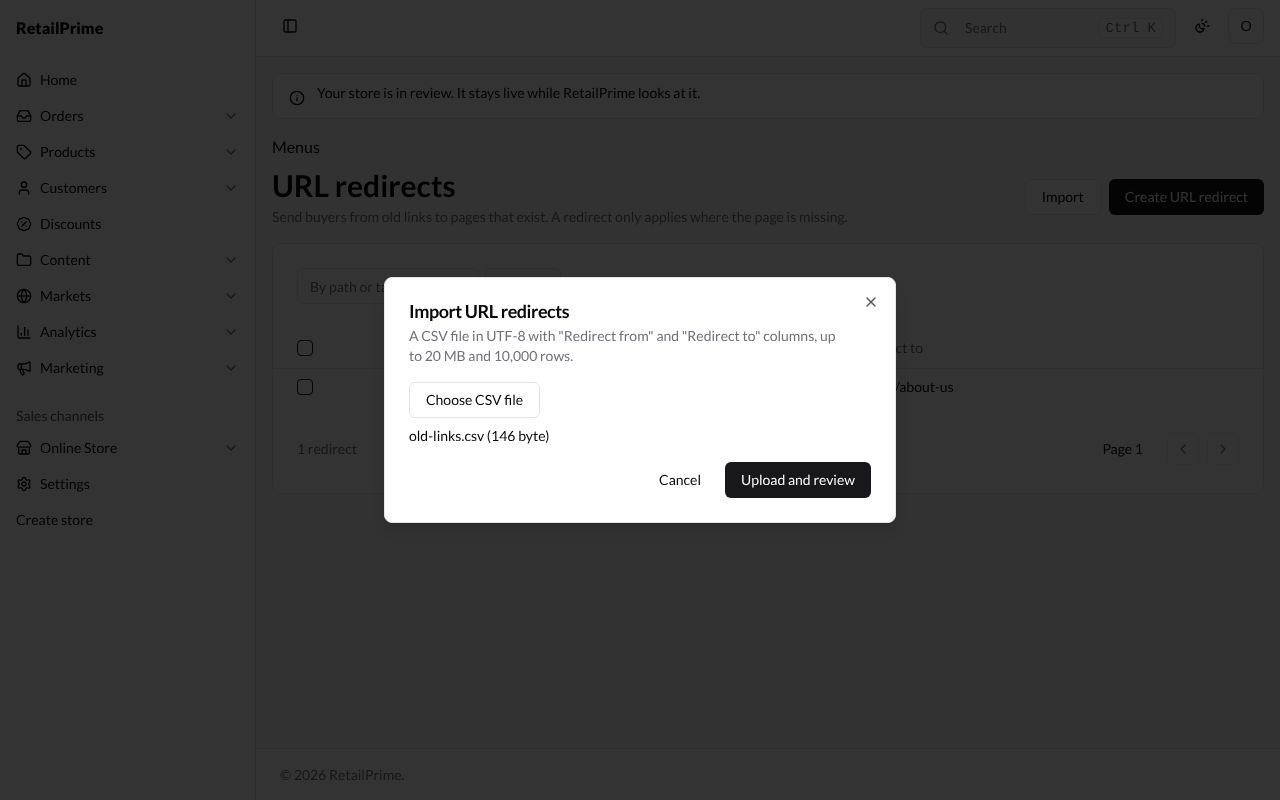
Press Import. The Import URL redirects window says A CSV file in UTF-8 with “Redirect from” and “Redirect to” columns, up to 20 MB and 10,000 rows.
-
Press Choose CSV file and pick the file. Its name and size show under the button.
-
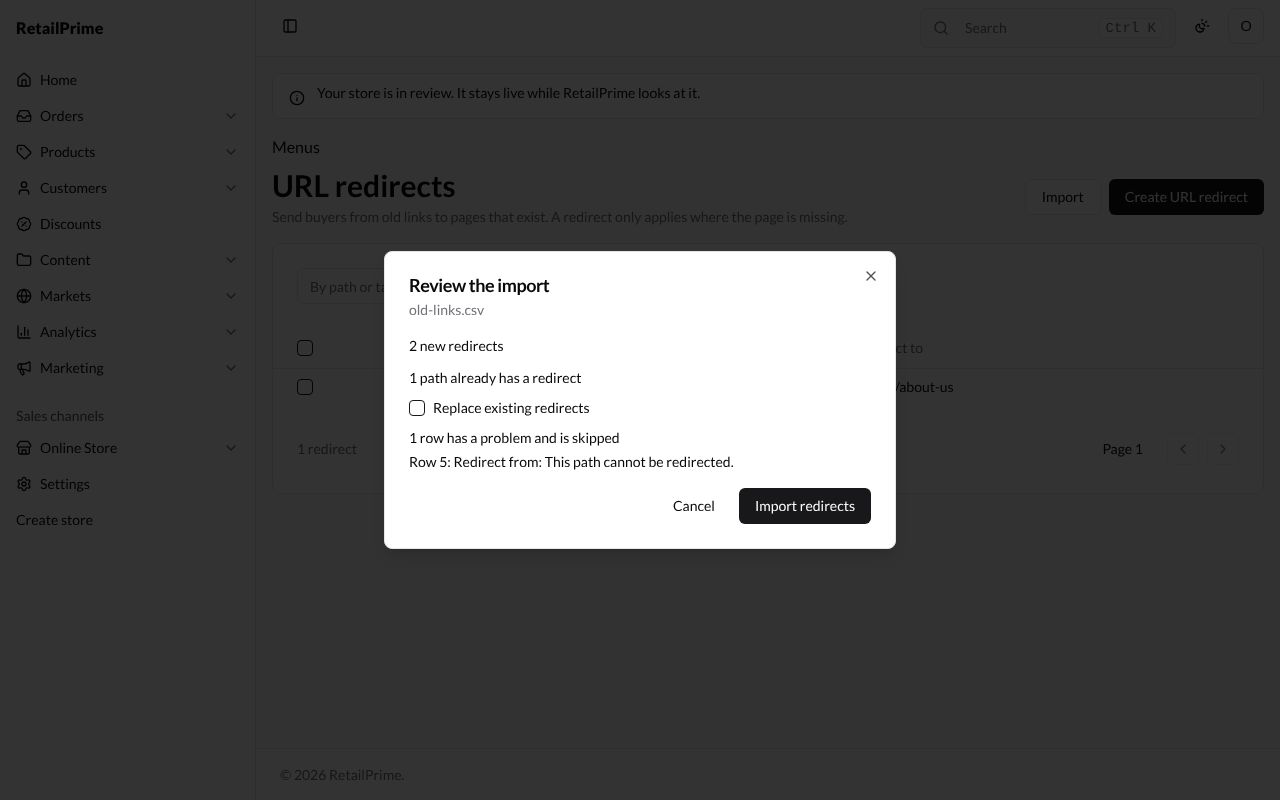
Press Upload and review. The Review the import window says how many new redirects the file has, how many paths already have a redirect, and how many rows have a mistake (1 row has a problem and is skipped), each with its row number and what is wrong, such as Row 5: Redirect from: This path cannot be redirected.
-
Tick Replace existing redirects if the file should change redirects you already have. Leave it empty to keep them.
-
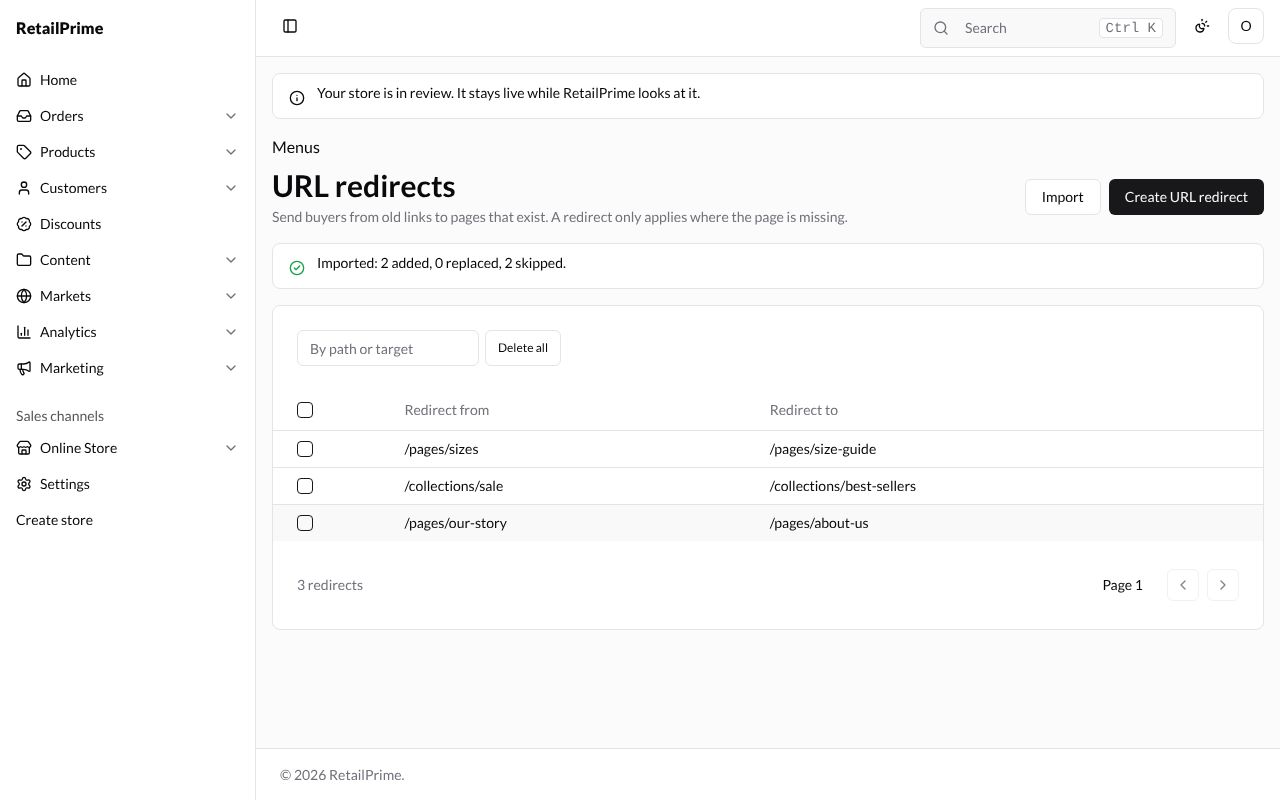
Press Import redirects. The page says how many were added, replaced and skipped. Here the path that already had a redirect was left as it was, so it counts as skipped too.
Find redirects
Type in the By path or target box and press Enter to find redirects by either address. The number of redirects shows under the list.
Change a redirect
-
Press the Redirect from address in the list. Its page opens with the address as its title.
-
Change either box, here Redirect from to
/pages/sock-sizes.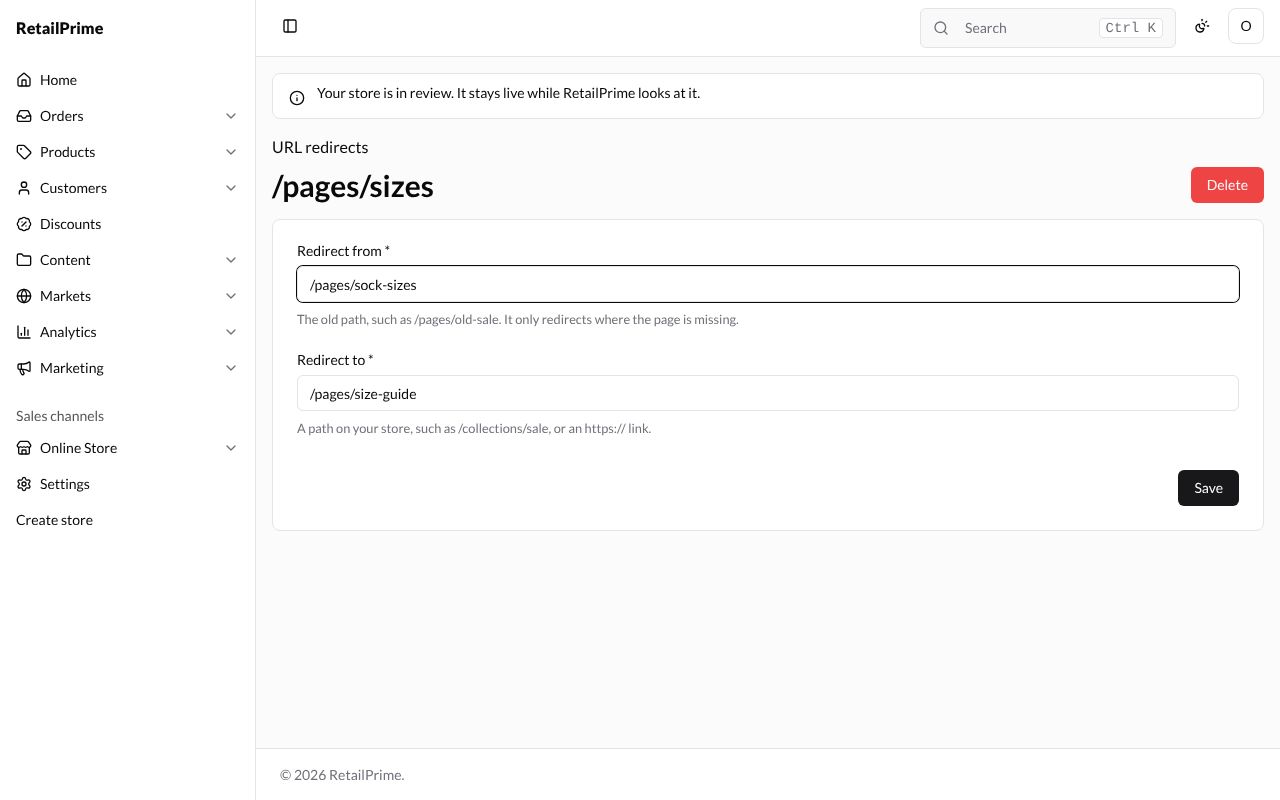
-
Press Save.
Delete redirects
To delete several at once:
-
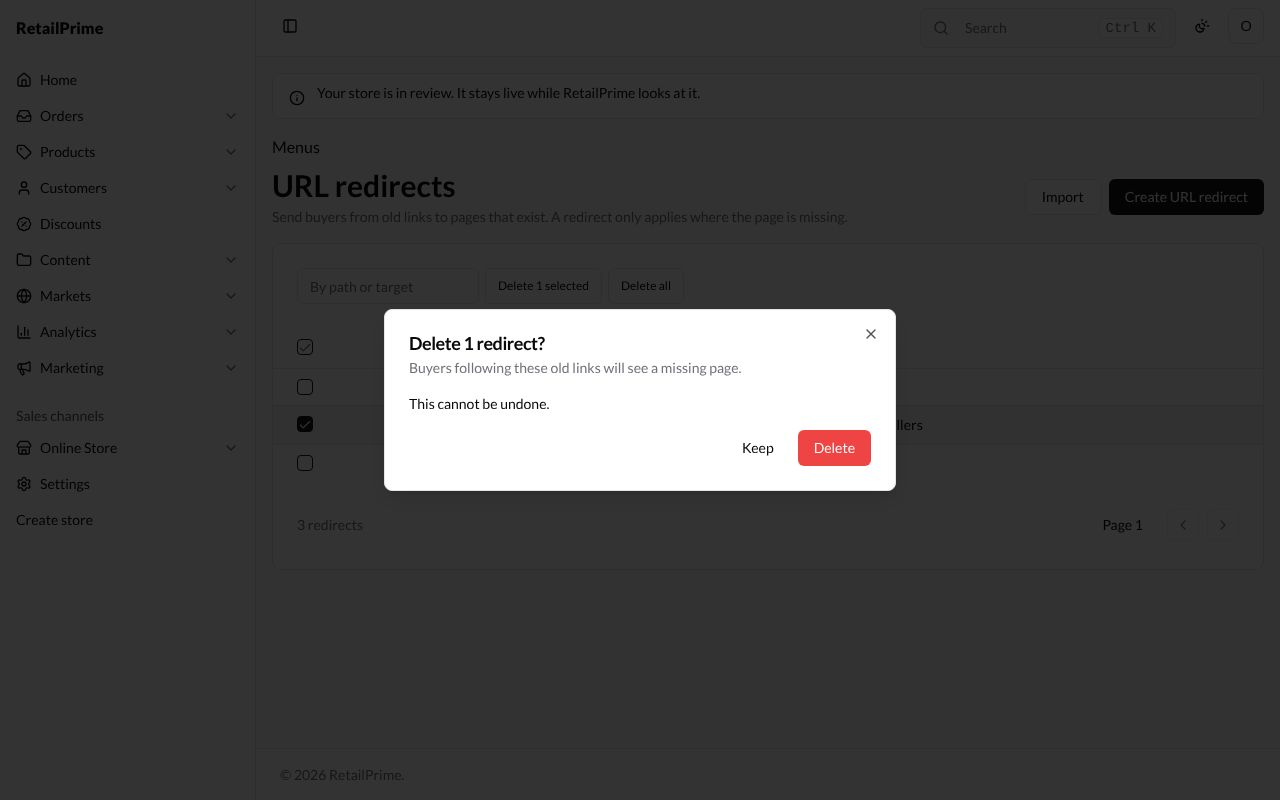
Tick them in the list. Delete 1 selected appears (with the number you ticked). Delete all deletes every redirect (or Delete all matching after a search).
-
A window asks Delete 1 redirect? and says Buyers following these old links will see a missing page.
-
Press Delete. The page says 1 redirect deleted.
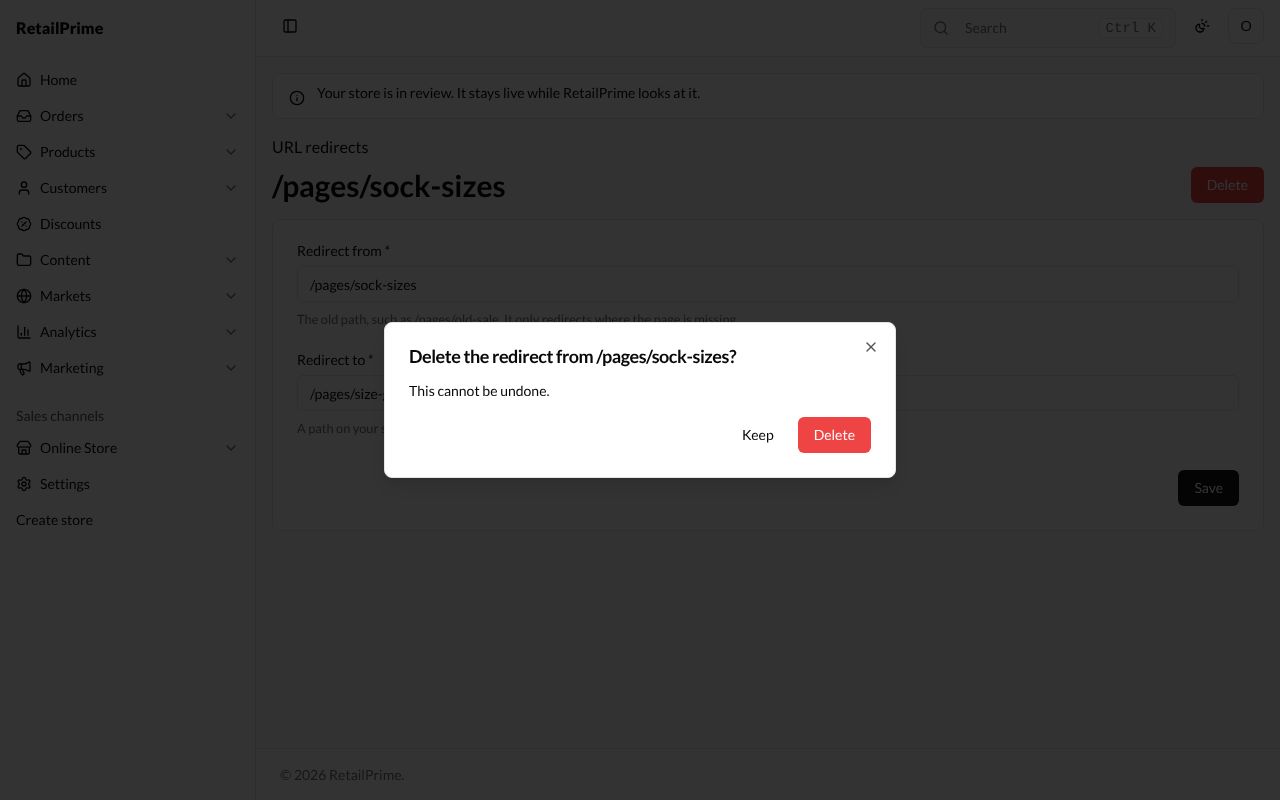
To delete one from its own page, open it and press Delete. The window asks Delete the redirect from /pages/sock-sizes? Press Delete.
What’s next
Files: upload pictures and other files for your store.