Featured products, synonyms and result types
Put chosen products first for a search, make different words find the same products, and choose what search shows, with the effect on the store.
The other three tabs of Online Store → Search change what buyers find when they search your store. Open Search in the sidebar, then press the tab at the top: Featured products, Synonyms or Result types.
Featured products
A featured product rule puts the products you choose first when a buyer searches for one of its words. The tab says Featured products come first in search results when a buyer searches for exactly one of a rule’s terms.
Before any rule, a search for present finds nothing, because no product has that word:
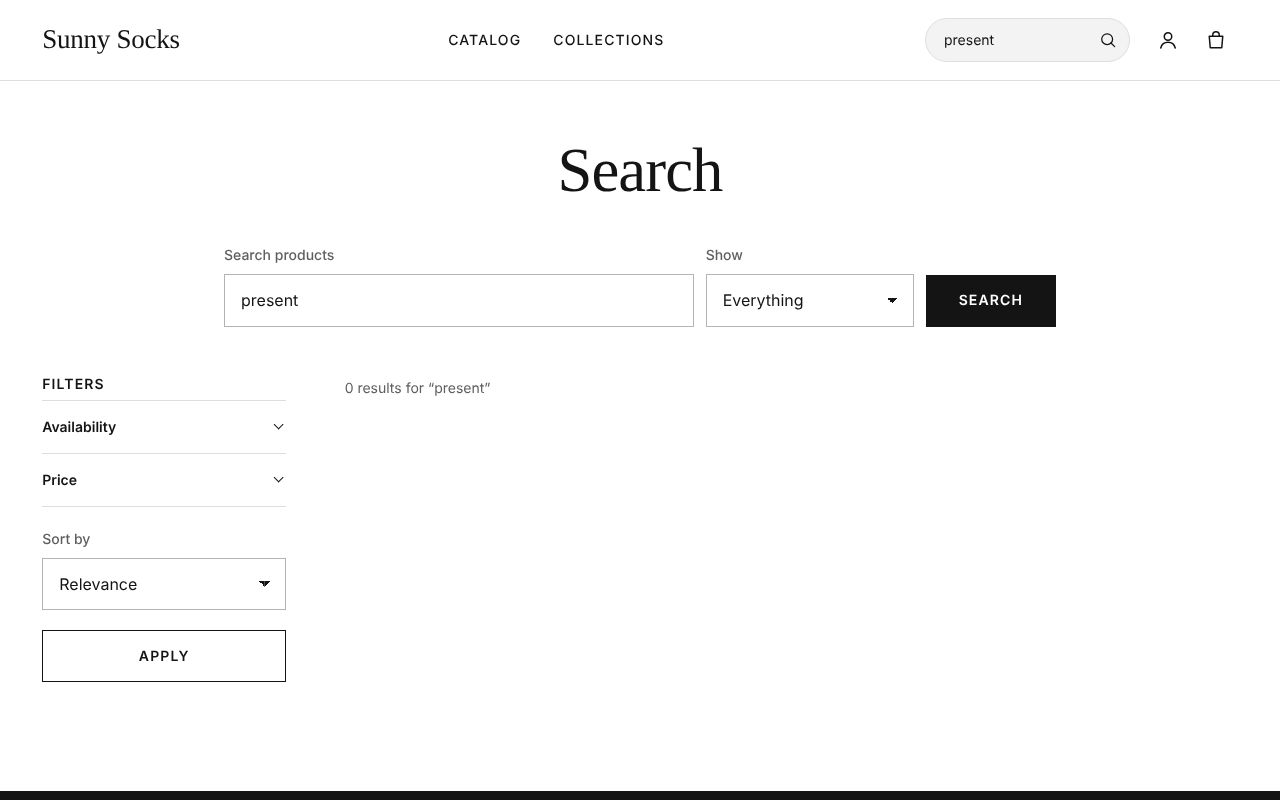
A new store has No featured products yet: A rule names search terms and the products shown first when a buyer searches for one of them, such as your gift sets for “gifts”.
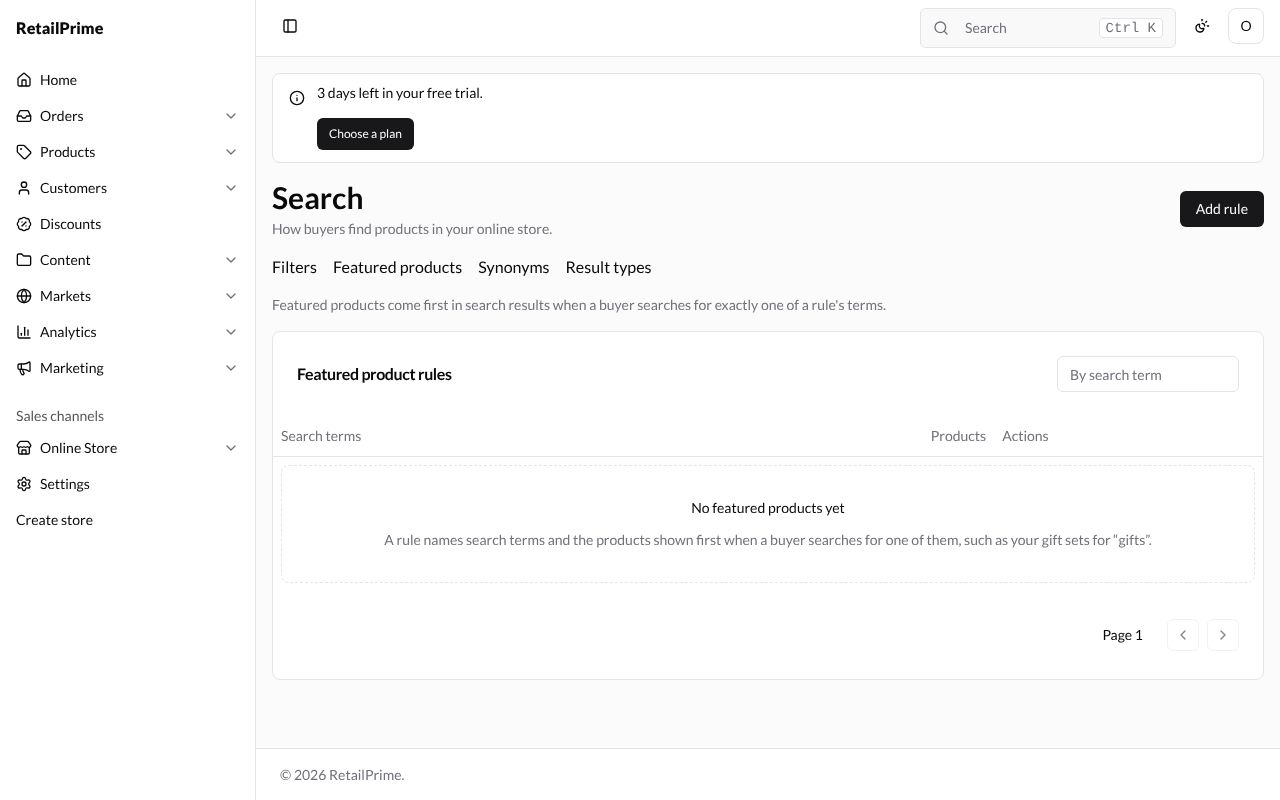
Add a rule
-
Press Add rule. The Add featured products page opens.
-
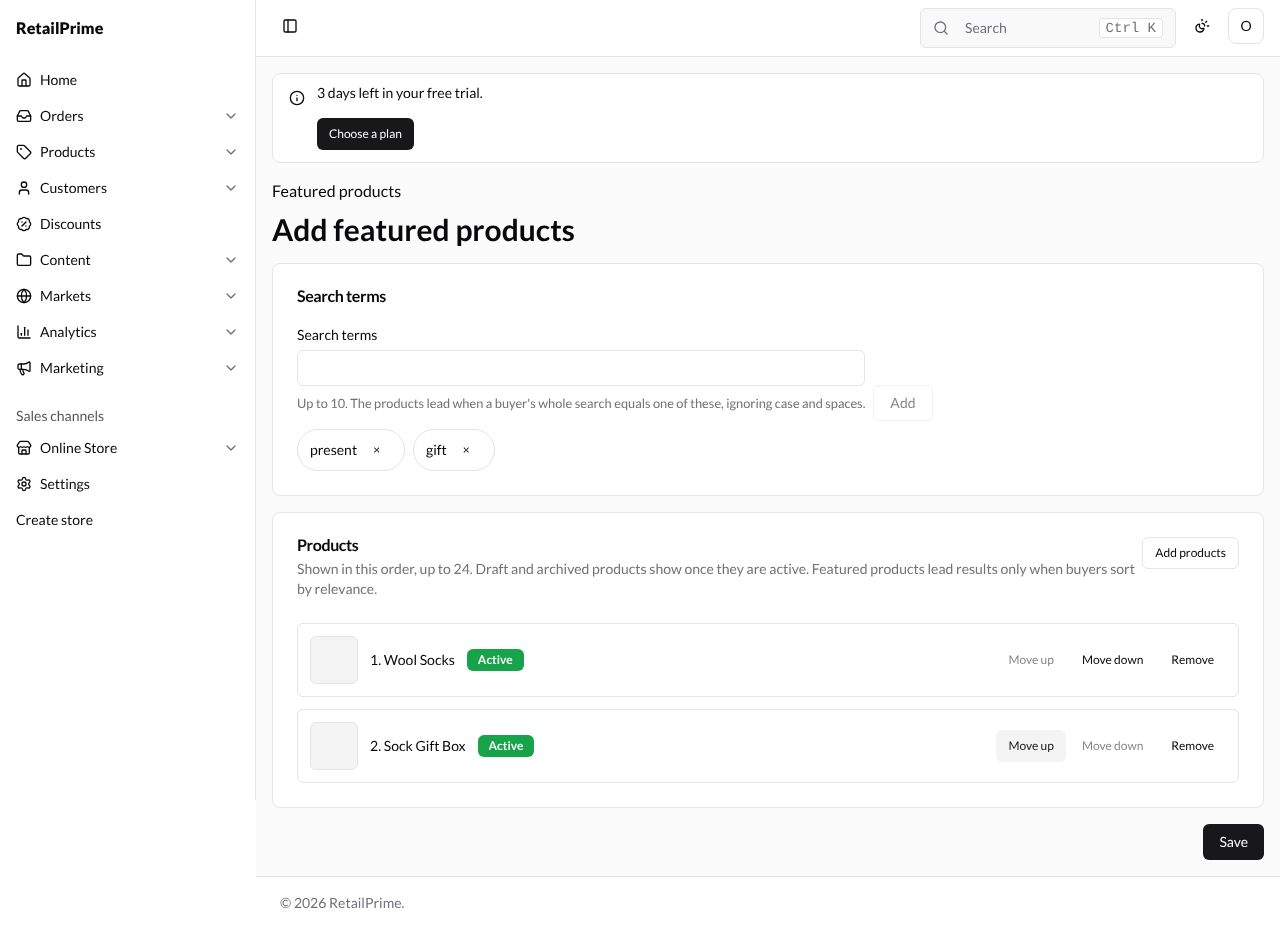
Under Search terms, type a word and press Enter (or Add). Add each word buyers might search for, here
presentandgift. Up to 10. The products lead when a buyer’s whole search equals one of these, ignoring case and spaces. Each word shows below with × to remove it. -
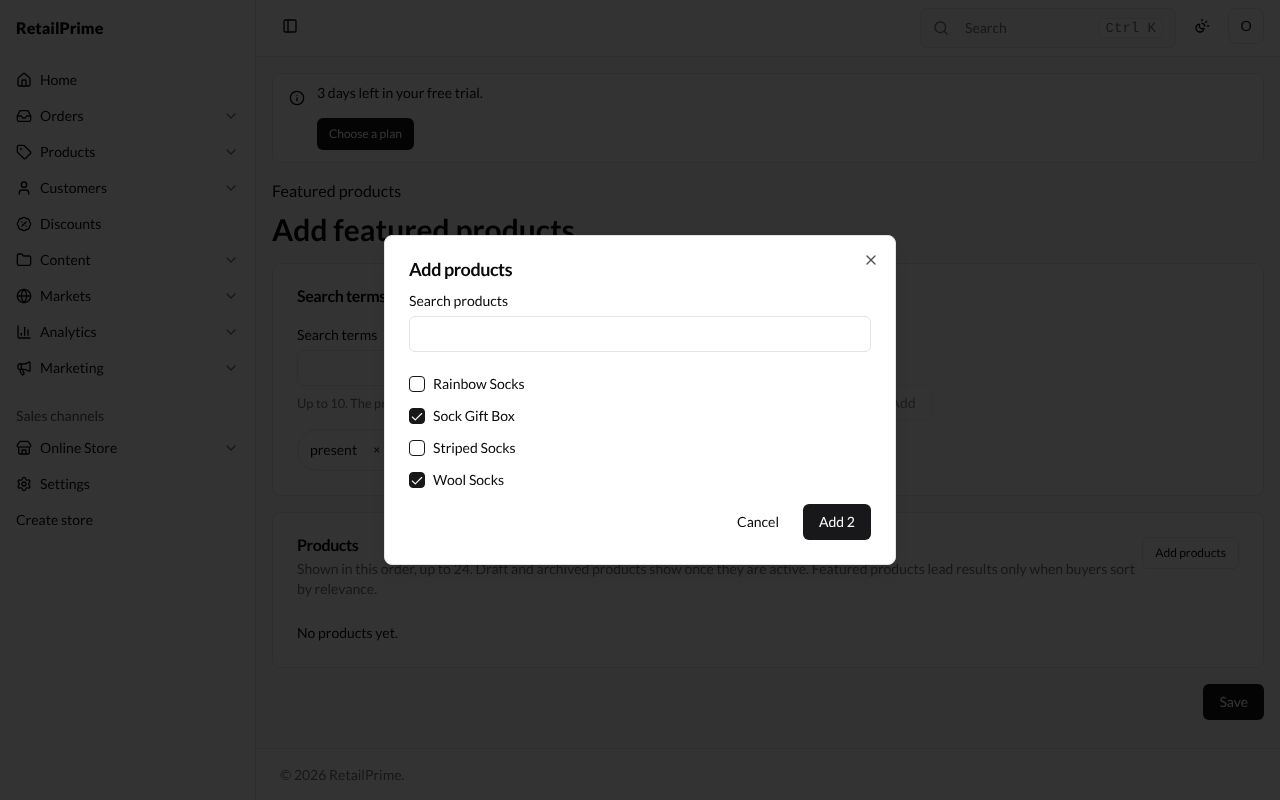
Under Products, press Add products. The Add products window lists your products: type in Search products to find them, tick them, and press Add 2 (the number you ticked).
-
The products are listed in order, with their status, such as Active. The card says Shown in this order, up to 24. Draft and archived products show once they are active. Featured products lead results only when buyers sort by relevance. Use Move up, Move down and Remove to change the list. Here Wool Socks is moved first.
-
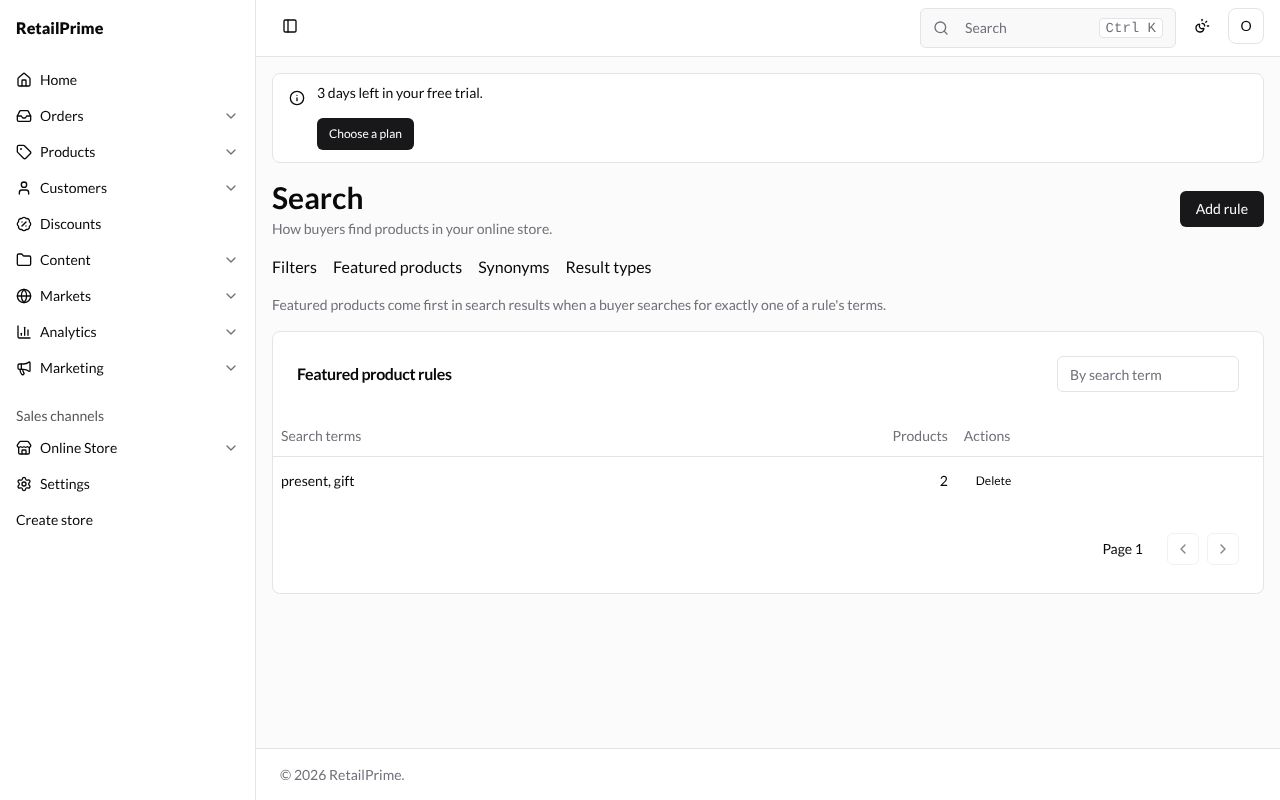
Press Save. You are back on the tab: the rule shows its Search terms and how many Products it has.
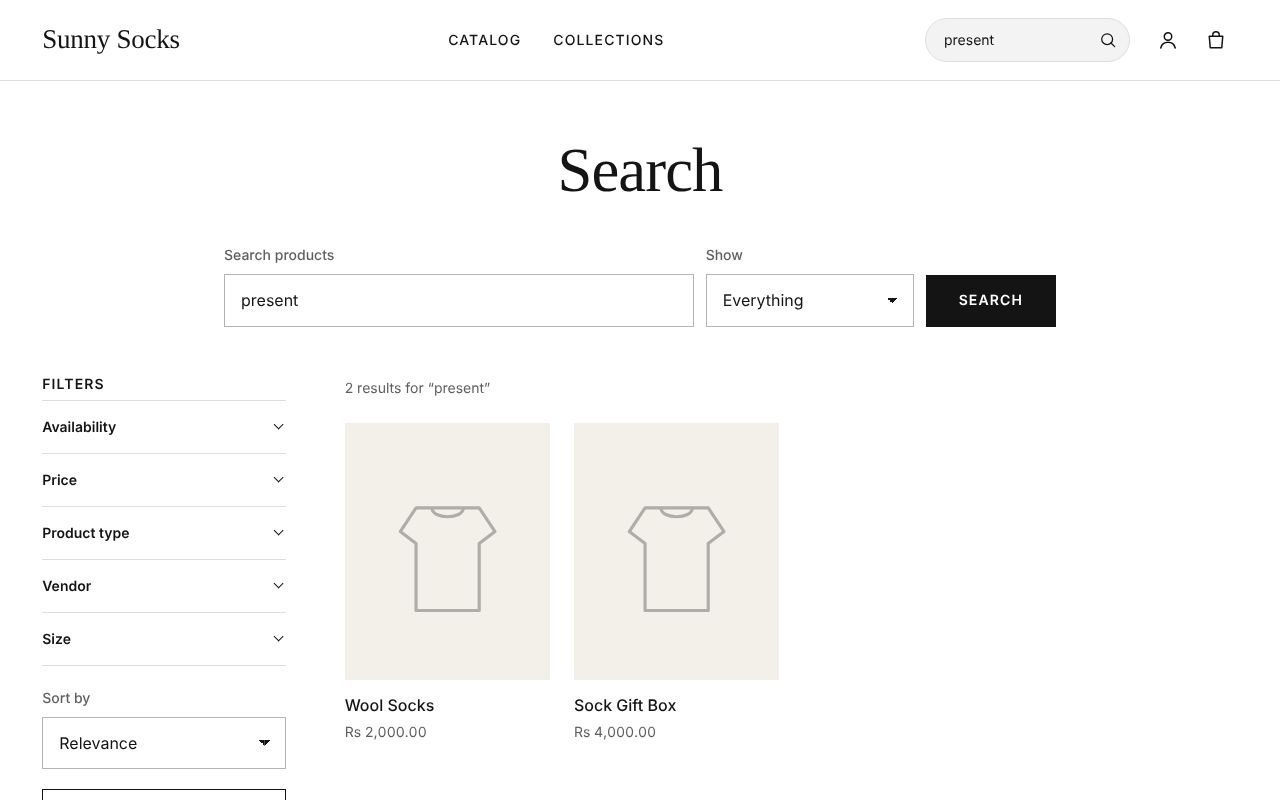
Now a search for present on your store shows Wool Socks and Sock Gift Box, in that order:
Two rules can’t share a word: saving one that does says which word another rule already has.
Change or delete a rule
- To change a rule, press its words in the list. Its page is called Featured for “present”. Change the words or products and press Save. Here Sock Gift Box is removed, so the rule has 1 product.
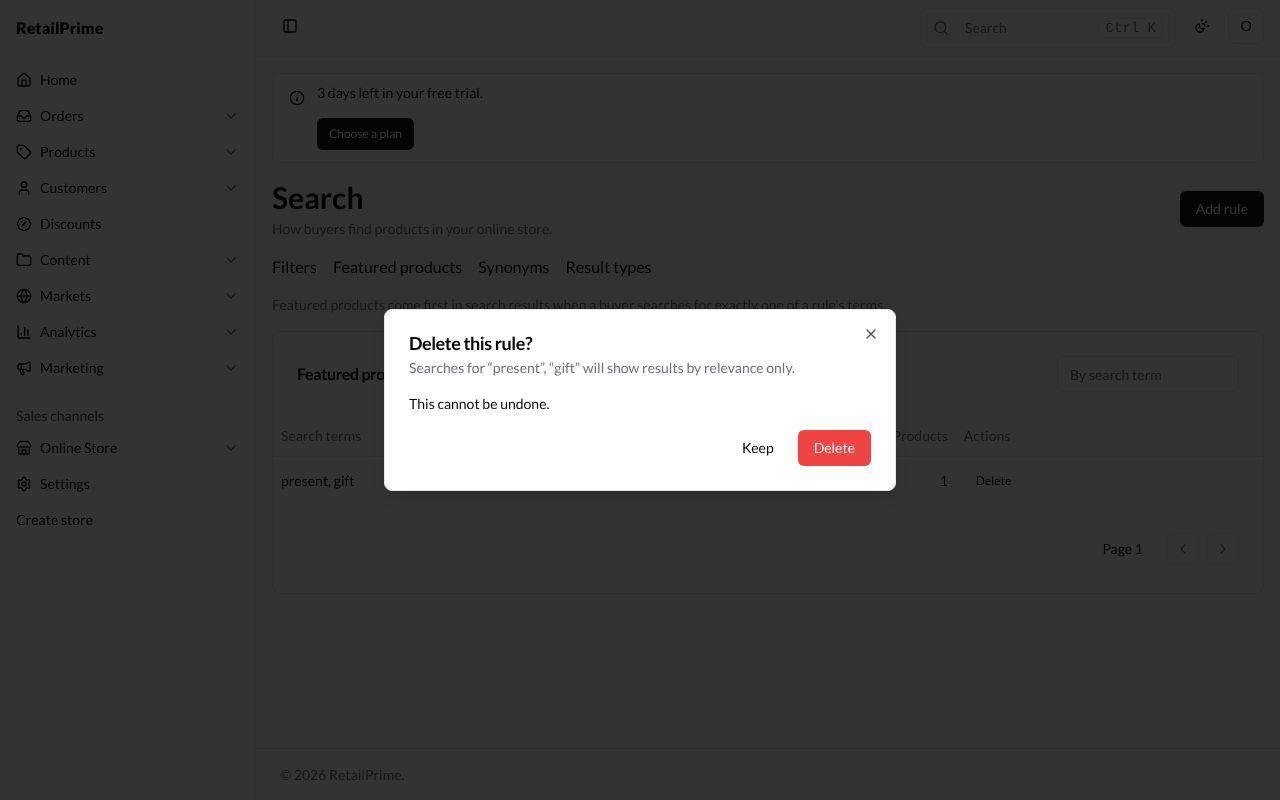
- To delete a rule, press Delete next to it in the list, or Delete on its page. A window asks Delete this rule? and says Searches for “present”, “gift” will show results by relevance only. Press Delete. The page says Rule deleted.
Type in the By search term box and press Enter to find a rule.
Synonyms
Synonyms are words that should find the same products. The tab says Synonyms let a search for one word also find products named with another. Two-way terms all find each other; a one-way term also finds its terms, not the other way round.
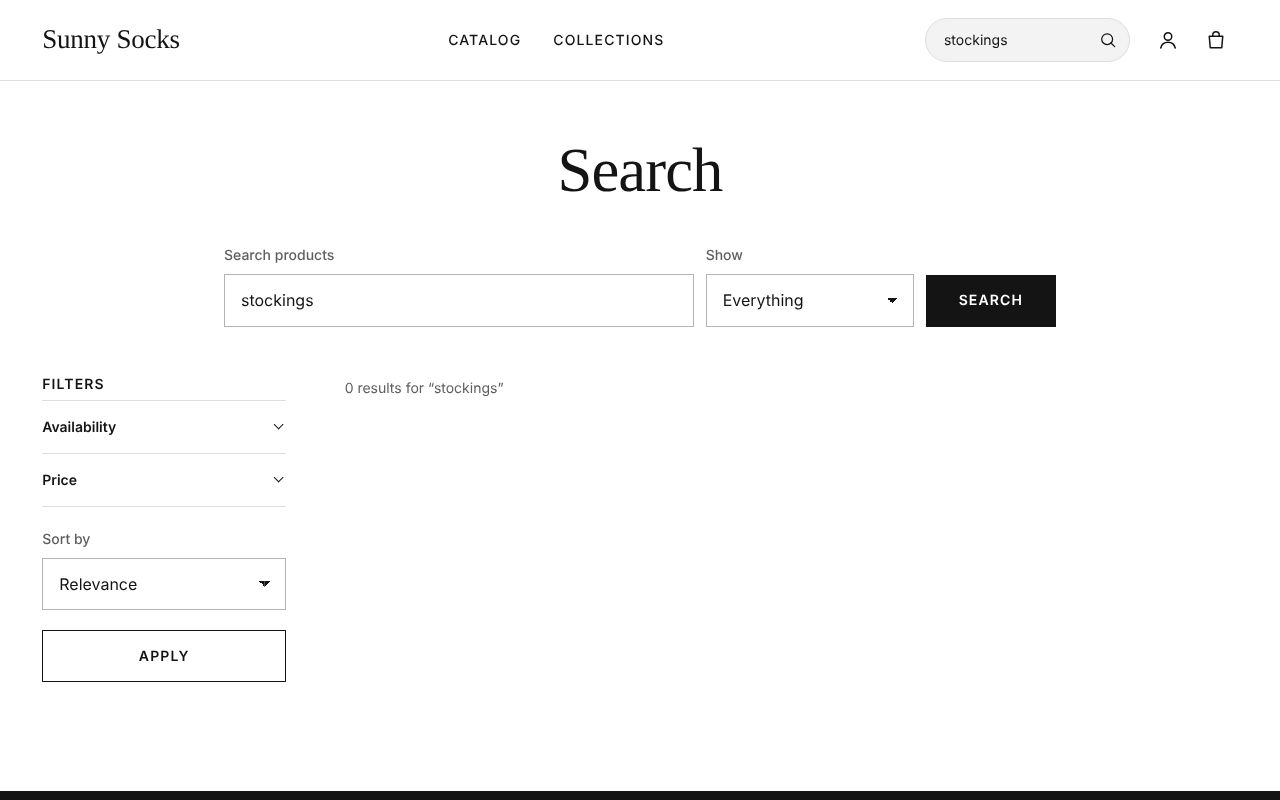
Without synonyms, a search for stockings finds nothing, because the products are called socks:
A new store has No synonyms yet: Add words buyers use for the same thing, such as “sofa” and “couch”.
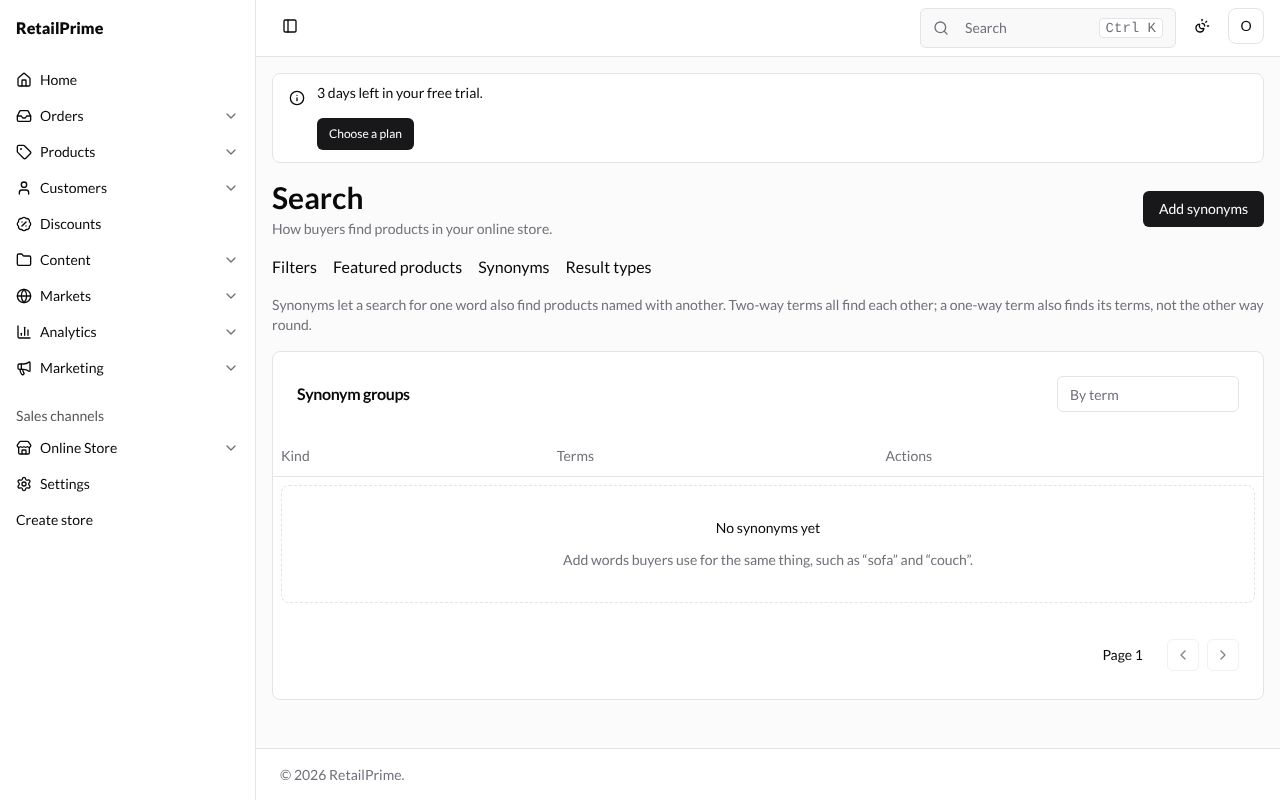
Two-way synonyms
-
Press Add synonyms. The Add synonyms window opens with Two-way chosen: Every term finds the others, such as sofa, couch and settee.
-
In Terms, type each word and press Enter (or Add): here
socks,stockingsandhosiery. From 2 to 20 terms that mean the same. With fewer than two, Save says Add at least 2 terms.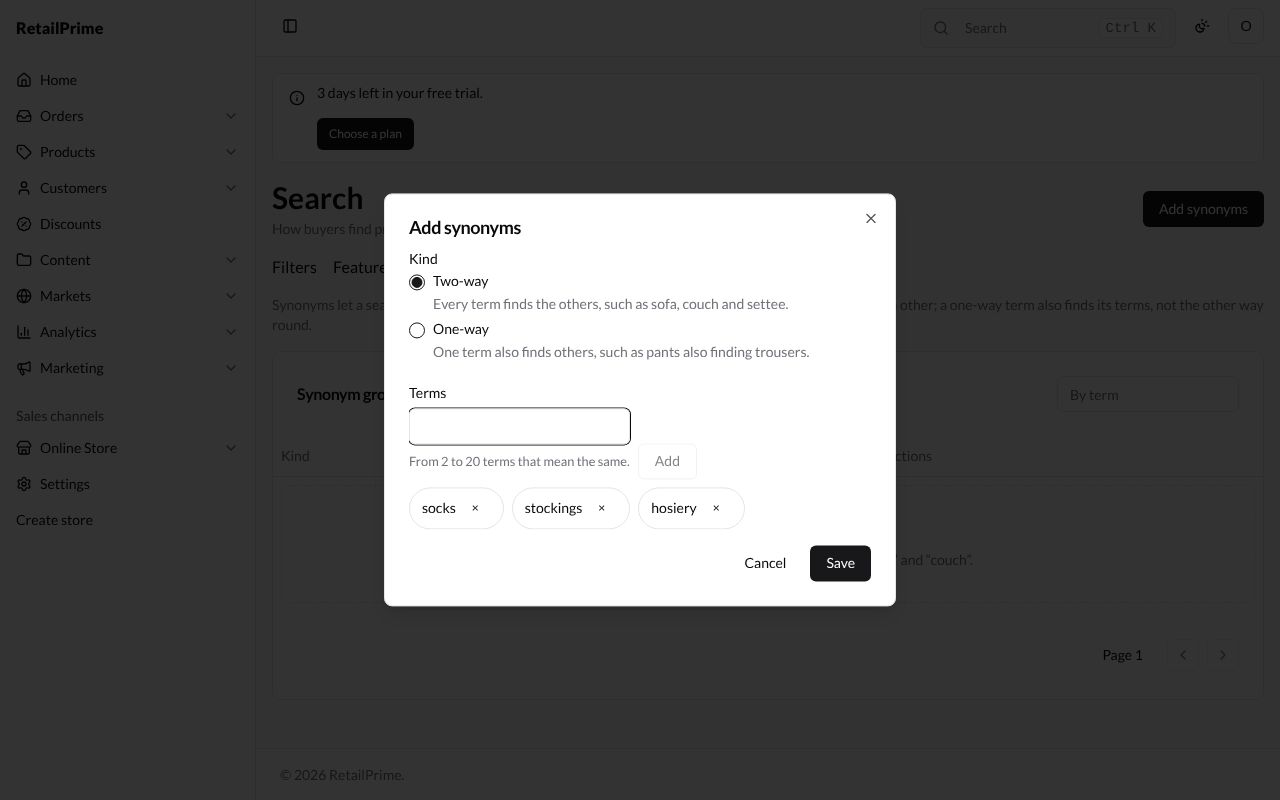
-
Press Save. The page says Synonyms added.
One-way synonyms
-
Press Add synonyms and choose One-way: One term also finds others, such as pants also finding trousers.
-
Type the Search term (Up to 40 characters and 3 words.), here
warm, and in Also finds the words it should also find, herewool(Up to 20 terms the search term also finds.).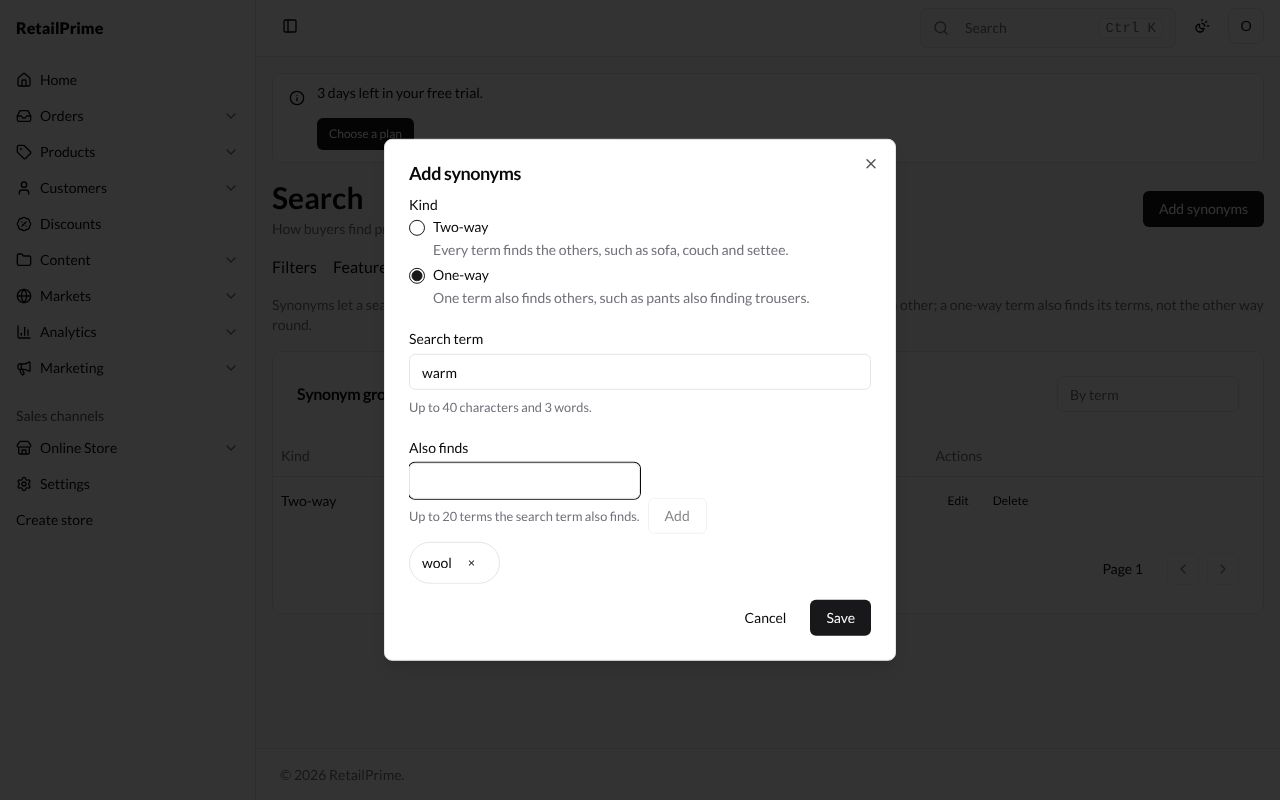
-
Press Save. A search for
warmnow also finds wool socks, but a search forwooldoesn’t find things called warm.
The list shows each group’s Kind and Terms, a one-way group with an arrow:
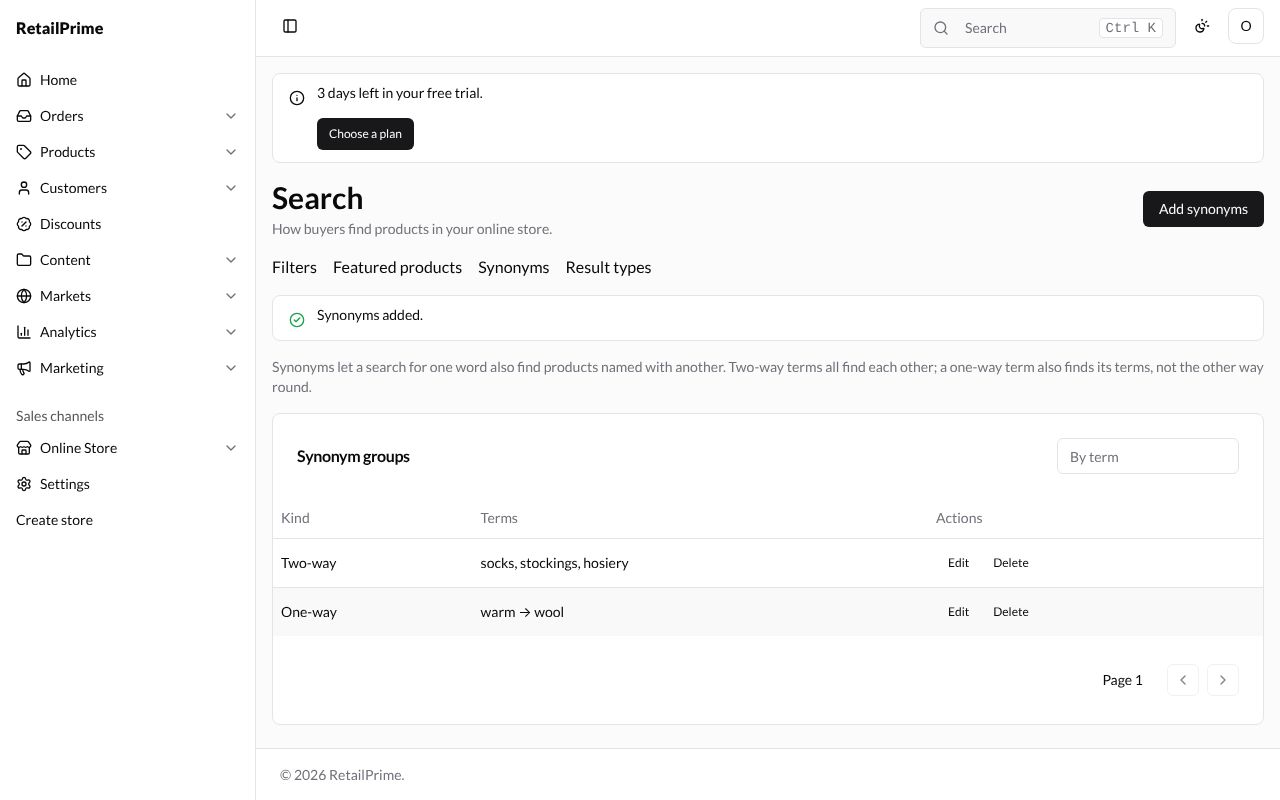
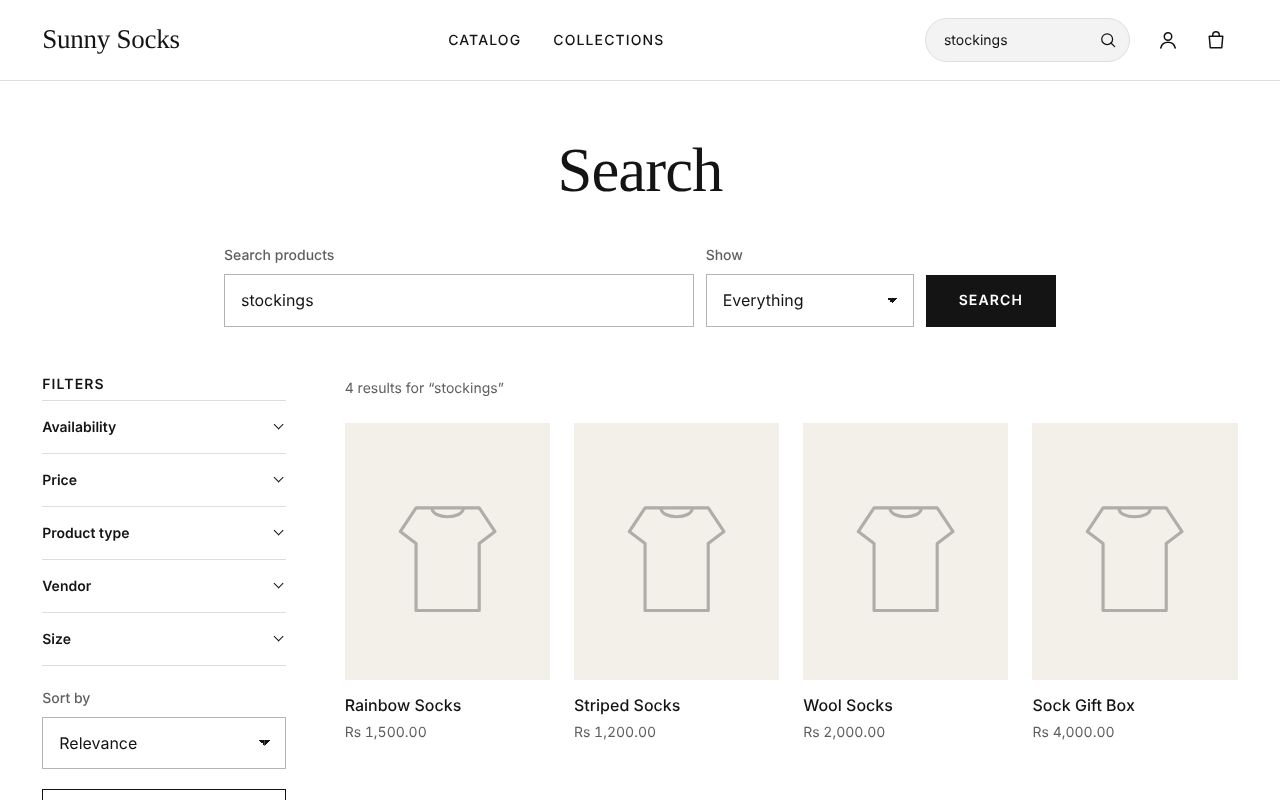
Now a search for stockings on your store finds every sock:
Change or delete synonyms
-
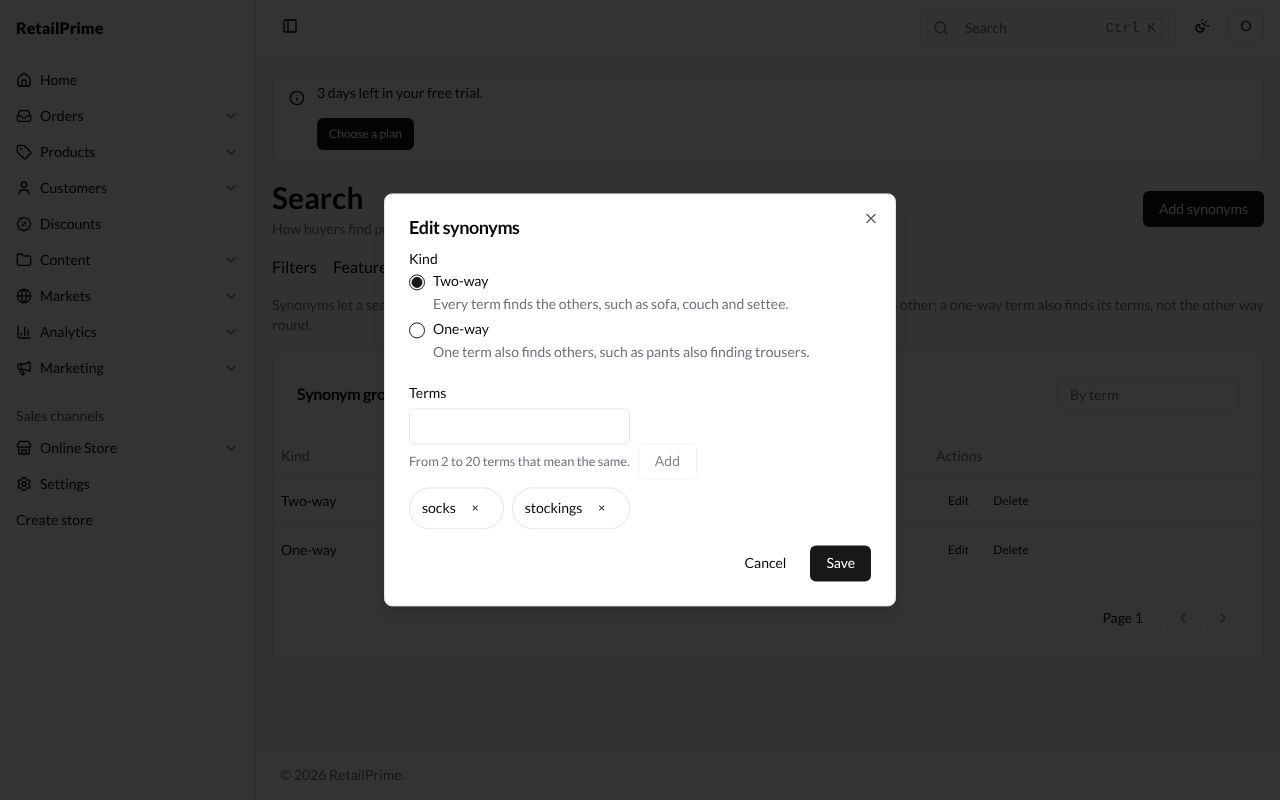
Press Edit next to a group. The Edit synonyms window has the same boxes: press × next to a word to remove it, or add more. Press Save: the page says Synonyms saved.
-
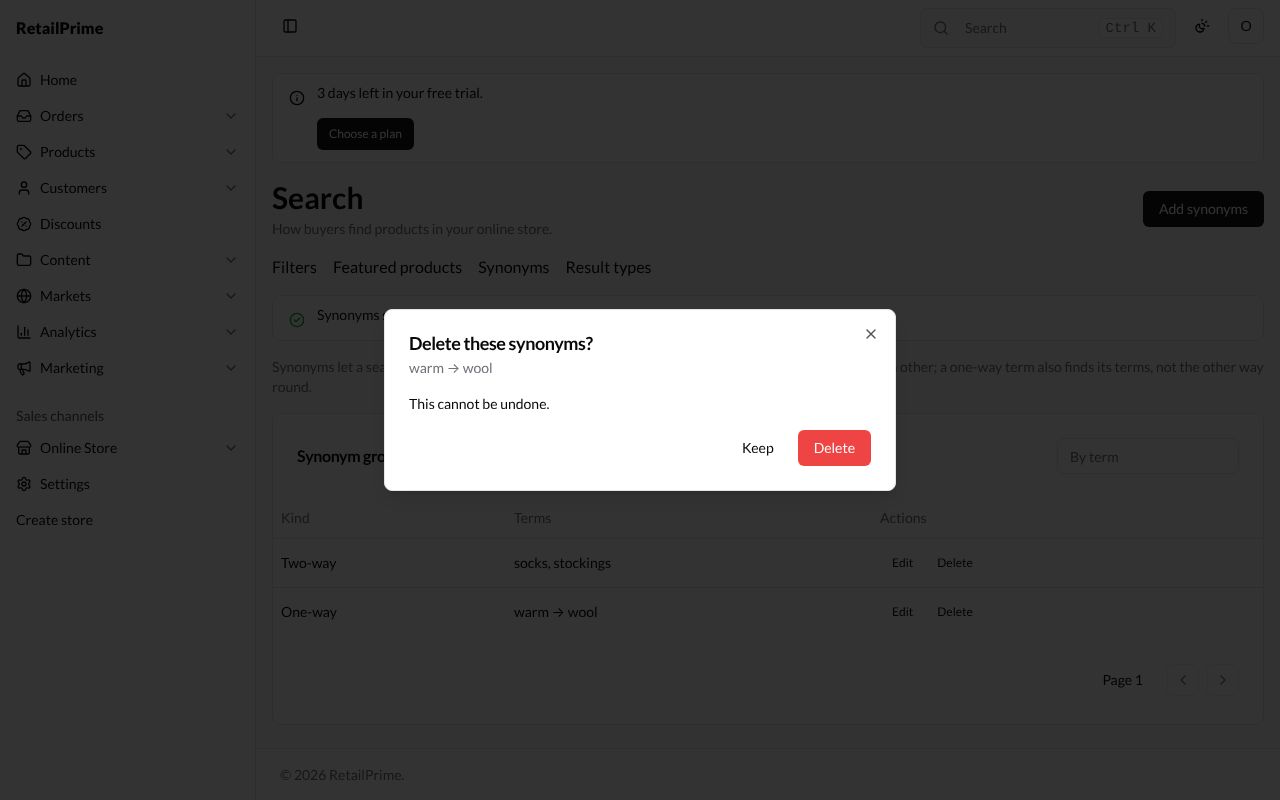
Press Delete next to a group. A window asks Delete these synonyms? with the group’s words. Press Delete: the page says Synonyms deleted.
Type in the By term box and press Enter to find a group.
Result types
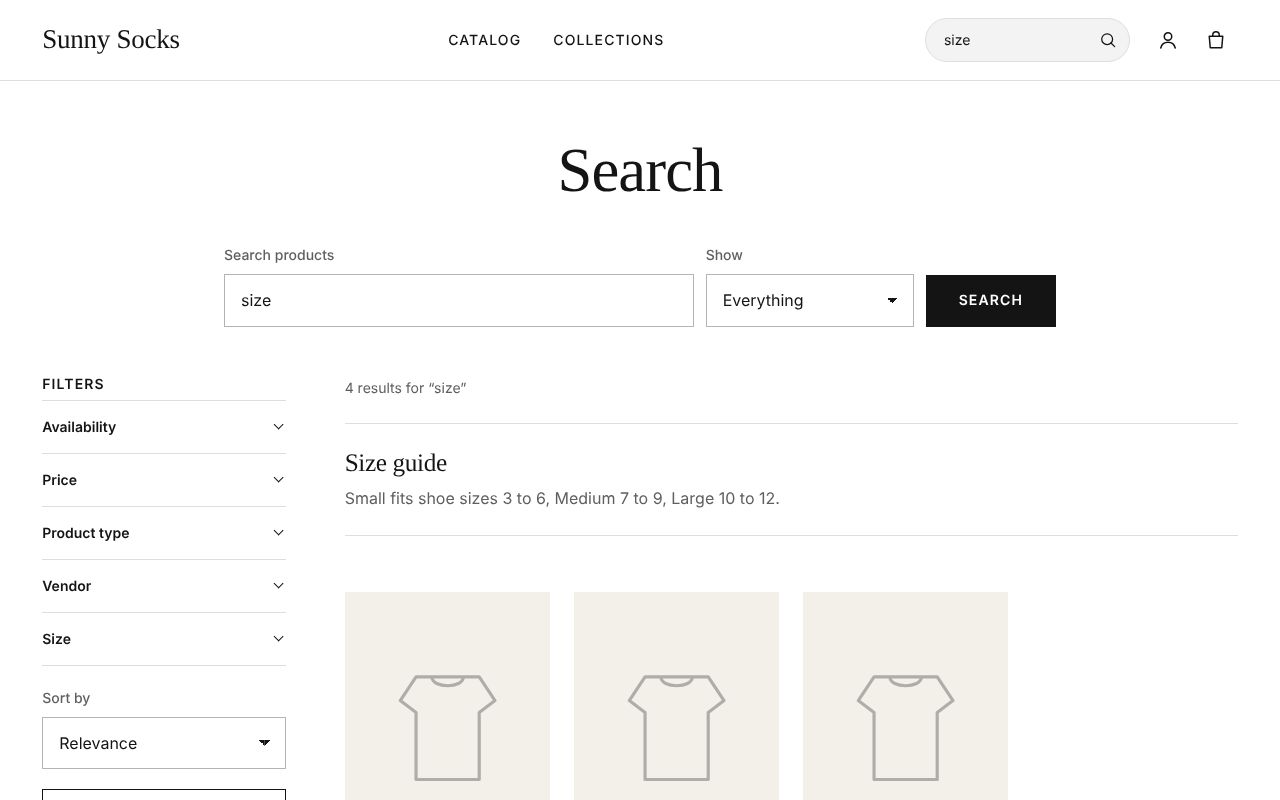
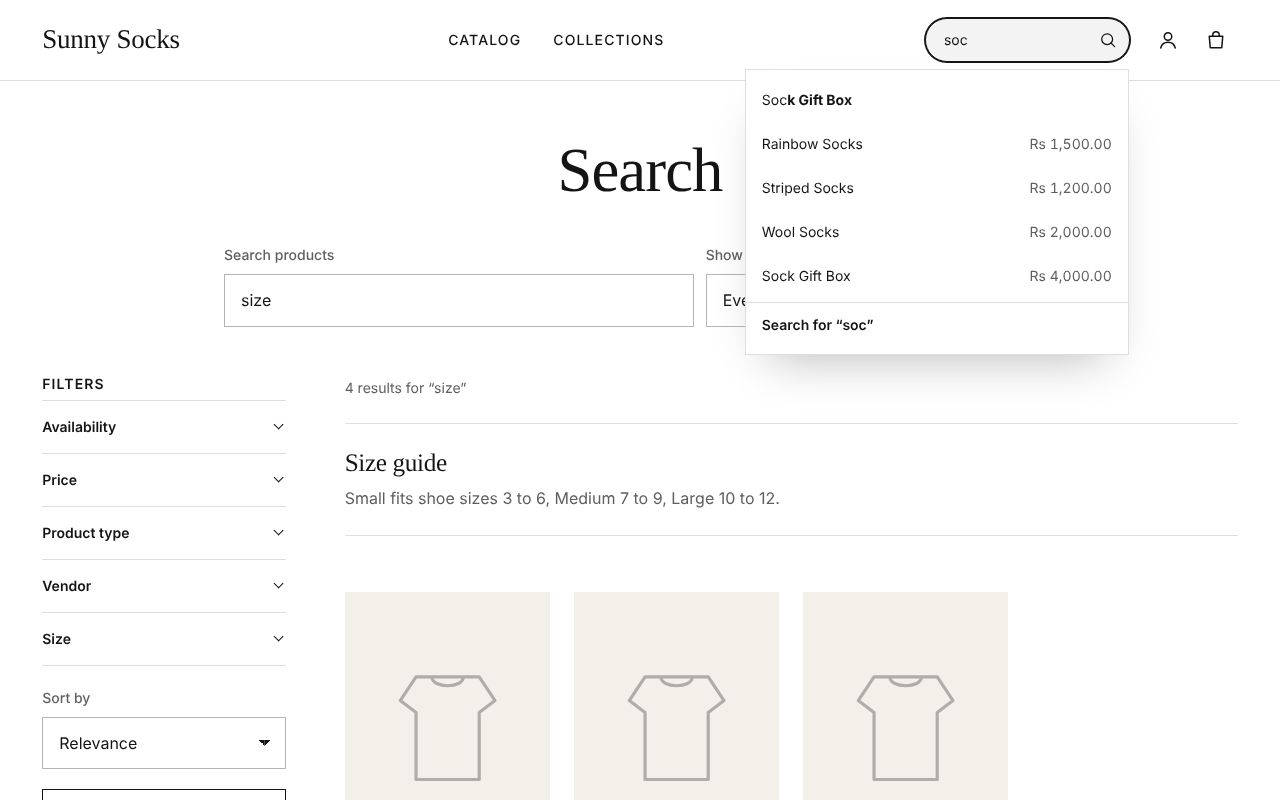
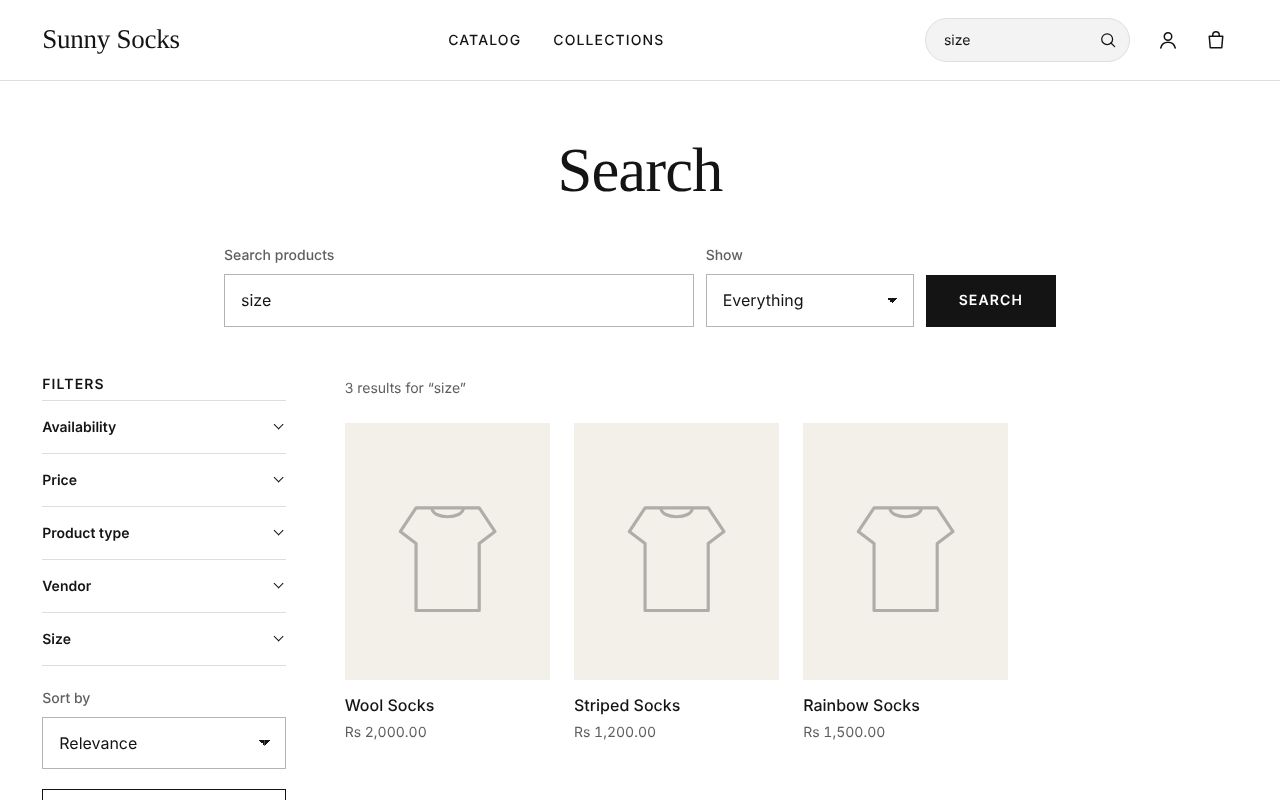
Result types decide what kinds of things search finds. Before any change, a search for size finds the Size guide page as well as products:
As a buyer types in the store’s search box, suggestions drop down: words to search for, products with their prices, and Search for “soc” at the bottom.
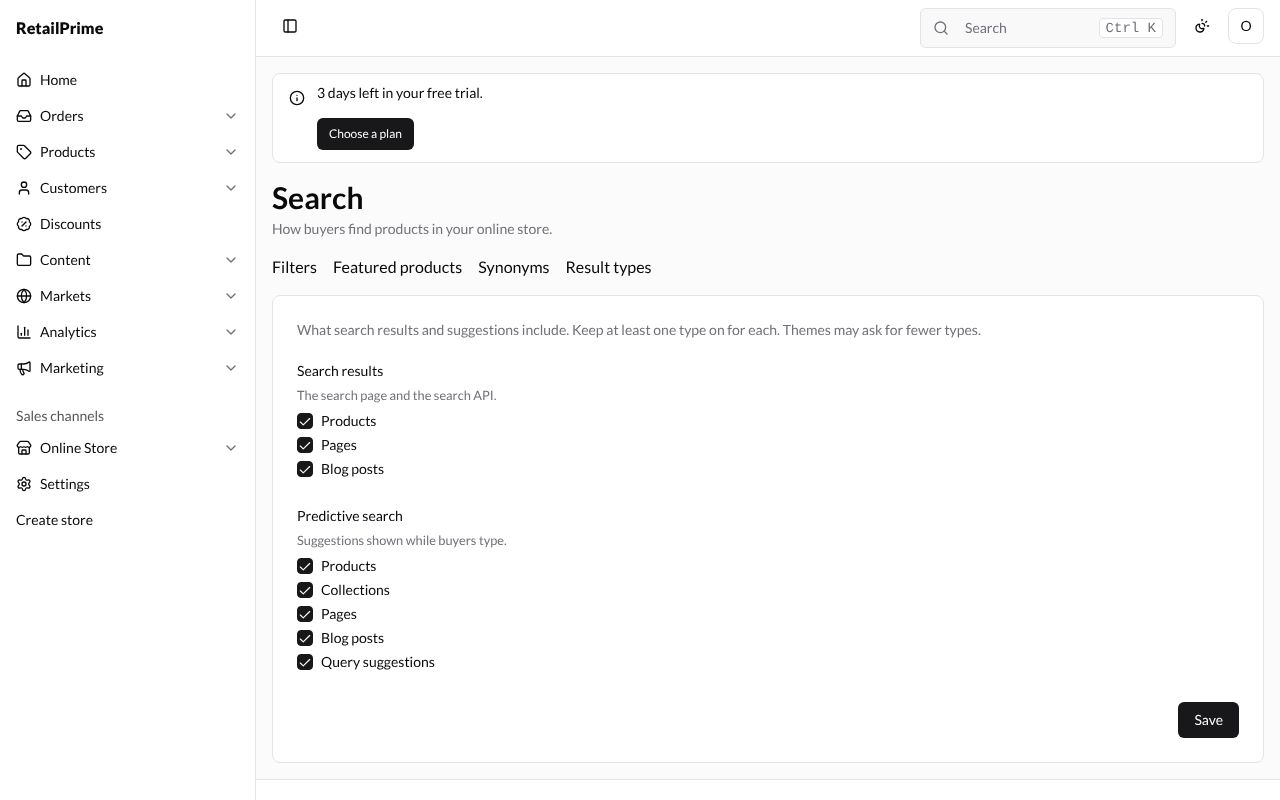
The Result types tab says What search results and suggestions include. Keep at least one type on for each. Themes may ask for fewer types. It has two groups of tick boxes, all ticked at first:
| Group | What it covers | Types |
|---|---|---|
| Search results | The search page and the search API. | Products, Pages, Blog posts |
| Predictive search | Suggestions shown while buyers type. | Products, Collections, Pages, Blog posts, Query suggestions (words to search for) |
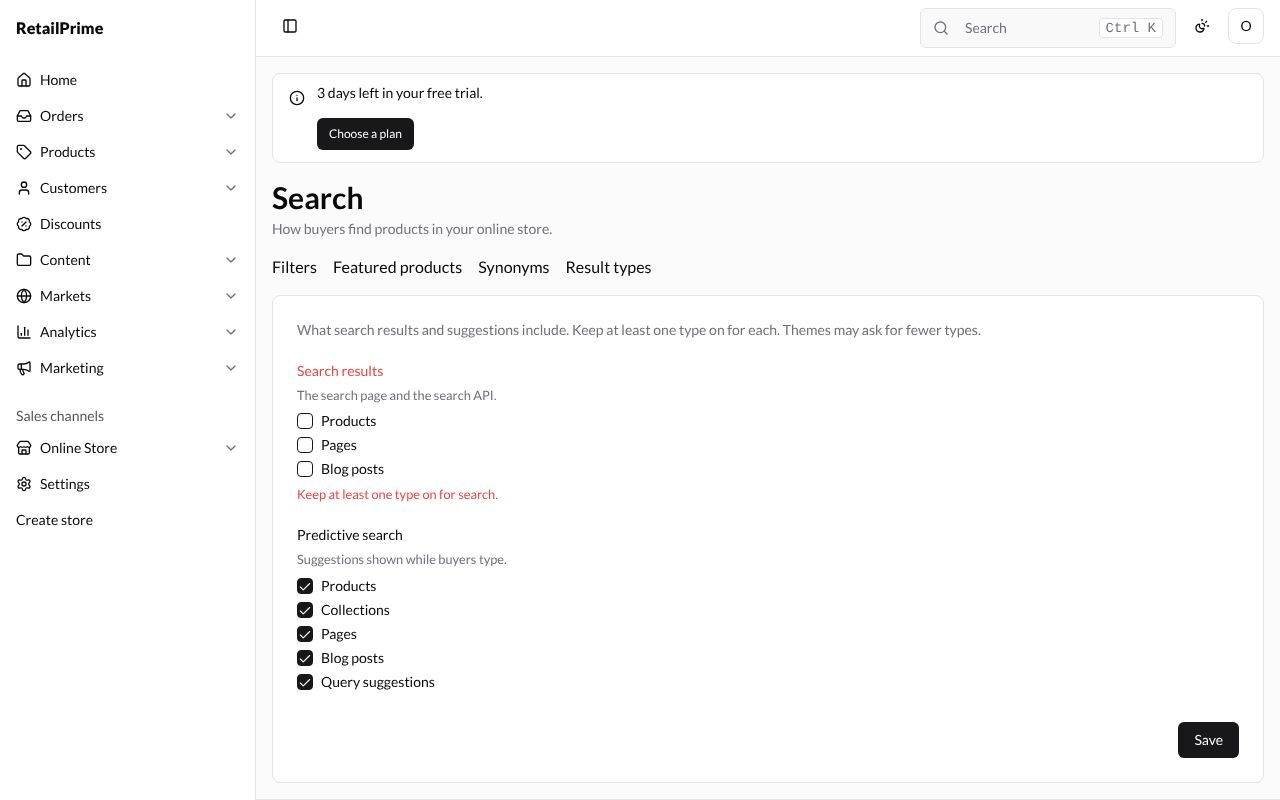
Untick the types you don’t want and press Save. Each group needs at least one type: with none, Save says Keep at least one type on for search.
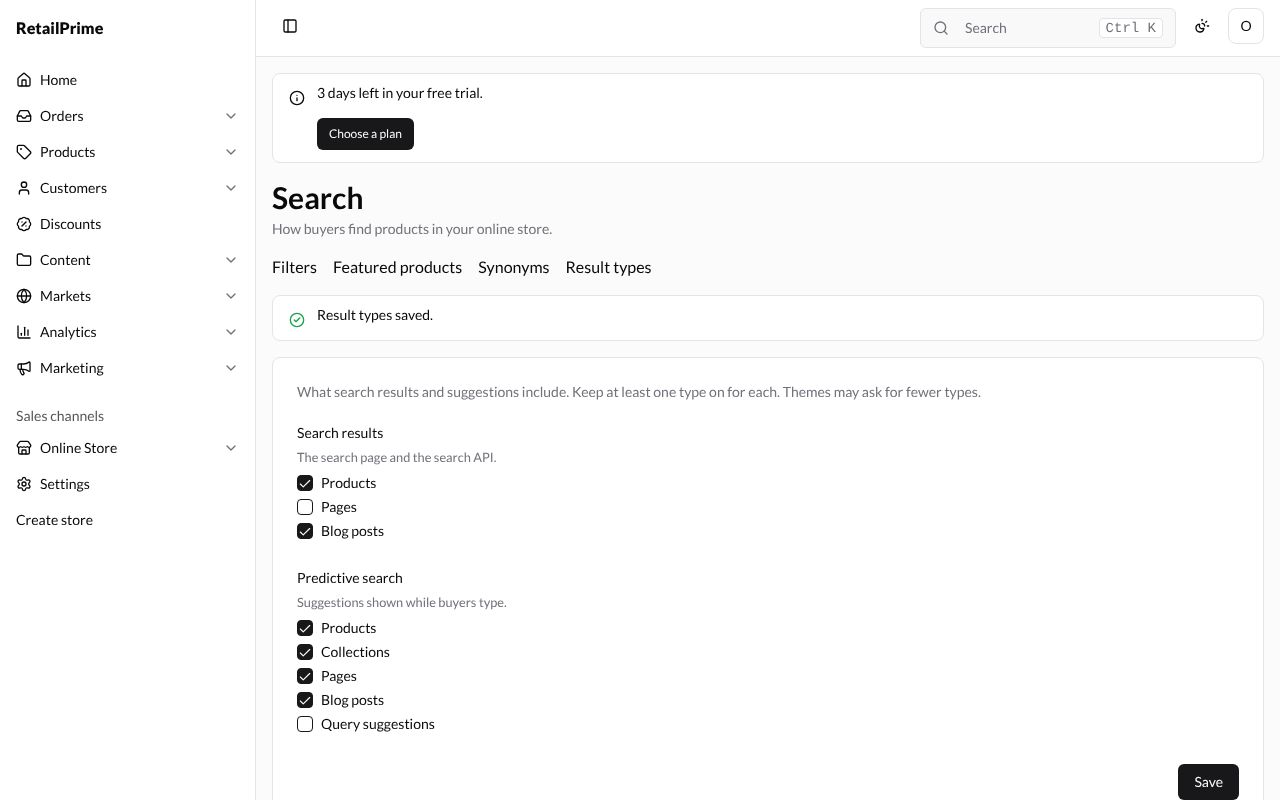
Here Pages is left unticked under Search results, and Query suggestions unticked under Predictive search. Press Save: the page says Result types saved.
Now a search for size on your store finds only the products, not the Size guide page:
What’s next
Preferences and the password page: your store’s title in search engines, its sharing picture and its password.