Preferences and the password page
Set your home page's title and description for search engines, a social sharing picture, and your store's password and the message on its password page.
Preferences is about How your online store appears in search results and social media, and who can visit it.
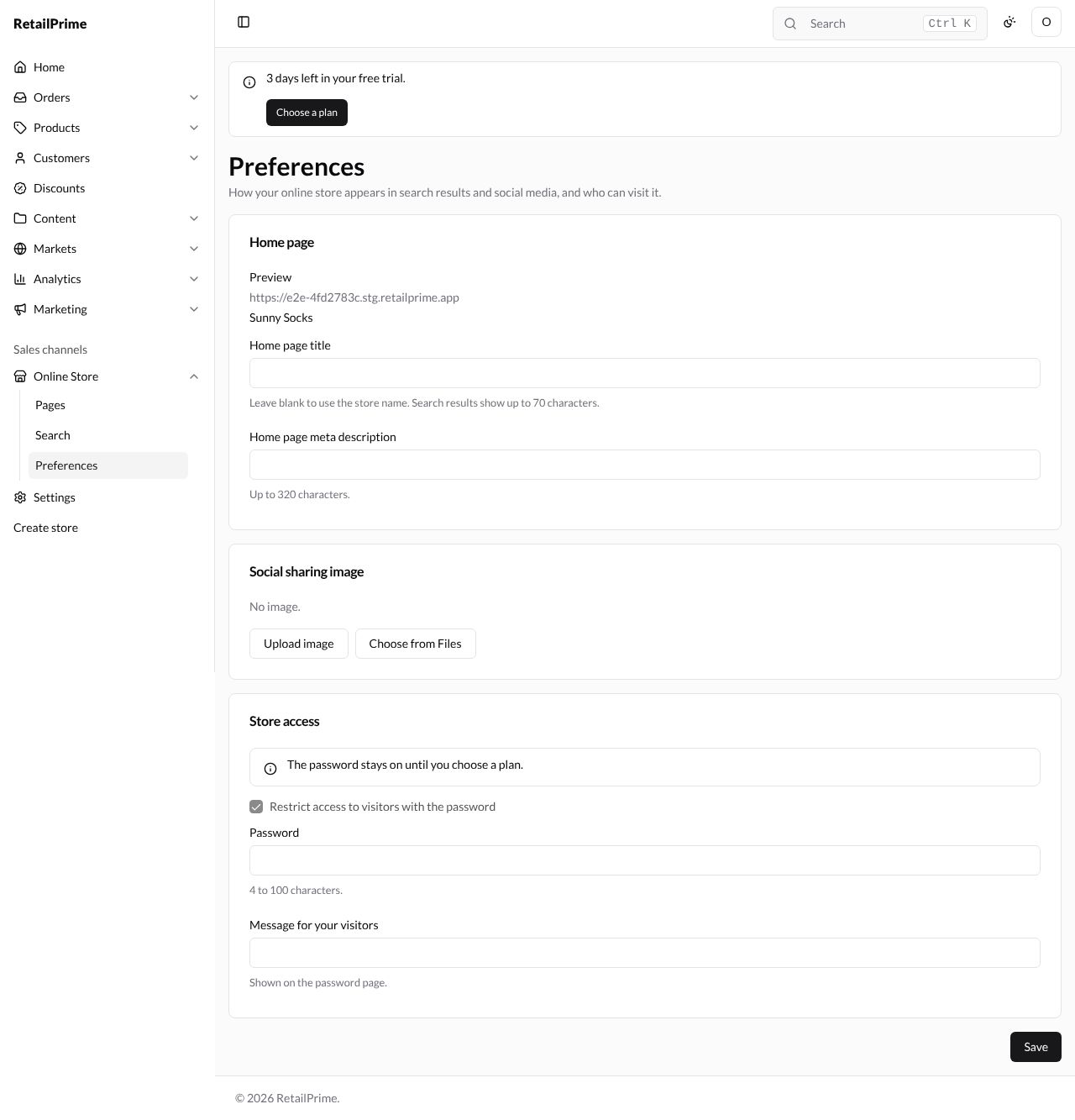
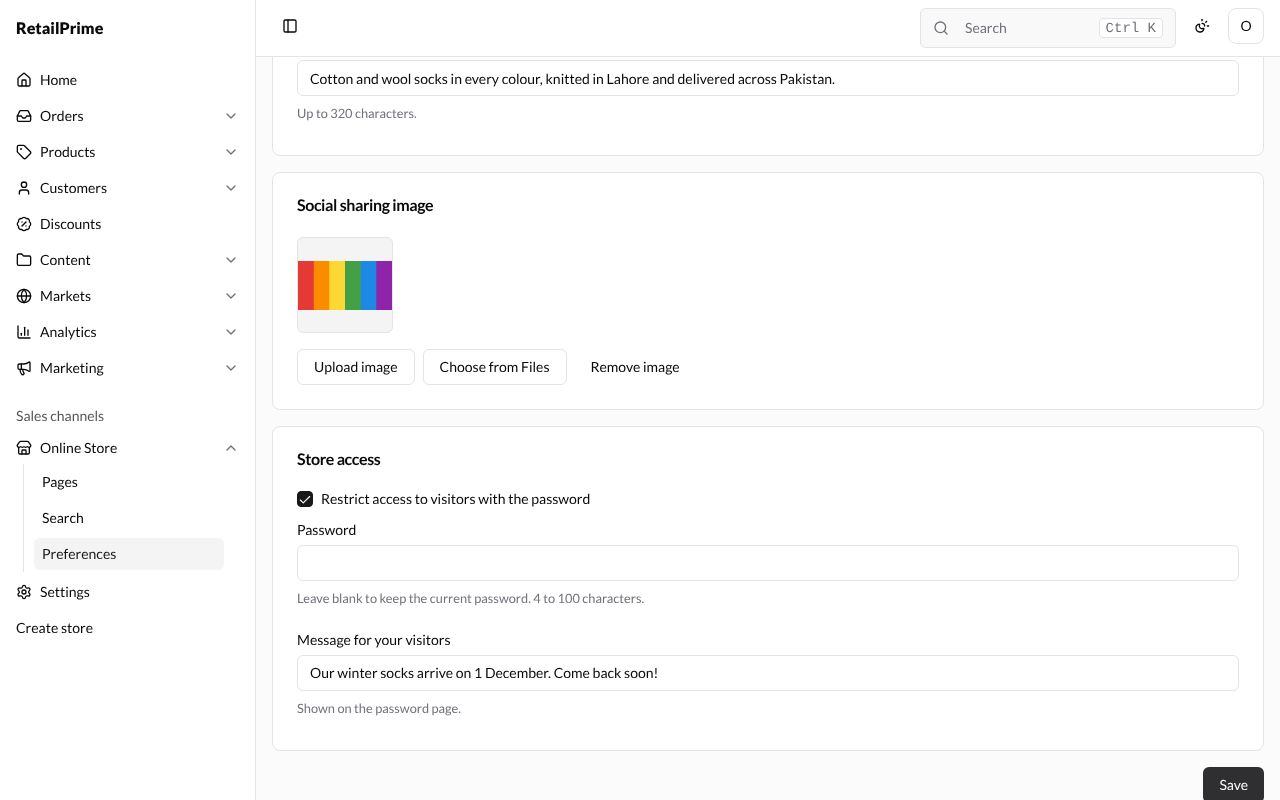
In the sidebar, under Online Store, press Preferences. It has three cards: Home page, Social sharing image and Store access, with Save at the bottom.
Home page
How your home page shows in search engines such as Google. The Preview shows your store’s address, then the title and description as a search result might show them.
| Box | What to type | Example |
|---|---|---|
| Home page title | The title of your home page. Leave blank to use the store name. Search results show up to 70 characters. It is also the name in the browser’s tab | Sunny Socks: bright socks from Lahore |
| Home page meta description | One or two sentences about your store. Up to 320 characters. | Cotton and wool socks in every colour, knitted in Lahore and delivered across Pakistan. |
Social sharing image
The picture meant for when someone shares a link to your store on social media. Press Upload image to pick one from your computer, or Choose from Files to use one already in Files (see Files). Remove image takes it off.
Store access: the password
Until you choose a plan, your store has a password, so only people you give it to can see it. The card says The password stays on until you choose a plan., and Restrict access to visitors with the password is ticked and greyed out.
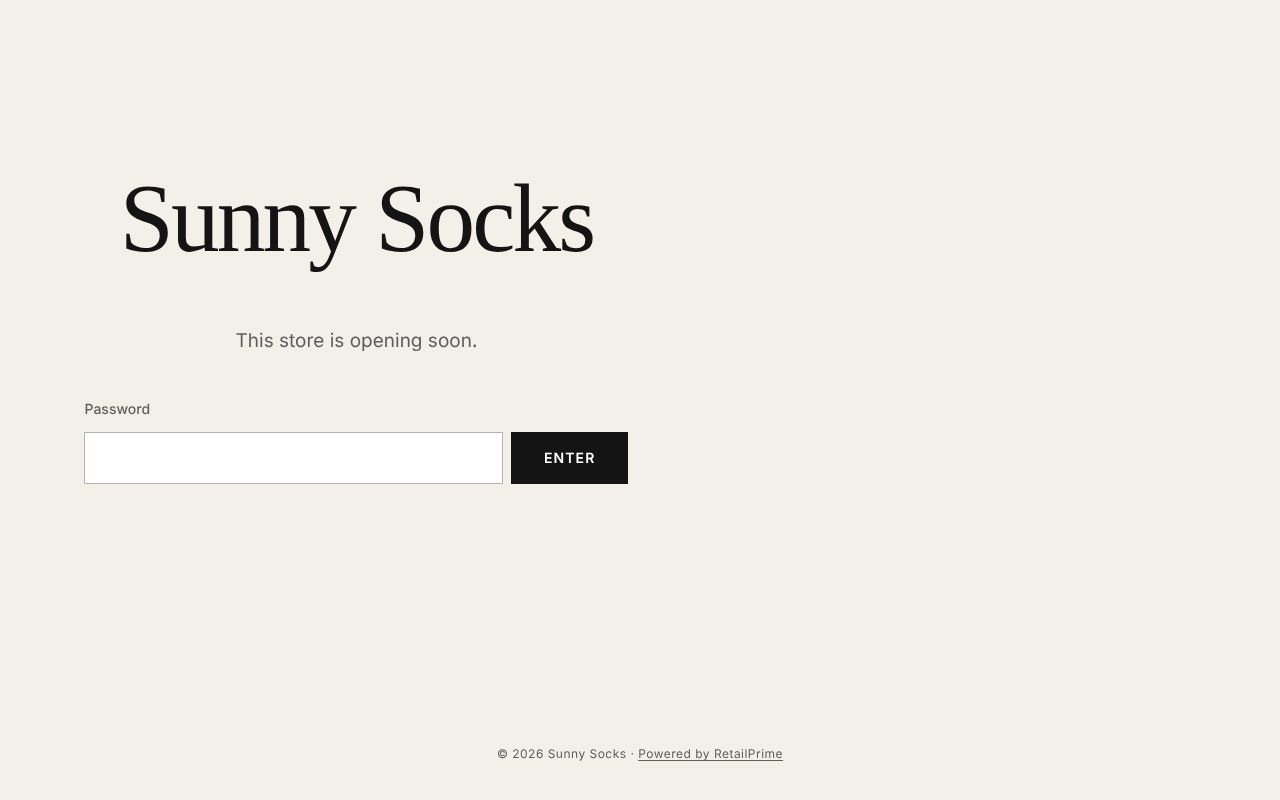
A visitor who opens your store sees the password page instead, with the store’s name, a message, and a Password box:
| Box | What to type | Example |
|---|---|---|
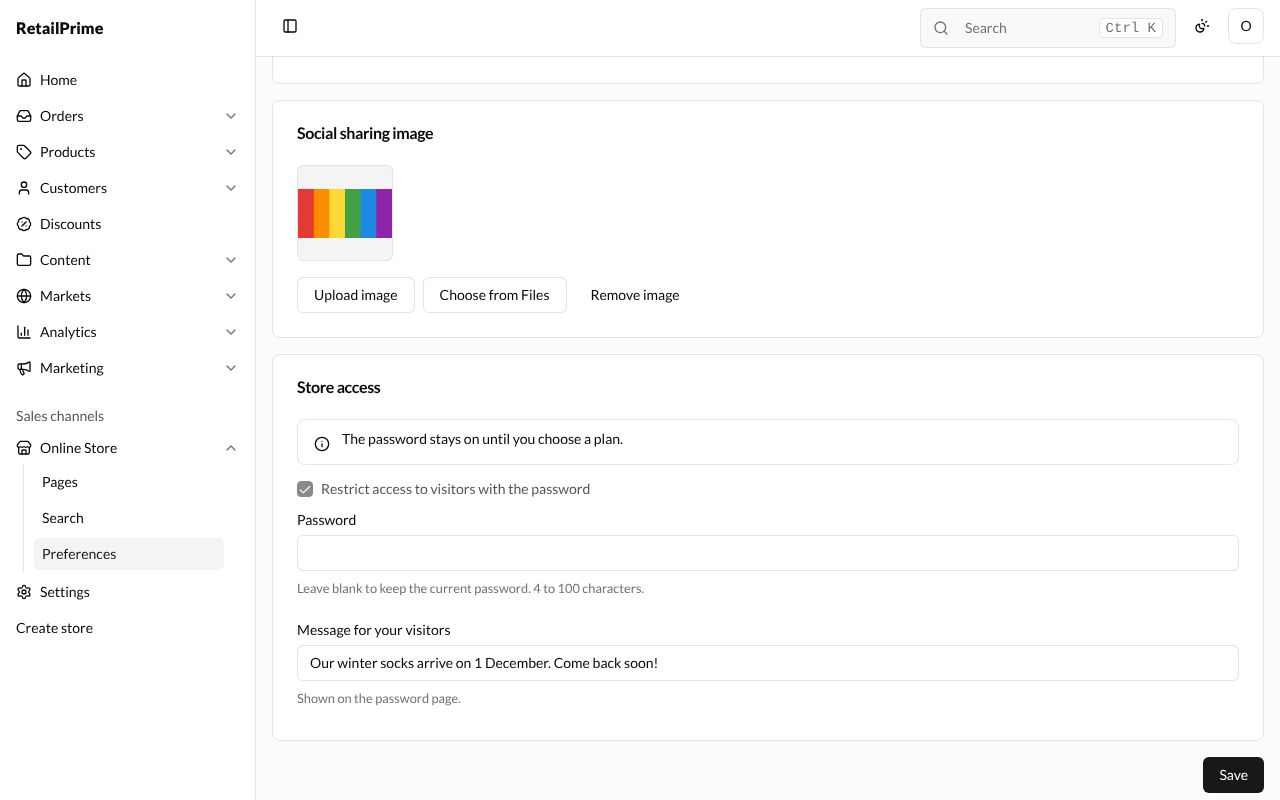
| Password | A new password for your store: 4 to 100 characters. Once one is set, the box says Leave blank to keep the current password. | sunny2026 |
| Message for your visitors | Shown on the password page. Left blank, the theme’s own words show (This store is opening soon.) | Our winter socks arrive on 1 December. Come back soon! |
Here is the page filled in:
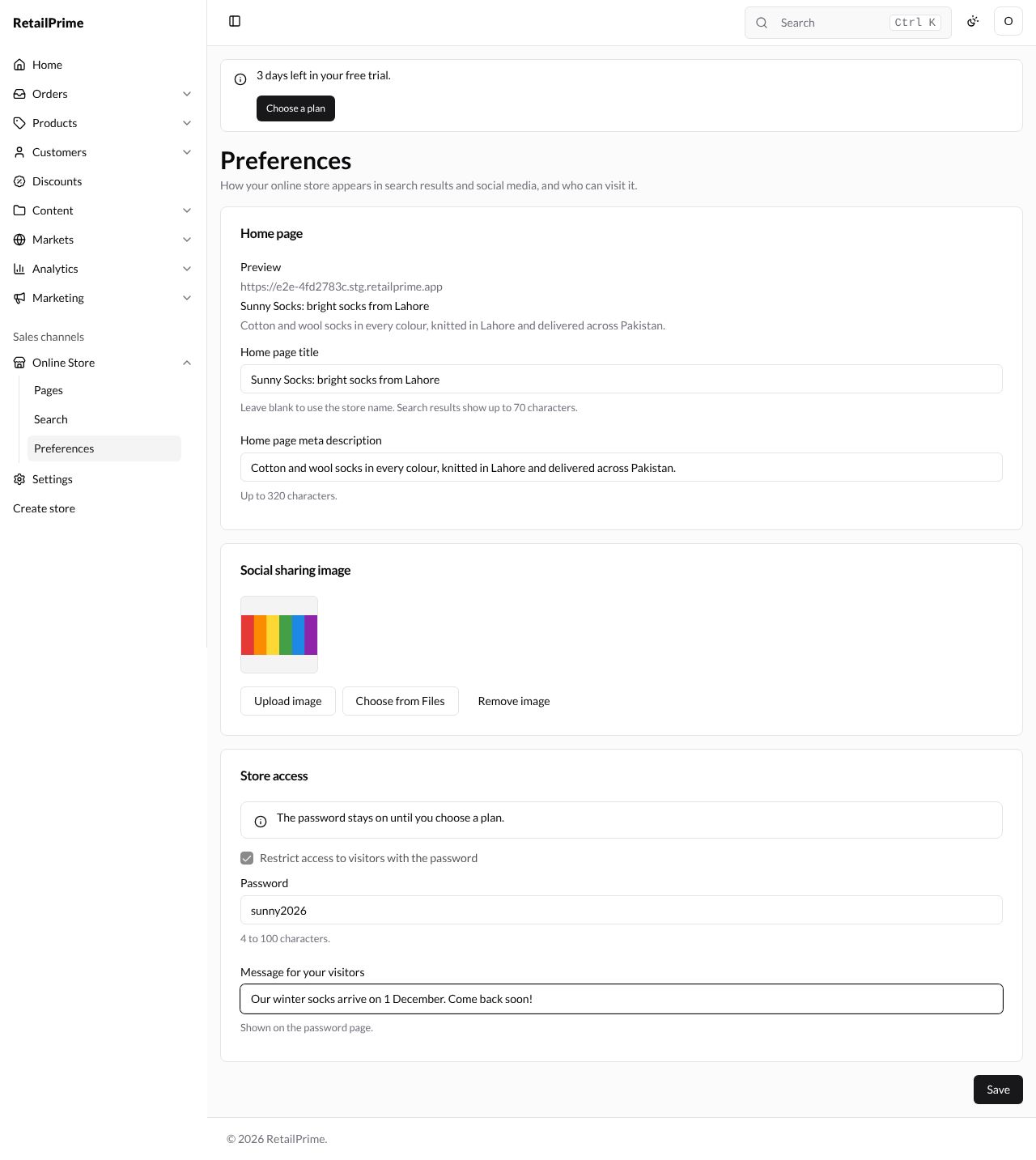
Press Save. The page says Preferences saved.
The password page on your store
A visitor now sees your message on the password page. If they type a wrong password and press Enter, it says The password is not correct.
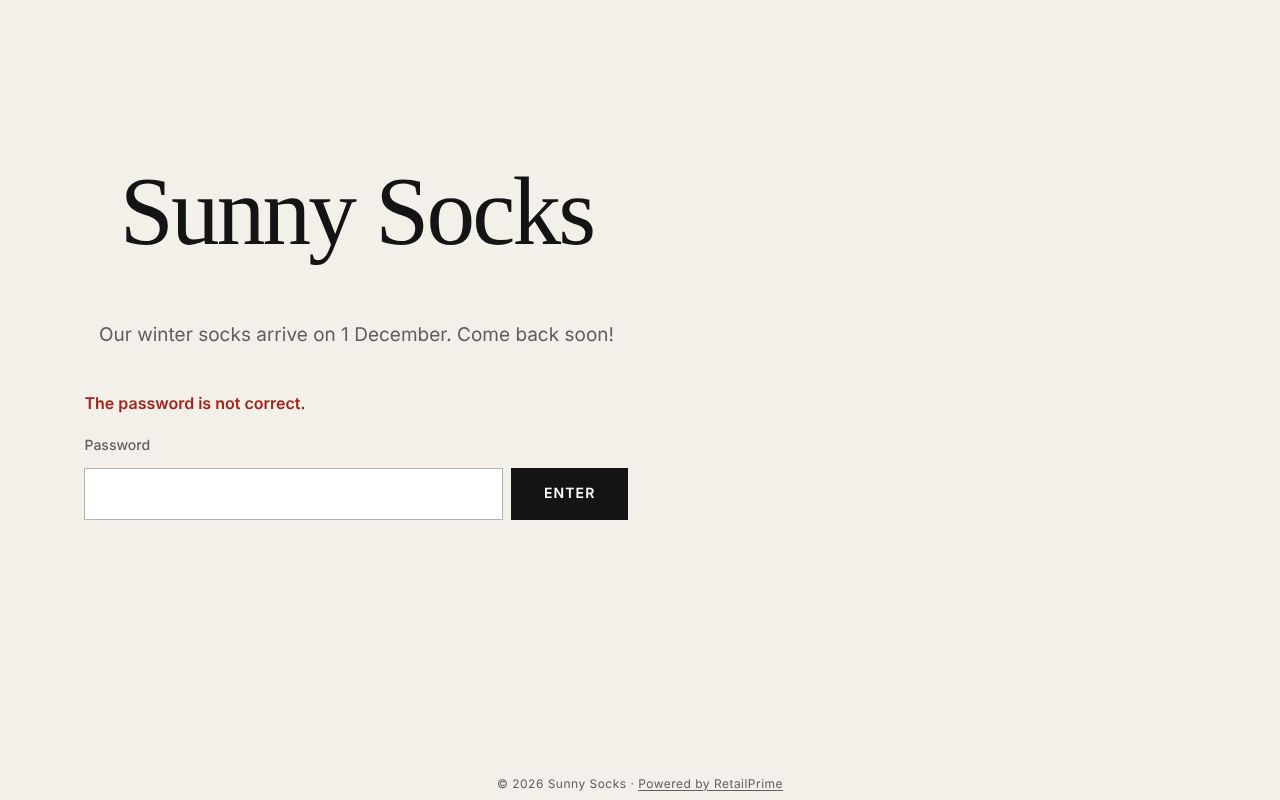
With the right password typed:
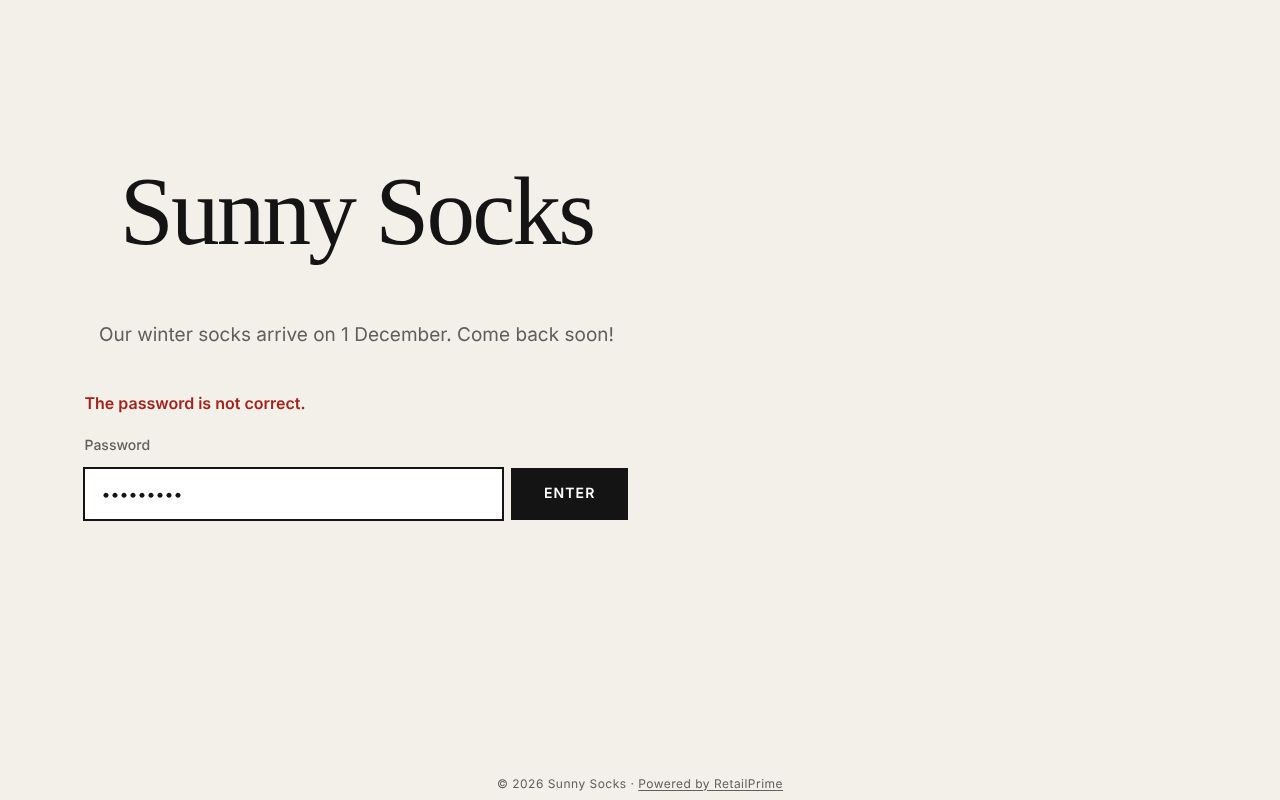
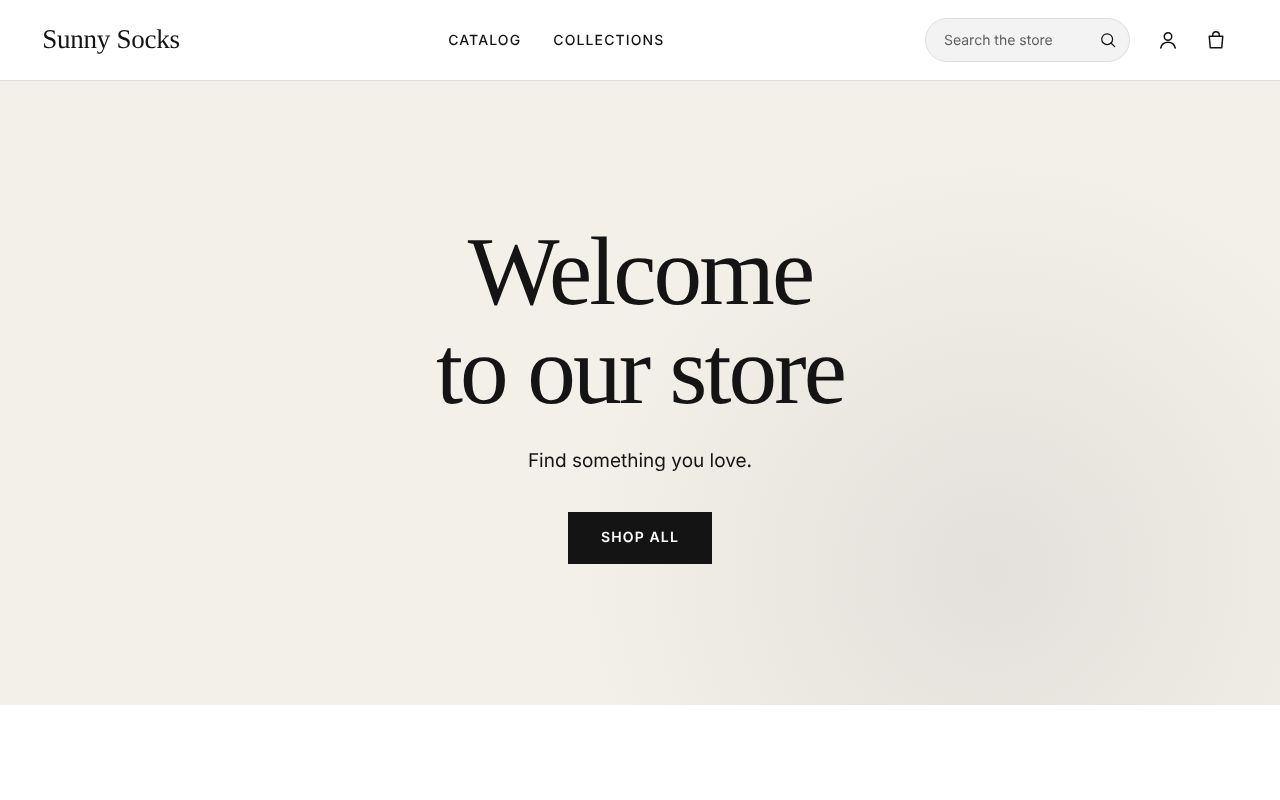
they press Enter and see your store. The browser’s tab shows the Home page title, Sunny Socks: bright socks from Lahore.
After you choose a plan
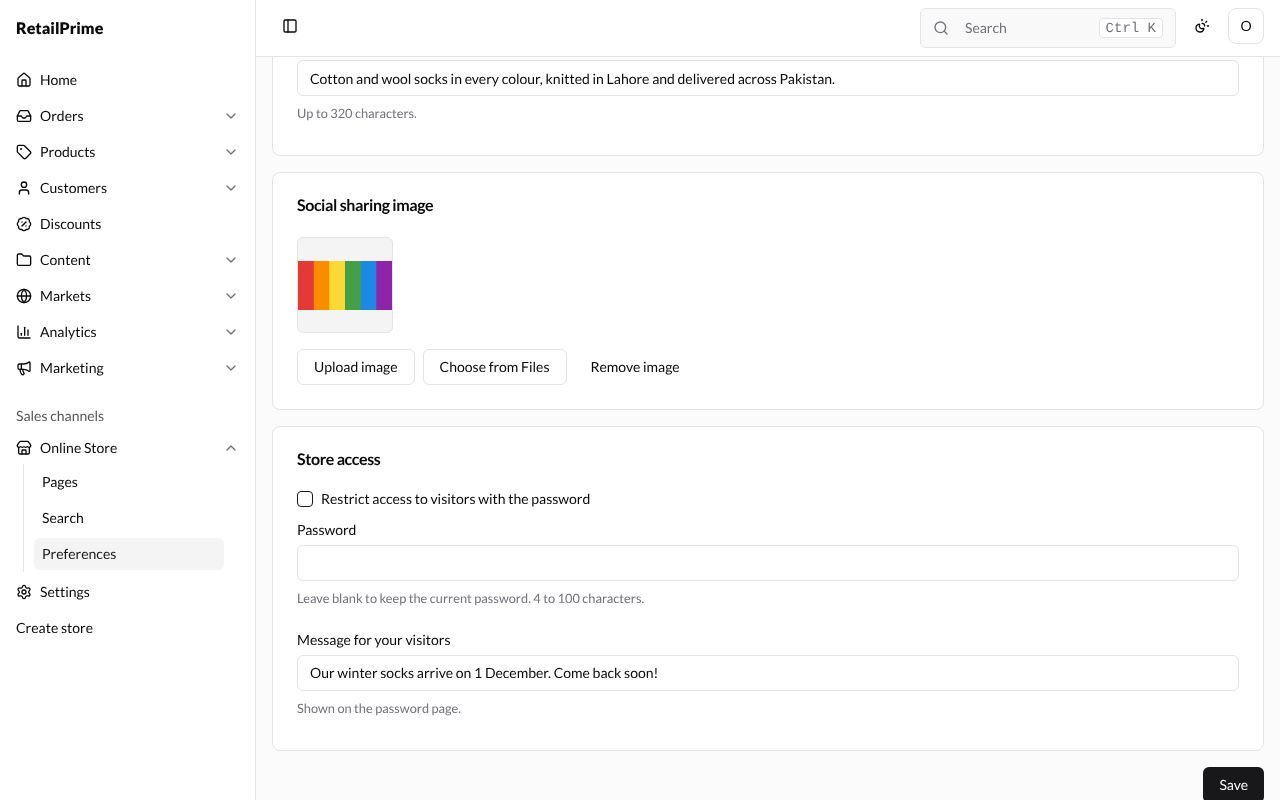
Once your store has a plan, the password is your choice. The note is gone, and Restrict access to visitors with the password can be ticked or not. It starts unticked, so everyone can visit.
-
To keep visitors out (for example while you get ready), tick it, type a Password if you haven’t one yet, and press Save. Visitors see the password page as above.
-
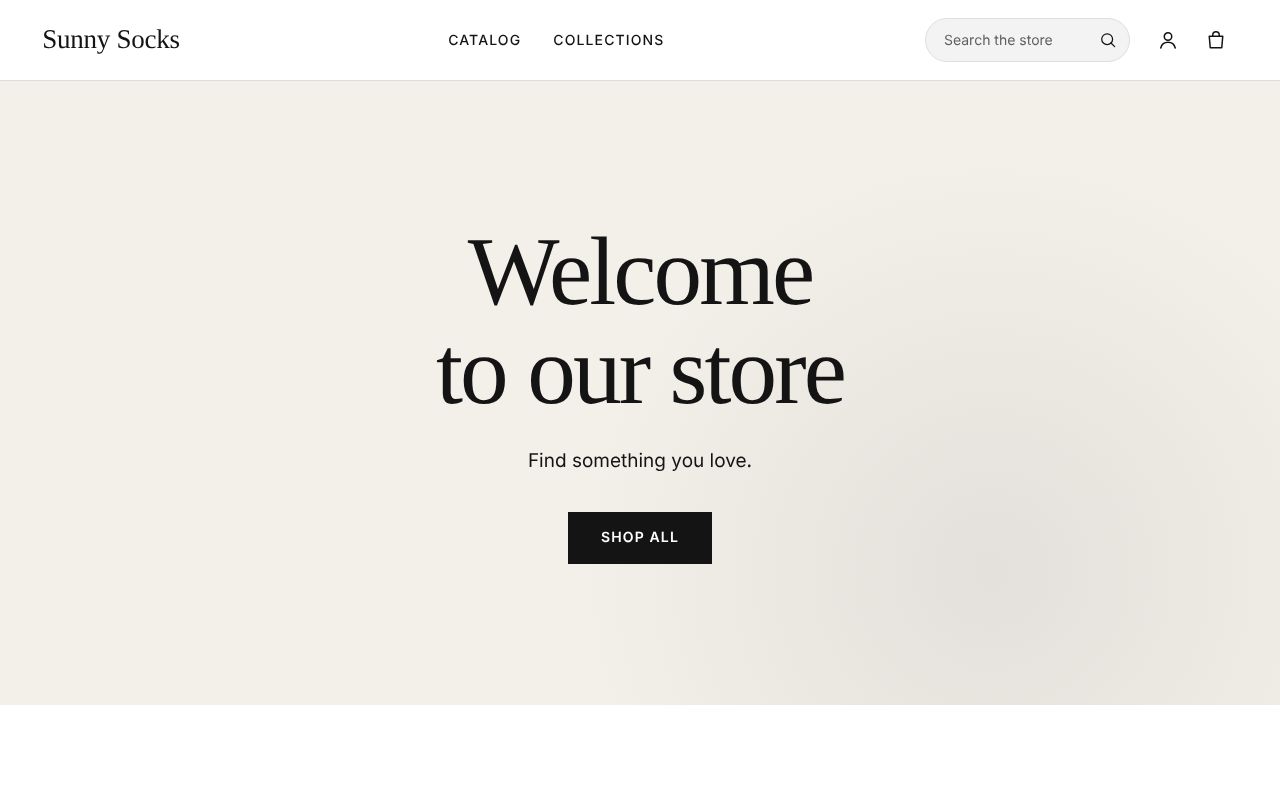
To open your store to everyone, untick it and press Save. Visitors go straight to your store:
What’s next
You have finished part 5: your online store. Part 6 starts with The Settings page and General: your store’s details, staff, plan, payments, shipping and everything else in Settings.