Menus
Make your store's main menu and footer menu, add links to pages, products and collections, nest, reorder and remove them, and see them on the store.
A menu is a list of links on your store. The starter theme shows two menus:
- the main menu, across the top of every page, from the menu with the handle
main-menu; - the footer menu, at the bottom of every page, from the menu with the handle
footer.
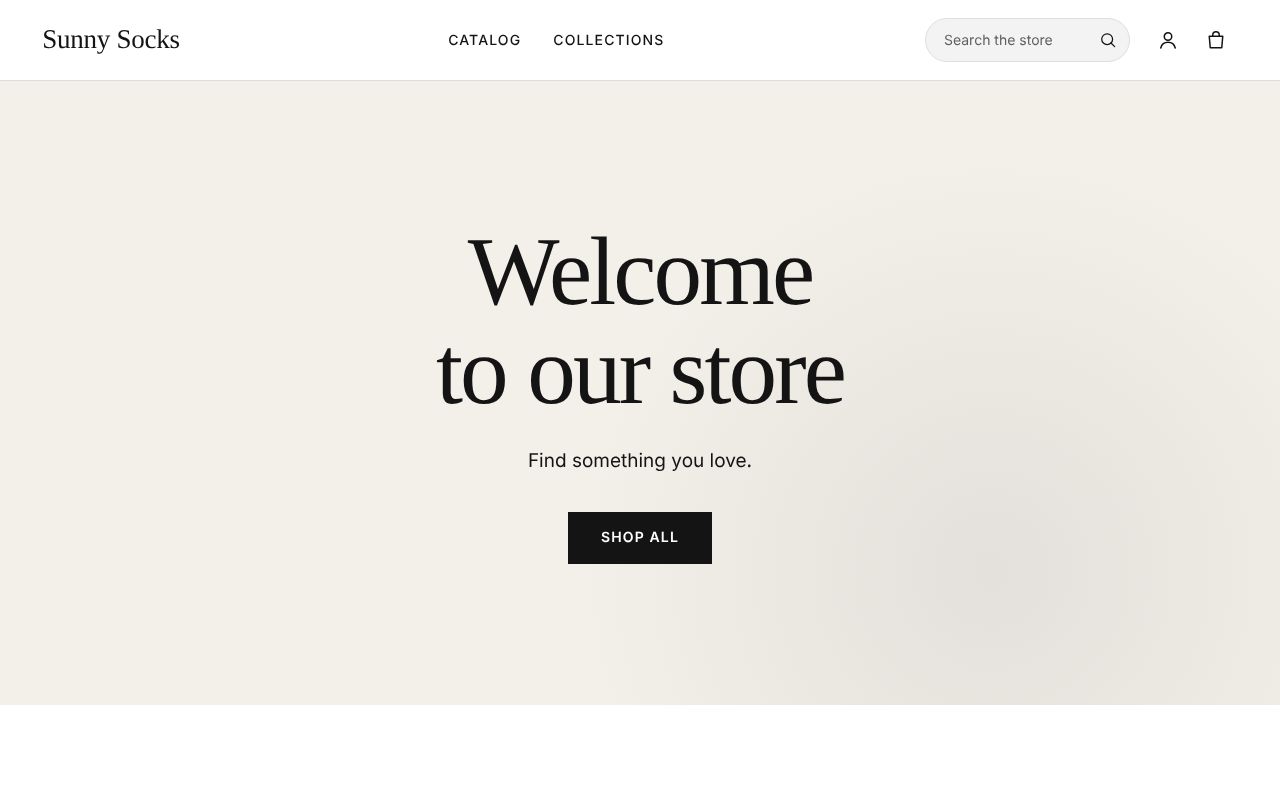
Until those menus exist, the theme shows its own links, Catalog and Collections, at the top, and nothing in the footer:
Open Menus
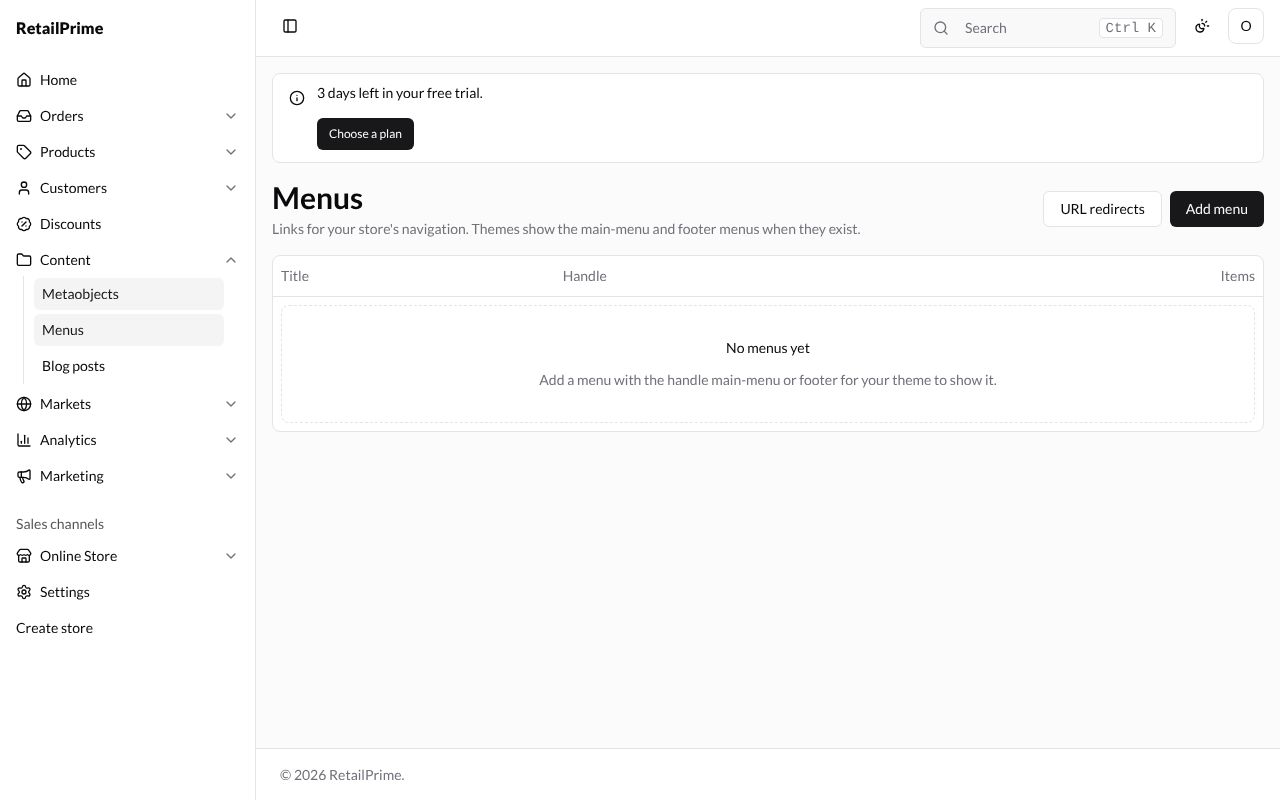
In the sidebar, press Content, then Menus. The page says Links for your store’s navigation. Themes show the main-menu and footer menus when they exist. A new store has No menus yet: Add a menu with the handle main-menu or footer for your theme to show it.
Make the main menu
-
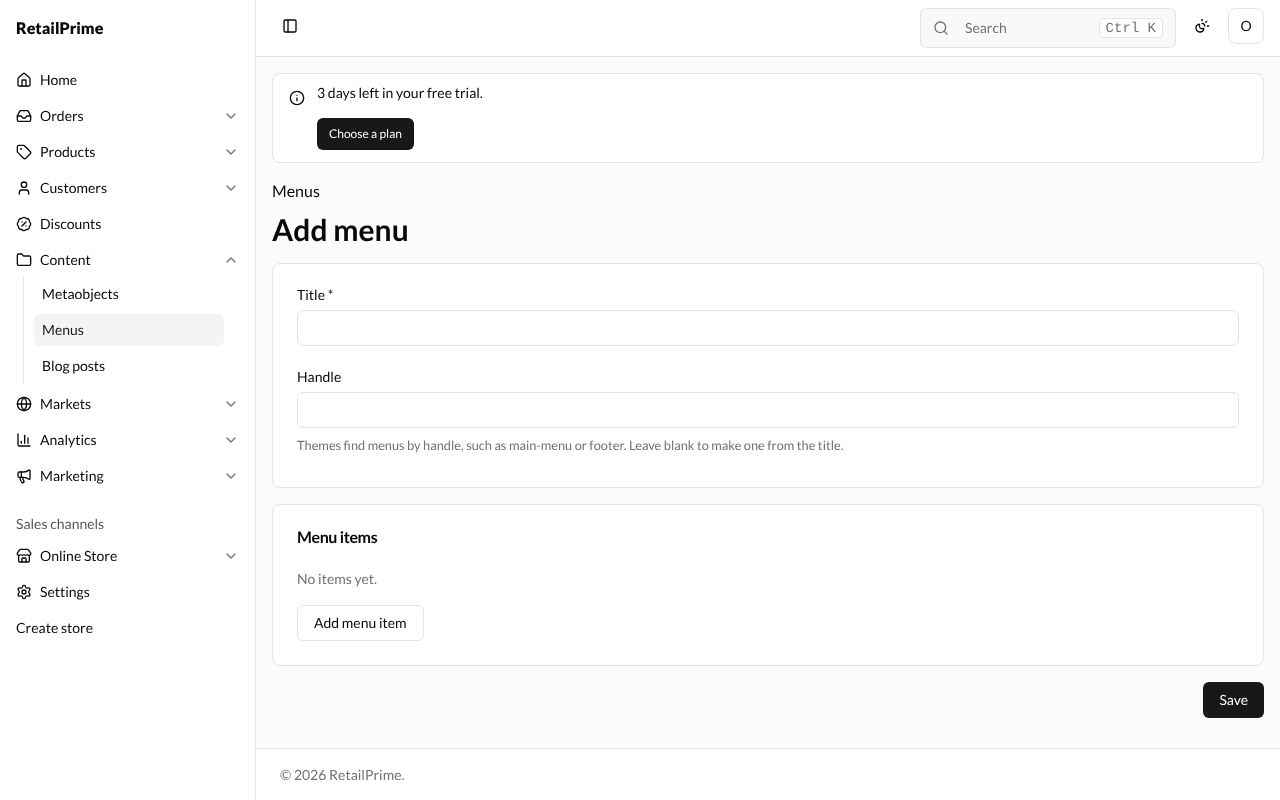
Press Add menu. The Add menu form has a Title, a Handle and Menu items (No items yet.).
-
Type the Title:
Main menu, and the Handle:main-menu. (Left blank, the handle is made from the title, which here givesmain-menutoo.) -
Press Add menu item for each link. Each item has:
| Box | What to type | Example |
|---|---|---|
| Title | The words buyers see in the menu | Home |
| Link | What kind of place it goes to (see the table below) | Home page |
| Web address | Only for Web address: A path such as /pages/about, an https:// link, mailto: or tel:. | https://www.instagram.com/ |
The kinds of Link:
| Link | Goes to |
|---|---|
| Home page | Your store’s front page |
| All products | The list of every product |
| All collections | The list of every collection |
| Search | The search page |
| Product, Collection, Page, Blog, Blog post | One you choose. The item says Nothing chosen yet. with a Choose button |
| Web address | Any address you type |
For a Product, Collection, Page, Blog or Blog post, press Choose. A window such as Choose from collections lists them; type in its search box to find one, and press its name. The item then says Links to Best sellers. If the item’s Title is empty, it takes the name too.
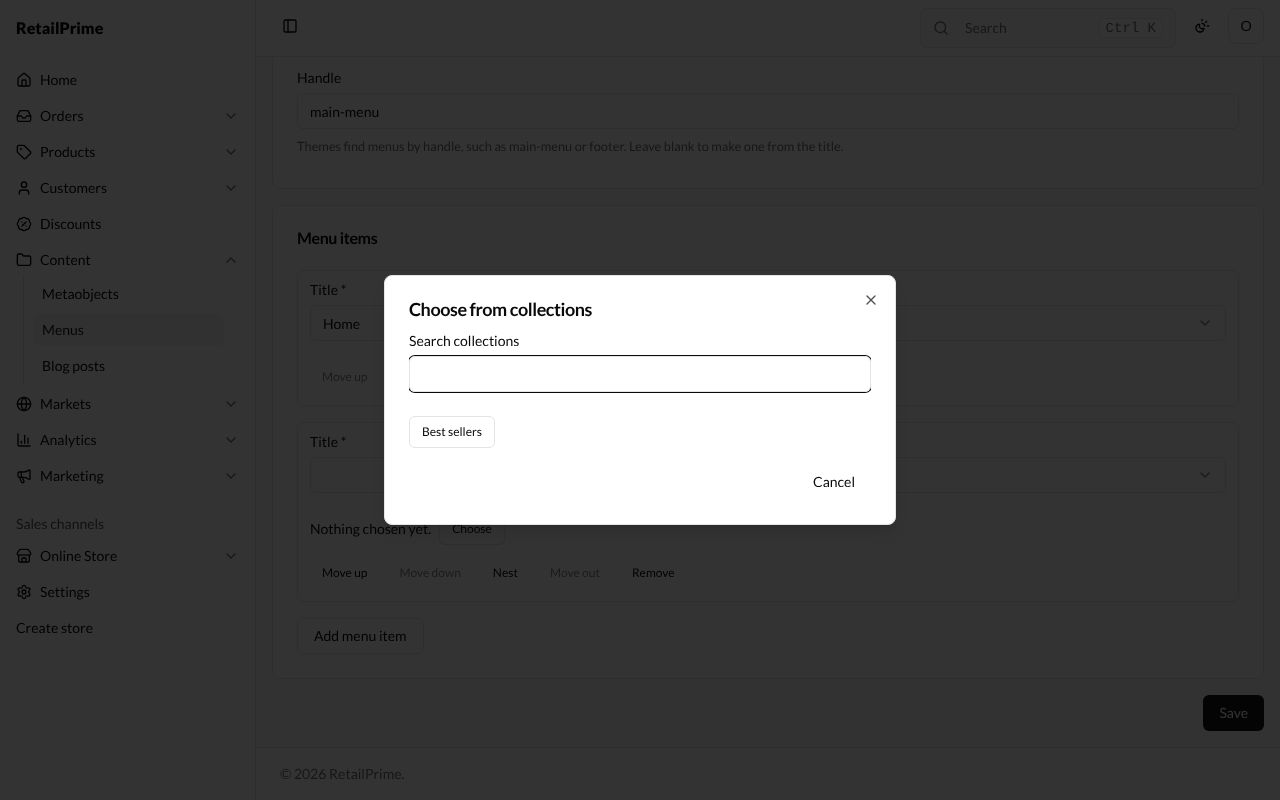
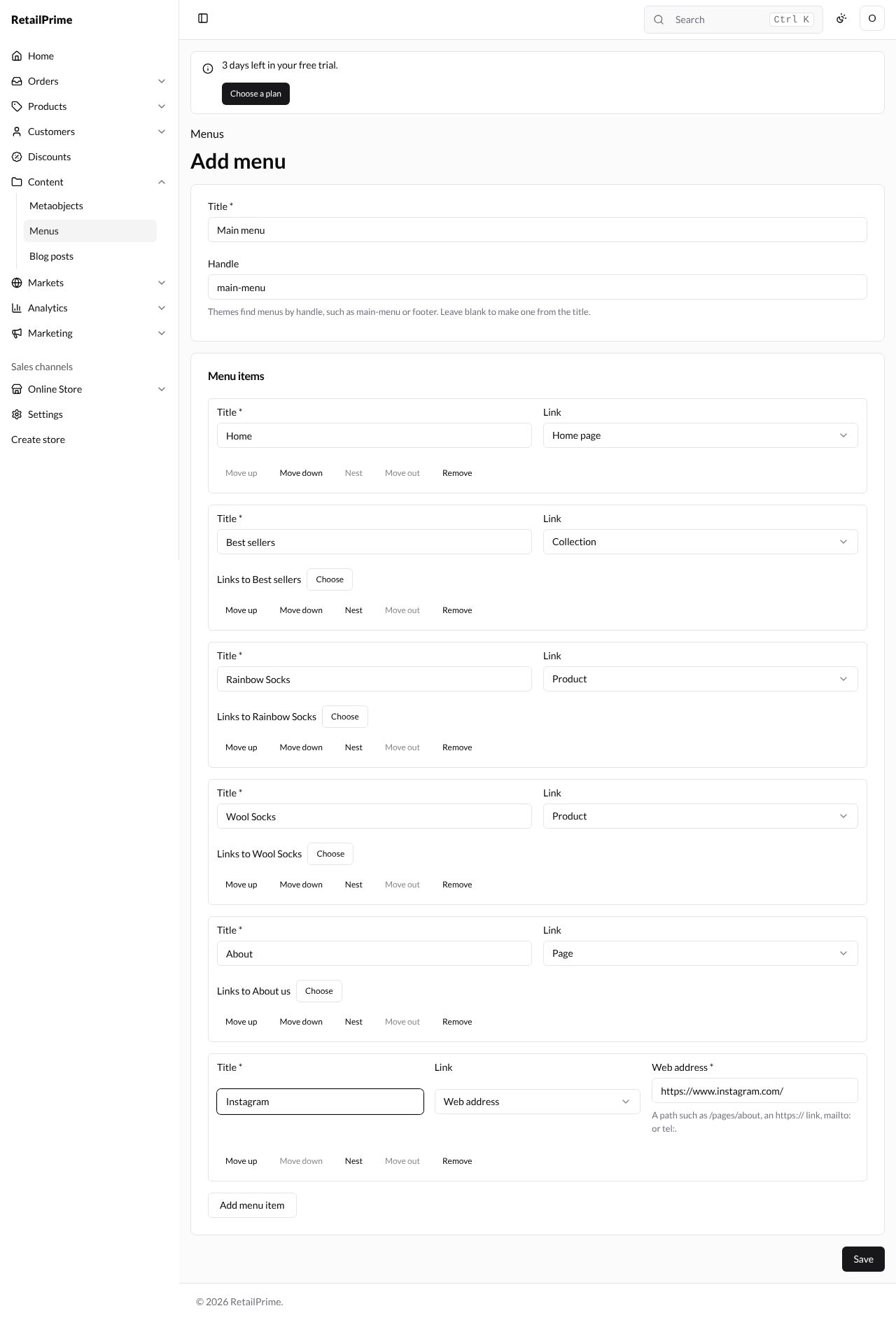
Here are six items: Home (Home page), Best sellers (Collection), Rainbow Socks and Wool Socks (Product), About (Page, About us) and Instagram (Web address):
Nest, reorder and remove items
Each item has five buttons. A button that can’t be used for that item is grey.
| Button | What it does |
|---|---|
| Move up / Move down | Moves the item one place up or down |
| Nest | Puts the item under the item above it, as a drop-down |
| Move out | Takes a nested item back out one level |
| Remove | Takes the item off the menu |
Here, Nest on Rainbow Socks and on Wool Socks puts them under Best sellers: they are pushed to the right. Remove on Instagram takes it off, and Move up on About moves it above Best sellers.
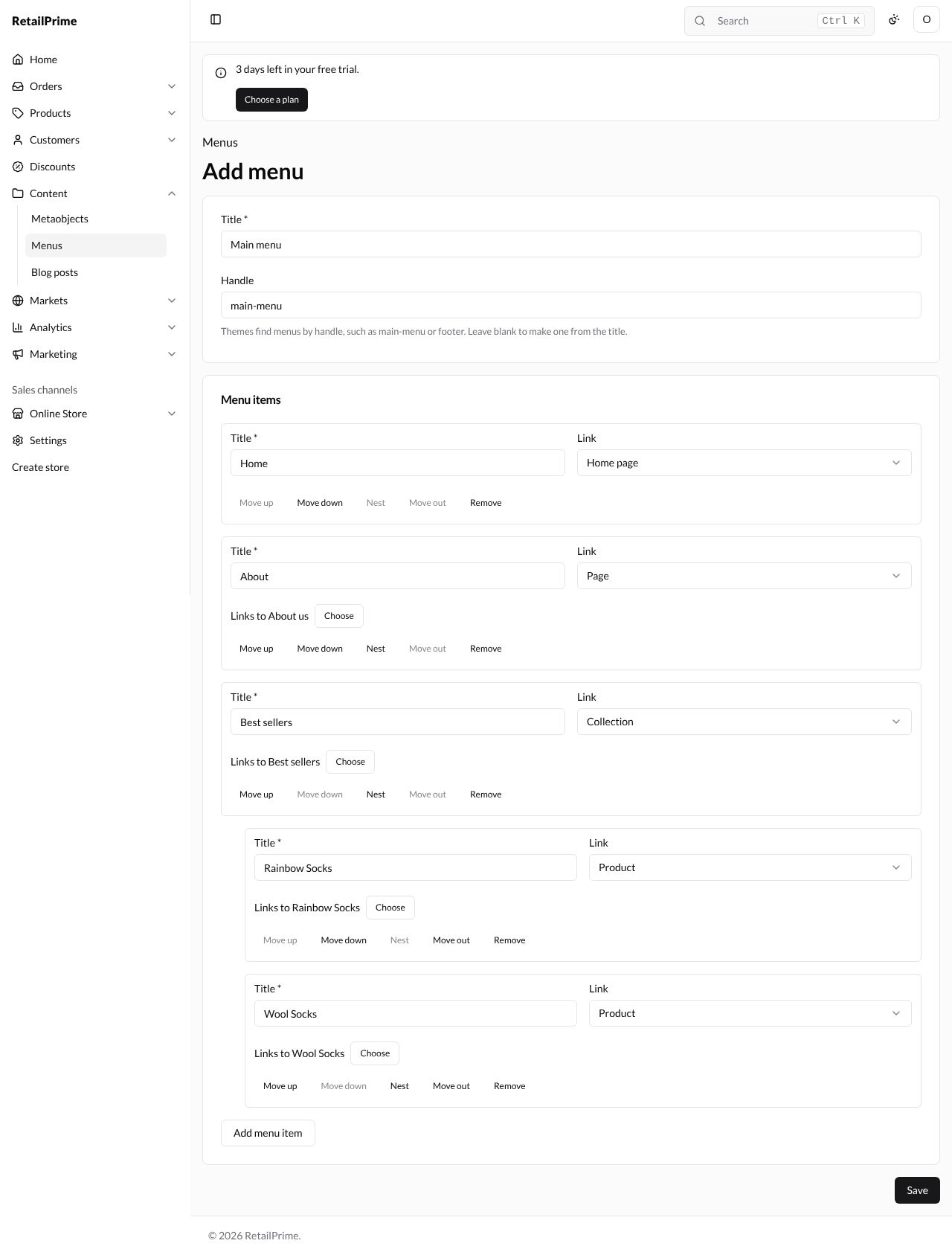
- Press Save. The menu’s page opens, with Main menu at the top and a Delete button.
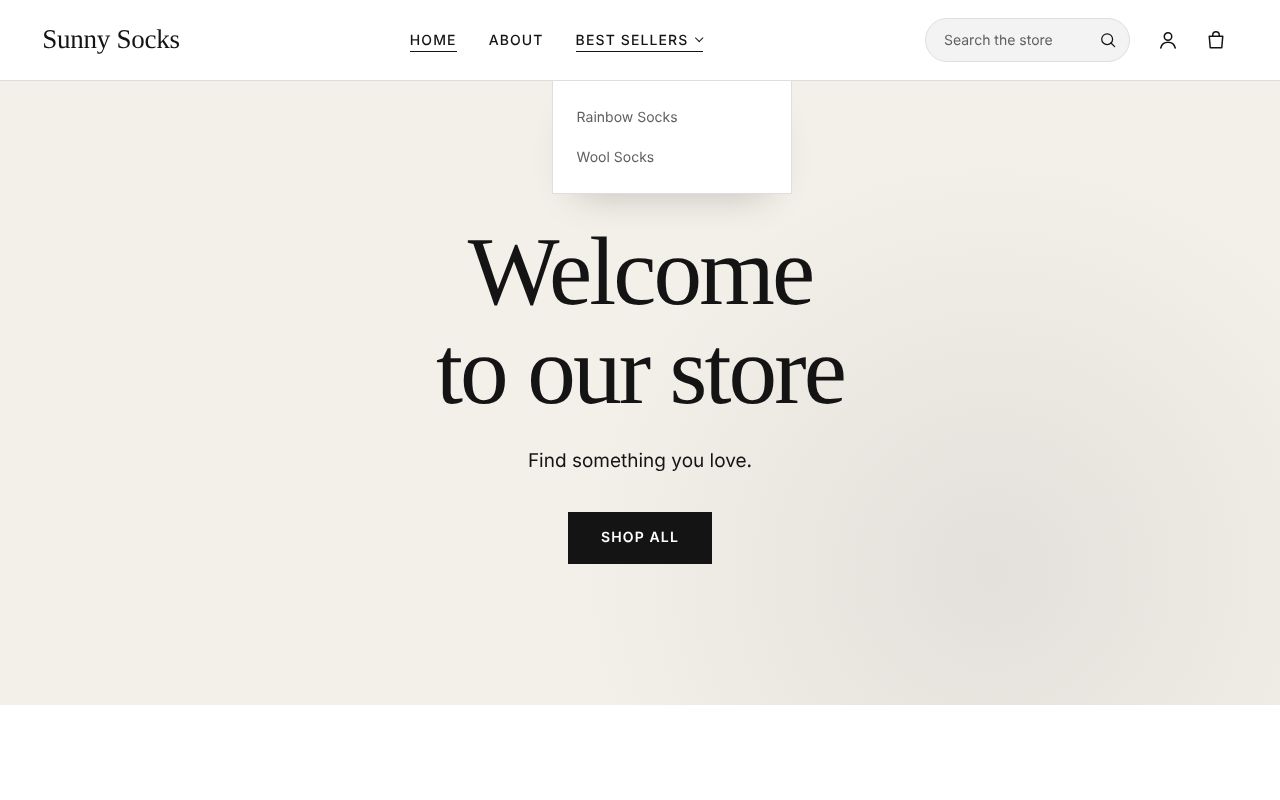
Your store’s top now shows Home, About and Best sellers. Point at Best sellers to see the two socks nested under it:
Make the footer menu
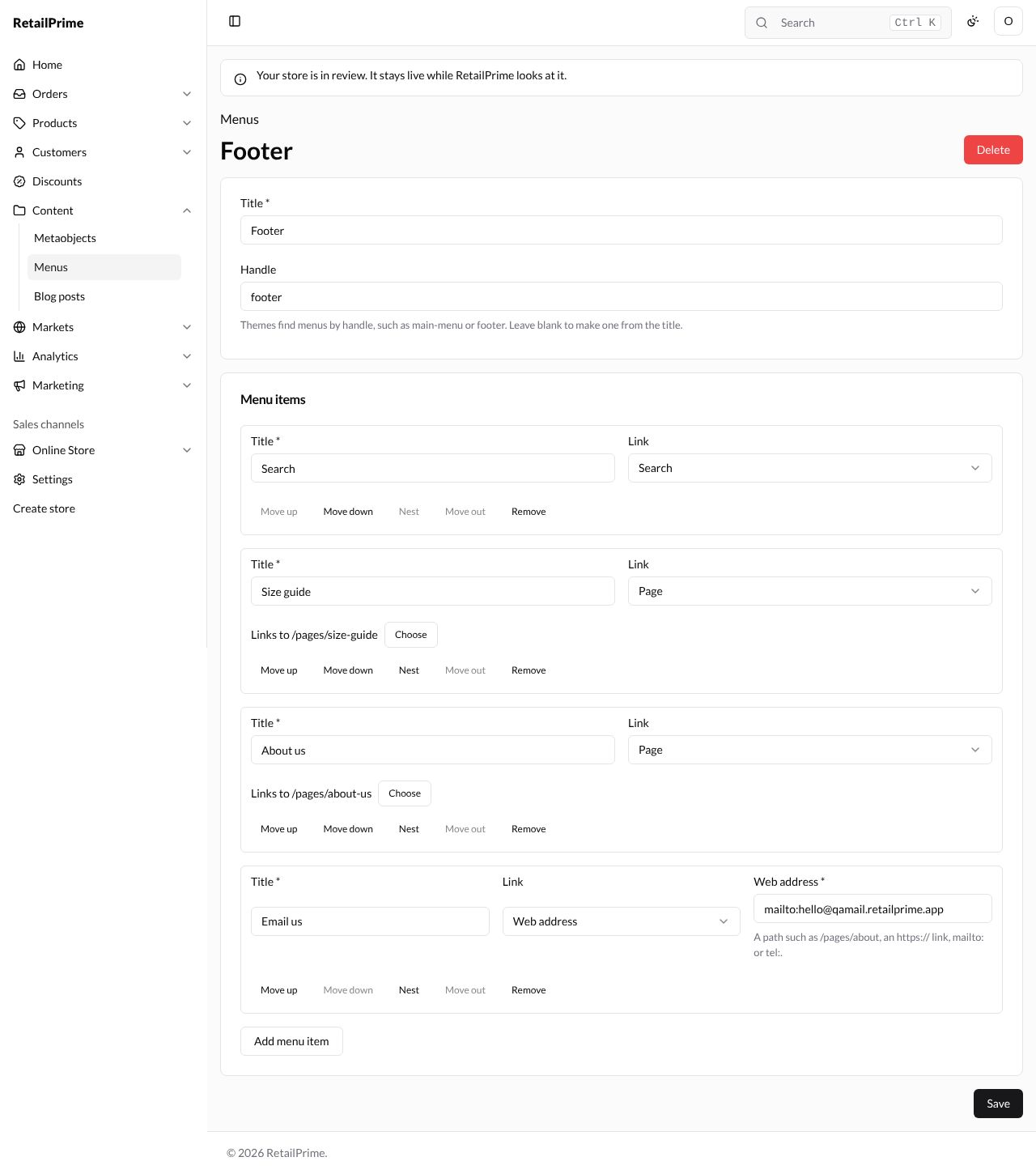
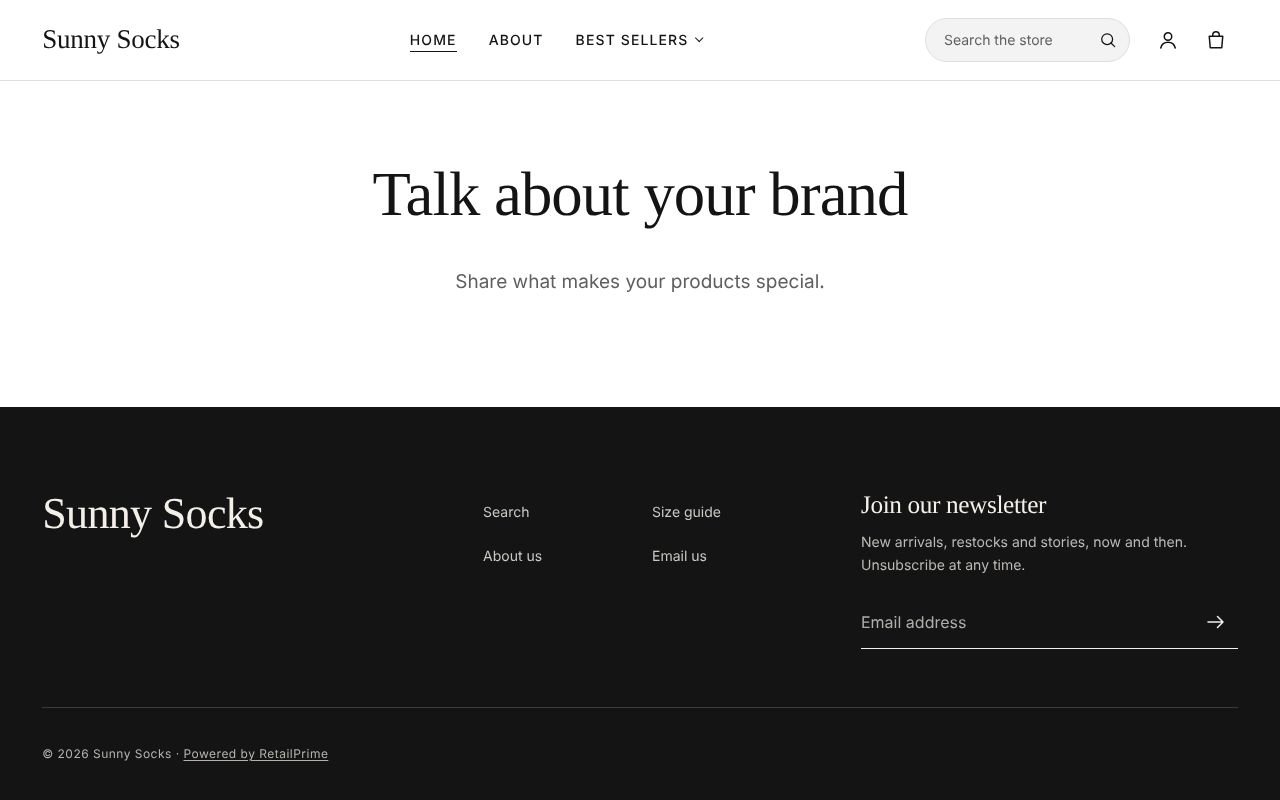
Do the same with the Title Footer. Leave the Handle blank: it becomes footer. Here it has Search (Search), Size guide and About us (Page) and Email us (Web address, mailto:hello@qamail.retailprime.app, which opens the buyer’s email app).
The links show in your store’s footer:
Change a menu
Open the menu from the Menus list, change, move or remove items, and press Save. Here About us is removed from the footer and Size guide moved up.
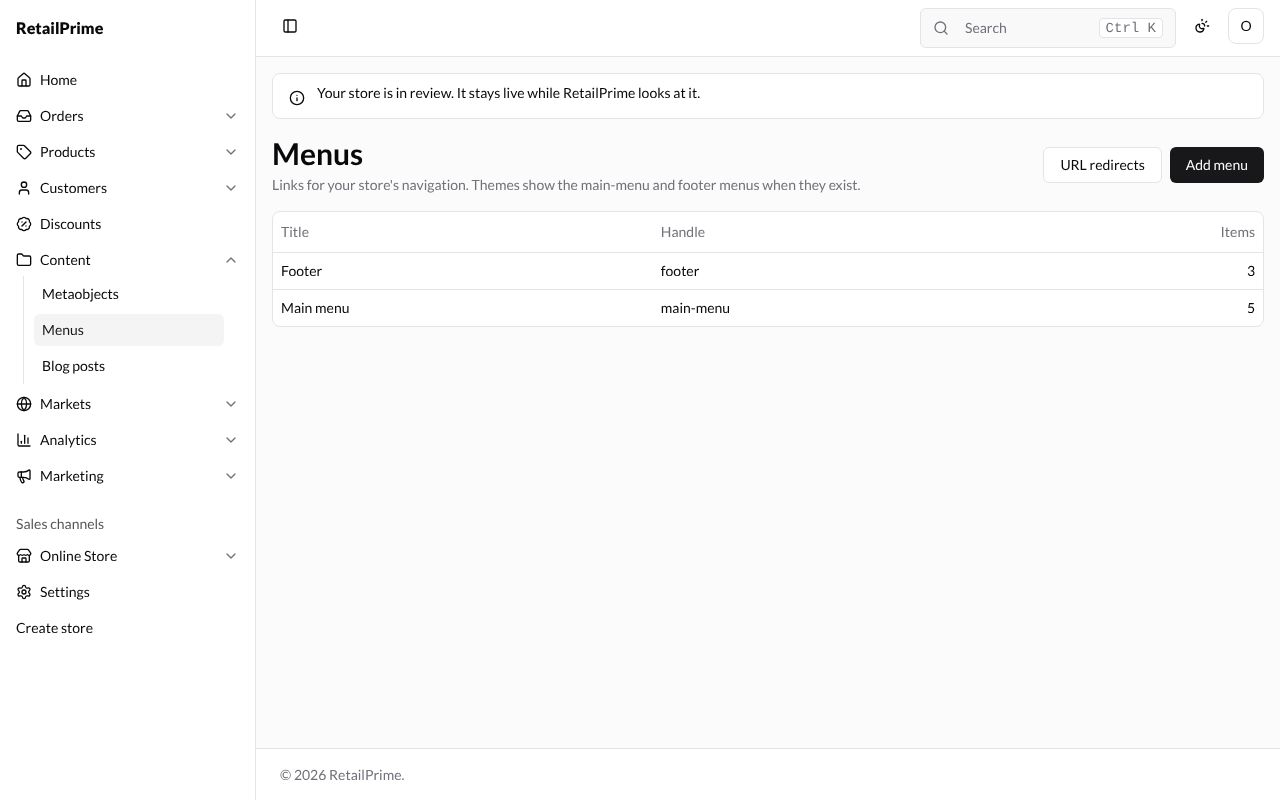
The Menus list shows each menu’s Title, Handle and how many Items it has:
Delete a menu
-
Open the menu and press Delete.
-
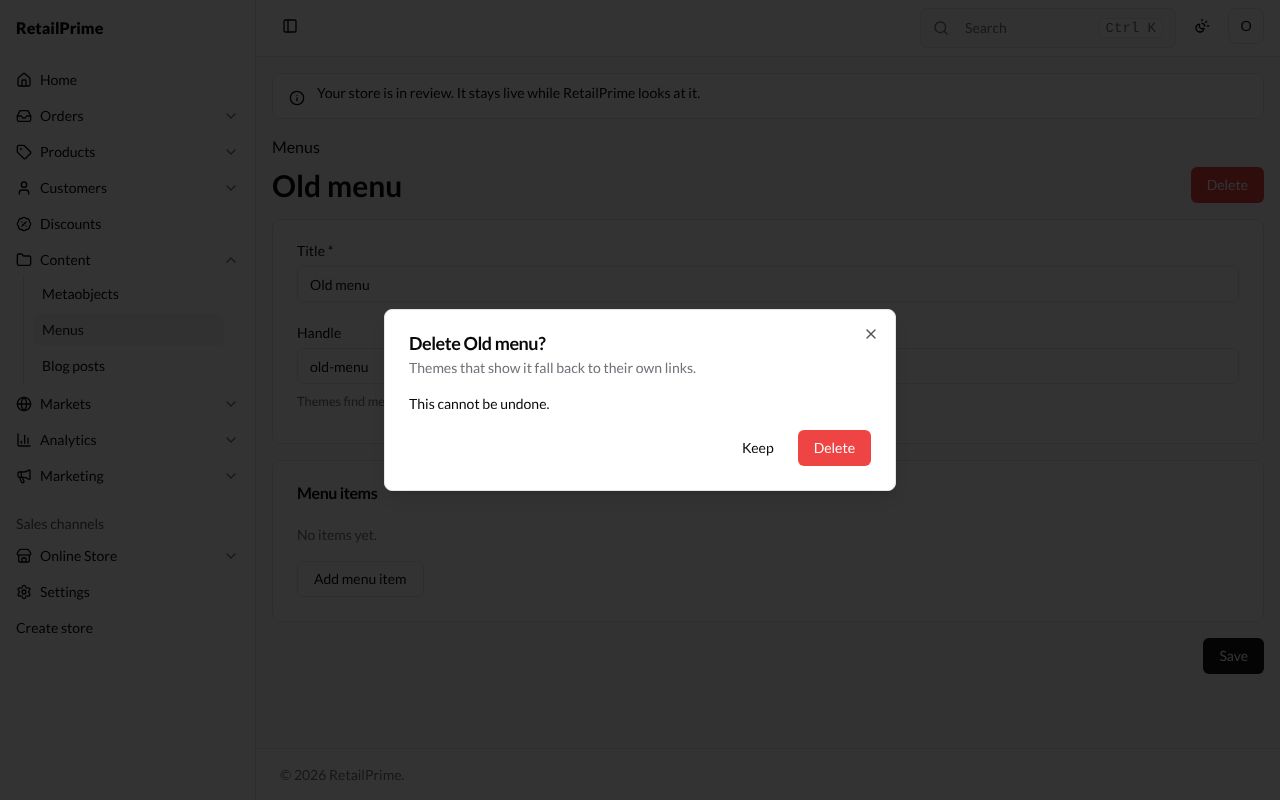
A window asks Delete Old menu? and says Themes that show it fall back to their own links. and This cannot be undone.
-
Press Delete. You are back on the Menus list.
What’s next
URL redirects: send buyers from old links to the right page.