Themes
Add RetailPrime's starter theme, preview it, publish it, and rename, duplicate, download, upload and delete themes.
A theme decides how your store looks to buyers: its colours, fonts, the home page, and the product, collection and other pages. Your store shows one theme at a time, the current theme. You can keep other themes in a theme library and publish one of them instead whenever you like.
A new store has no theme, so buyers can’t see anything yet. This page adds RetailPrime’s starter theme and publishes it. The next pages show how to change it in the theme editor.
Open Themes
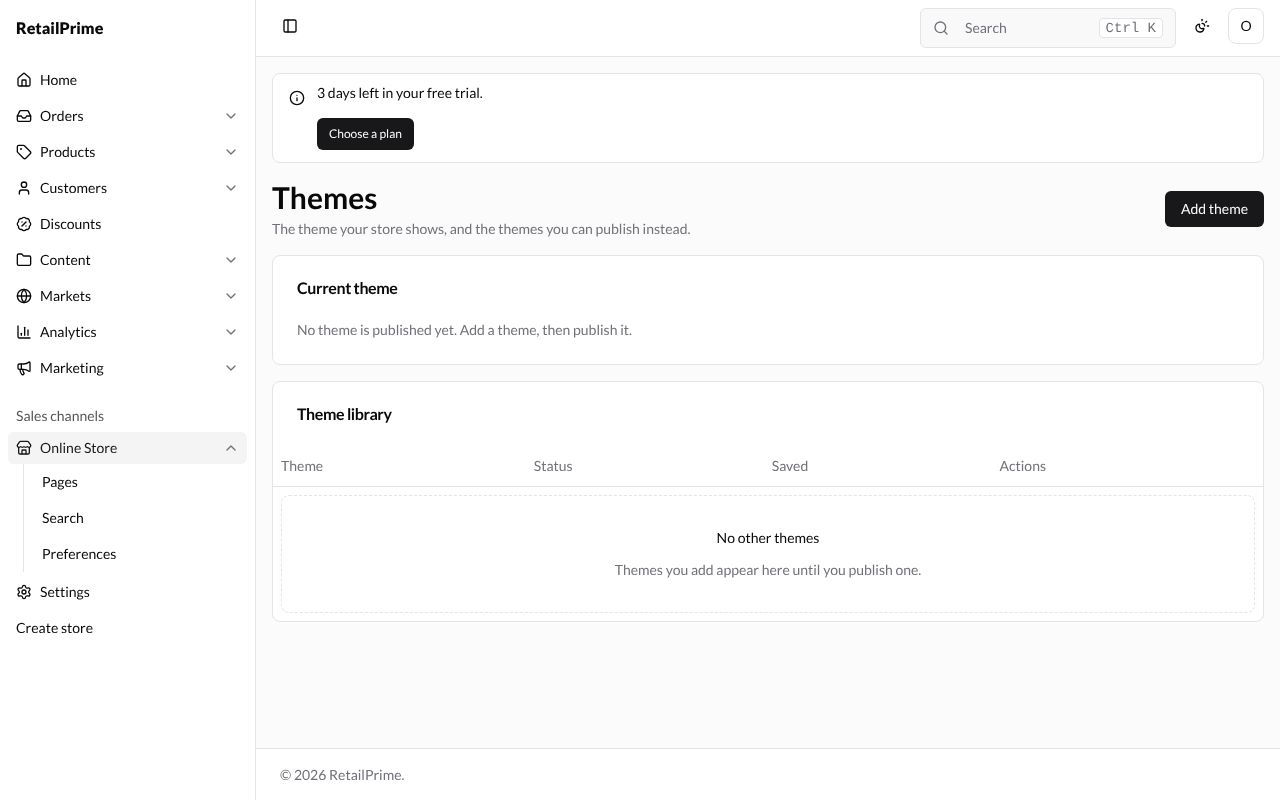
In the sidebar, under Sales channels, press Online Store. The Themes page opens: The theme your store shows, and the themes you can publish instead.
A new store says No theme is published yet. Add a theme, then publish it. under Current theme, and No other themes in the Theme library.
Add the starter theme
-
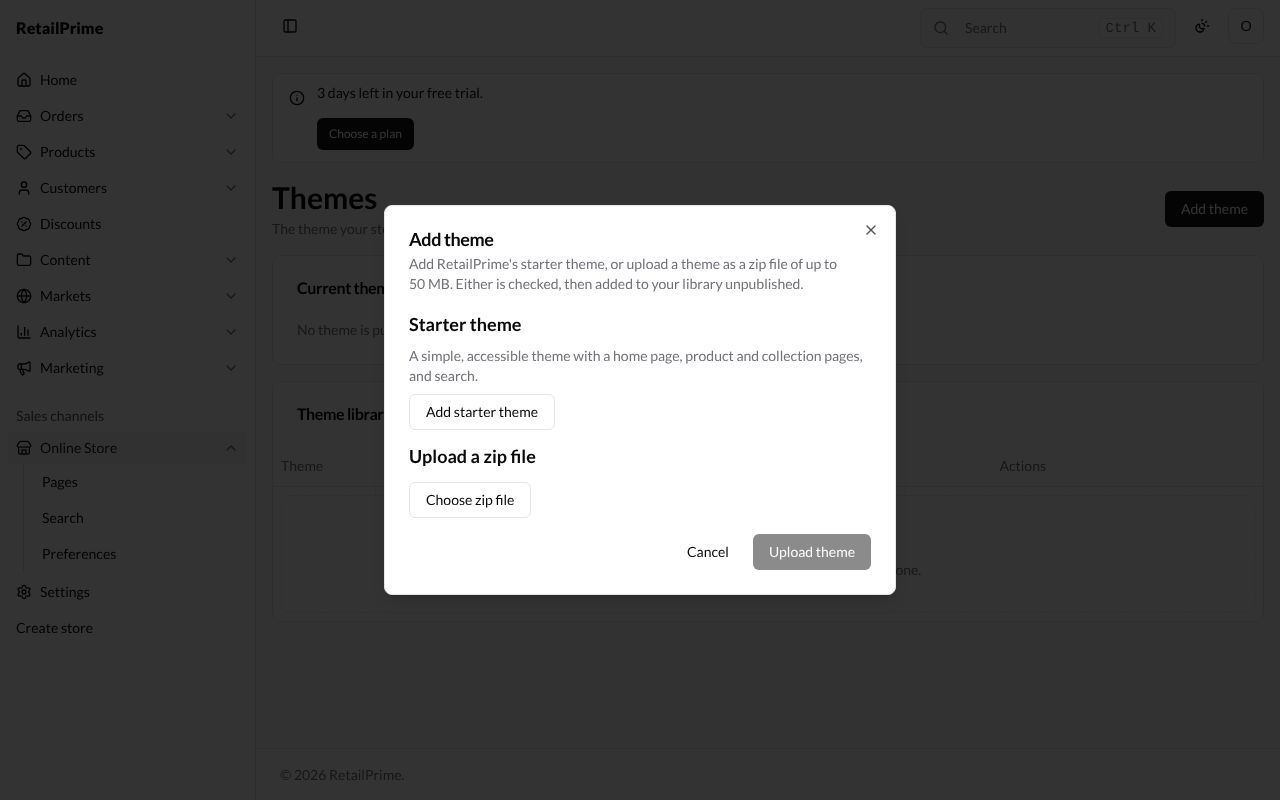
Press Add theme at the top right. The Add theme window opens. It says Add RetailPrime’s starter theme, or upload a theme as a zip file of up to 50 MB. Either is checked, then added to your library unpublished.
-
Under Starter theme, press Add starter theme.
-
The window closes and the page says Starter is being processed. It appears in the library when it is ready. After a few seconds, Starter shows in the Theme library with the status Ready.
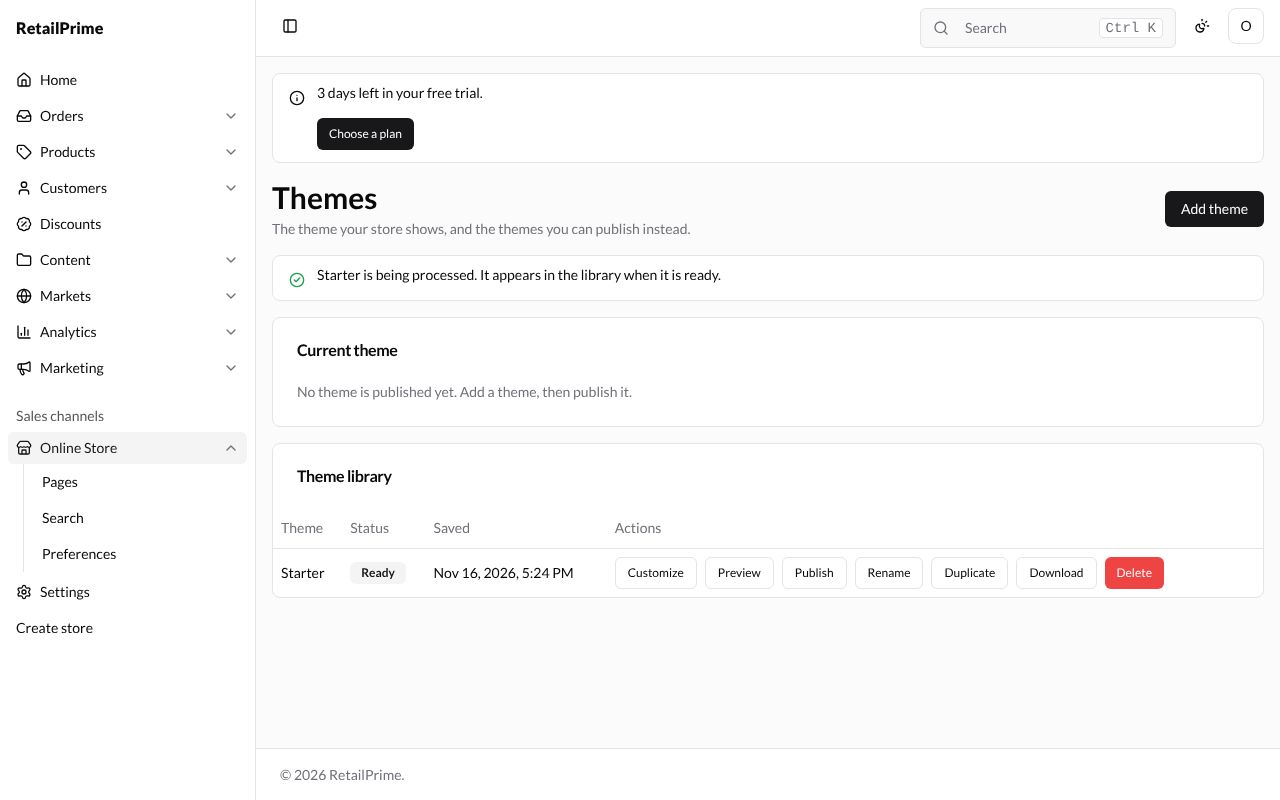
Each theme in the library has these buttons:
| Button | What it does |
|---|---|
| Customize | Opens the theme in the theme editor (see The theme editor) |
| Preview | Opens your store with this theme in a new tab, without publishing it |
| Publish | Makes this the theme your store shows |
| Rename | Changes the theme’s name |
| Duplicate | Makes a copy of the theme in the library |
| Download | Saves the theme to your computer as a zip file |
| Delete | Deletes the theme from the library |
Preview a theme
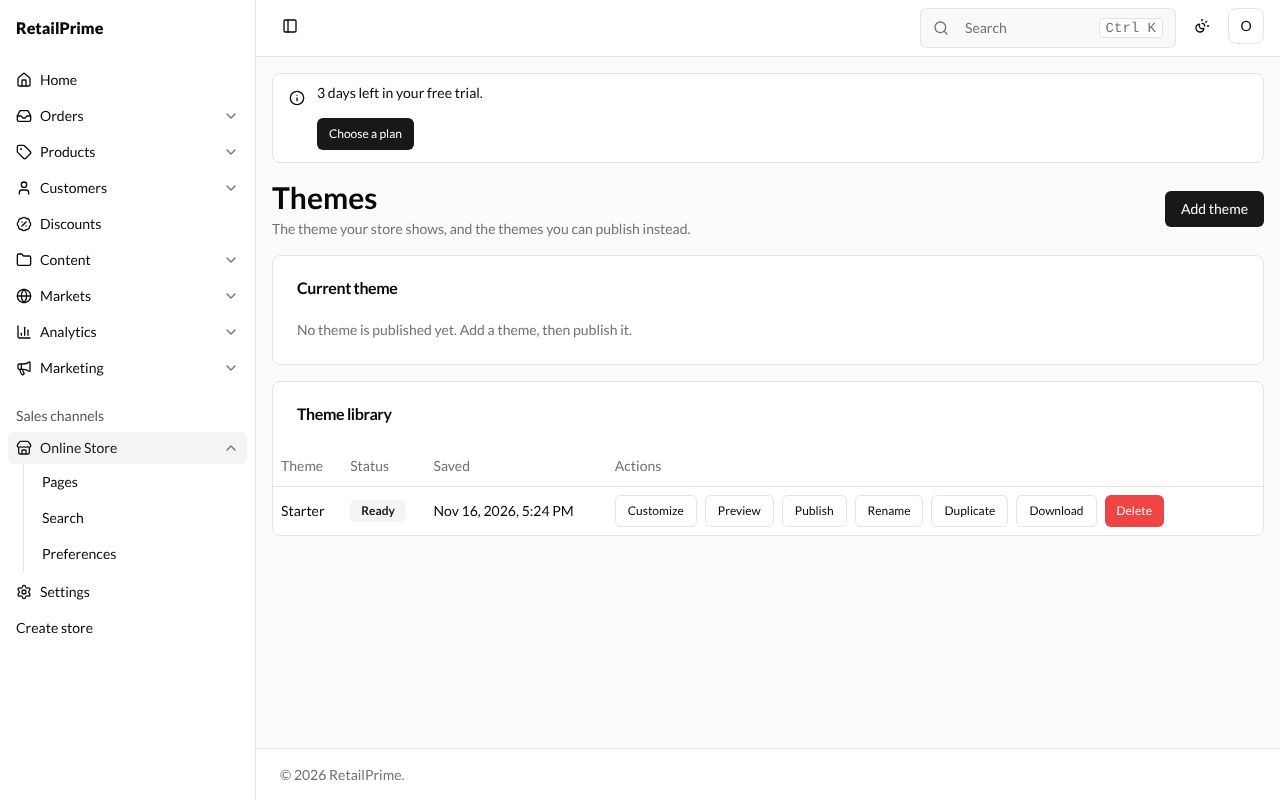
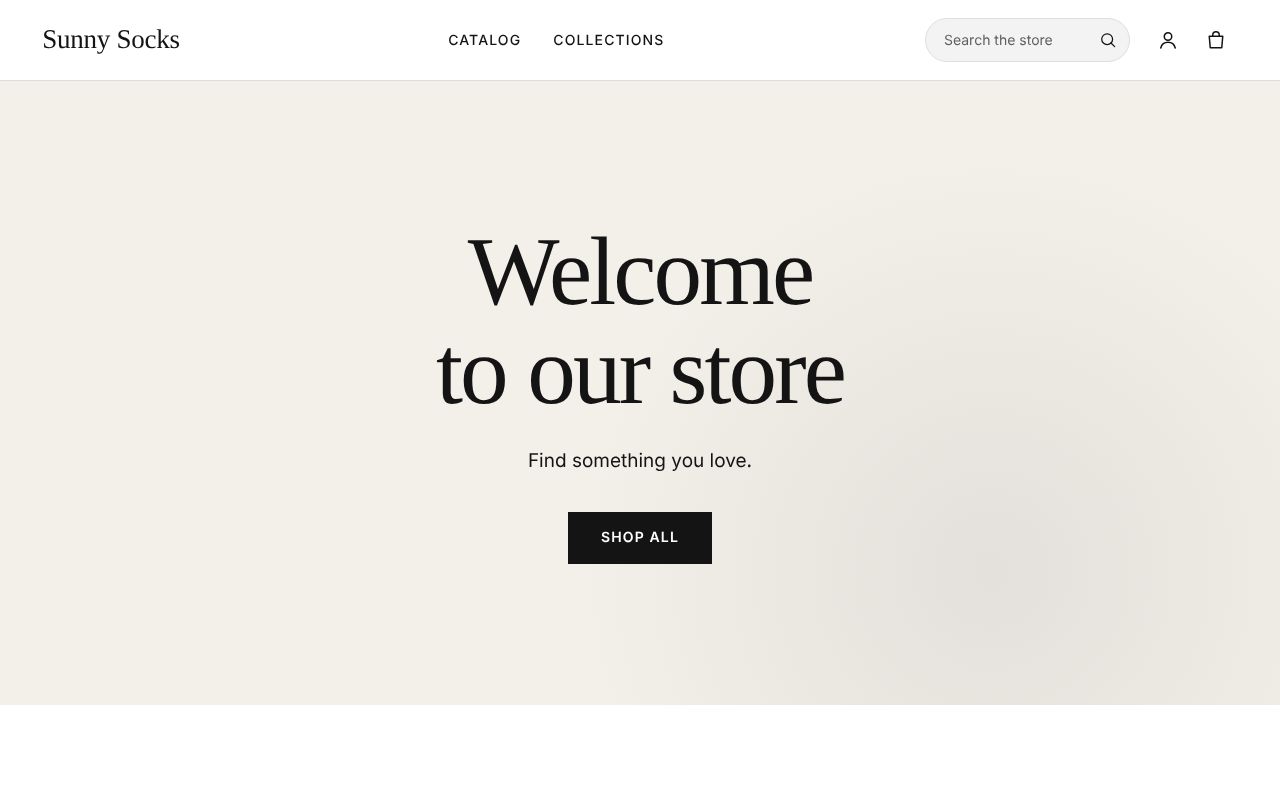
Press Preview next to Starter. Your store opens in a new browser tab with the theme. A black bar at the top says Previewing Starter, so you know buyers don’t see this yet.
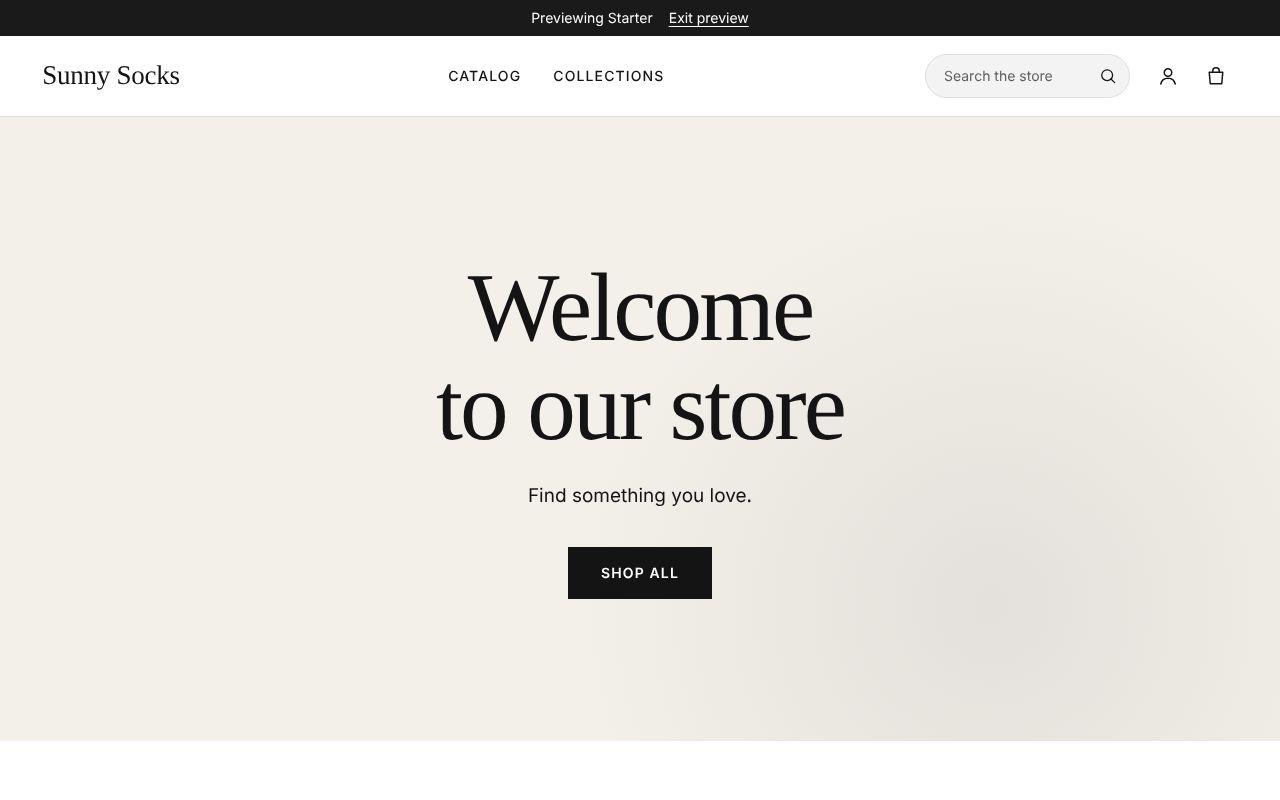
Press Exit preview in the black bar when you are done. The bar goes away and the tab shows your store as buyers see it.
Publish a theme
-
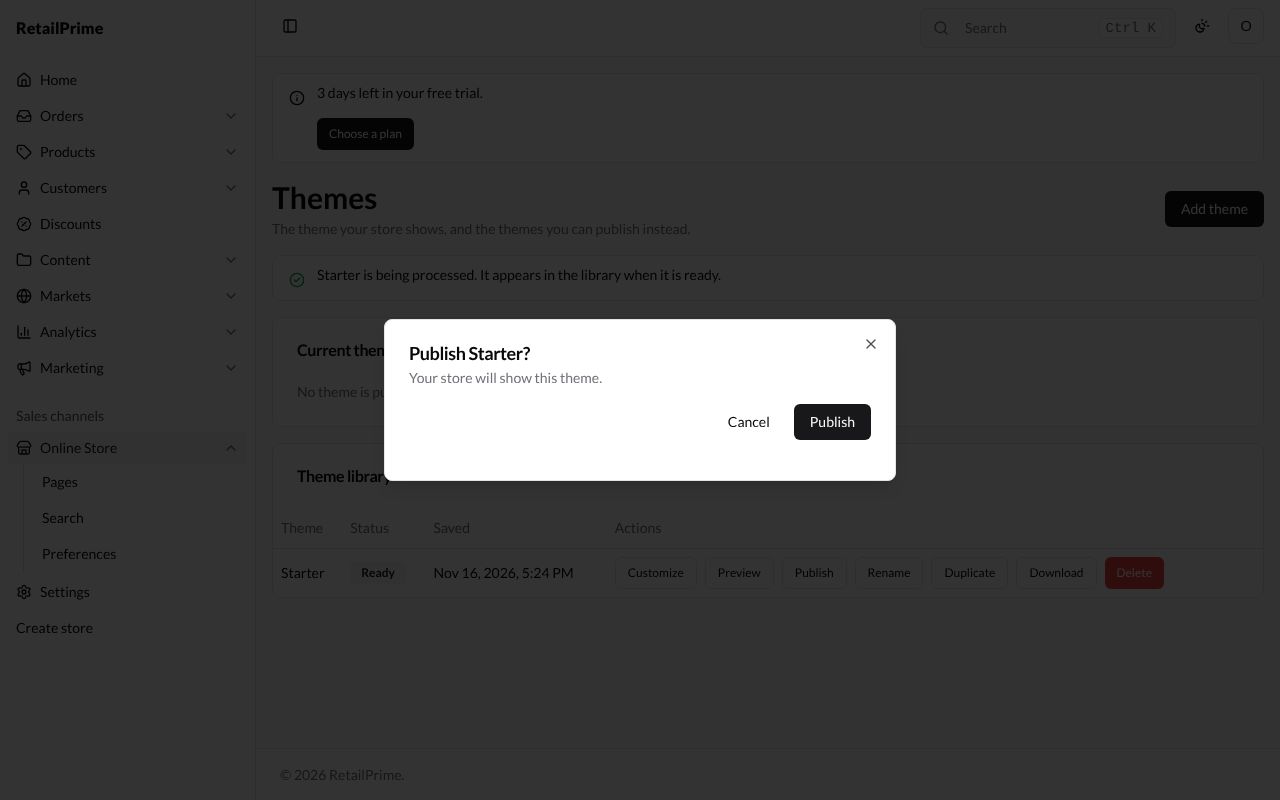
Back in the Admin, press Publish next to Starter.
-
A window asks Publish Starter? and says Your store will show this theme.
-
Press Publish. The page says Starter is published. The theme moves up to Current theme, with when it was last Saved and how many files it has.
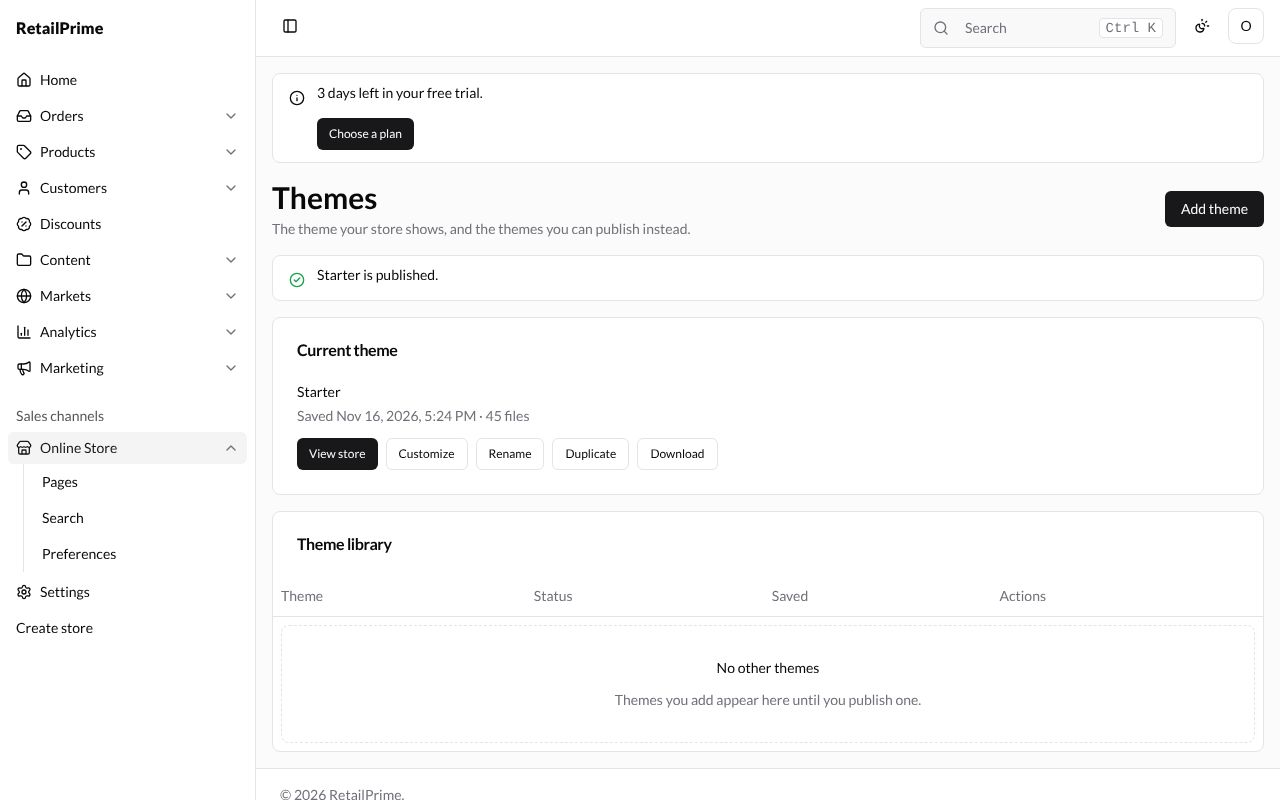
The current theme has no Publish, Preview or Delete buttons. Instead it has View store, which opens your store in a new tab.
Rename a theme
-
Press Rename next to the theme.
-
In the Rename theme window, type the new name in Theme name (up to 50 characters), such as
Sunny Socks.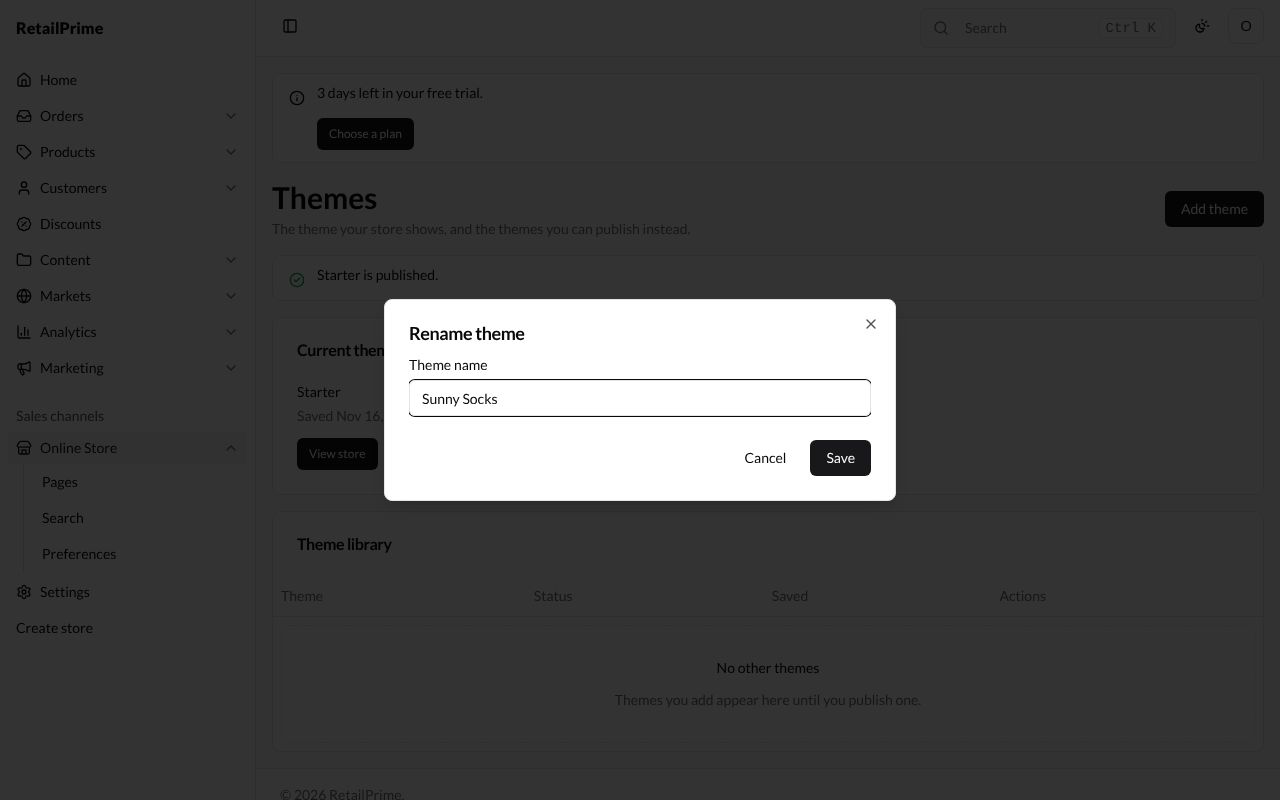
-
Press Save. The page says Theme renamed.
Duplicate a theme
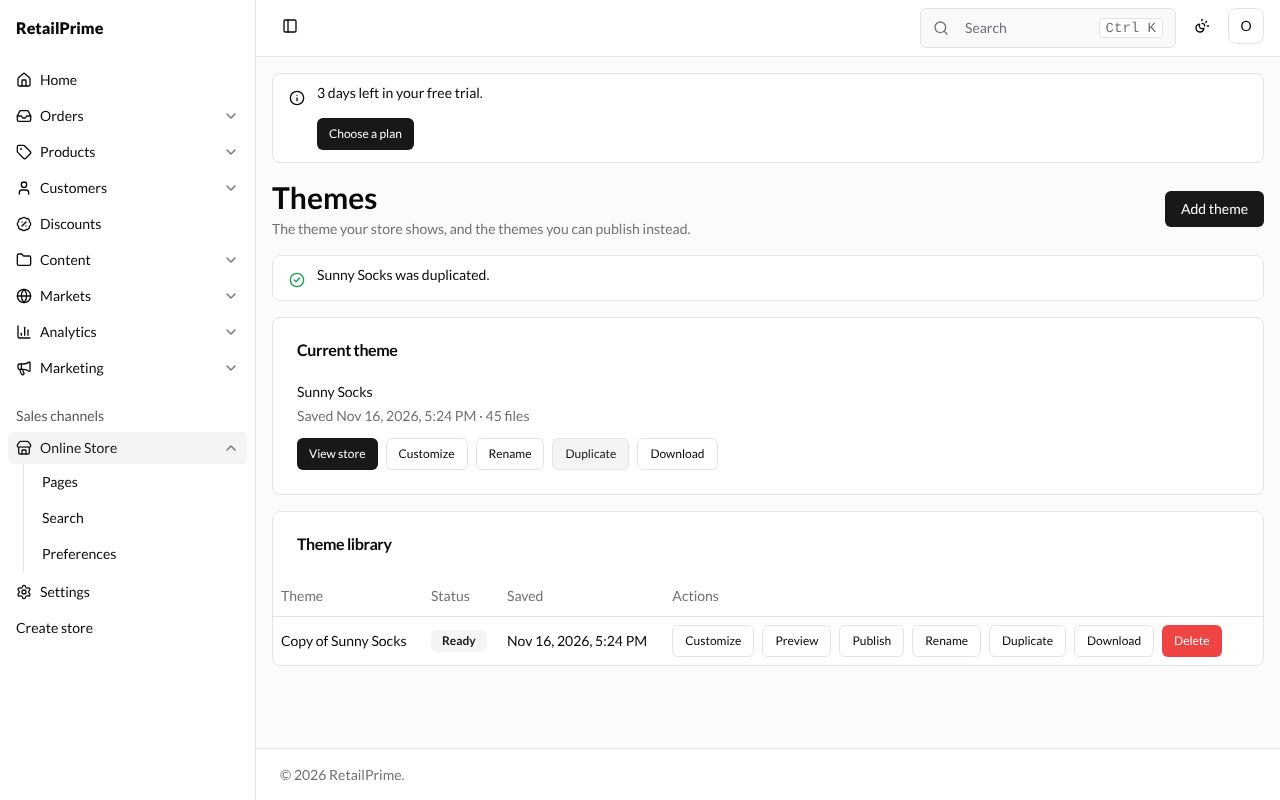
Press Duplicate. The page says Sunny Socks was duplicated., and Copy of Sunny Socks appears in the library. A copy is a safe place to try changes: buyers keep seeing the current theme until you publish the copy.
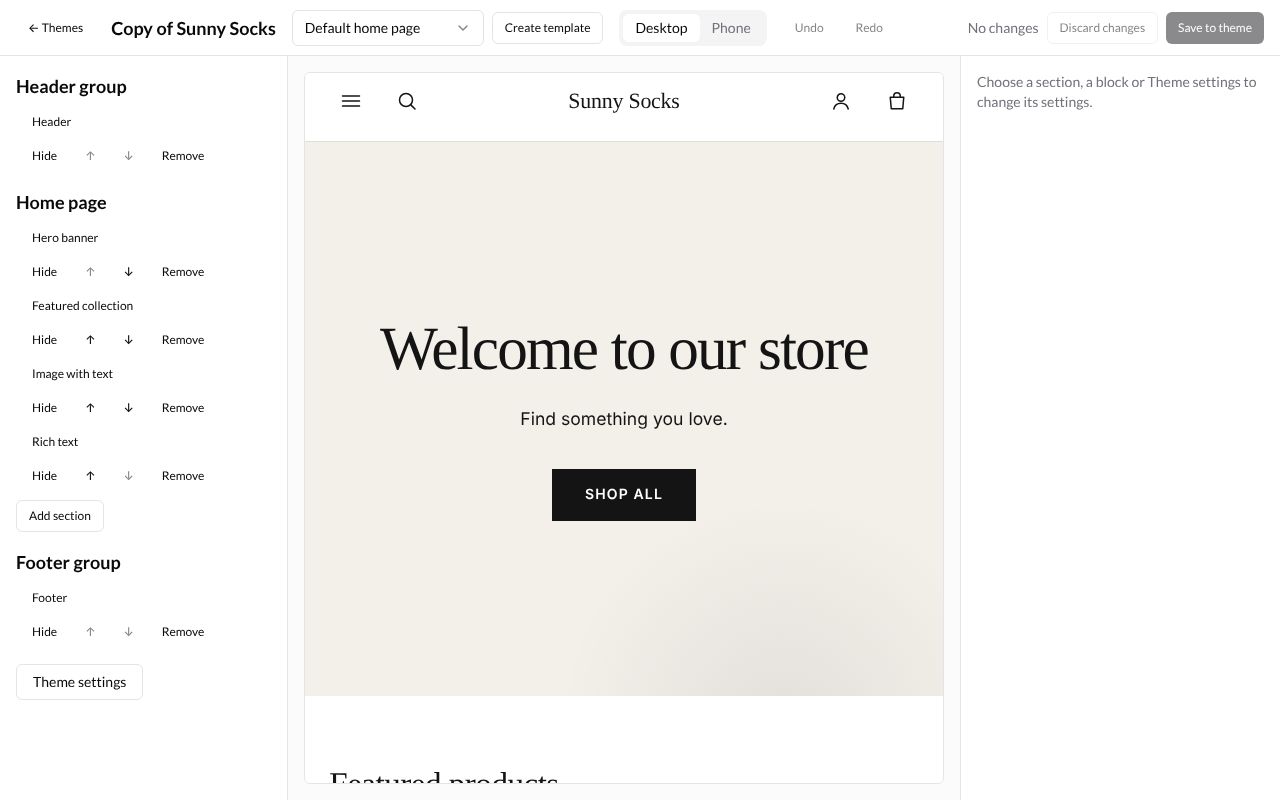
When you press Customize on a theme in the library, the theme editor’s button at the top right says Save to theme instead of Publish: your changes are saved into that theme, and buyers don’t see them until you publish it. Press ← Themes at the top left to come back.
Download a theme
Press Download. Your browser saves the theme as a zip file named after it, such as Sunny-Socks.zip. Keep it as a backup, or give it to a developer to change.
Upload a theme
To add a theme you have as a zip file (for example one you downloaded, or one a developer made):
-
Press Add theme.
-
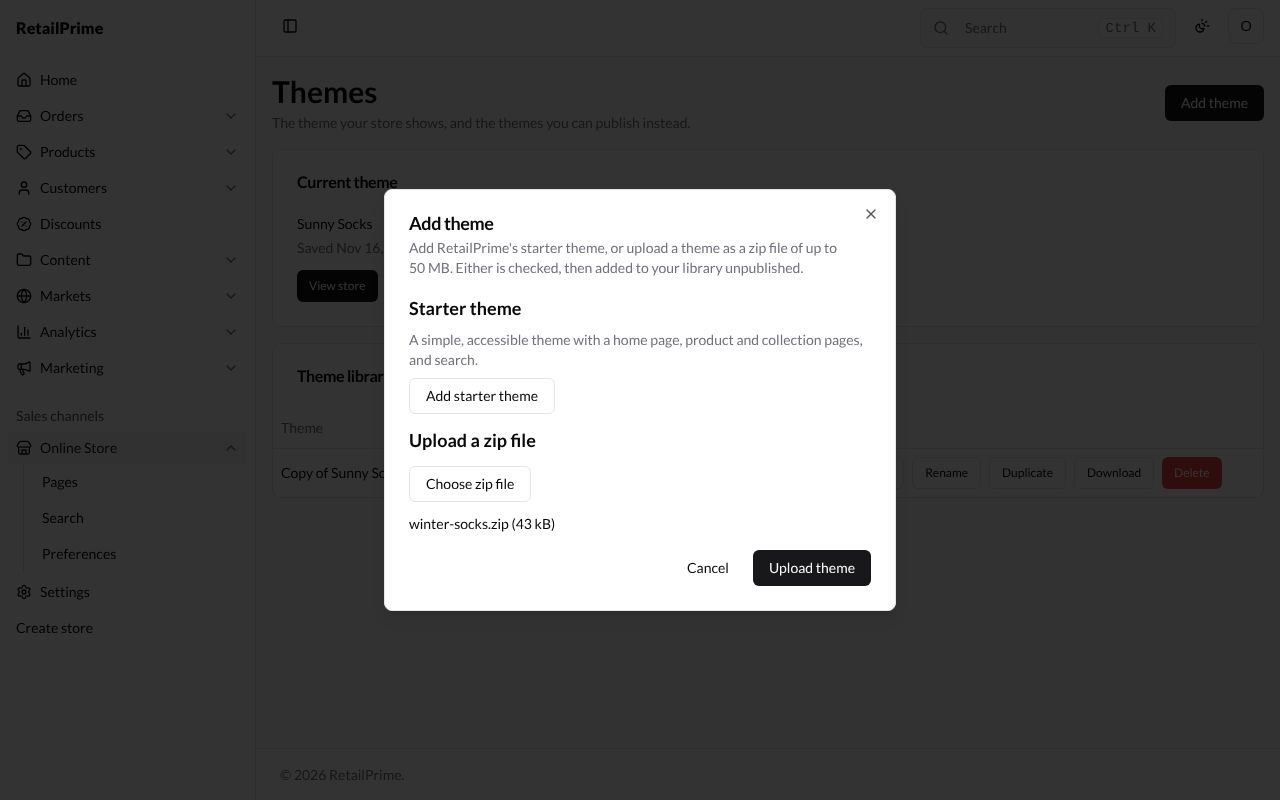
Under Upload a zip file, press Choose zip file and pick the file. Its name and size show under the button.
-
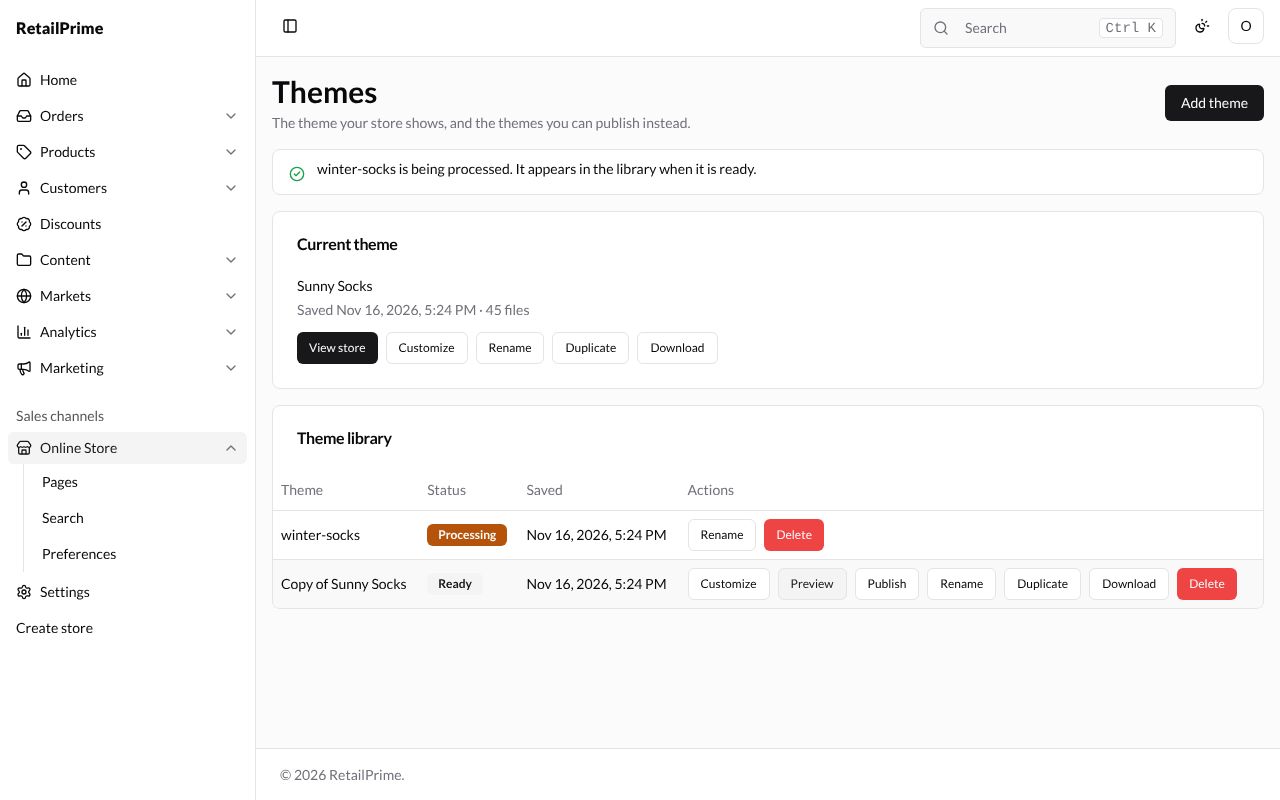
Press Upload theme. The page says winter-socks is being processed. It appears in the library when it is ready. The theme is named after the zip file. While it is checked, its status is Processing, and only Rename and Delete are offered.
-
After a few seconds the status turns to Ready.
A file bigger than 50 MB is refused with This file is larger than 50 MB.
A theme with mistakes
If the theme’s files have a mistake, its status turns to Failed and it has a View errors button instead of Customize, Preview and Publish.
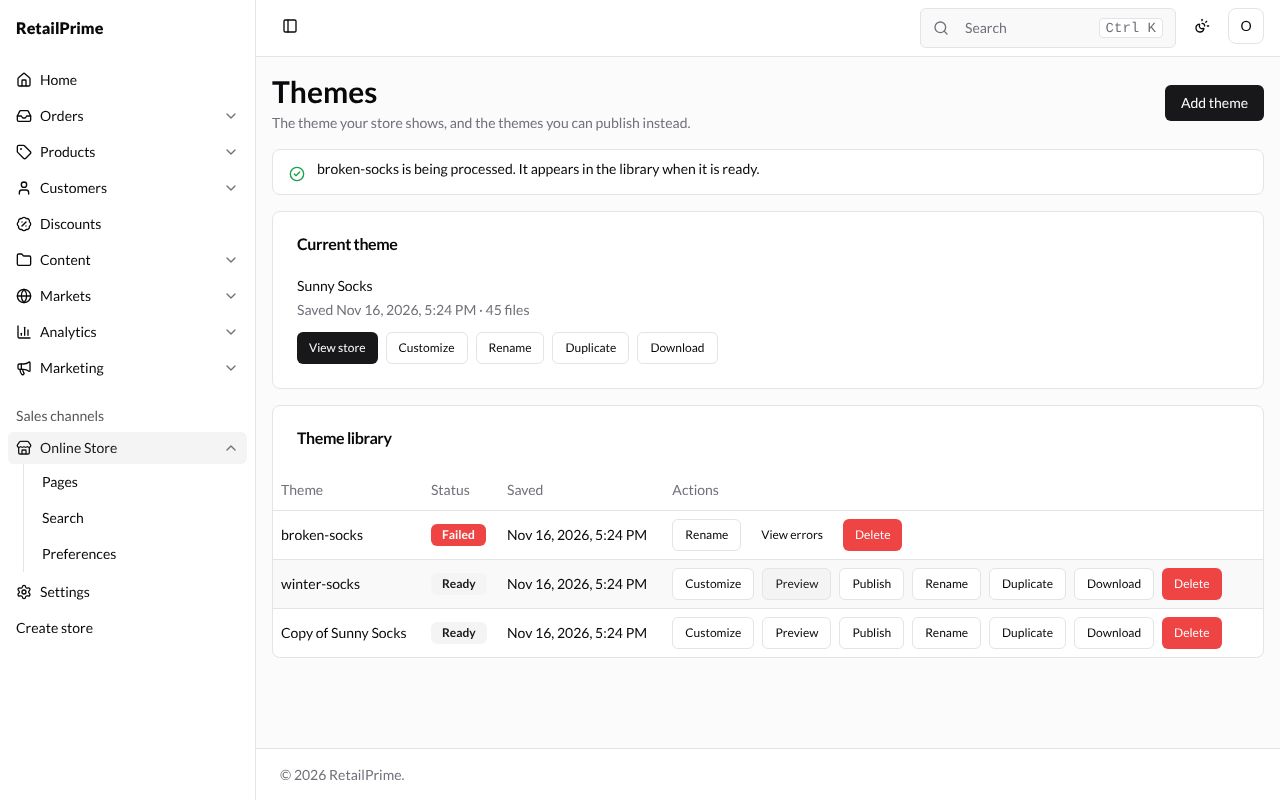
Press View errors. The Errors in broken-socks window lists each mistake with the file and line, and says Fix these in the theme files and upload the theme again. Press Close.
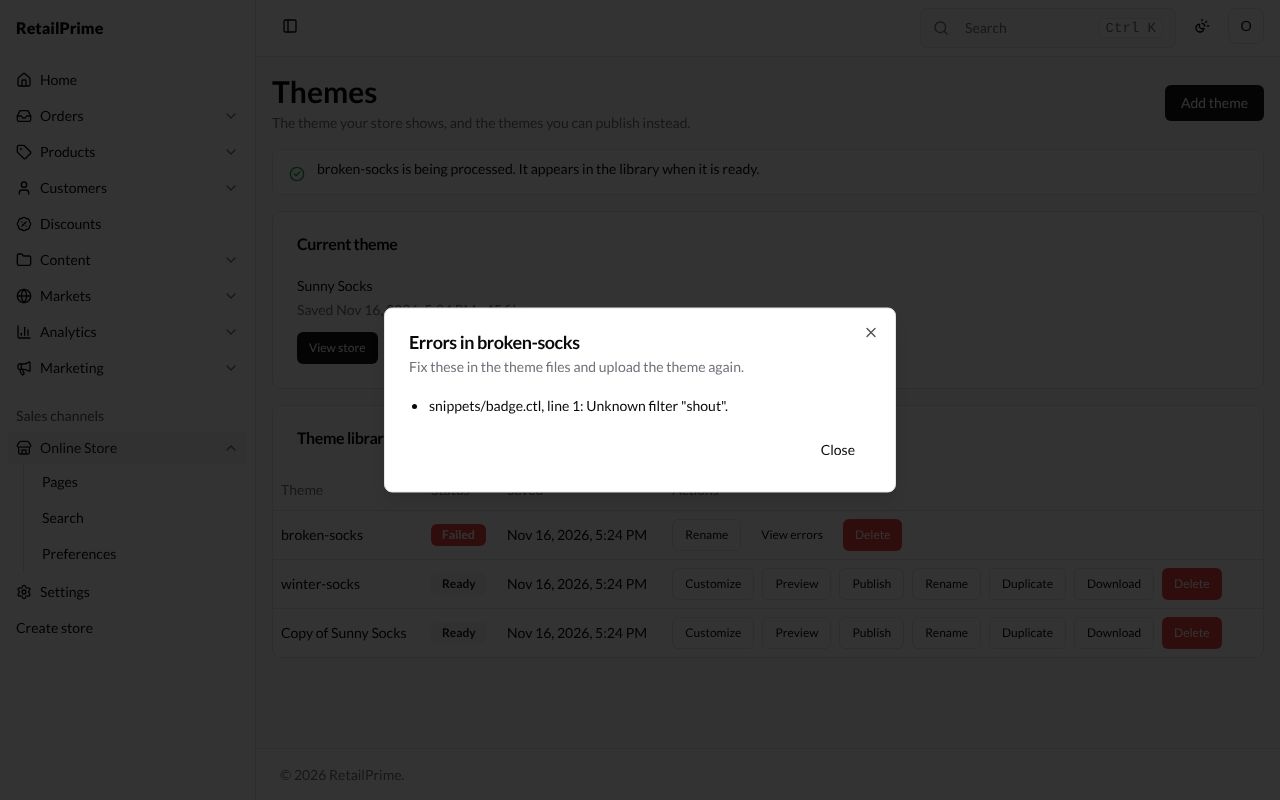
A theme that works but has something worth a look has View warnings instead, with the window saying The theme works; these may be worth a look.
Publish a different theme
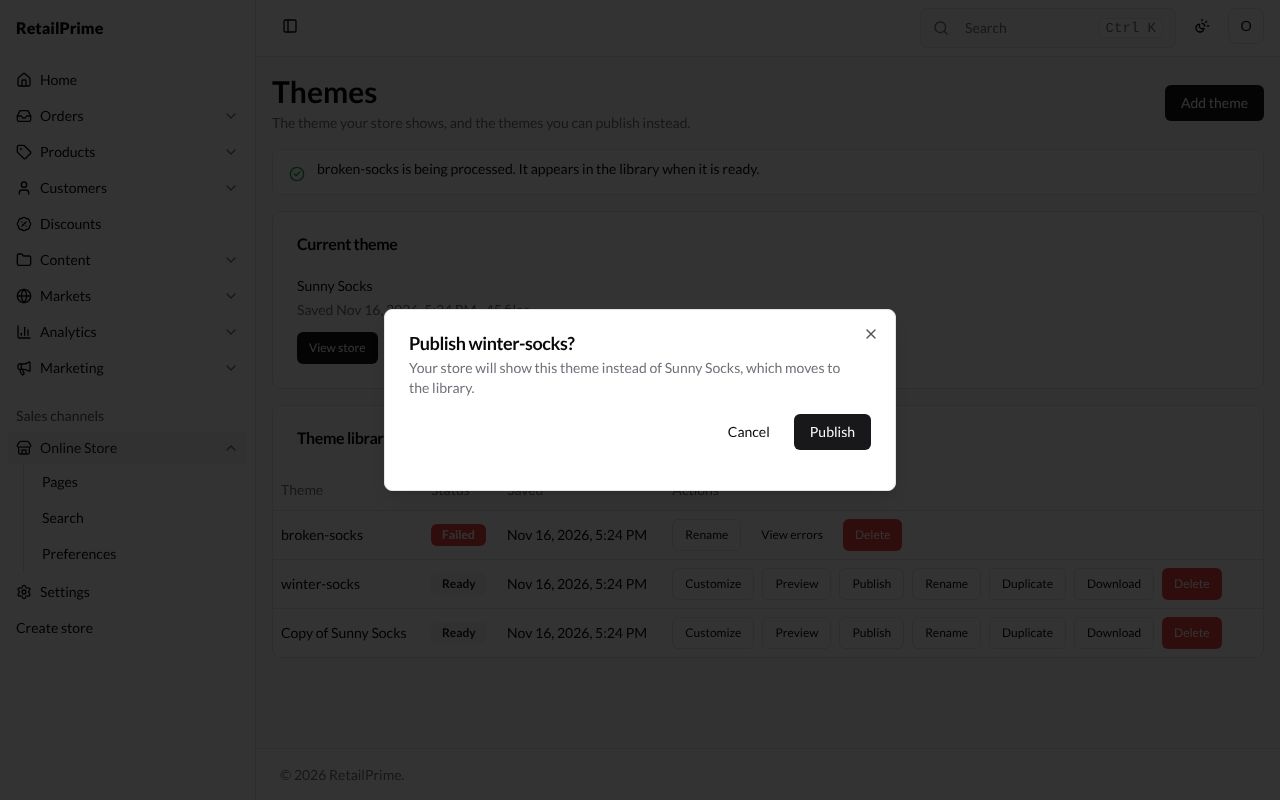
Press Publish next to a theme in the library. The window says Your store will show this theme instead of Sunny Socks, which moves to the library. Press Publish to switch, or Cancel to keep the current theme.
Delete a theme
-
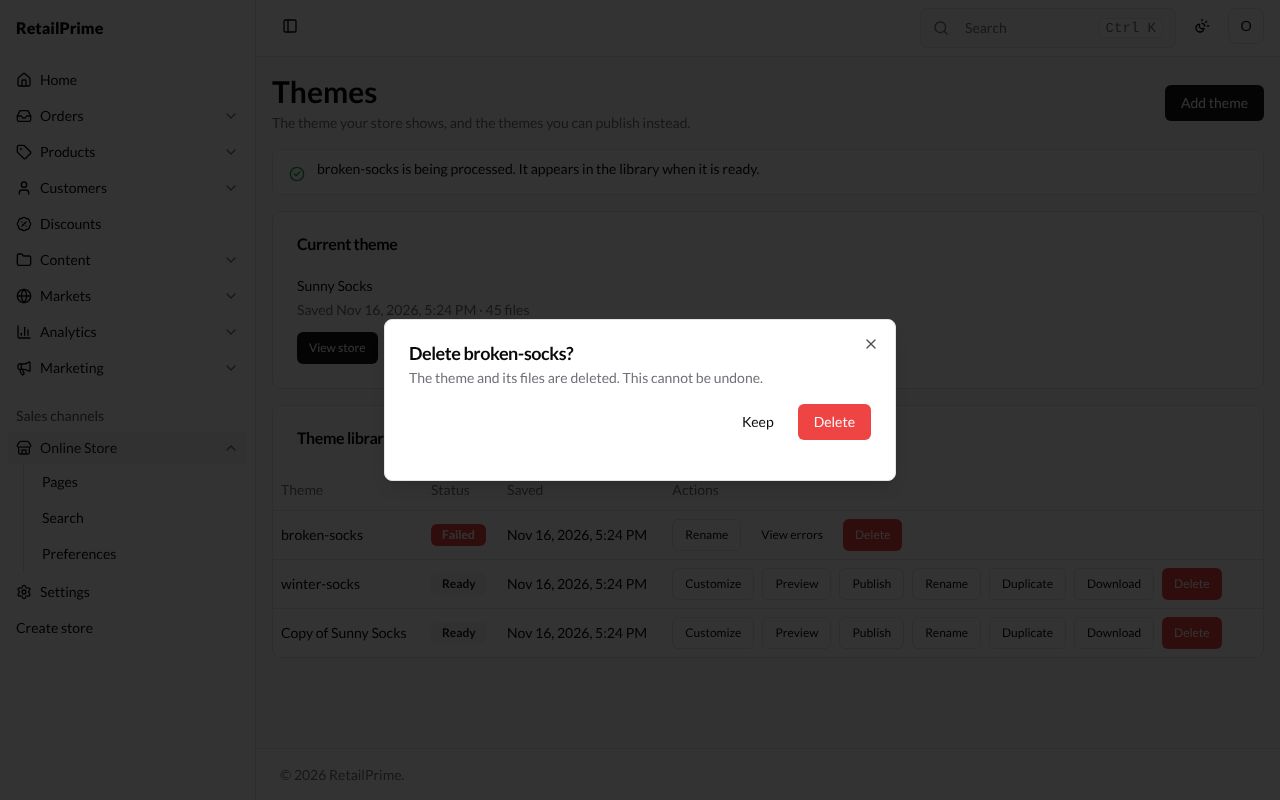
Press Delete next to a theme in the library. The current theme can’t be deleted: publish another one first.
-
A window asks Delete broken-socks? and says The theme and its files are deleted. This cannot be undone.
-
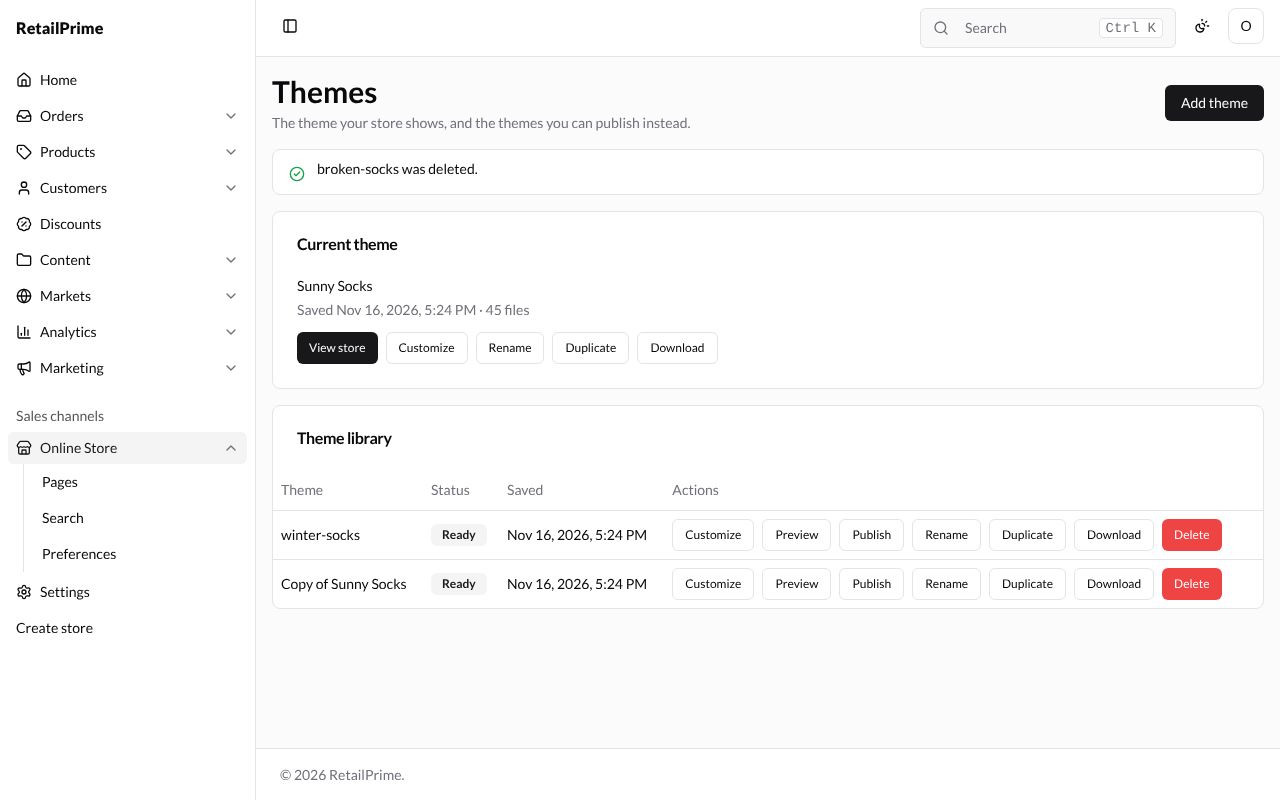
Press Delete. The page says broken-socks was deleted. Press Keep instead to change your mind.
What’s next
The theme editor: change the words, pictures and colours of your theme.