Custom data
Add fields of your own (metafields) to products, variants, collections, customers, orders, pages, blogs, blog posts and the store, edit and delete them, and fill in the store's own values.
Custom data lets you store information RetailPrime has no box for, such as what a sock is knitted from. A metafield definition adds a field of your own to one kind of record; every record of that kind then has the field in its Metafields card. A metaobject definition is a kind of record of your own, such as a sock designer: Metaobject definitions covers those.
The Custom data page
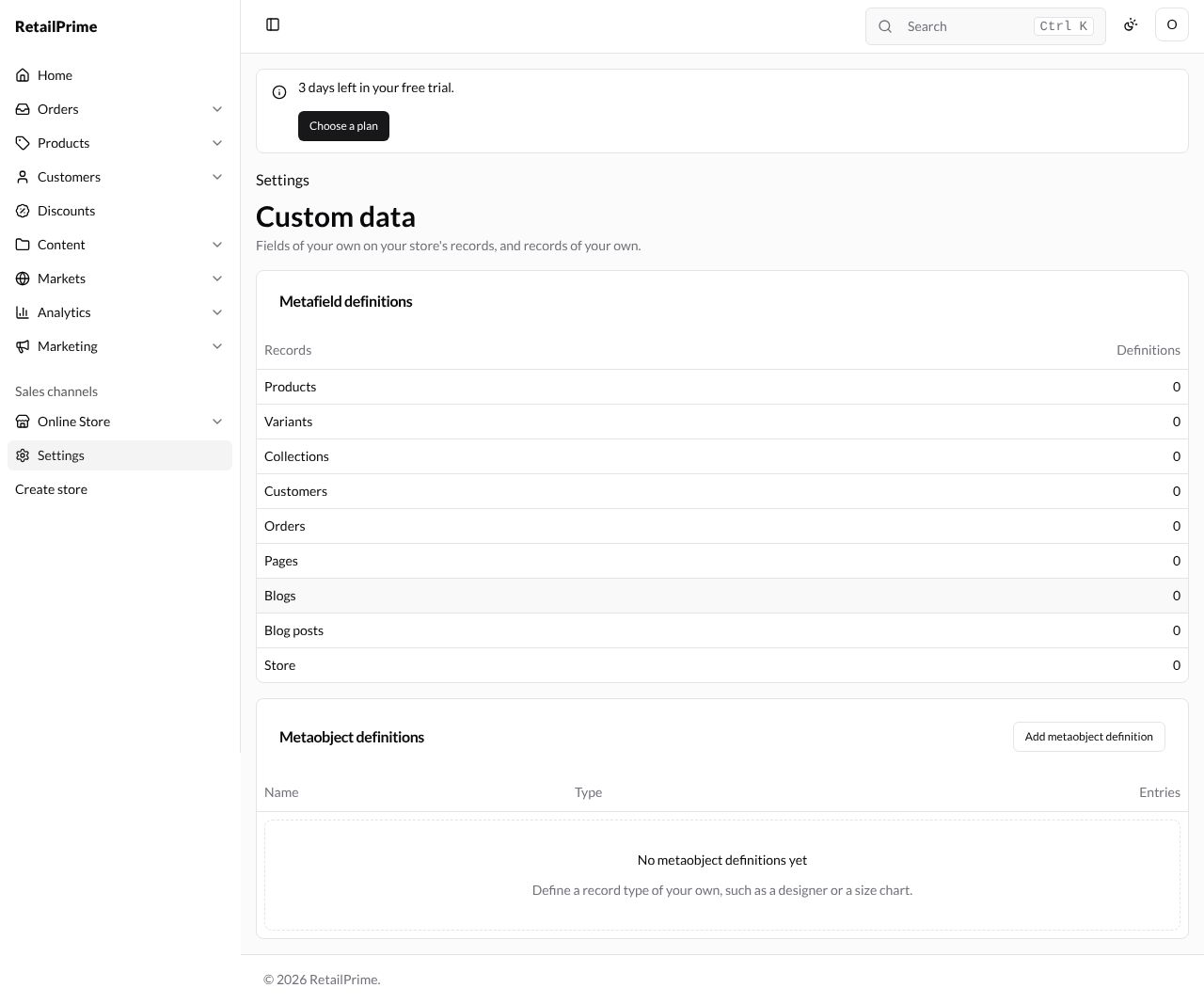
In Settings, press Custom data. The page says Fields of your own on your store’s records, and records of your own.
- Metafield definitions lists the nine kinds of record (Records) with how many Definitions each has: Products, Variants, Collections, Customers, Orders, Pages, Blogs, Blog posts and Store.
- Metaobject definitions lists your own record types; a new store has No metaobject definitions yet.
Add a metafield definition
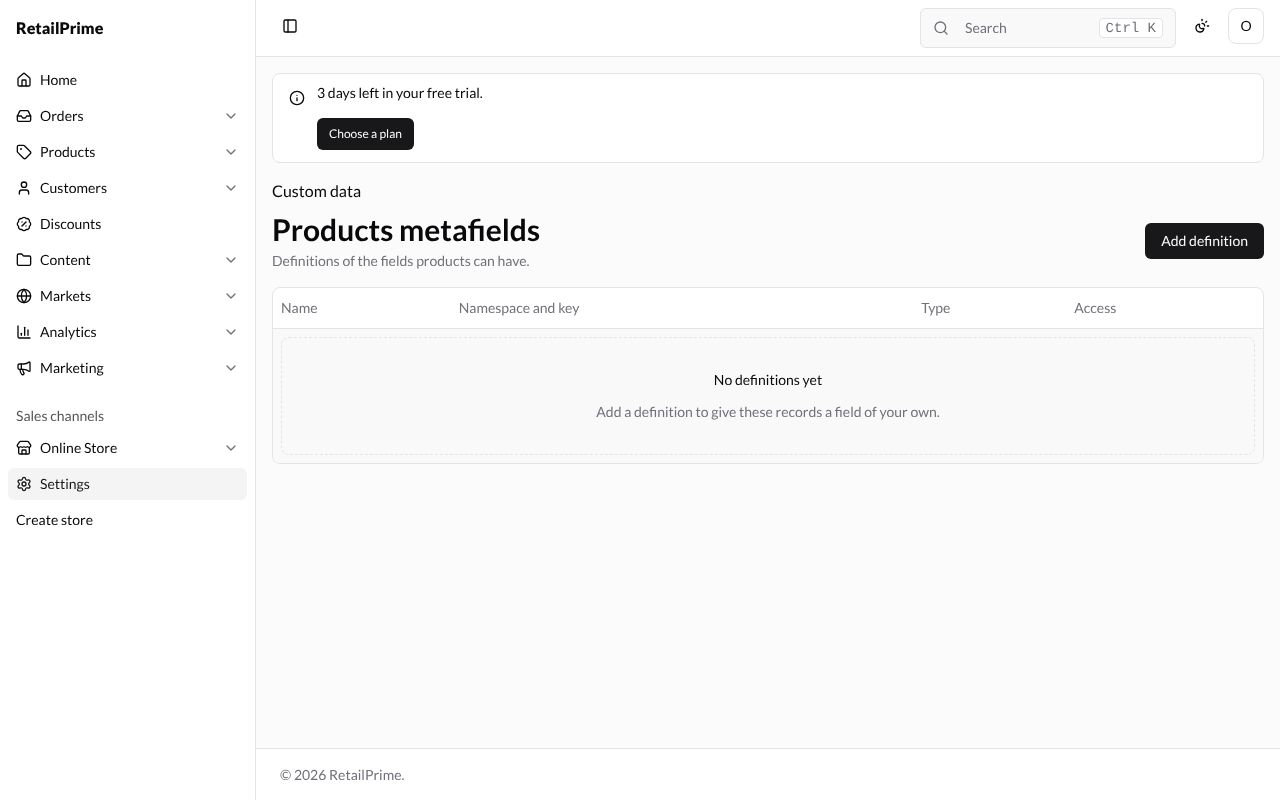
Press a kind of record, here Products. The page Products metafields says Definitions of the fields products can have. At first: No definitions yet.
-
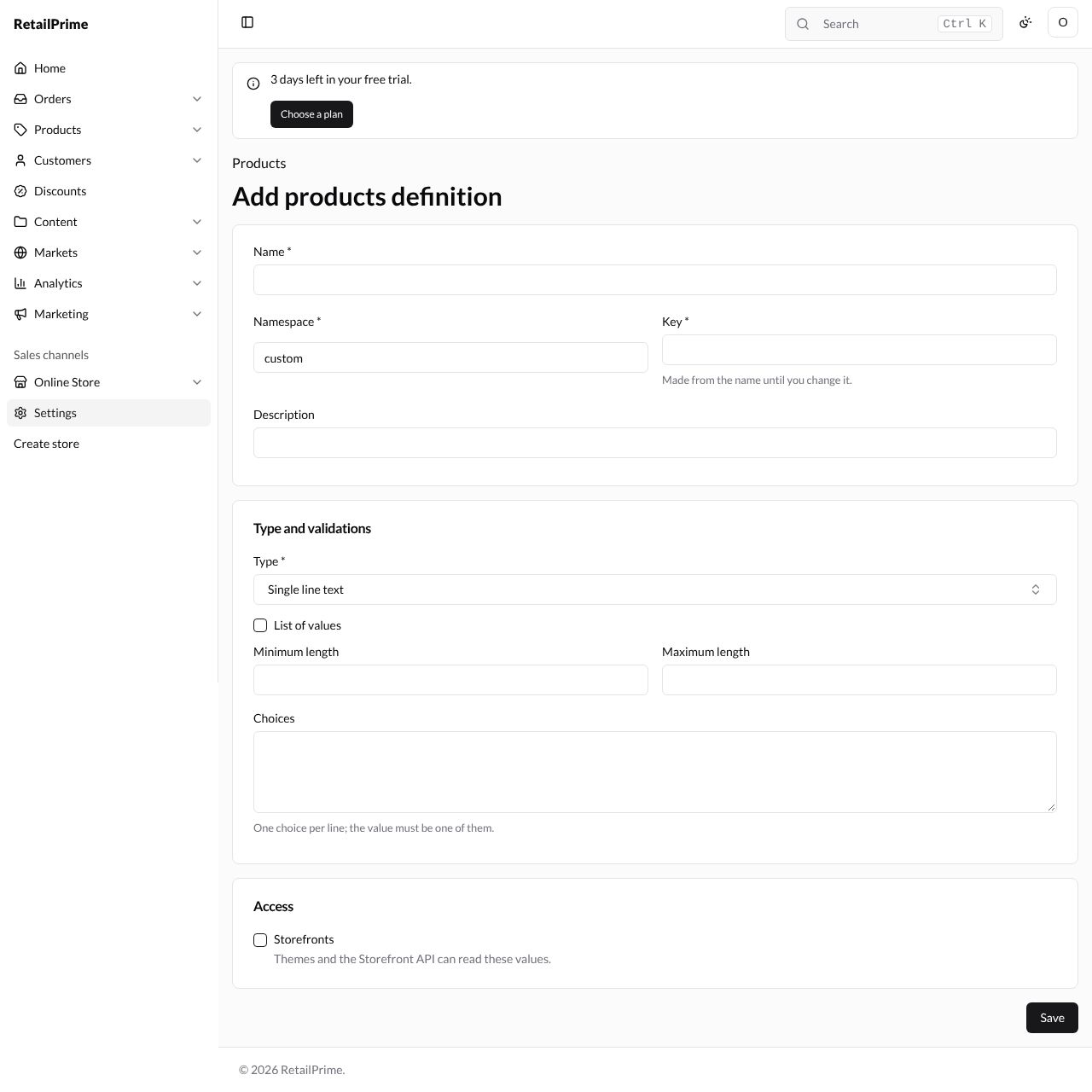
Press Add definition. The page Add products definition opens.
-
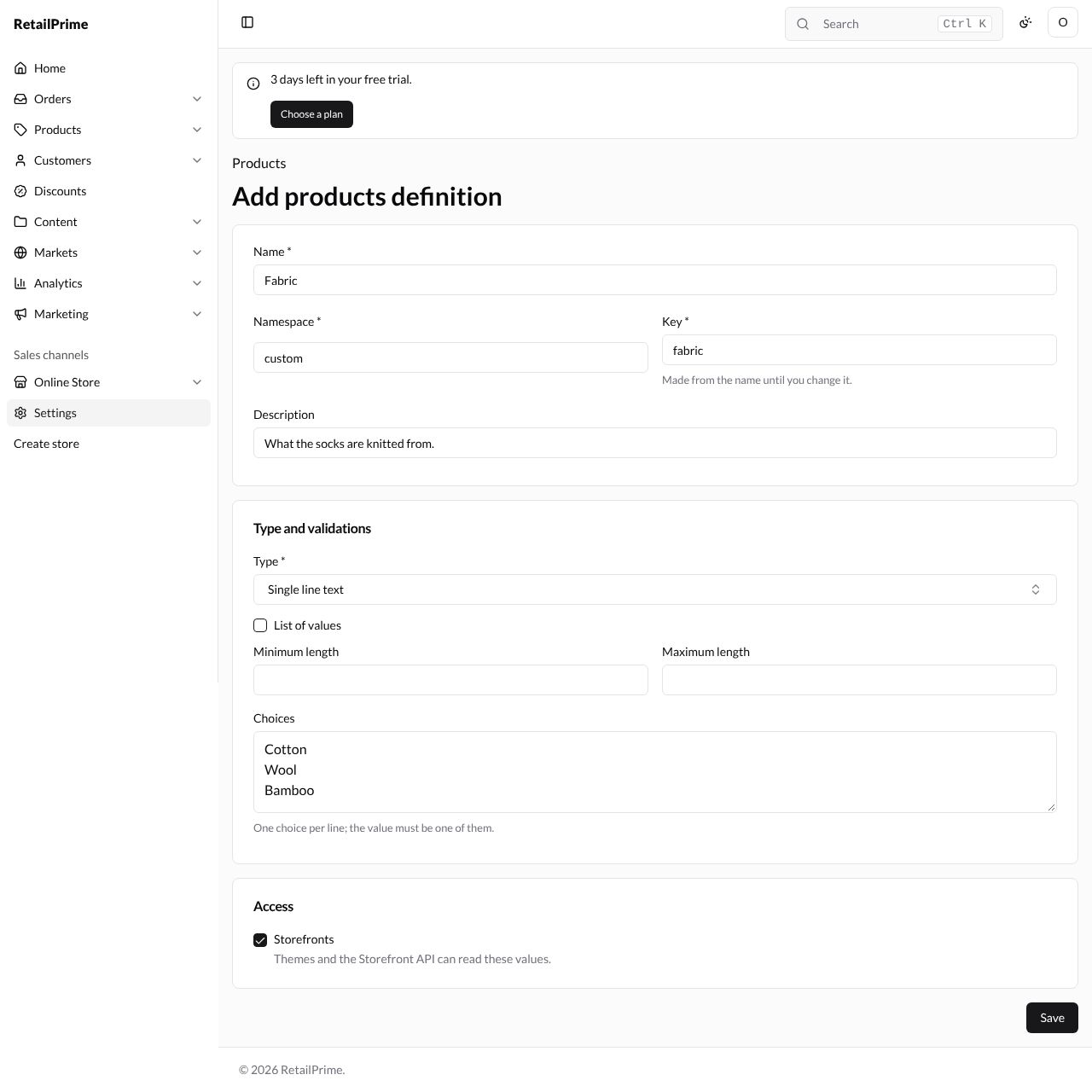
Fill in the first card:
| Box | What to type | Example |
|---|---|---|
| Name (required) | The field’s name, as staff see it | Fabric |
| Namespace (required) | Starts as custom; leave it |
custom |
| Key (required) | Made from the name until you change it. Themes use it | fabric |
| Description | Shown under the field on each record | What the socks are knitted from. |
-
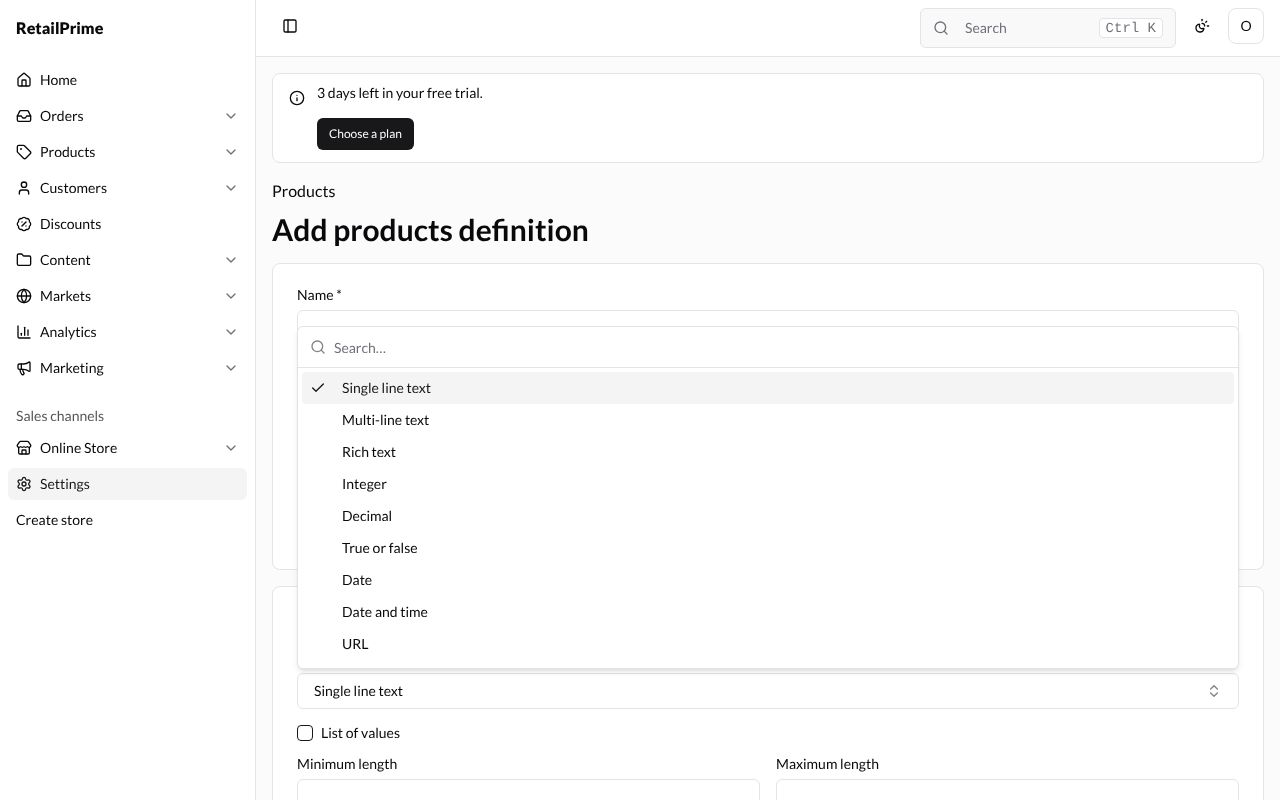
In Type and validations, choose the Type: the kind of value the field holds. Type in the list to find one.
| Type | Holds |
|---|---|
| Single line text, Multi-line text, Rich text | Text |
| Integer, Decimal | A number |
| True or false | A tick box |
| Date, Date and time | A day, or a day and time |
| URL, Link | A web address; a link also has its own text |
| Color | A colour |
| Money | An amount in the store currency |
| Weight, Dimension, Volume | A number with a unit |
| Rating | A score on a scale you set |
| JSON | Data for developers |
| Product, Product variant, Collection, Page, File, Metaobject | One of your products, variants, collections, pages, files or metaobject entries |
Tick List of values to let the field hold several values instead of one.
-
Fill in the type’s validations (the rules a value must follow). They change with the type. For Single line text: Minimum length, Maximum length and Choices (One choice per line; the value must be one of them.). Here the choices are
Cotton,WoolandBamboo. -
Under Access, tick Storefronts if your theme should show it: Themes and the Storefront API can read these values. (Customers and Orders fields have no Storefronts box.)
-
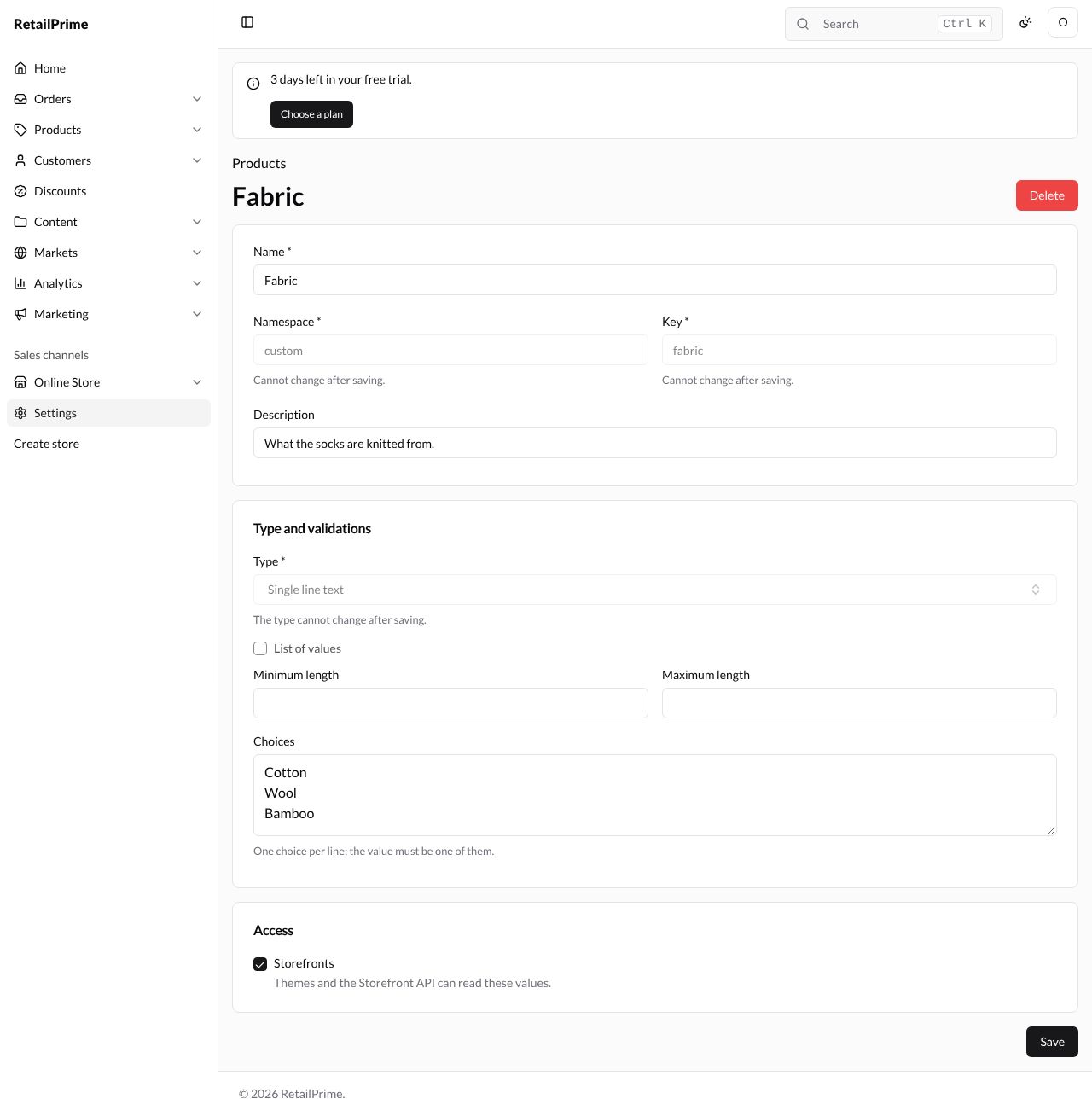
Press Save. The definition’s page opens with its name as title. Namespace, Key and Type are greyed out: Cannot change after saving. and The type cannot change after saving.
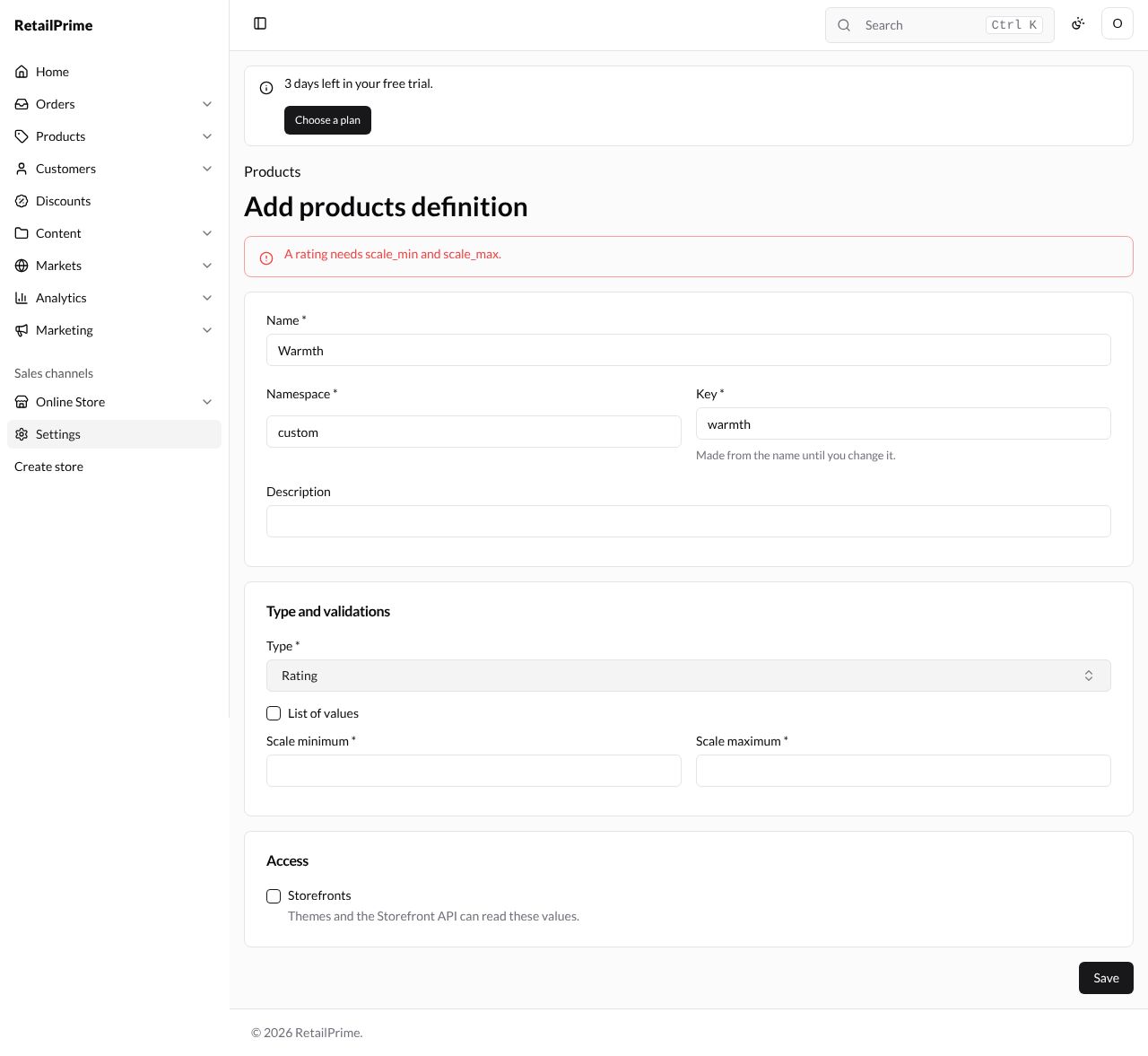
Some types need their validations. A Rating without its scale is refused: A rating needs scale_min and scale_max. Fill in Scale minimum and Scale maximum (here 1 and 5) and press Save again.
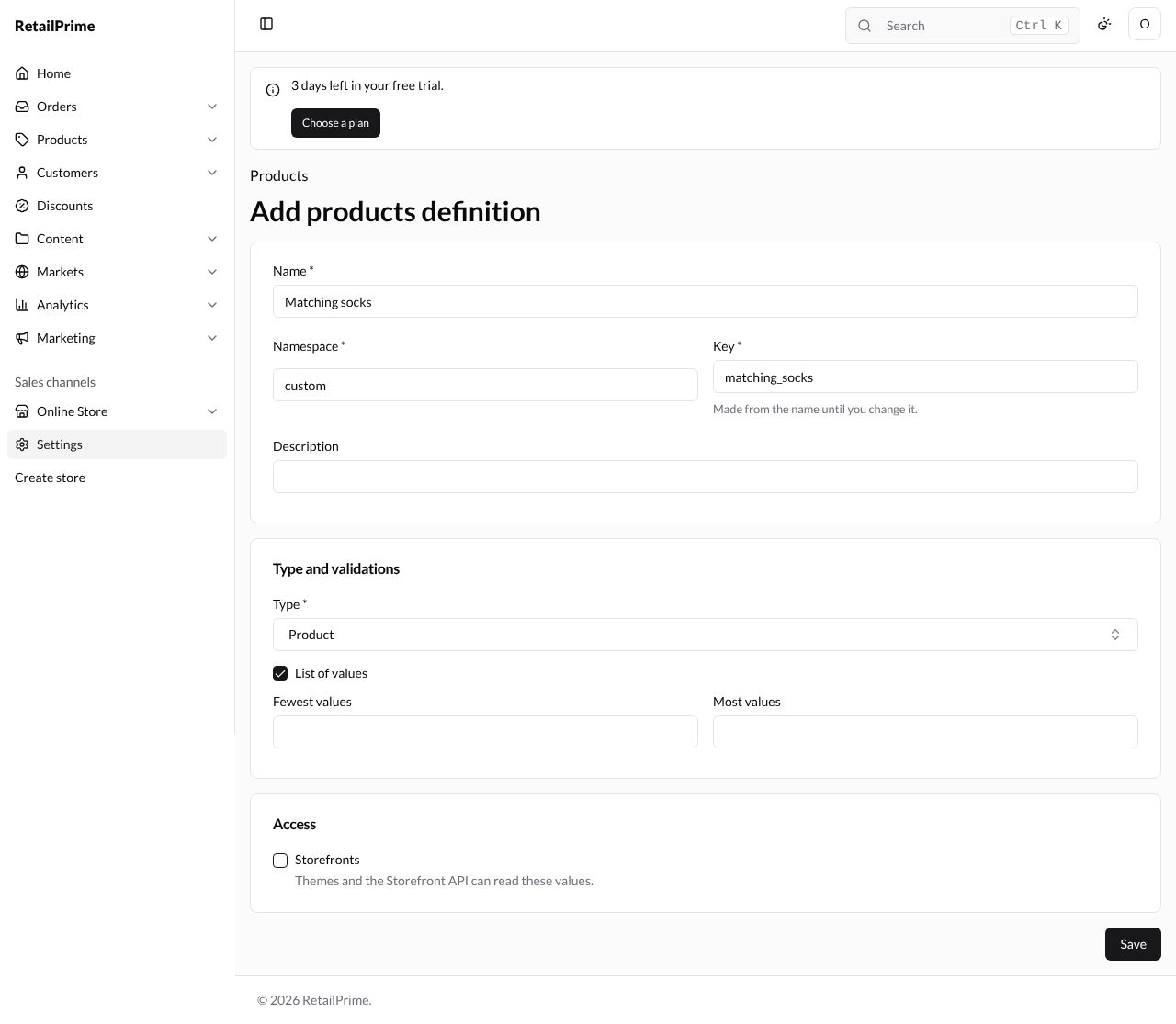
With List of values ticked, the validations are Fewest values and Most values. Here Matching socks holds a list of products:
The definitions list
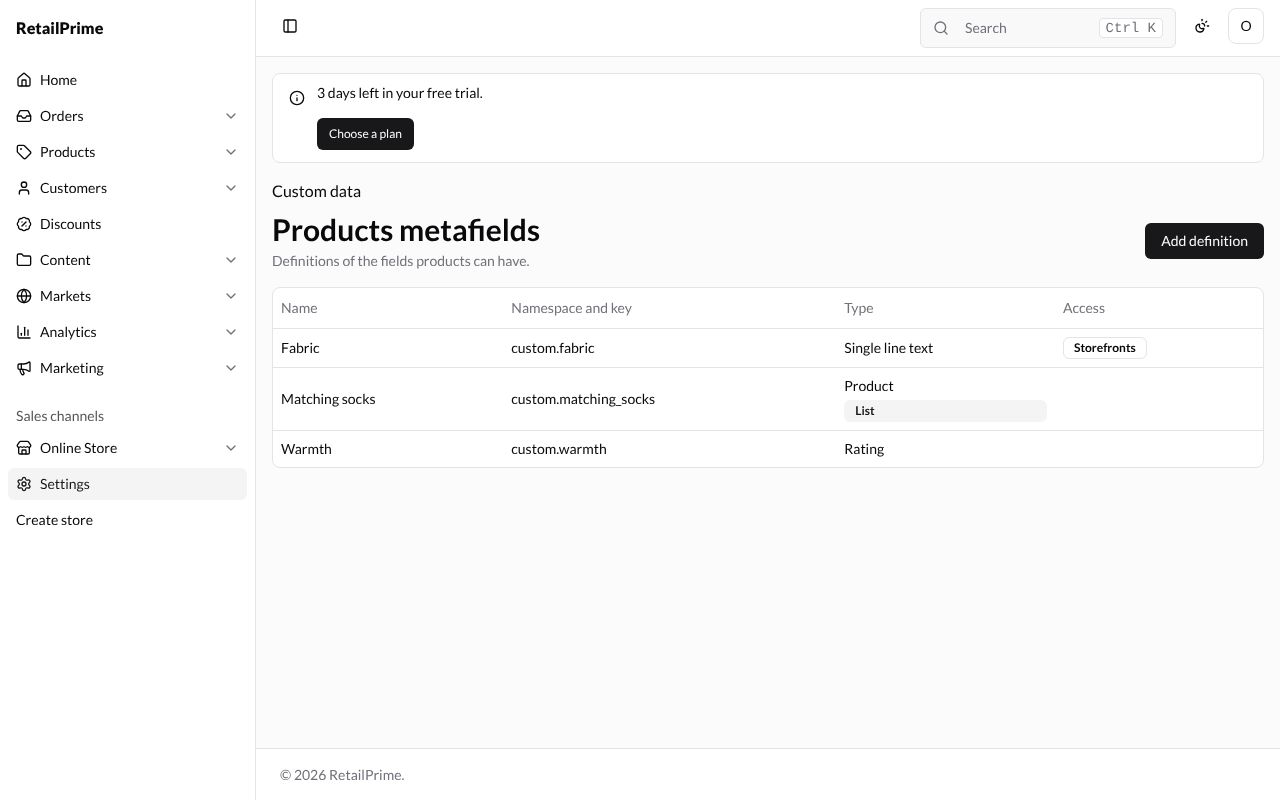
Press Products at the top to go back. Each definition shows its Name, Namespace and key, Type (with List for a list) and Storefronts under Access when themes can read it. Press a name to open it.
Fill in the values
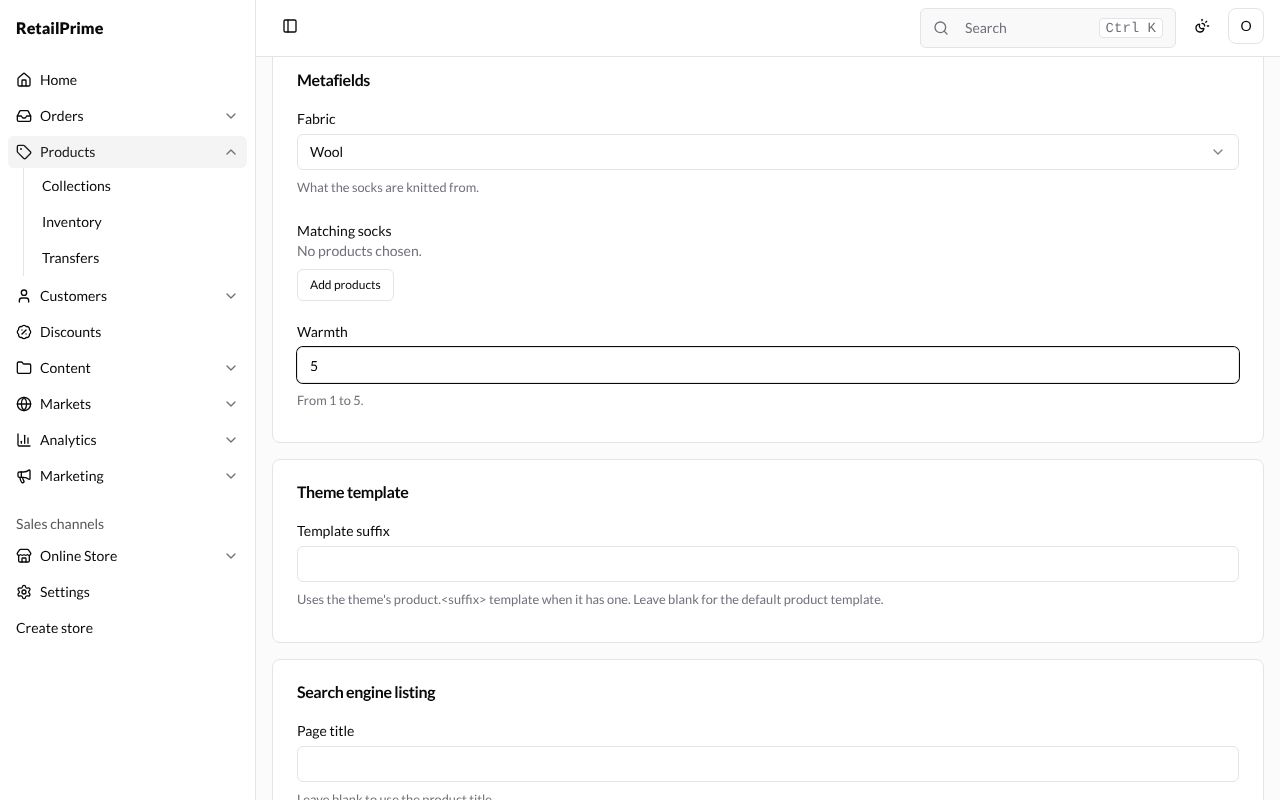
Open a product (Products in the sidebar, then the product). Its Metafields card now has a box for each definition, with the description under it: a list of Fabric choices, Add products for Matching socks, and Warmth with From 1 to 5. Fill them in and press the product’s Save.
The other kinds of record have the same Metafields card on their pages (an order’s has its own Save metafields button).
Edit a definition
Open it from the list, change its Name, Description, validations or Storefronts, and press Save. Here the Fabric choices get a fourth one, Silk.
Delete a definition
-
Open it and press Delete at the top.
-
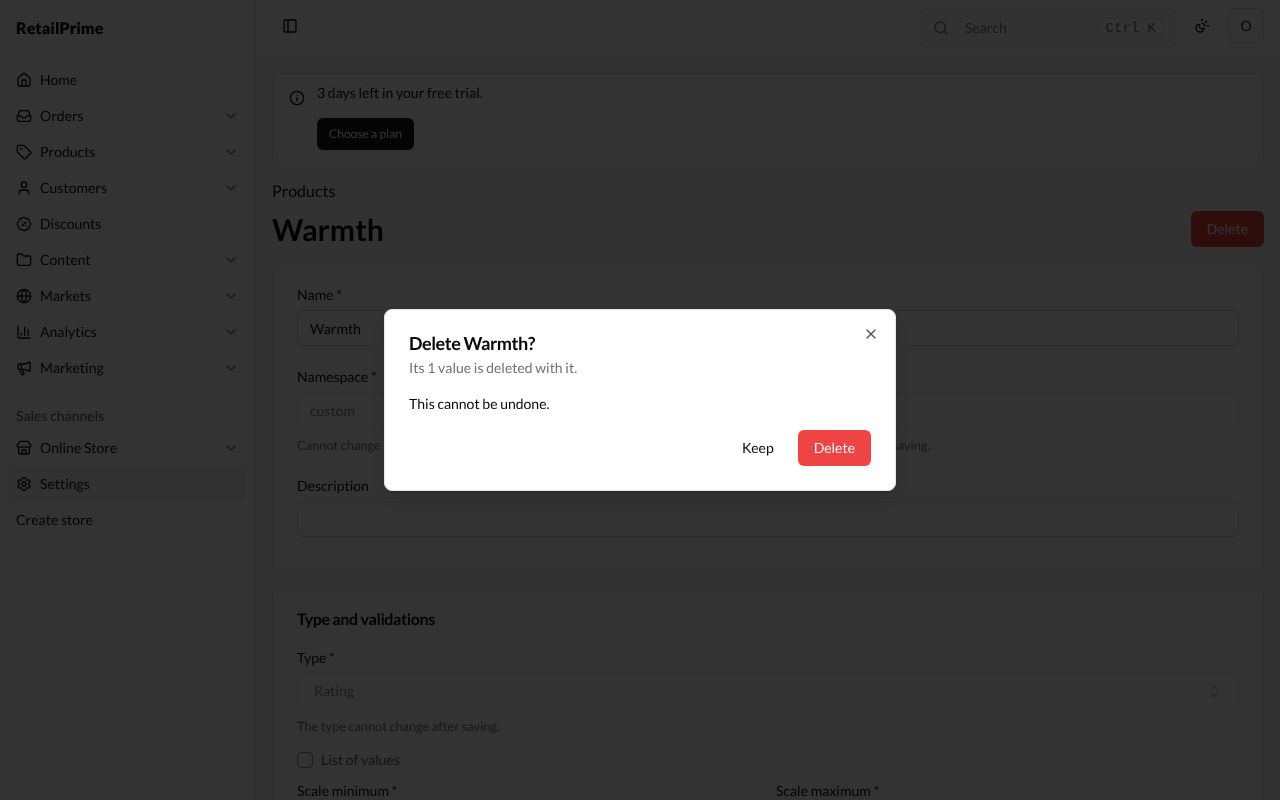
A window asks Delete Warmth? and says how many values go with it: Its 1 value is deleted with it. and This cannot be undone.
-
Press Delete. You are back on the list without it.
Every kind of record
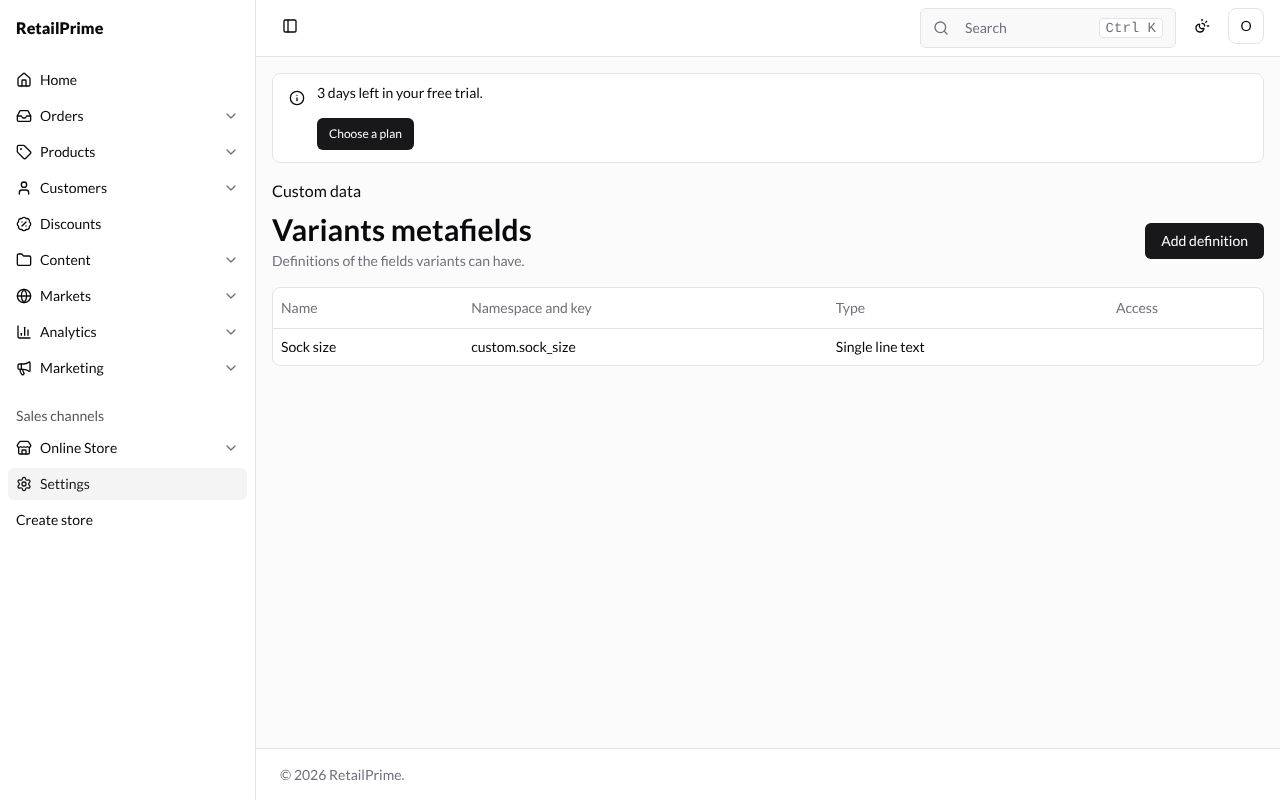
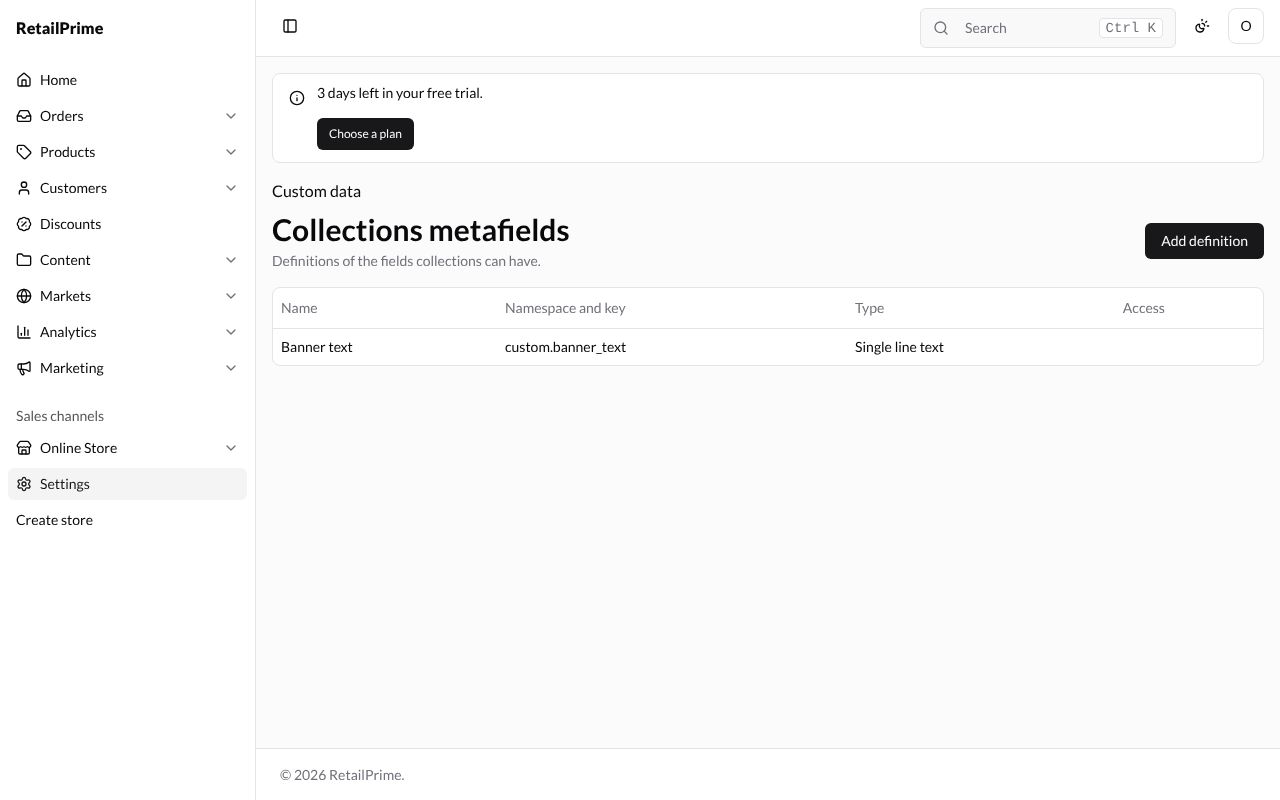
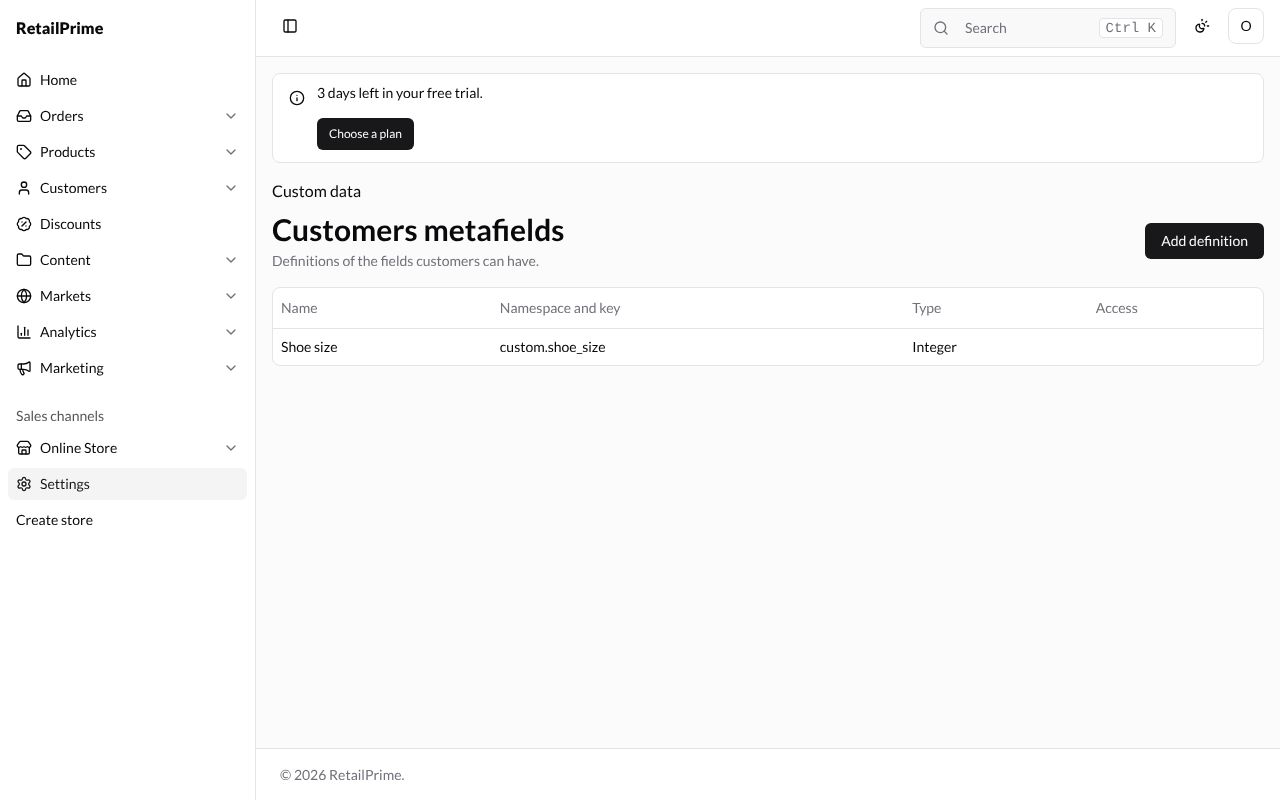
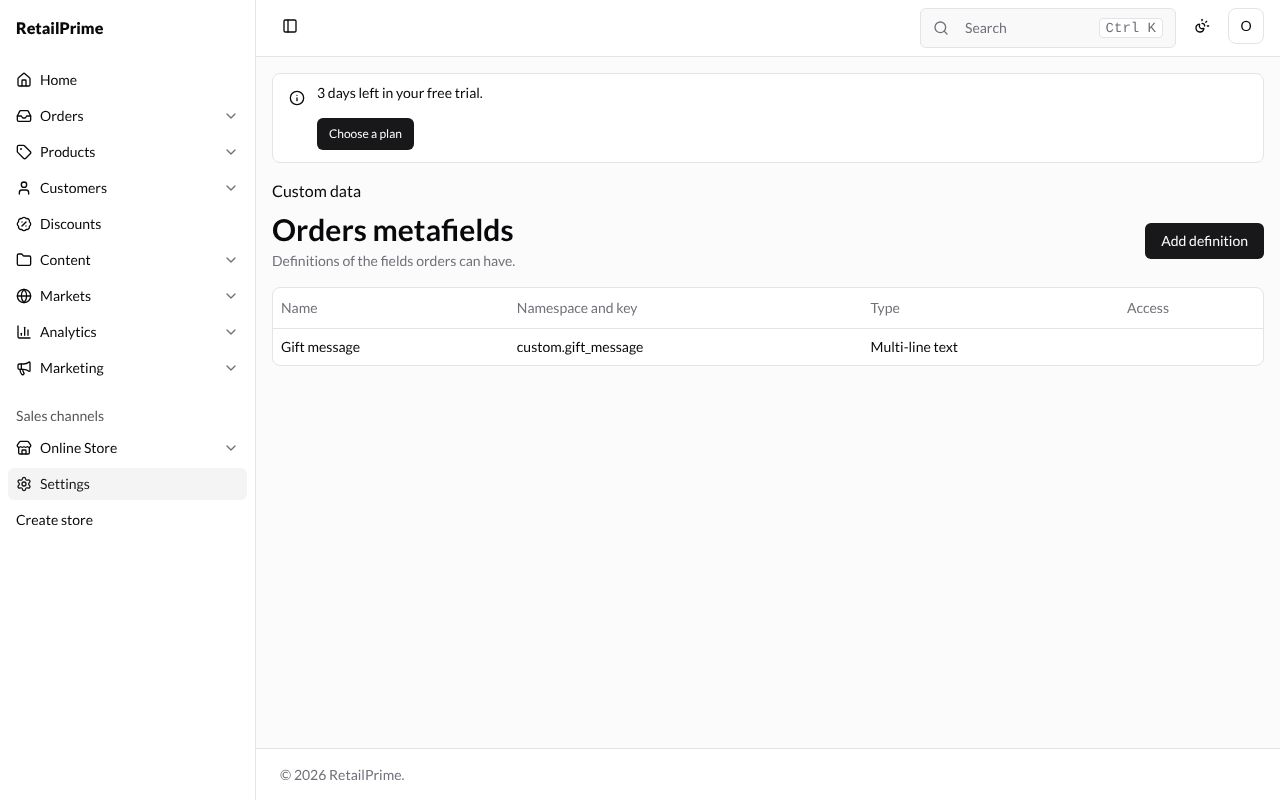
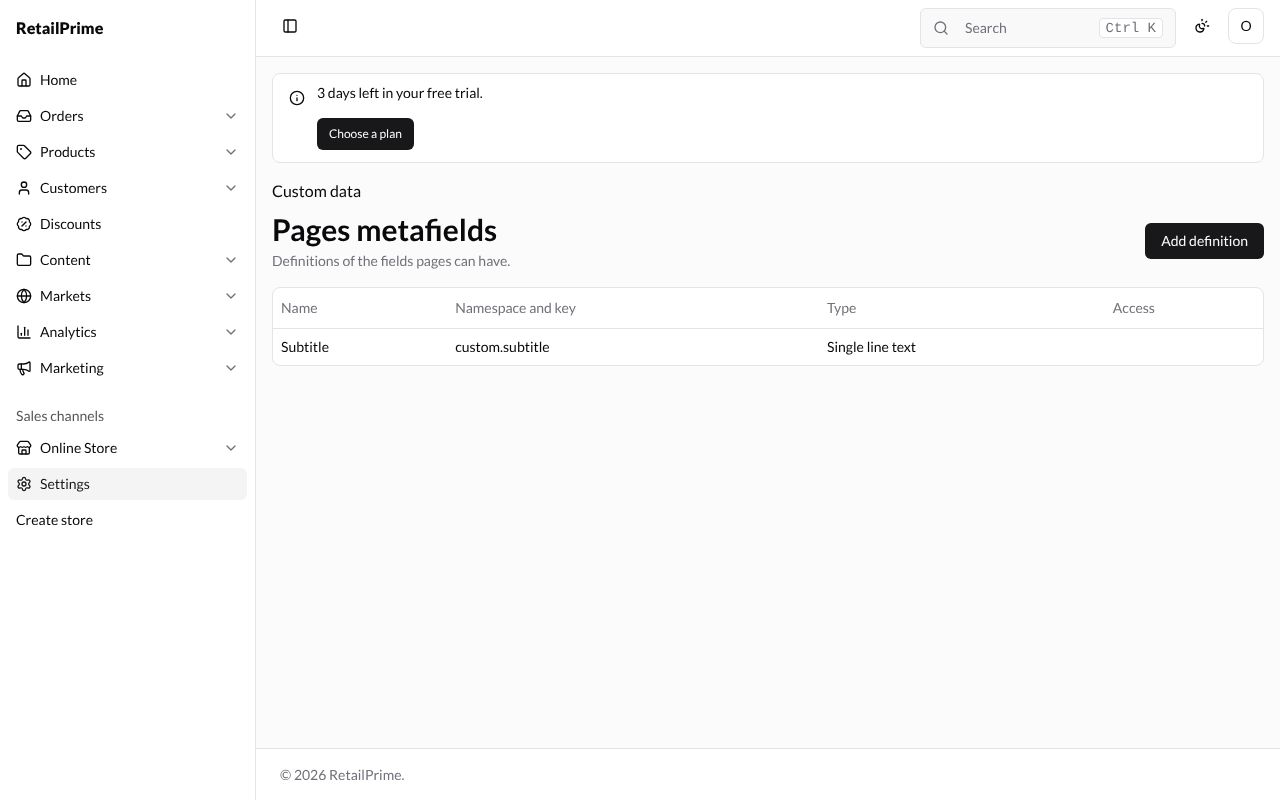
Each kind of record has its own definitions page, made the same way. Examples for the sock shop:
| Records | Example definition | Type |
|---|---|---|
| Variants | Sock size |
Single line text |
| Collections | Banner text |
Single line text |
| Customers | Shoe size |
Integer |
| Orders | Gift message |
Multi-line text |
| Pages | Subtitle |
Single line text |
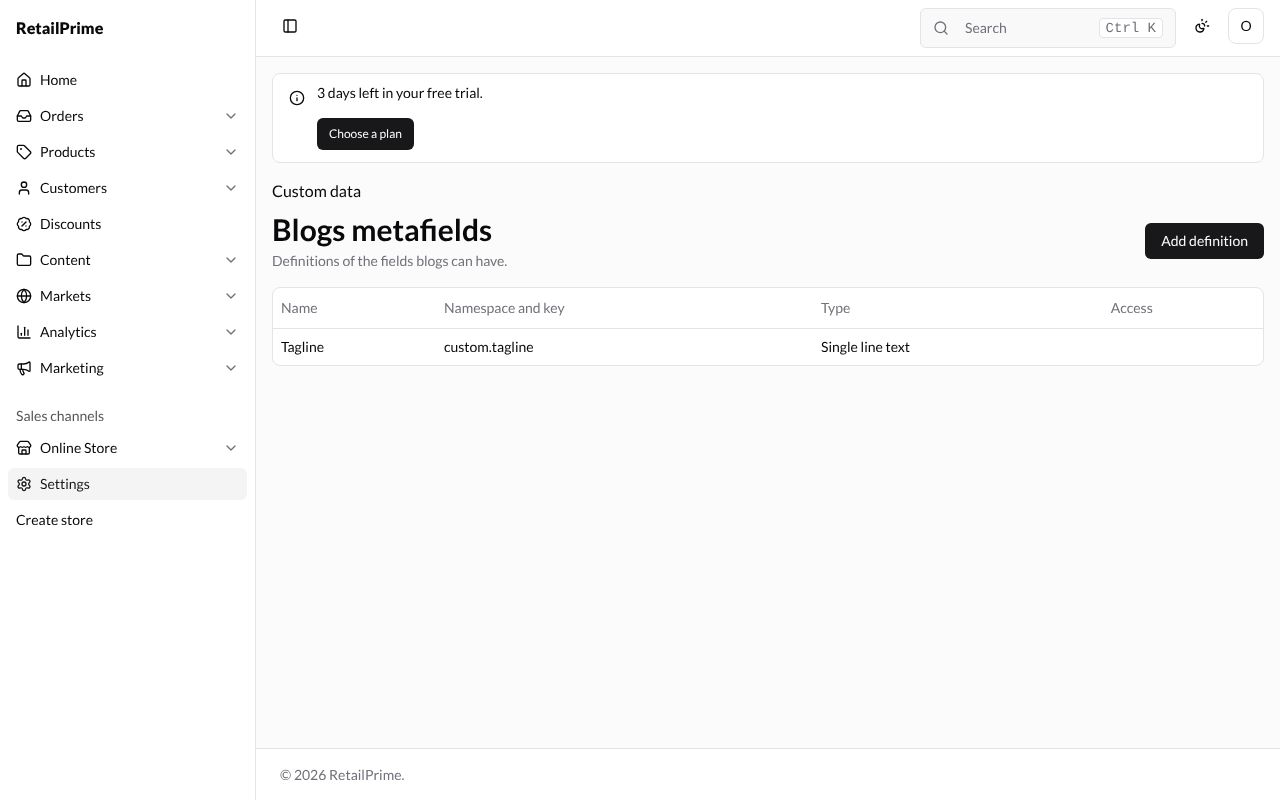
| Blogs | Tagline |
Single line text |
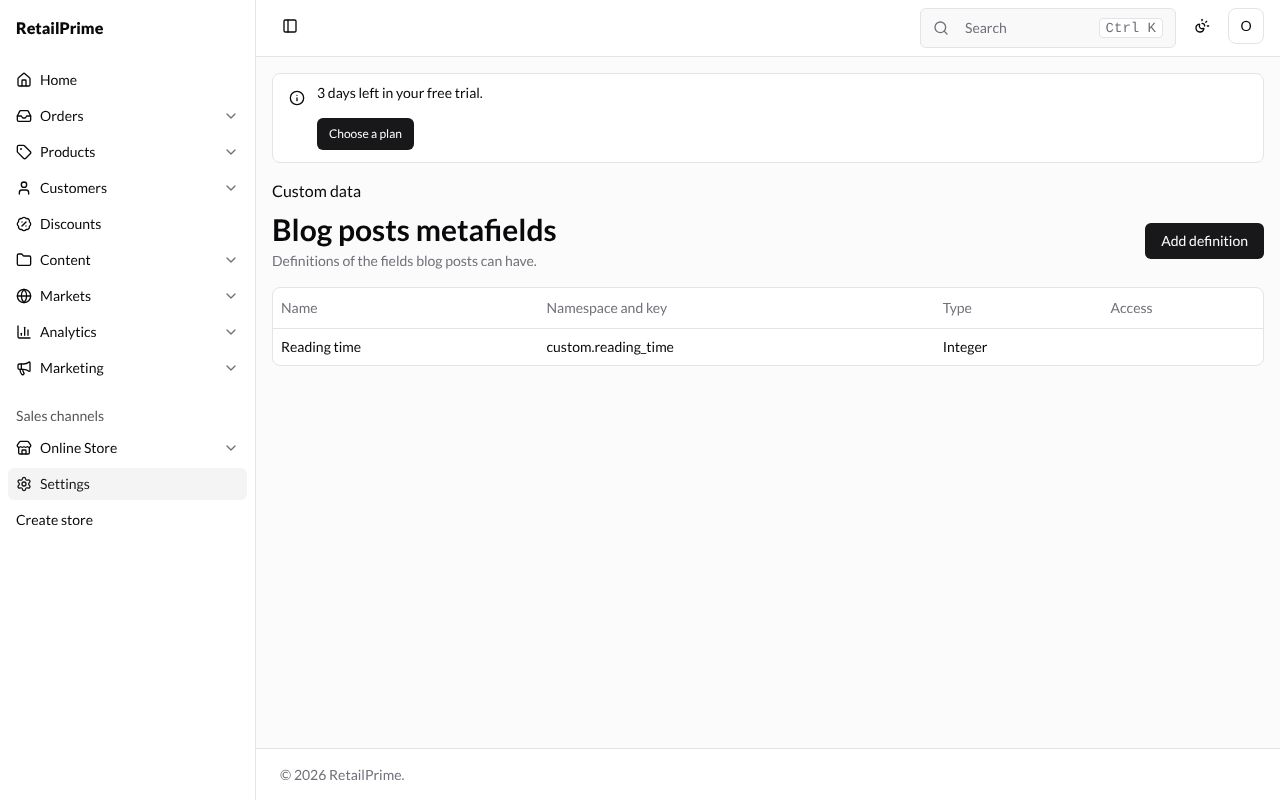
| Blog posts | Reading time |
Integer |
| Store | Free delivery over |
Money |
The store’s own values
The Store is a single record, so its values are filled in here rather than on a record’s page. Store metafields has an extra button, Edit store values.
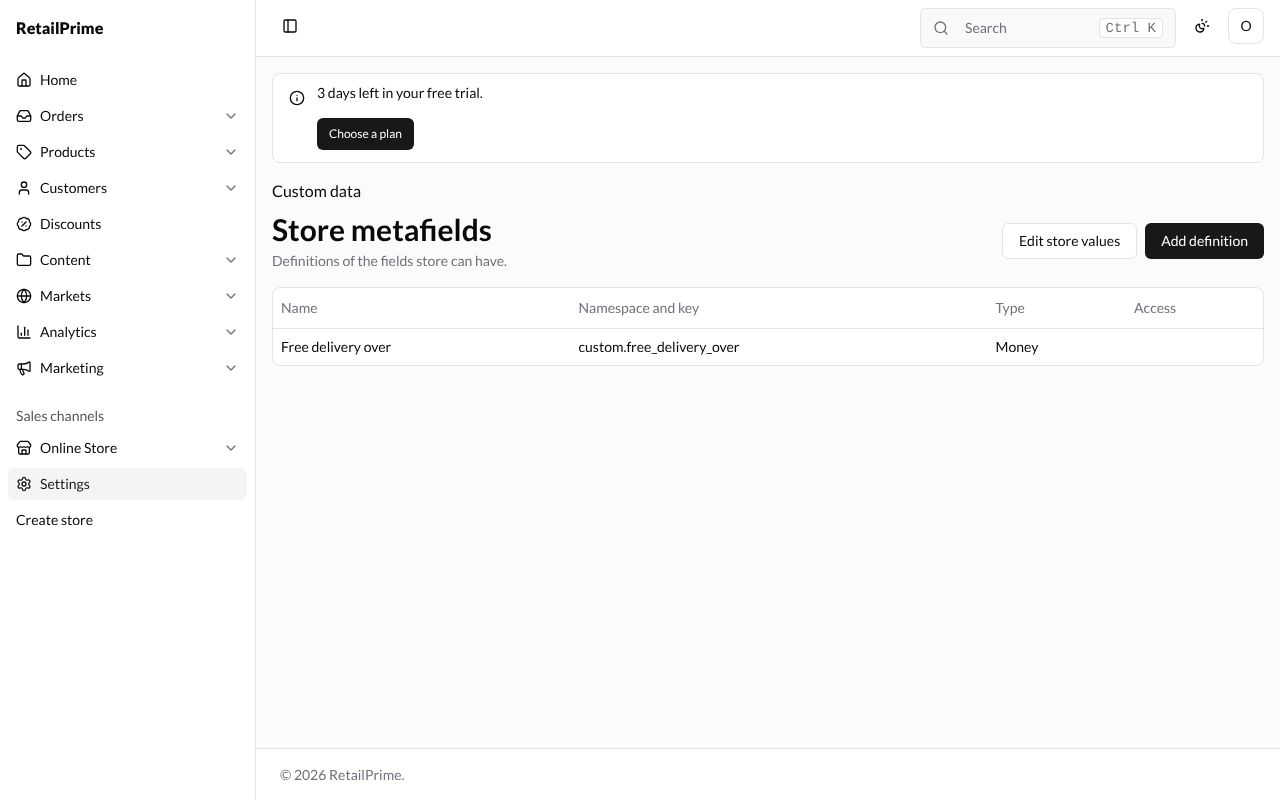
- Press Edit store values. The page Store metafields says Values of the store’s own fields, which themes can show.
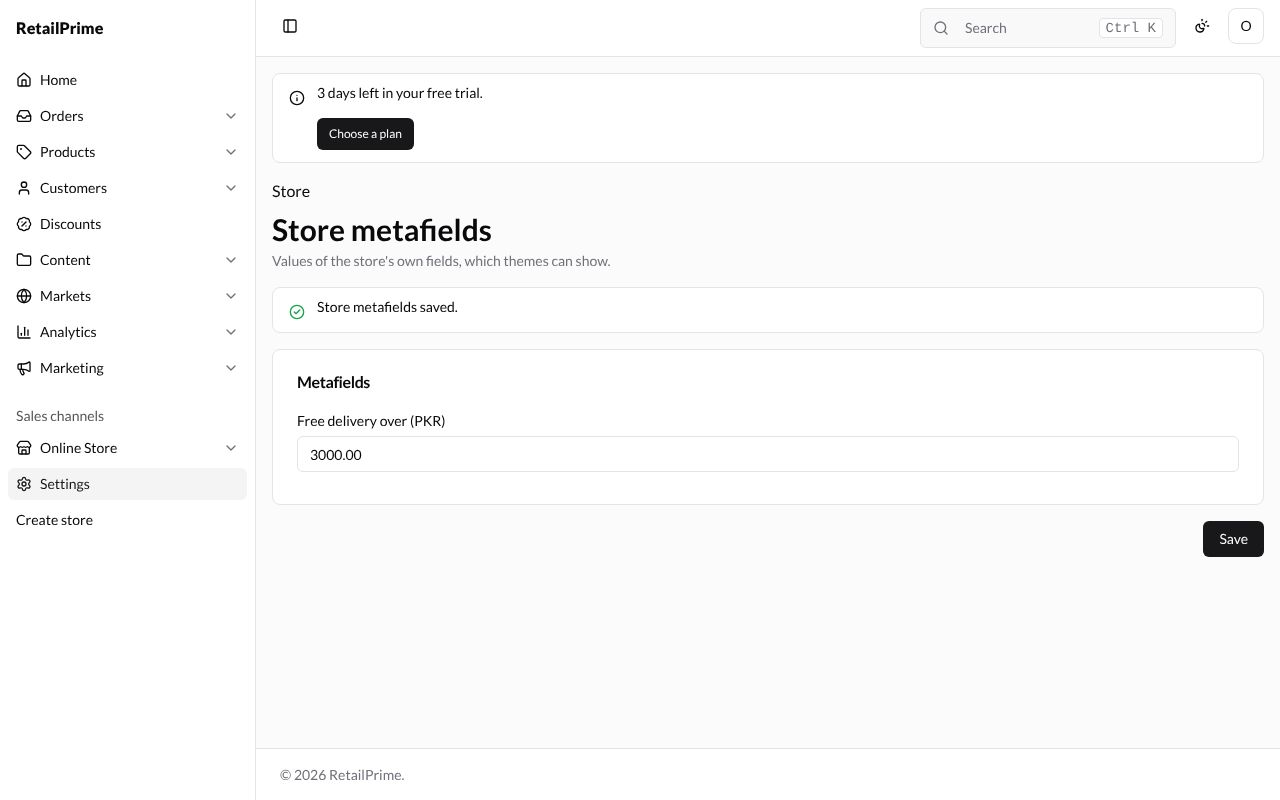
- Fill in each box. A Money field is in the store currency: here Free delivery over (PKR) is
3000.00. - Press Save. The page says Store metafields saved. To clear a value, empty its box and press Save.
What’s next
Metaobject definitions: make a record type of your own, such as a sock designer.