Plan and billing
Choose a RetailPrime plan, see your first invoice when the trial ends, and pay it with a test card.
Your store starts with a free trial. You can choose a plan any time during it; nothing is charged until the trial ends. Plan shows your plan and lets you change it; Billing lists your invoices from RetailPrime and lets you pay them.
Plan, before plans are published
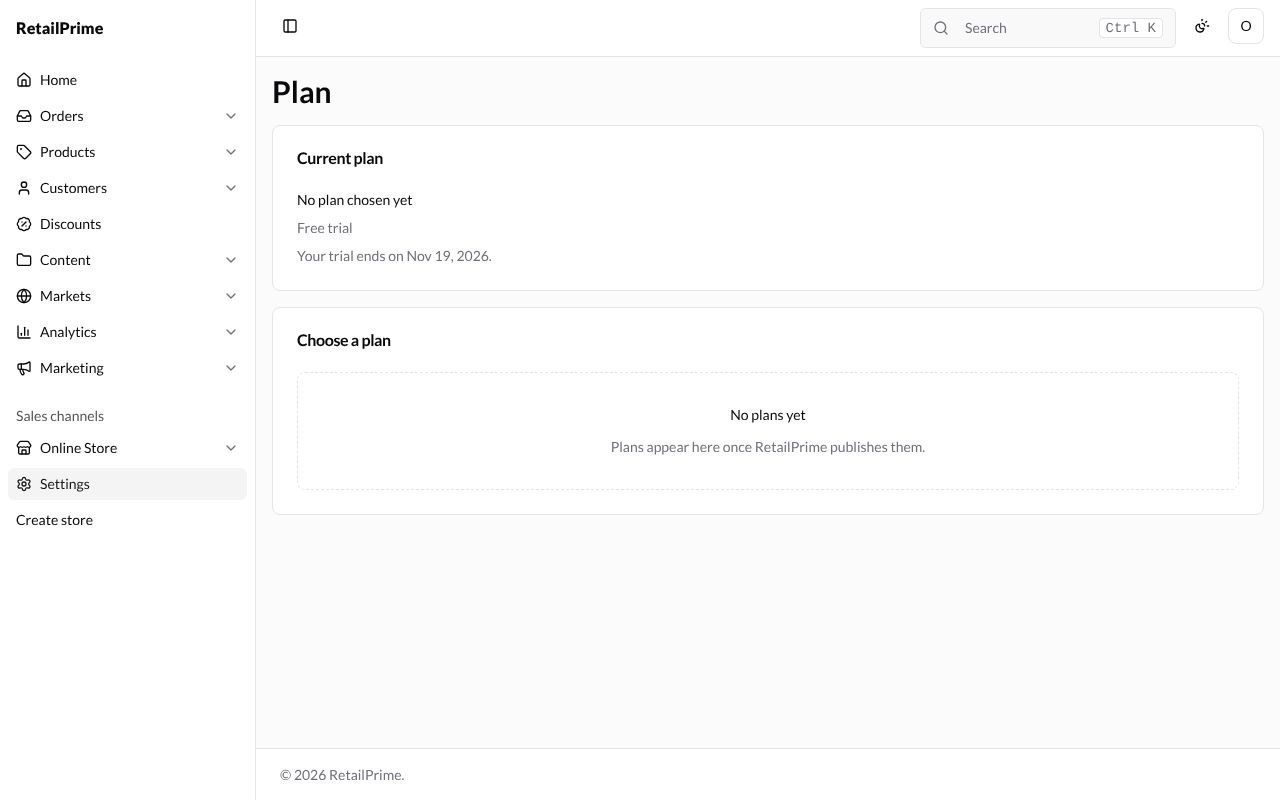
In Settings, press Plan. The Current plan card says No plan chosen yet, Free trial and the day your trial ends. Plans come from RetailPrime: until RetailPrime publishes some, Choose a plan says No plans yet and Plans appear here once RetailPrime publishes them.
Billing, before the first invoice
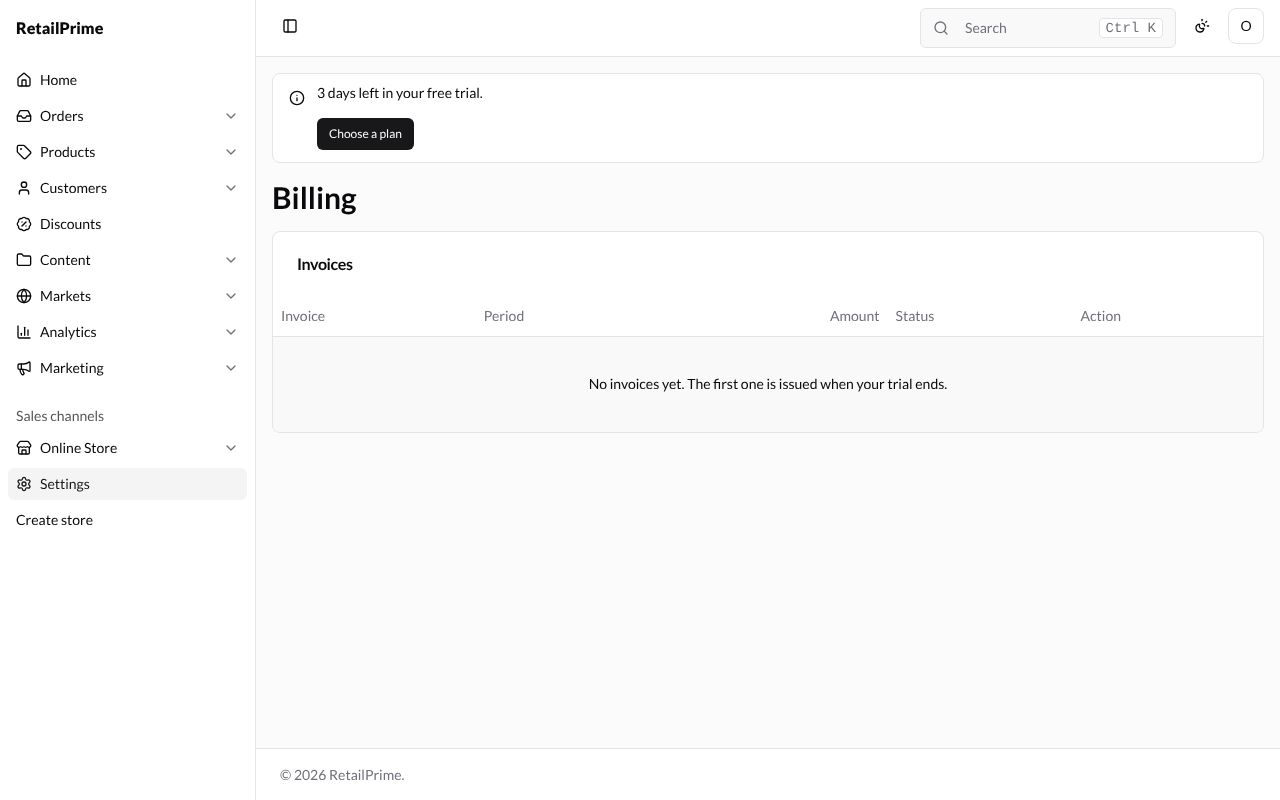
In Settings, press Billing. The Invoices table says No invoices yet. The first one is issued when your trial ends.
Choose a plan
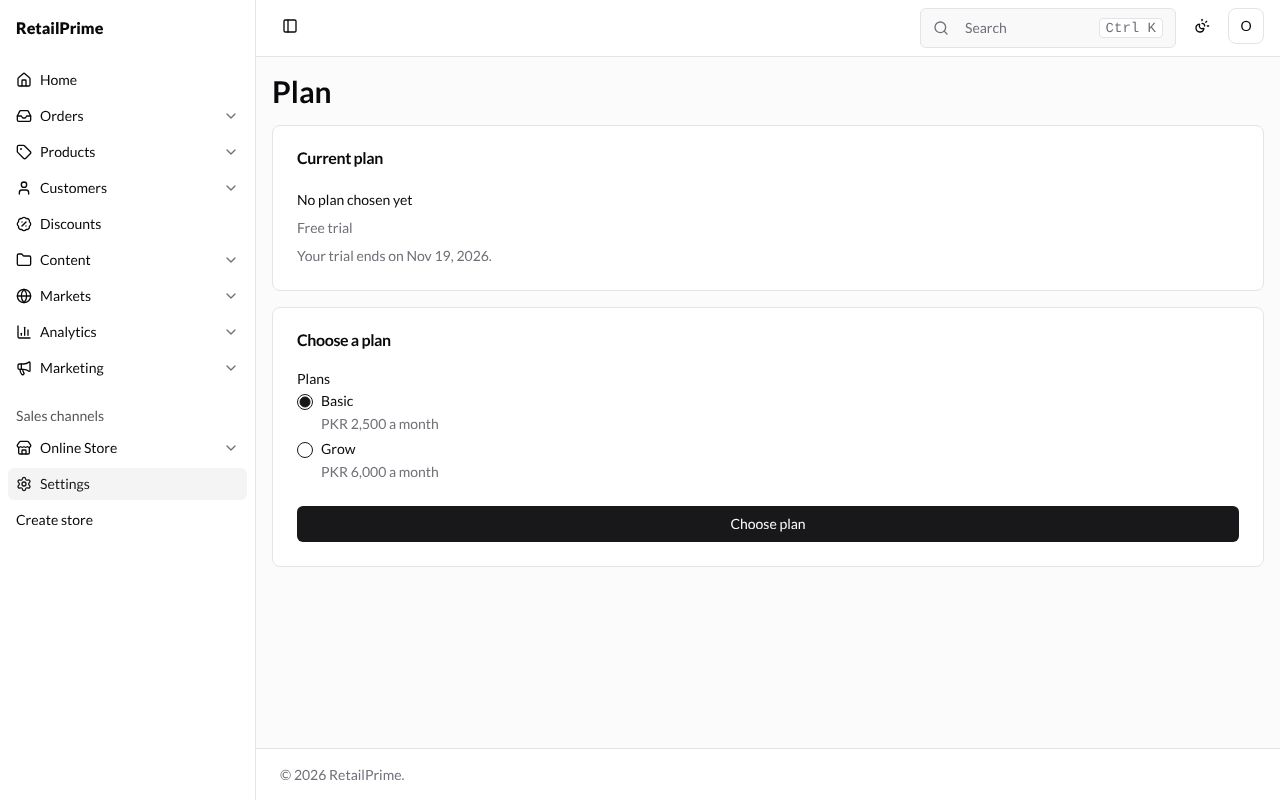
On staging, RetailPrime has published plans. The ones below, Basic (PKR 2,500 a month) and Grow (PKR 6,000 a month), are examples: your staging may list others.
-
Open Plan. Under Plans, click the plan you want, here Basic.
-
Press Choose plan. Current plan now shows Basic, PKR 2,500 a month, still Free trial, and Your plan starts when your trial ends on the trial’s last day. Nothing is charged yet. The card below is now called Change plan, and Basic says Current plan.
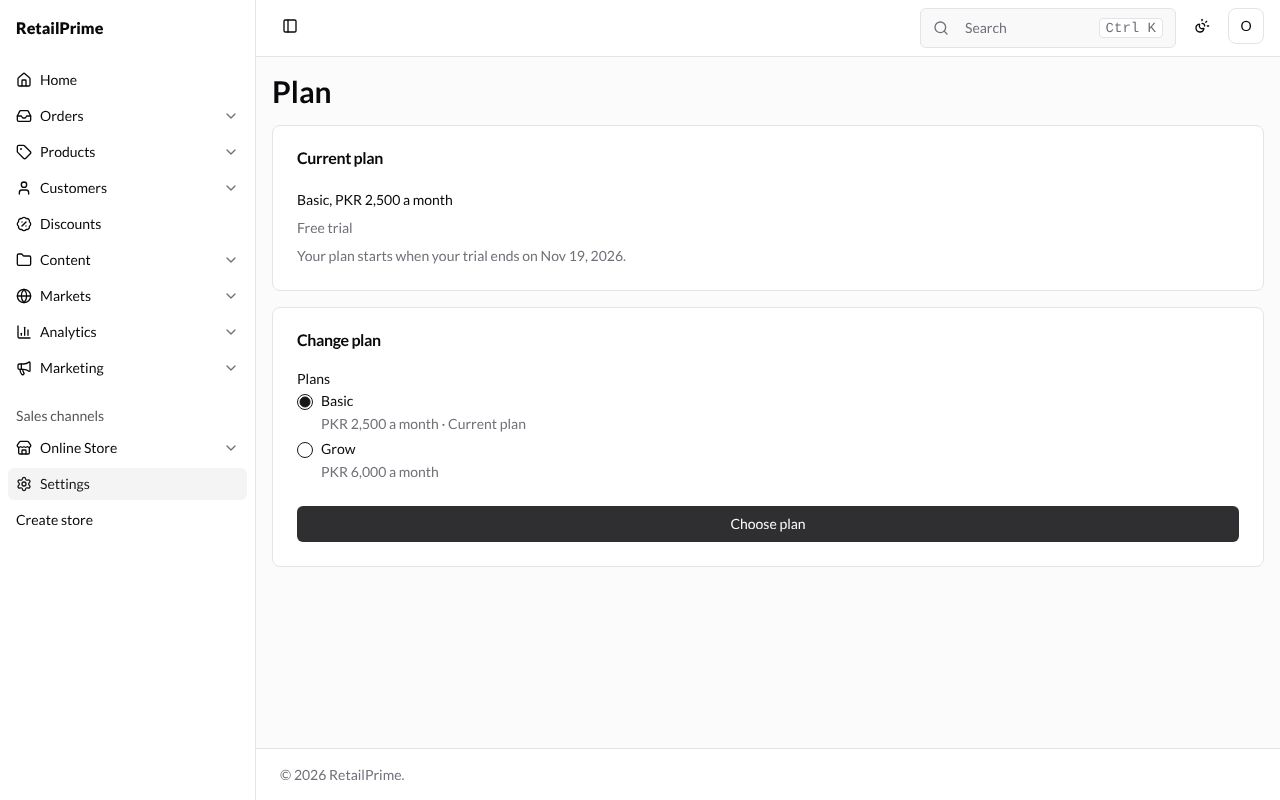
During the trial you can choose another plan the same way; it replaces the one you chose.
When the trial ends
When the trial ends, RetailPrime issues your first invoice. A yellow box at the top of the page says Pay your open invoice under Billing by a date to keep your store open. Plan shows Payment overdue until you pay.
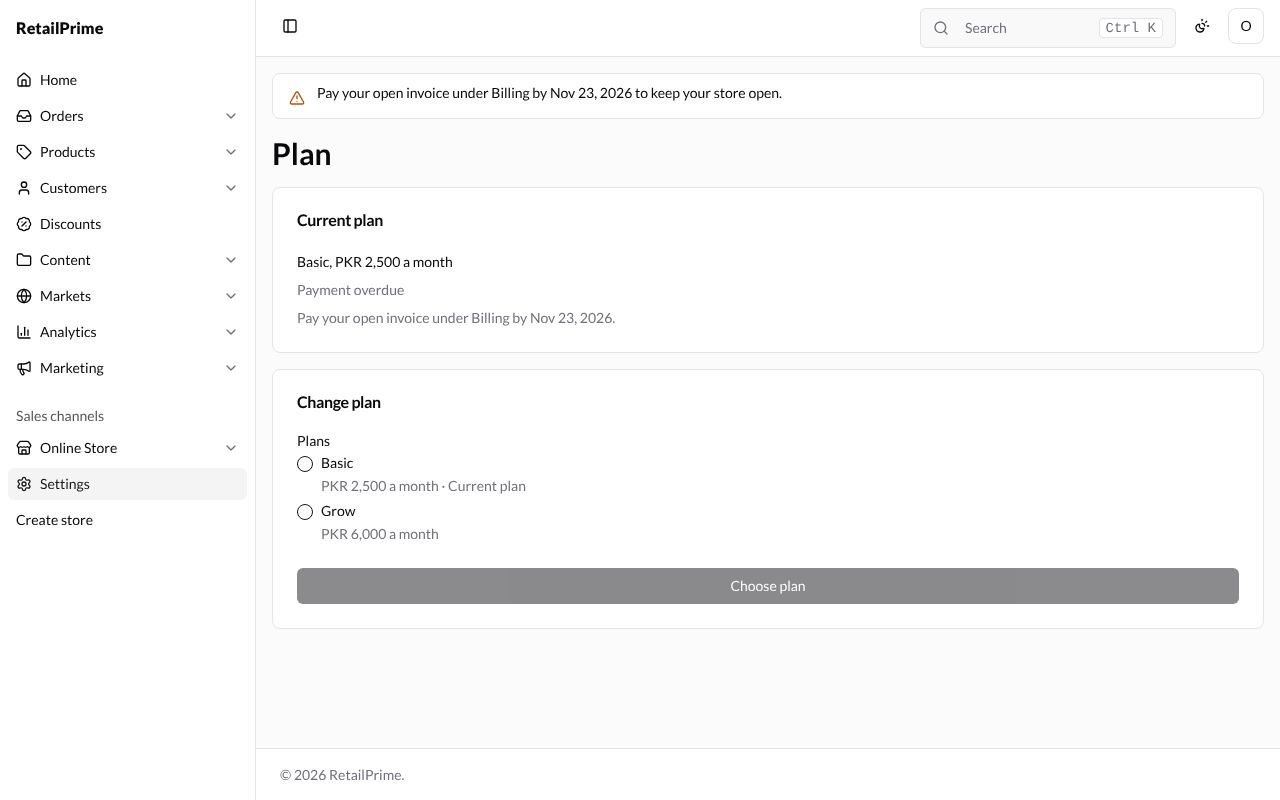
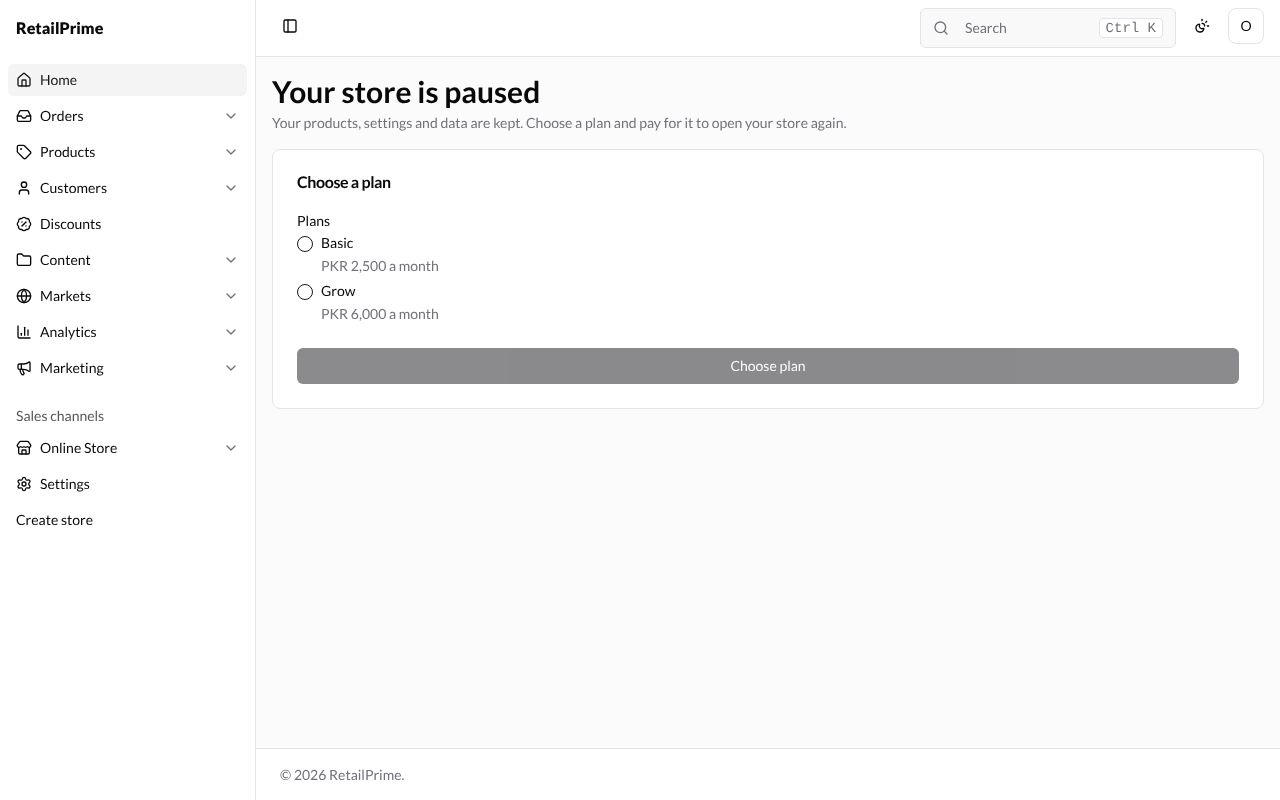
A paused store
A paused store’s Admin shows one page, Your store is paused: Your products, settings and data are kept. Choose a plan and pay for it to open your store again. Choose a plan under Choose a plan and press Choose plan; a Pay invoice card then appears, and you pay as below. Once the invoice is paid, your store opens again. Users who may not choose a plan or pay are told to ask the store owner.
Pay an invoice
-
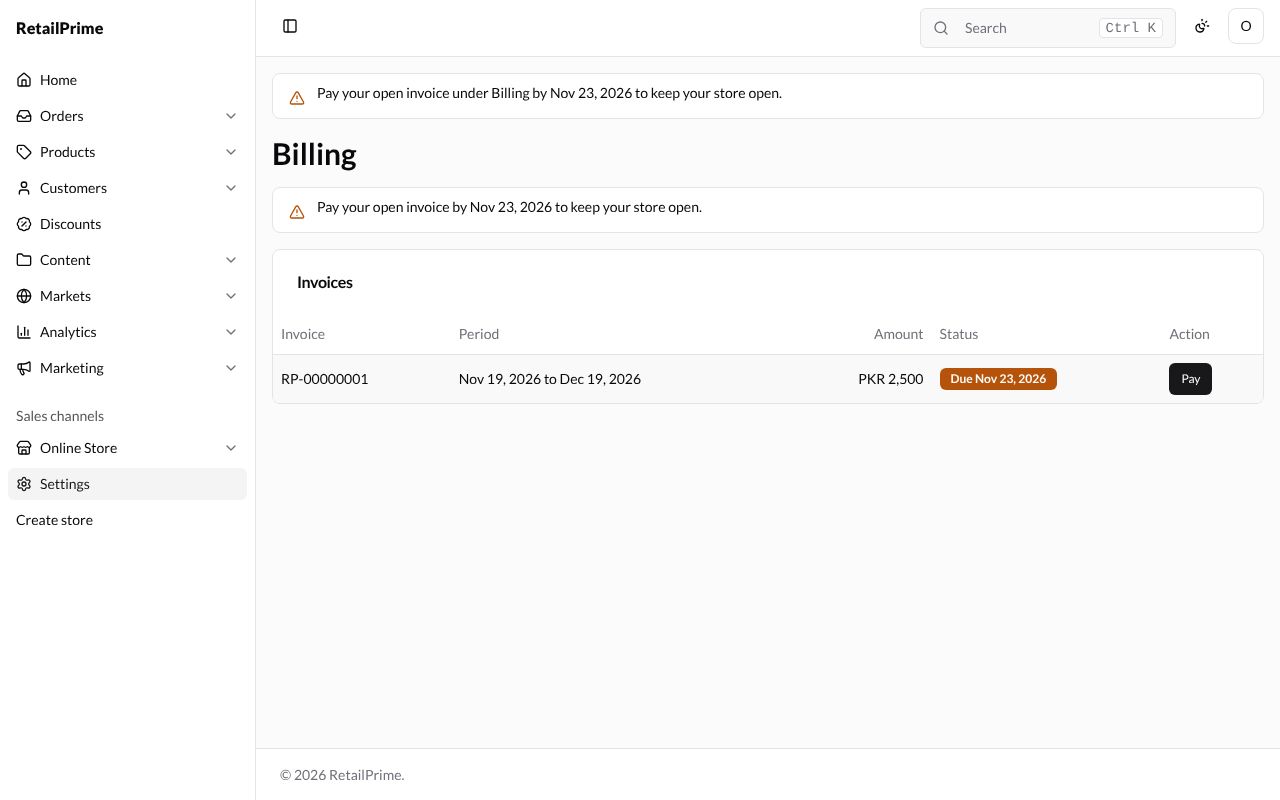
Open Billing. The invoice is listed with its number (such as RP-00000001), the Period it covers, the Amount and Due with the day it is due. Press Pay.
-
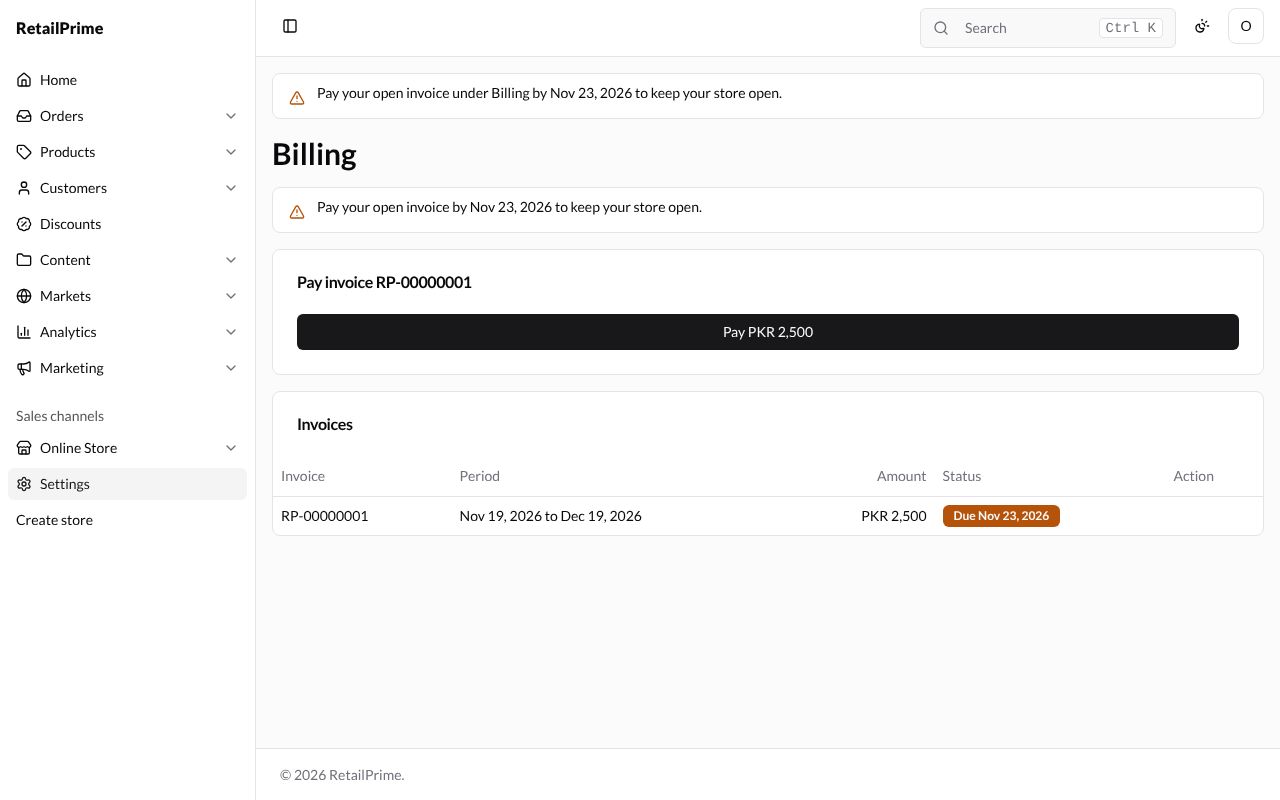
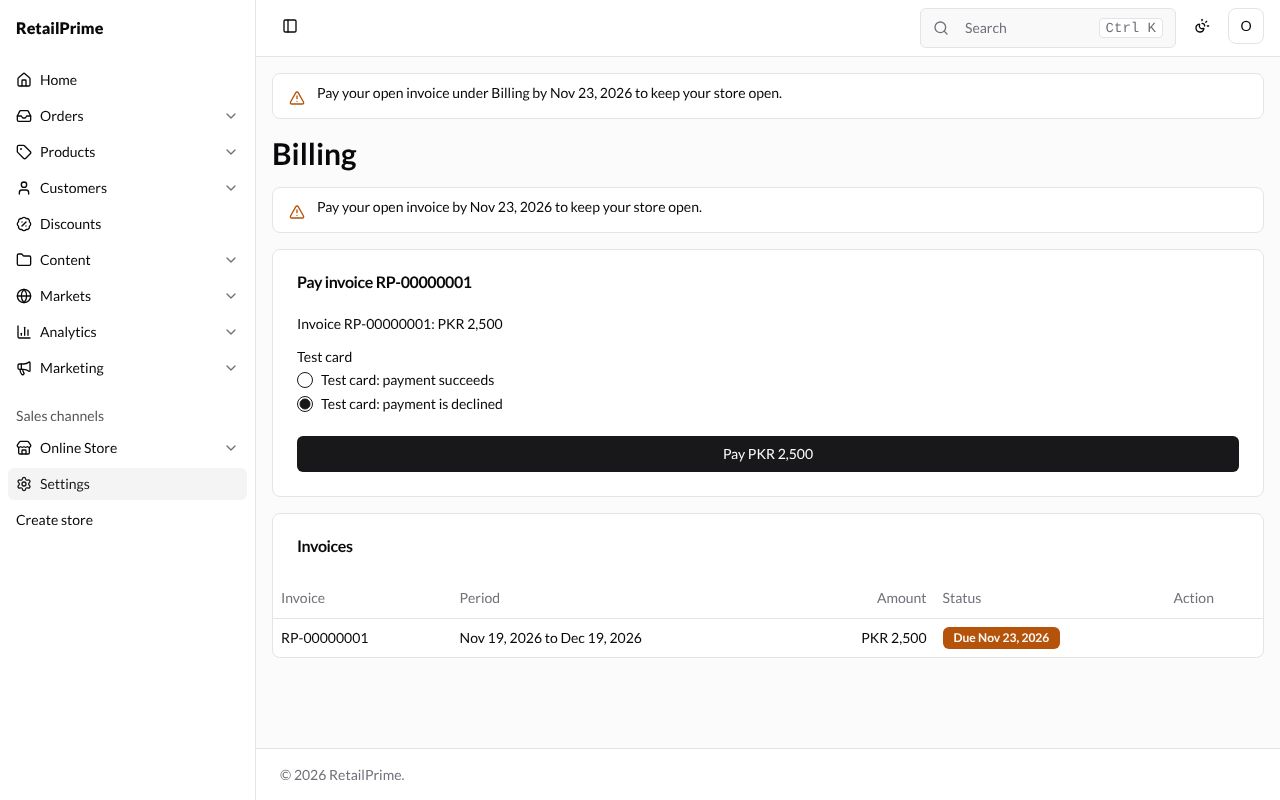
A Pay invoice RP-00000001 card opens above the table. Press Pay PKR 2,500.
-
On staging, payments go through the test gateway, which shows two Test card choices instead of a card form: Test card: payment succeeds and Test card: payment is declined. No real money is taken.
-
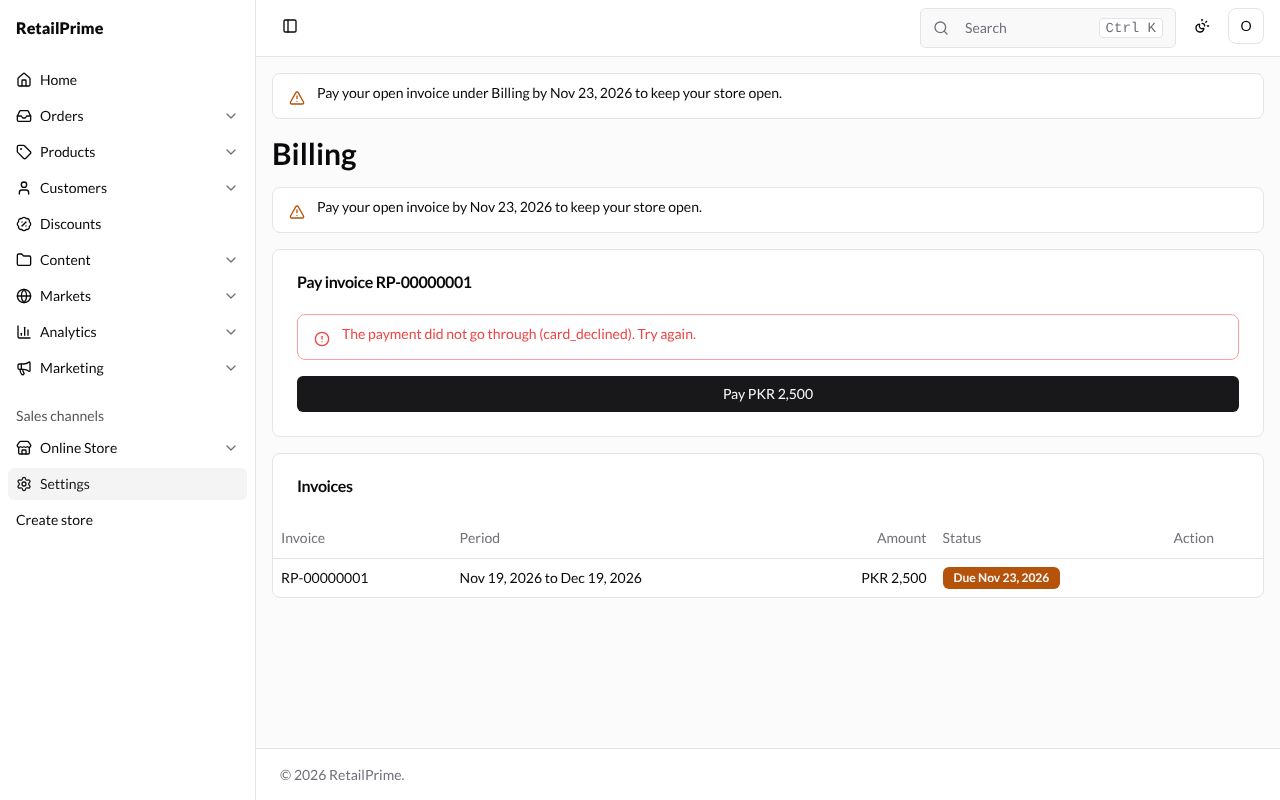
To see what a failed payment looks like, choose Test card: payment is declined and press Pay PKR 2,500. The card says The payment did not go through (card_declined). Try again. The invoice is still due.
-
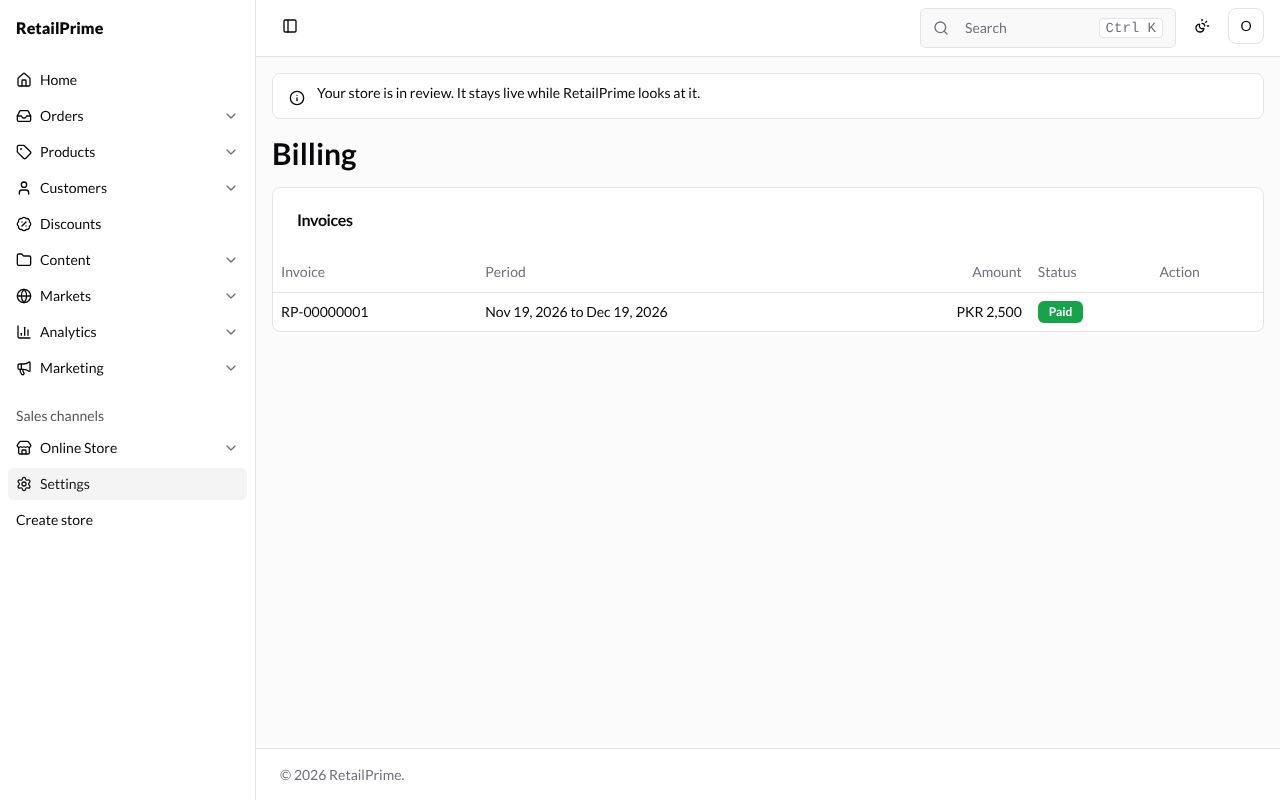
Press Pay PKR 2,500 again, choose Test card: payment succeeds, and press Pay PKR 2,500. The invoice is now Paid, and the yellow box is gone.
Your plan once it is paid
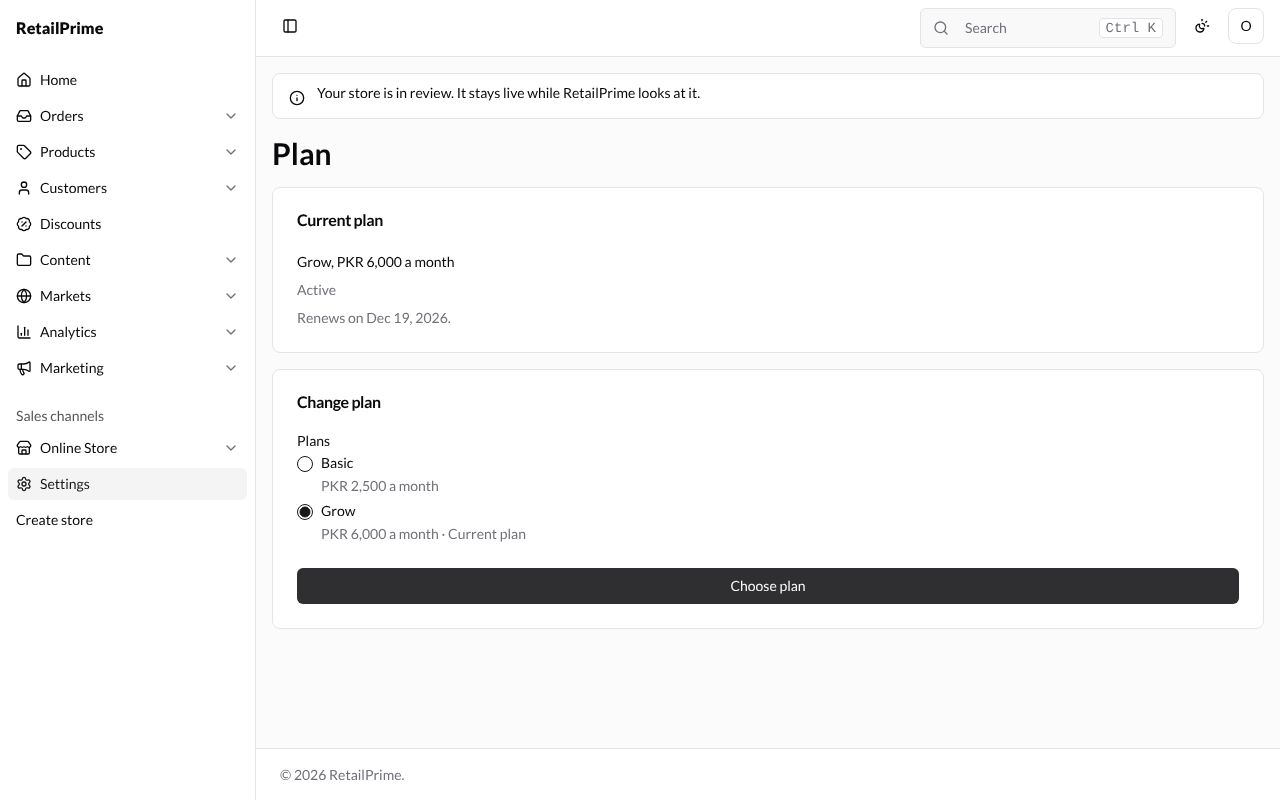
Plan now shows Active and Renews on the day the paid period ends.
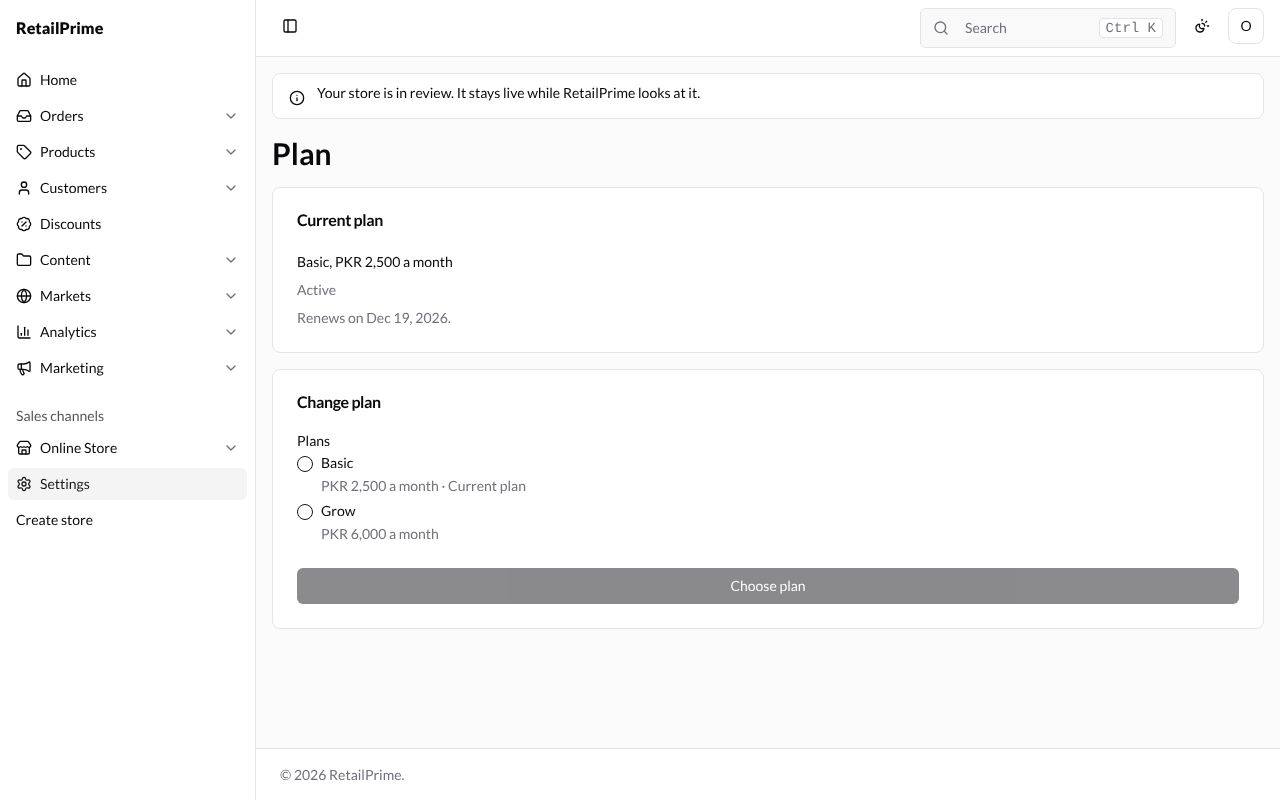
To change plan, click another plan under Change plan and press Choose plan. Here Grow becomes the current plan:
What’s next
Payments: choose how your buyers pay you.