Locations
Add a location, edit it, make it the default, deactivate and activate it, and delete it.
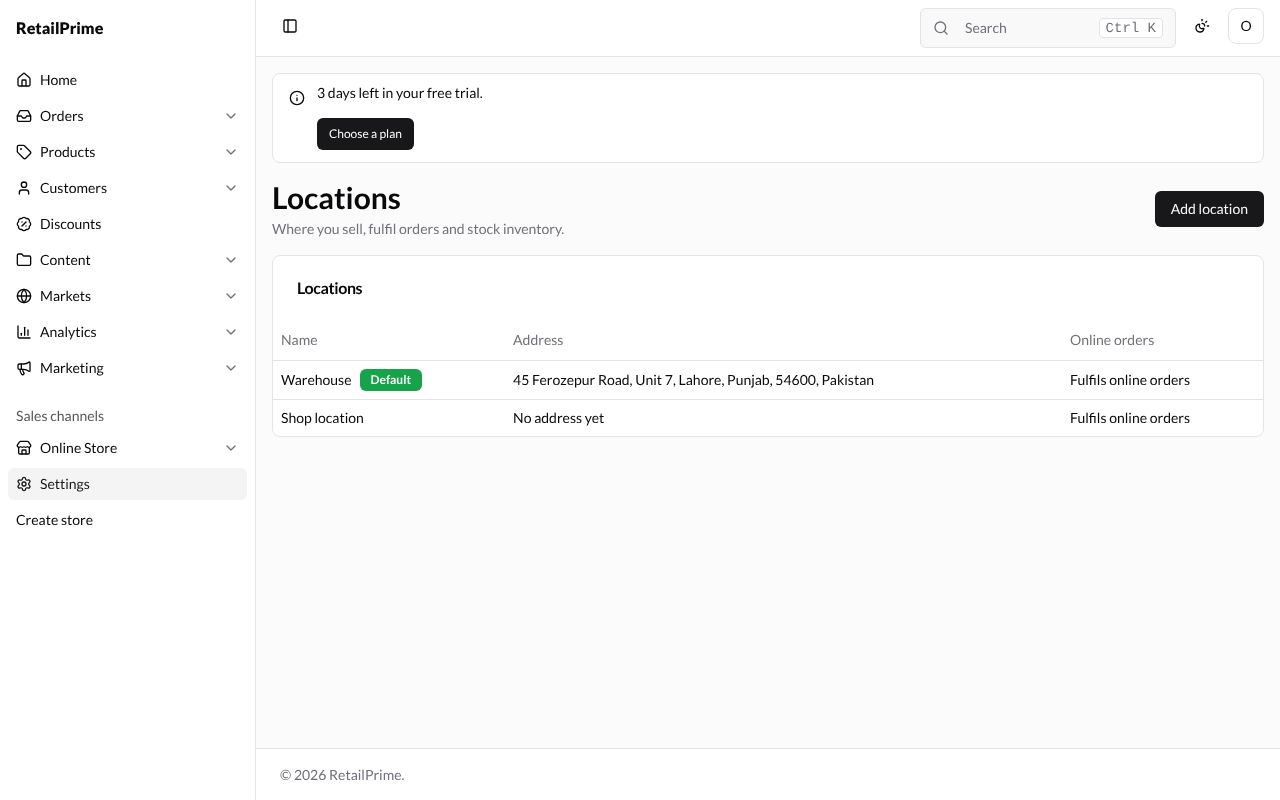
A location is a place you keep stock and fulfil orders from: a shop, a warehouse or a stall. In Settings, press Locations. The page says Where you sell, fulfil orders and stock inventory. A new store has one location, Shop location, marked Default, with No address yet and Fulfils online orders.
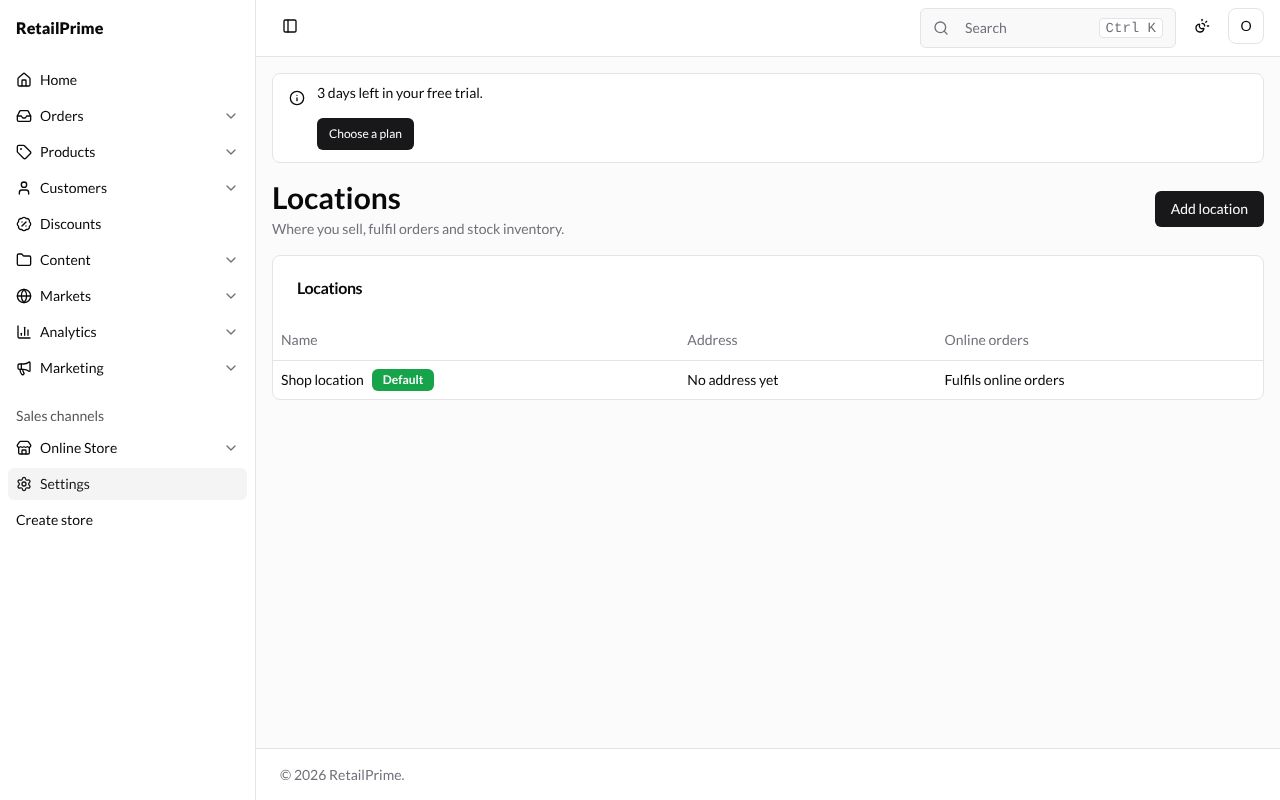
Add a location
-
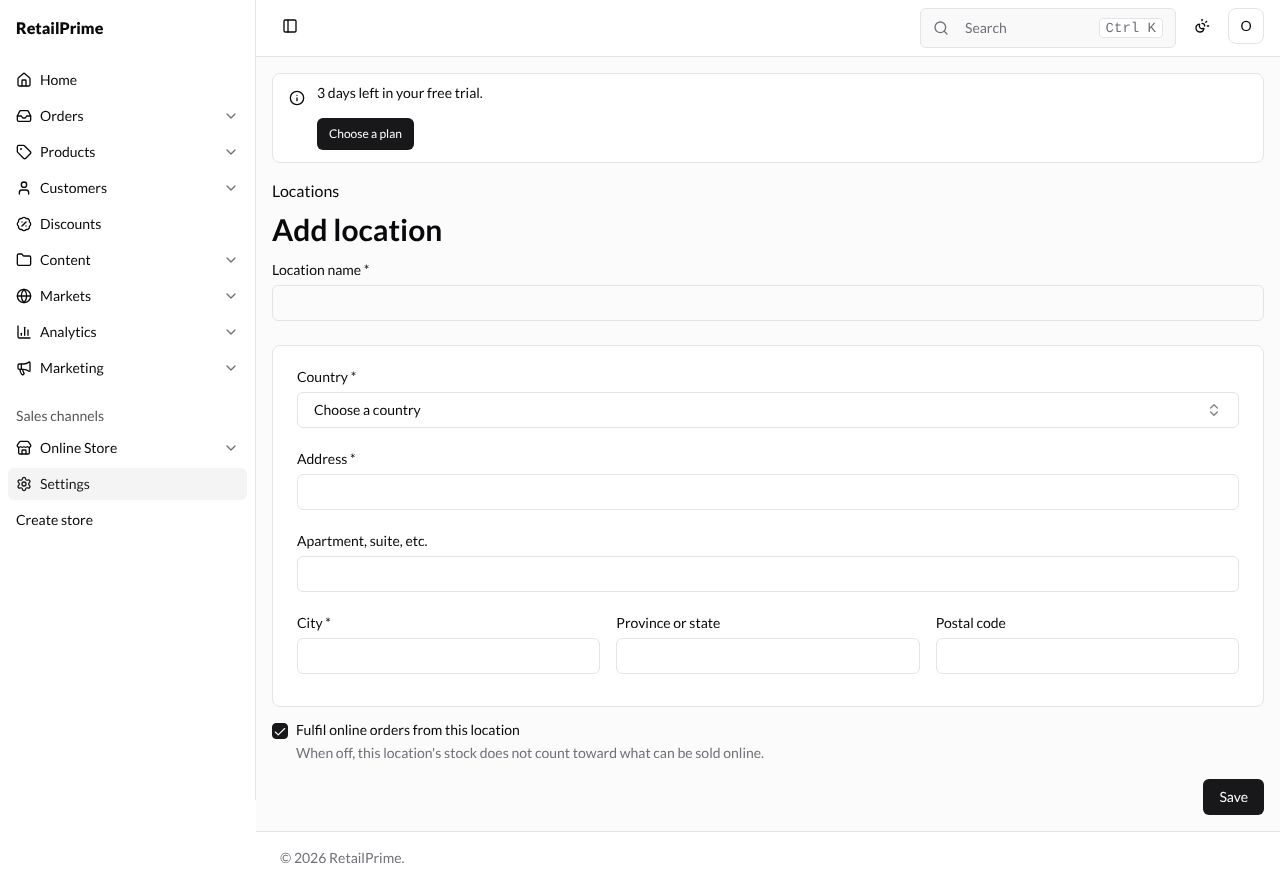
Press Add location.
-
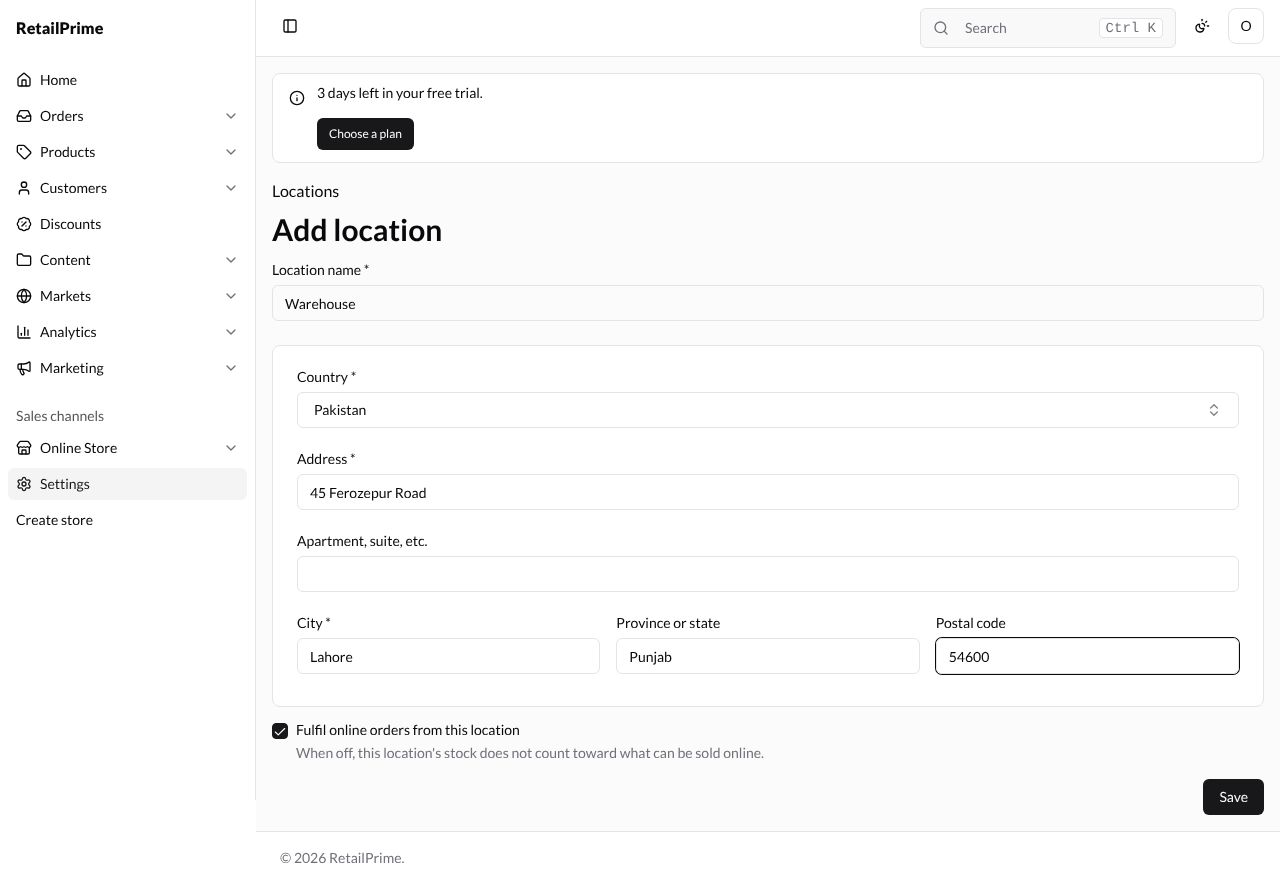
Fill in the page:
| Box | What to type | Example |
|---|---|---|
| Location name (required) | A name no other location has | Warehouse |
| Country (required) | Choose from the list | Pakistan |
| Address (required) | 45 Ferozepur Road |
|
| Apartment, suite, etc. | ||
| City (required) | Lahore |
|
| Province or state | Punjab |
|
| Postal code | 54600 |
|
| Fulfil online orders from this location | Ticked: online orders can be fulfilled from here. When off, this location’s stock does not count toward what can be sold online. | ticked |
-
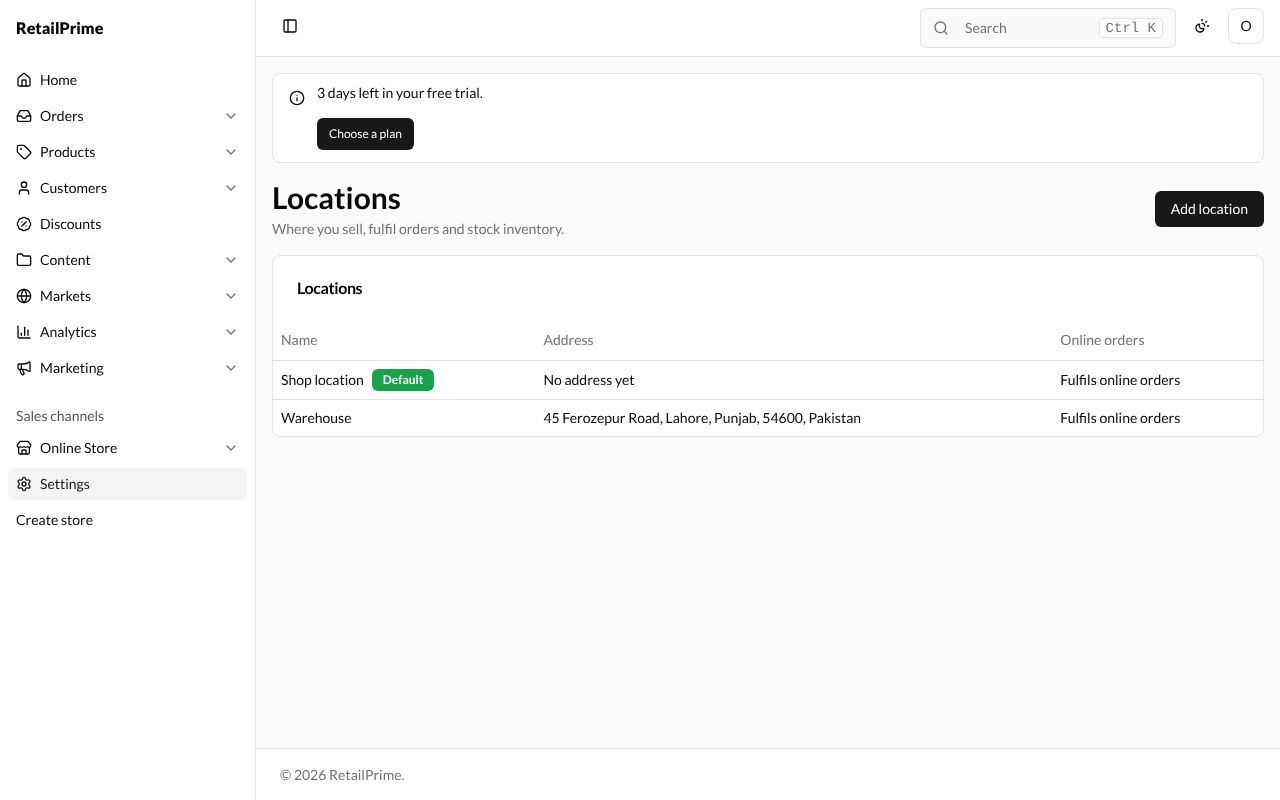
Press Save. You are back on the list with the new location and its address.
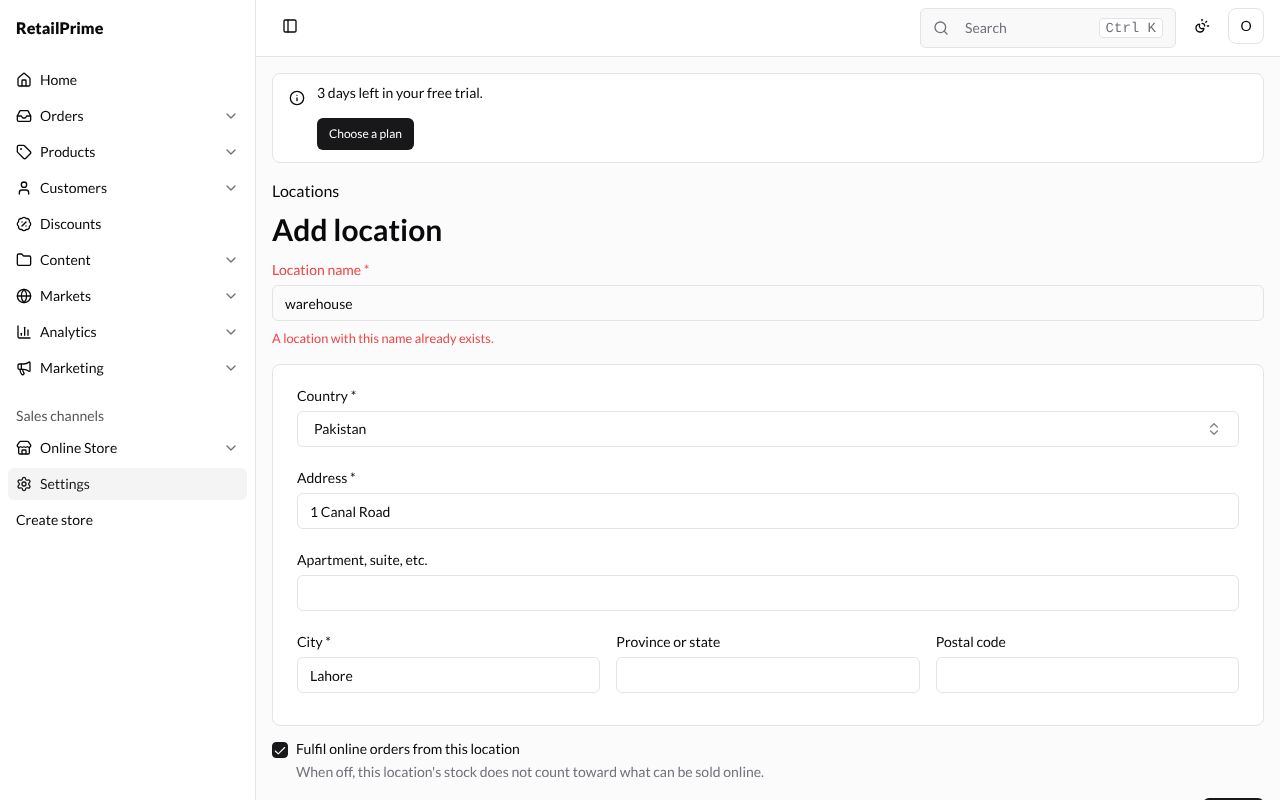
A name that another location already has (capital letters don’t matter) is refused: A location with this name already exists. Here warehouse is refused; changing the name to Pop-up stall (with Fulfil online orders from this location unticked) saves it.
Edit a location
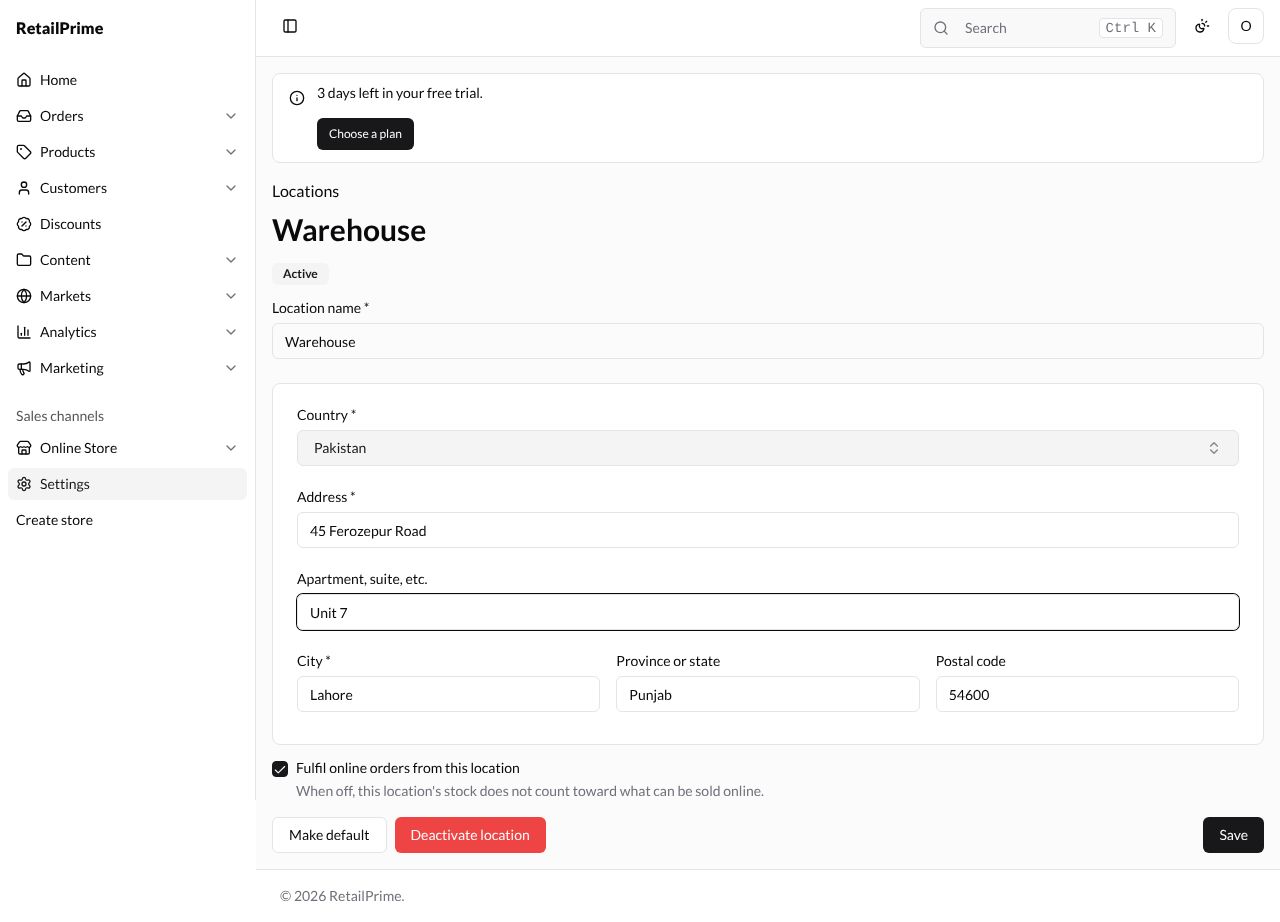
- Press the location’s name. Its page shows Active (and Default for the default one).
- Change any box, here Apartment, suite, etc. to
Unit 7. The Country can’t be changed. - Press Save.
Make a location the default
-
On the location’s page, press Make default.
-
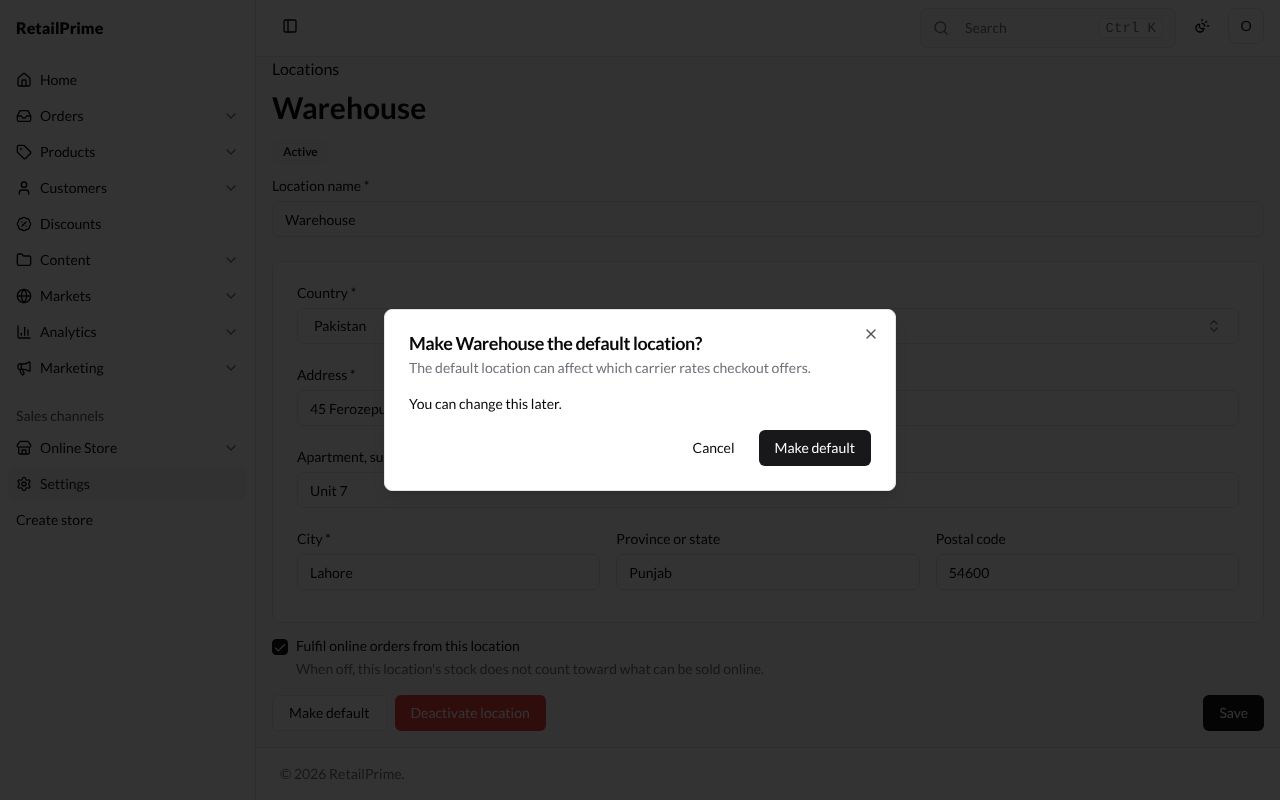
A window asks Make Warehouse the default location? and says The default location can affect which carrier rates checkout offers. and You can change this later.
-
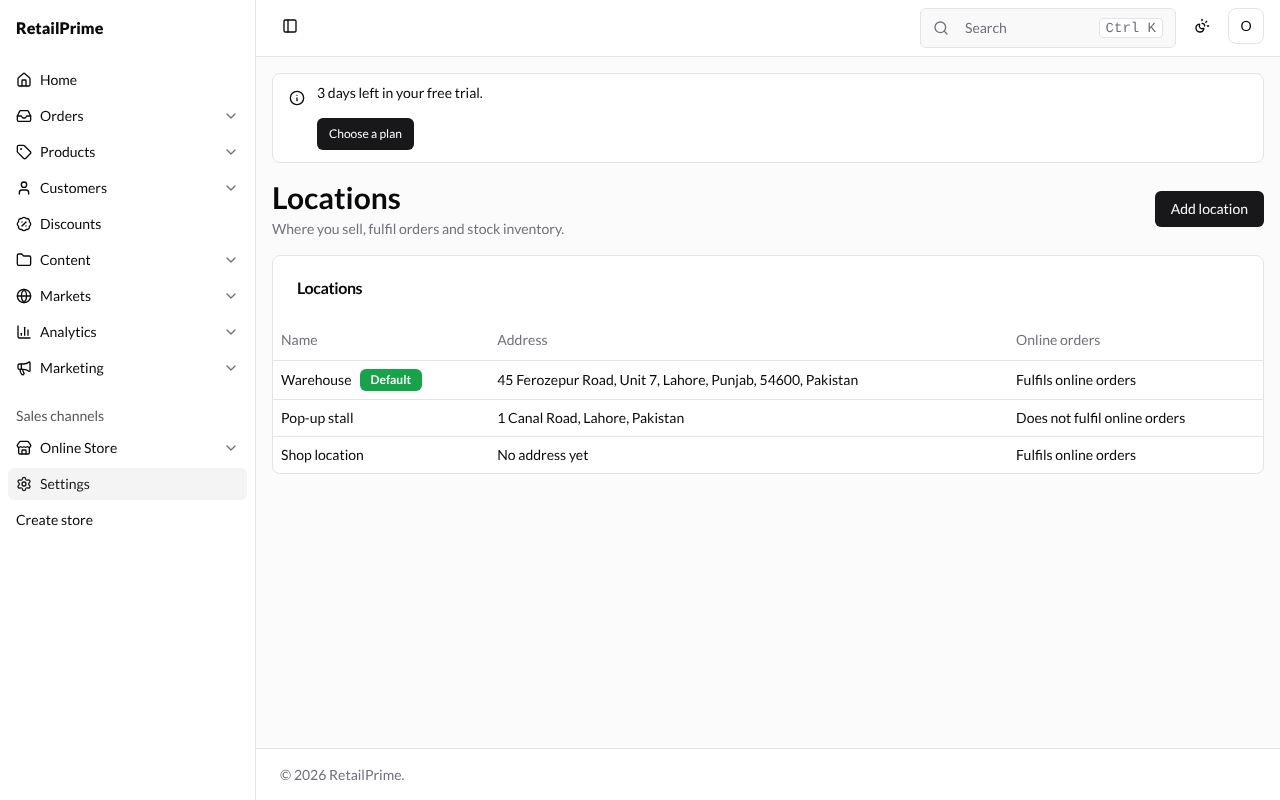
Press Make default. On the list, Default has moved to Warehouse.
Deactivate a location
-
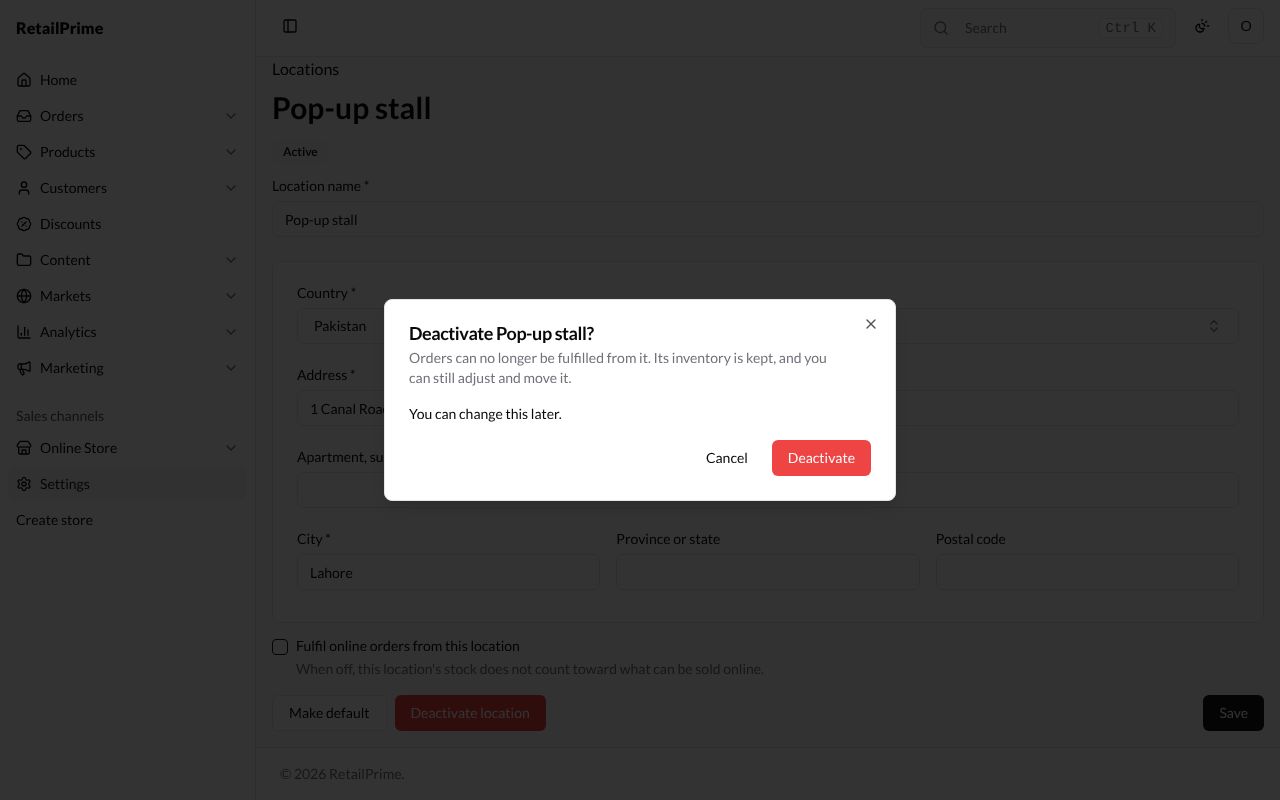
On the location’s page, press Deactivate location.
-
A window asks Deactivate Pop-up stall?: Orders can no longer be fulfilled from it. Its inventory is kept, and you can still adjust and move it.
-
Press Deactivate. The page says Deactivated, and the buttons are now Activate location and Delete location. The list shows it as Deactivated too.
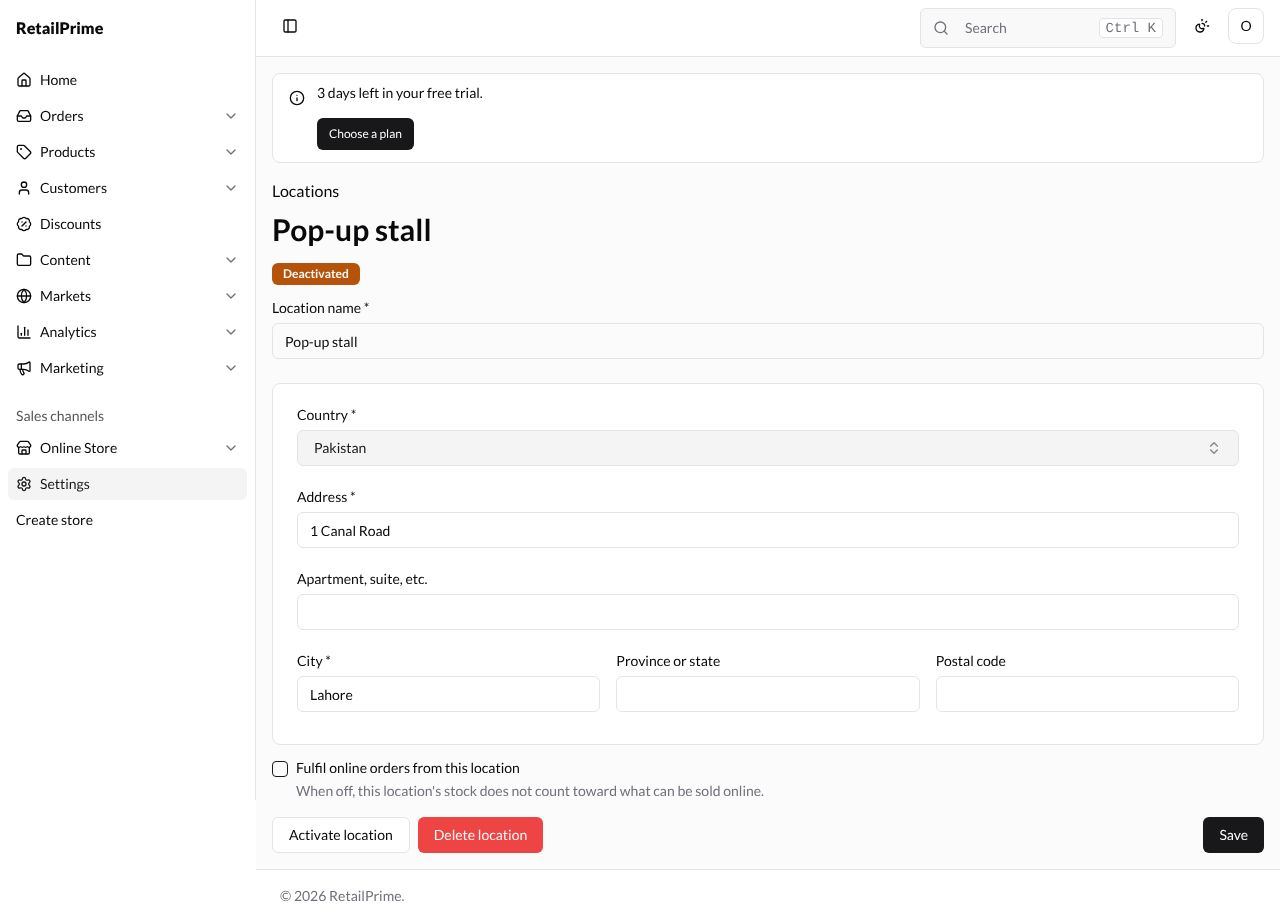
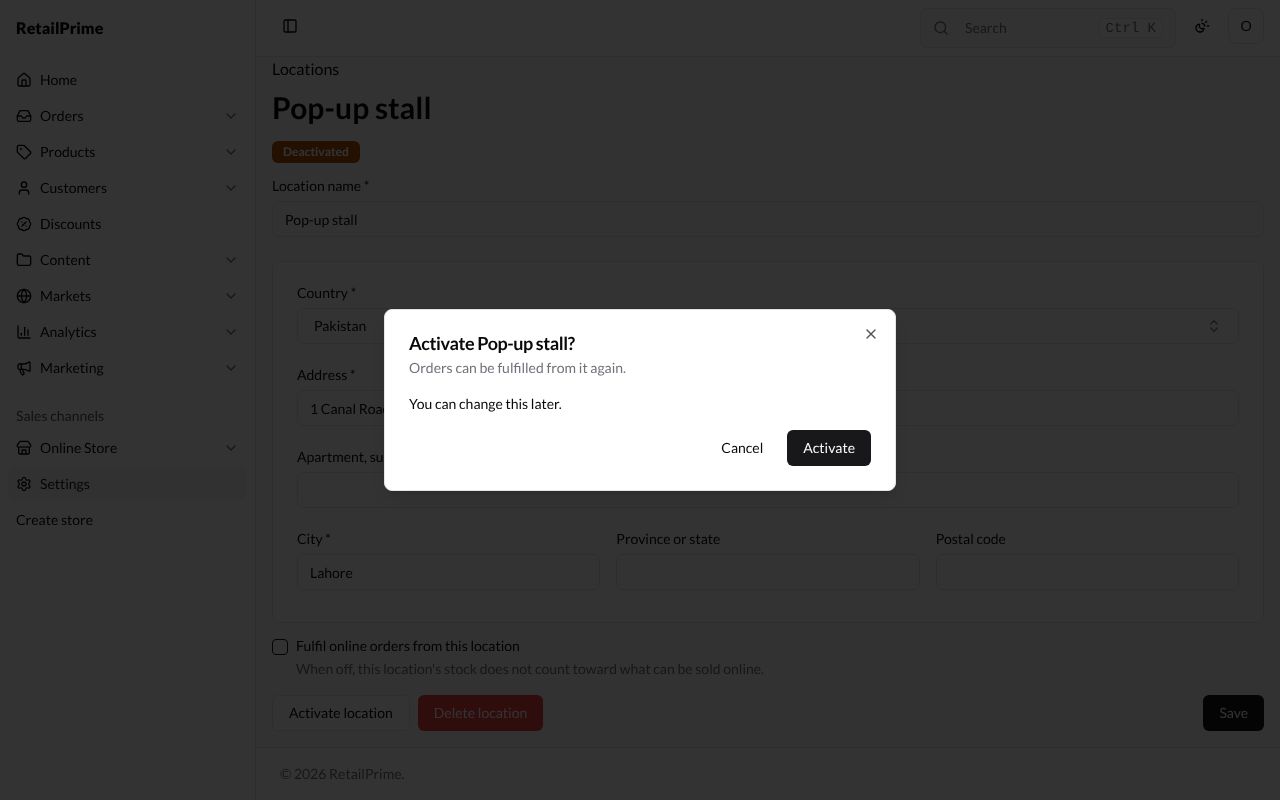
To use it again, press Activate location. The window Activate Pop-up stall? says Orders can be fulfilled from it again. Press Activate.
Delete a location
Only a deactivated location can be deleted.
-
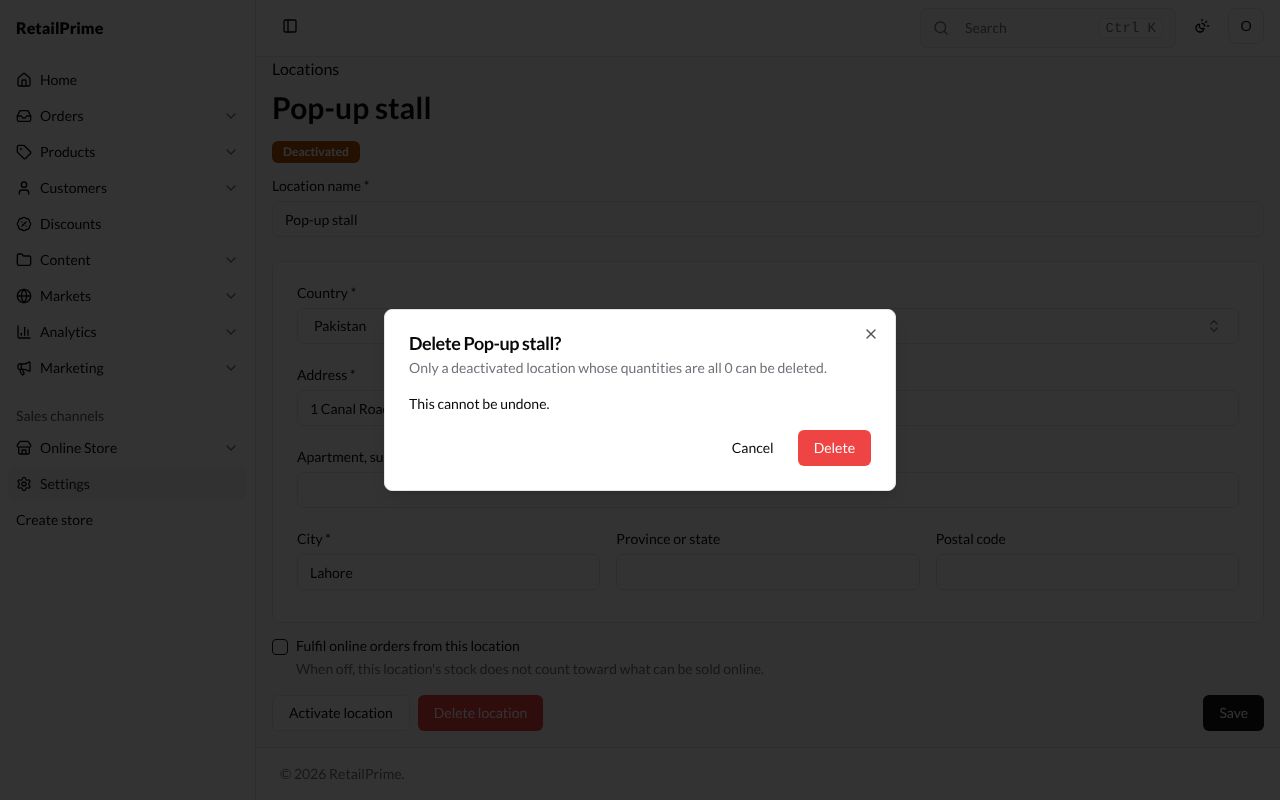
Deactivate it, then press Delete location.
-
A window asks Delete Pop-up stall?: Only a deactivated location whose quantities are all 0 can be deleted. and This cannot be undone.
-
Press Delete. You are back on the list without it.
What’s next
Apps and Storefront API tokens: install apps and give other storefronts access to your store.