Marketing email
Where the Marketing email settings page is, and what it holds.
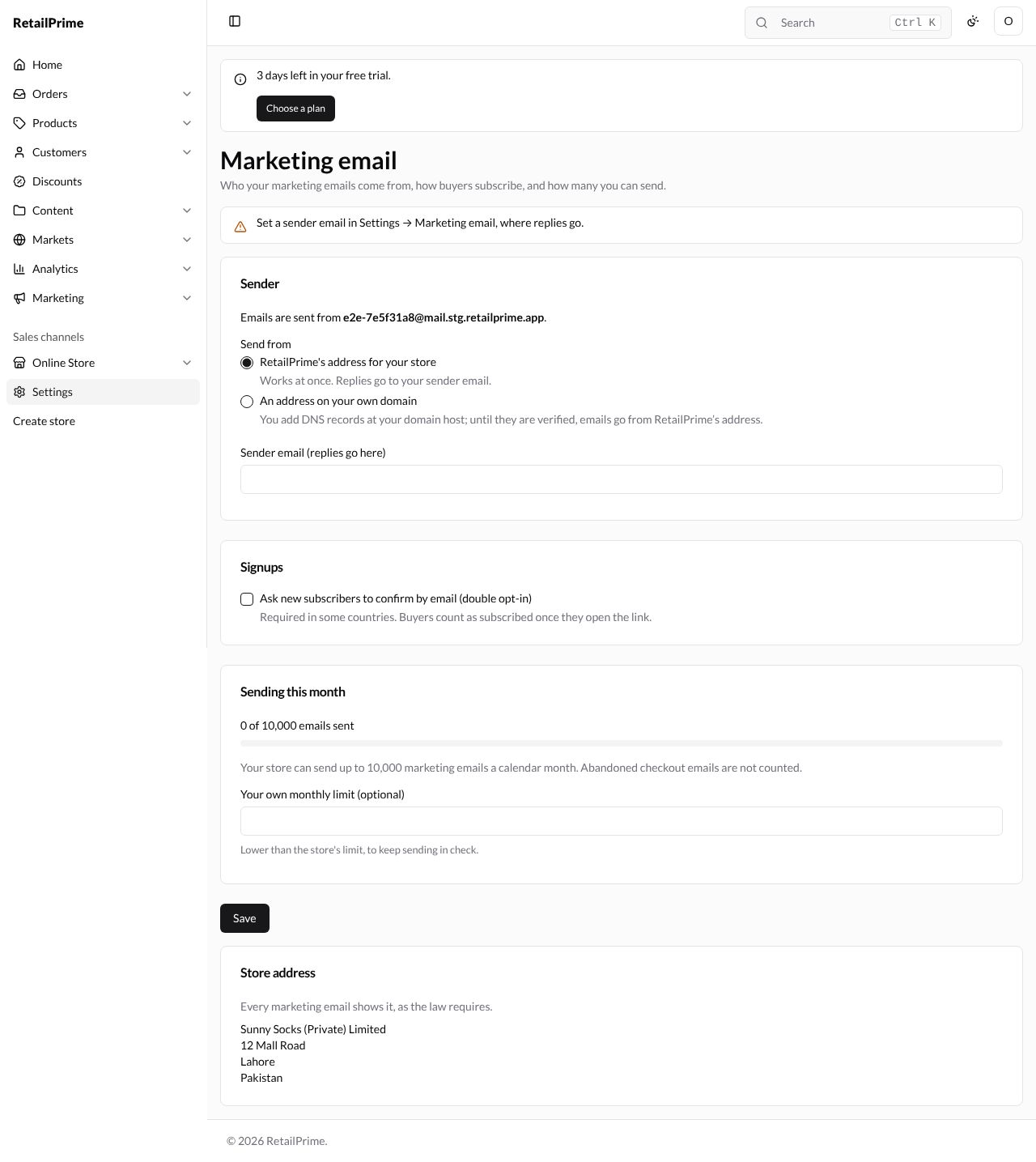
In Settings, press Marketing email, the last card. The page says Who your marketing emails come from, how buyers subscribe, and how many you can send. Until you set a sender, a yellow box says Set a sender email in Settings → Marketing email, where replies go.
It has four cards:
| Card | What it holds |
|---|---|
| Sender | Send from RetailPrime’s address for your store (with Sender email (replies go here)) or An address on your own domain |
| Signups | Ask new subscribers to confirm by email (double opt-in) |
| Sending this month | How many emails you sent, out of your store’s monthly limit, and Your own monthly limit (optional) |
| Store address | Every marketing email shows it, as the law requires. It comes from Settings → General |
Part 4 goes through every box on this page, step by step, before you send your first marketing email: see Marketing email settings.
What’s next
You have finished part 6: settings and apps. Go back to the Welcome page to see the whole guide.